How to Combine Two Letters into One Logo | Intertwined Monogram Design in Vector Ink
In this tutorial, you'll learn how to transform two simple letters into a p...
Vector Ink is more than just an online SVG editor; it's a versatile tool that anyone can use to make edits and export the results as SVG, JPG, or PNG for free. In this tutorial, we'll guide you through the process of importing a photo, adding text, and exporting your creation with Vector Ink. Adding text over an image is straightforward, providing a convenient online solution for anyone needing to enhance their photos.
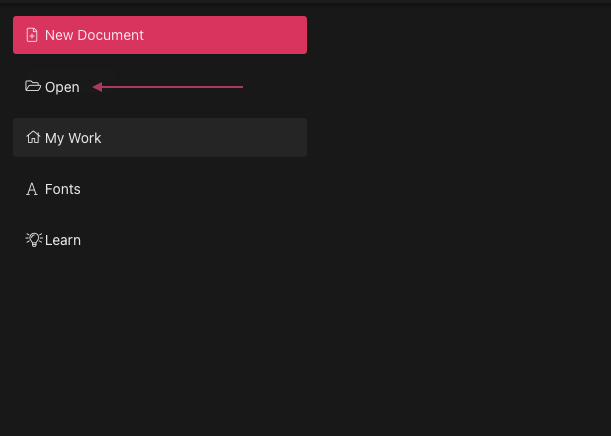
Begin by opening the Vector Ink web app. Click "Open" to access the file explorer and select the photo you wish to edit from your device.
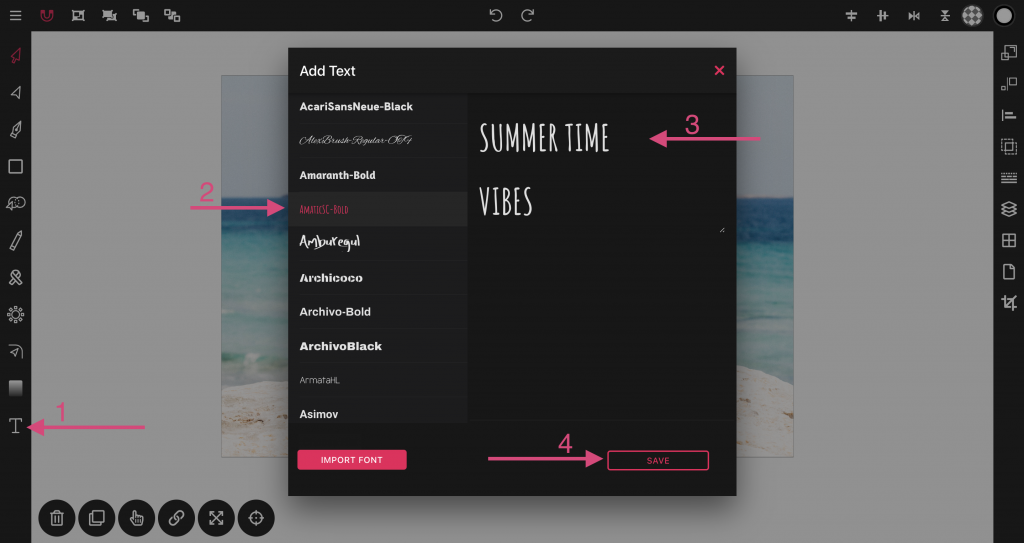
Once your photo is uploaded, you'll be directed to the canvas. To add text, click the text icon in the toolbar to open the "Add Text" window. Here, select a font, enter your desired text in the text box, and click "Save" to apply the text to your image.
You should now see black text over your image. Select the text if you need to make edits. To change the color, open the "Fill Color" panel by clicking the color button at the top right of the canvas and adjust the color dials to find your desired hue.
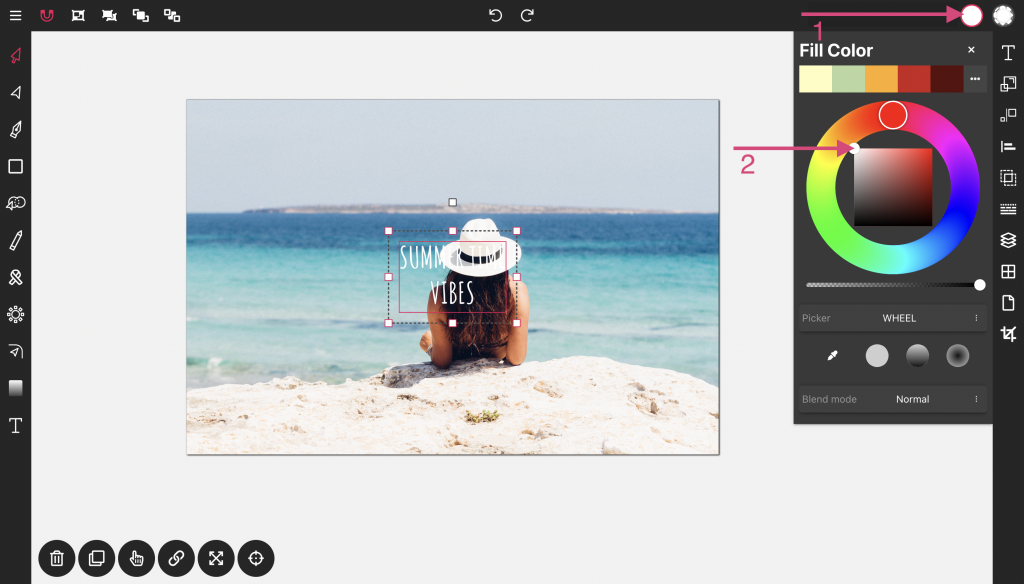
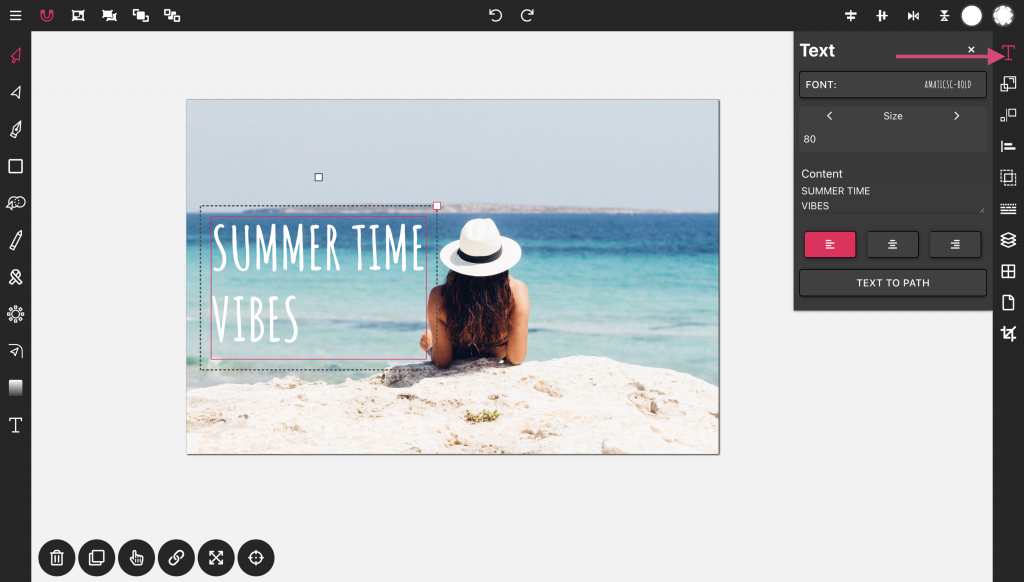
With the text selected, a text icon will appear in the toolbar to the right. Click this icon to open the text properties, where you can modify the font, font size, content, and alignment. For instance, in our example, we dragged the text to the left and aligned it to the left side of the photo.
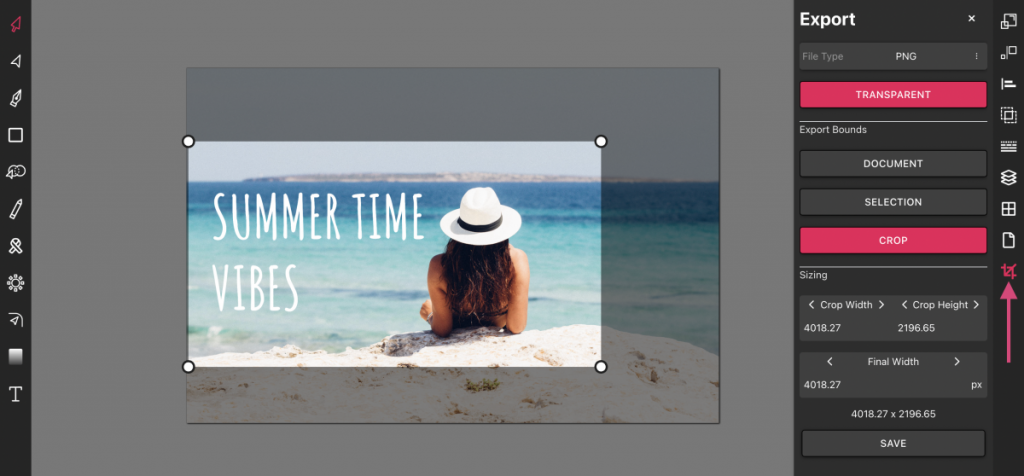
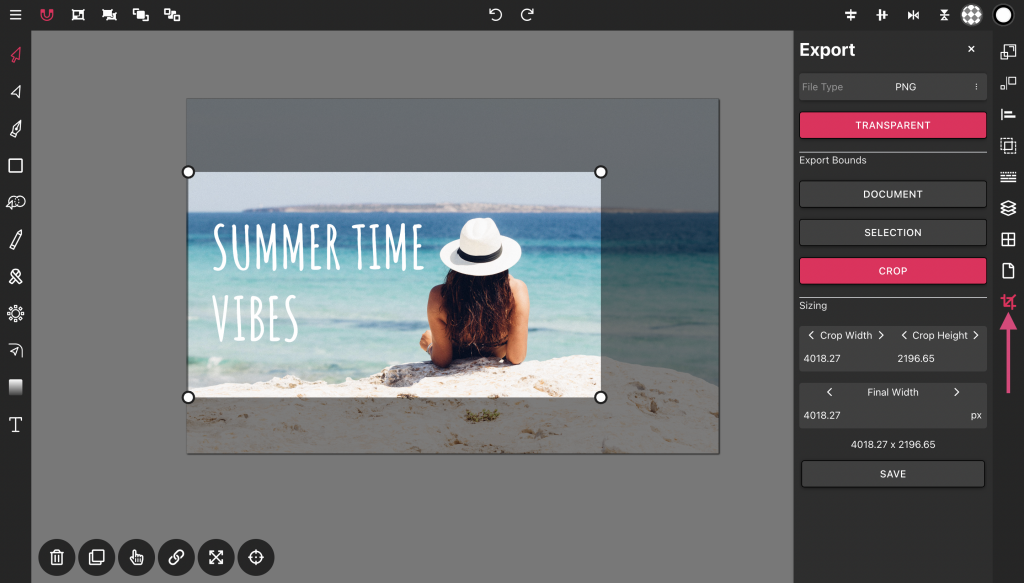
To export, click the crop icon at the bottom of the toolbar on the right to open the export panel. Select your desired file type and bounds: "Document" will export the entire area of the document, "Selection" will export any selected elements, and "Crop" will allow you to use a lightbox for precise cropping. Set the final width as per your preference and click "Save" to download your edited photo.
Vector Ink provides an easy and convenient way to make quick edits online for free, regardless of the device you're using. Whether you're on a phone, tablet, or desktop, the functionality remains consistent, making it accessible for everyone to enhance their images effortlessly.
In this tutorial, you'll learn how to transform two simple letters into a p...
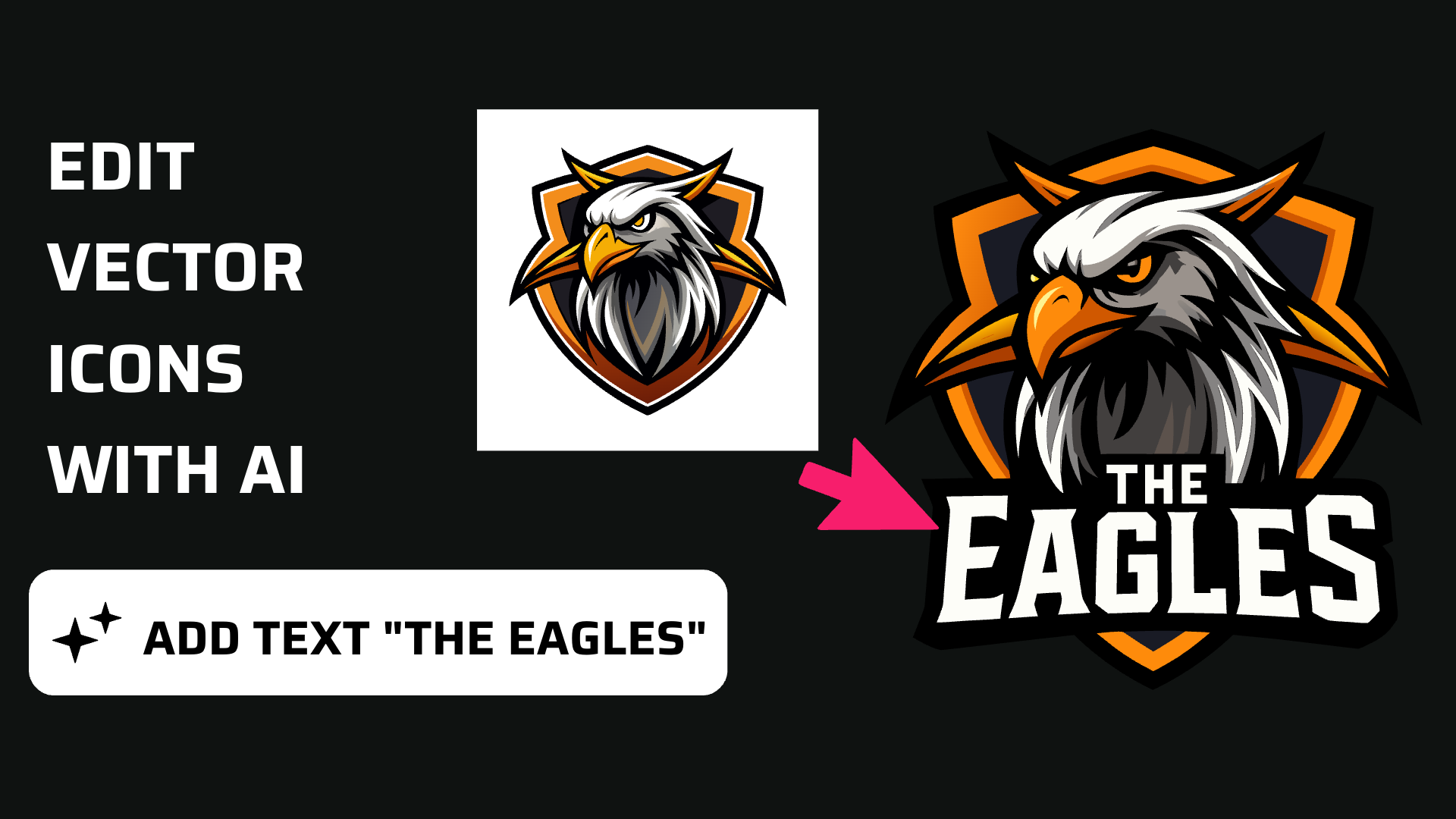
Discover how easy it is to open the Vector Ink Icon Library, import icons t...
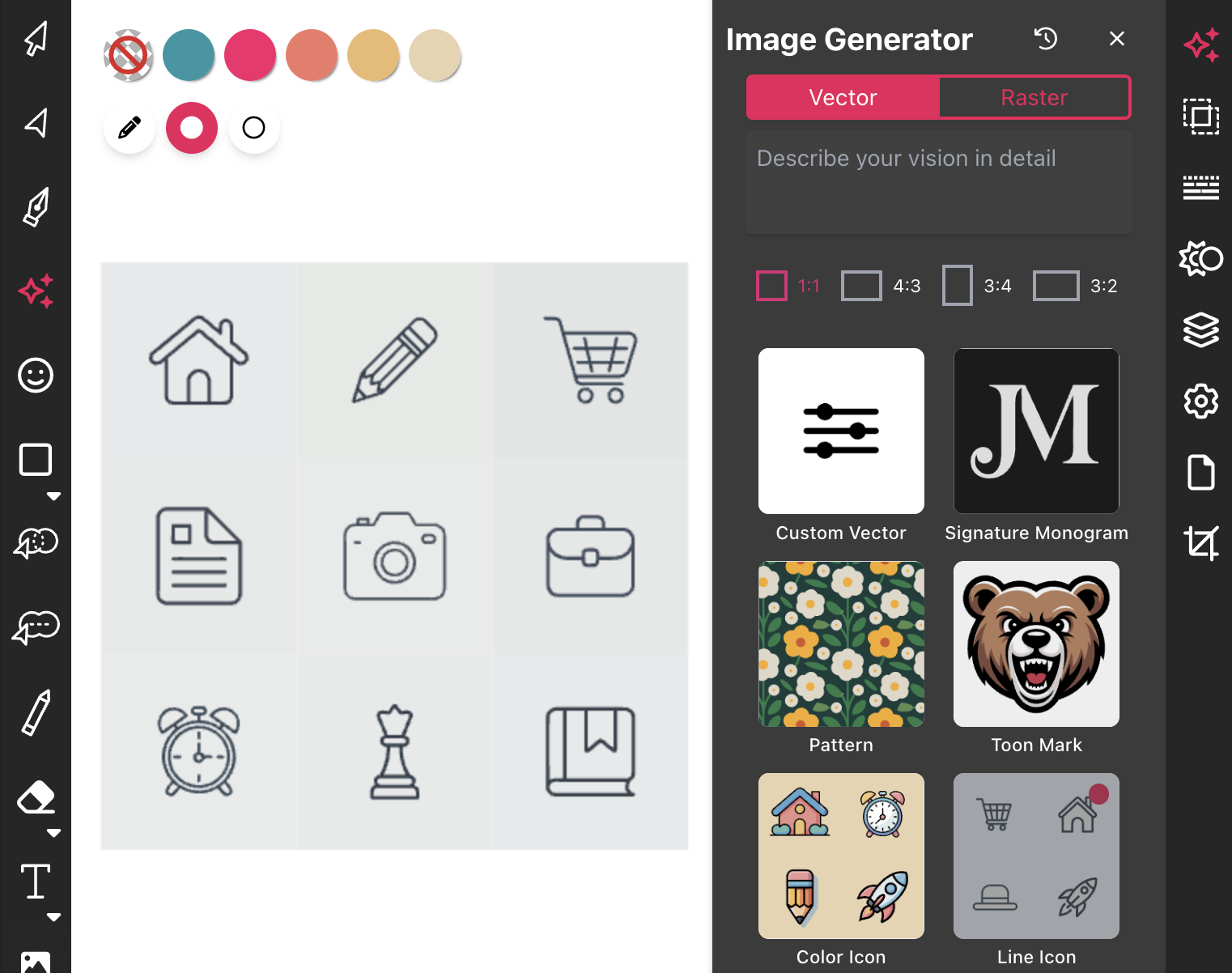
Most icon libraries offer a handful of basic shapes and call it a day. Vect...