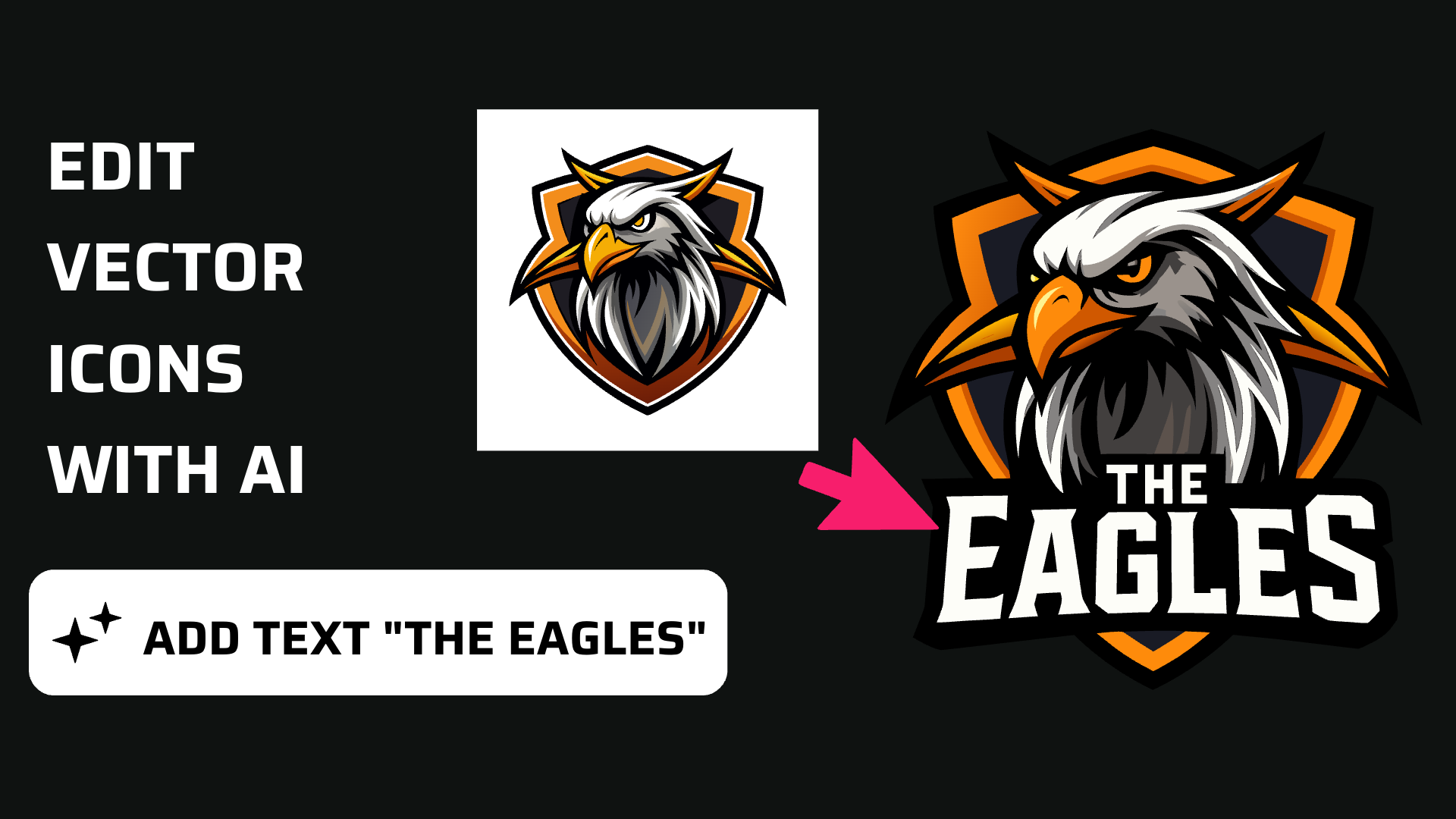
Edit Any Icon Like Magic! Make Changes To Vector Icons with AI in Vector Ink
Discover how easy it is to open the Vector Ink Icon Library, import icons t...
In this tutorial, you'll learn how to transform two simple letters into a professional intertwined monogram logo using Vector Ink, the free web-based vector design tool. Whether you're creating a brand mark, personal initials, or a clean typographic logo, this step-by-step guide will show you how to stack, outline, offset, and intertwine letters using Vector Ink's intuitive tools.
Head over to VectorInk.io and click New Project. This loads a fresh canvas where you can begin designing your monogram logo.
Select the Text Tool from the left toolbar, click anywhere on the canvas, and type your first letter. In the video example, the letter T is used.
Switch to the Selection Tool and scale the letter larger by dragging the corner handles. For perfect proportions, hold Shift while scaling.
Open the Text Properties panel on the right (or at the bottom on mobile). Click the Font button and choose a typeface that fits your brand aesthetic. In the tutorial, the designer uses Young Serif for a strong, elegant look.
Duplicate the first letter by clicking the Duplicate button or by holding Option (Alt) and dragging the object. Change the second letter to the one you want — in the example, the letter C is used.
Position the letters so they overlap in an interesting way. Consider how they might weave in front of and behind each other for that intertwined look.
To better visualize how the letters interact, apply different colors to each letter. This makes it easier to plan where the letters should overlap, interweave, or appear in front or behind one another.
Before you can use vector editing tools, you must convert the letters into editable shapes.
Select both letters → Text Properties → Text to Path.
On mobile, this option appears under the Transform tab. Once converted, the letters become true vector paths you can modify freely.
To create a clean separation between overlapping areas, you'll generate stroke paths around each letter:
These outline strokes will act as guides to help you build smooth, balanced intersections between the letters.
Now convert your strokes into editable shapes:
Select the duplicated stroked letters → Stroke Properties → Stroke to Path.
You should now have four objects in your Layers panel: the original letter shapes and the new expanded stroke shapes.
This is where your monogram comes to life. Select all your letter and stroke paths, then activate the Shape Builder Tool.
With fill mode enabled, drag across the segments you want to combine for each letter. Follow the order you want the letters to appear in—some parts in front, some behind—to create that woven, intertwined effect.
Fill areas for the first letter, switch colors, then fill the segments that belong to the second letter.
Once the shape building is complete, switch back to the Selection Tool to review your final monogram. You should now see a clean, intertwined two-letter logo.
Open the Export Panel to save your design in multiple formats:
Because your design is fully vector-based, you can export it at any size without pixelation.
With Vector Ink, you can turn any two letters into a modern, intertwined monogram logo in minutes—right in your browser. This technique works with any font and can even be expanded to three-letter monograms. Experiment with different letter combinations, typefaces, and offsets to create unique logos for yourself or your clients.
If you enjoyed this tutorial, feel free to request another letter combination in the comments and subscribe for more Vector Ink design guides, tips, and updates!
Discover how easy it is to open the Vector Ink Icon Library, import icons t...
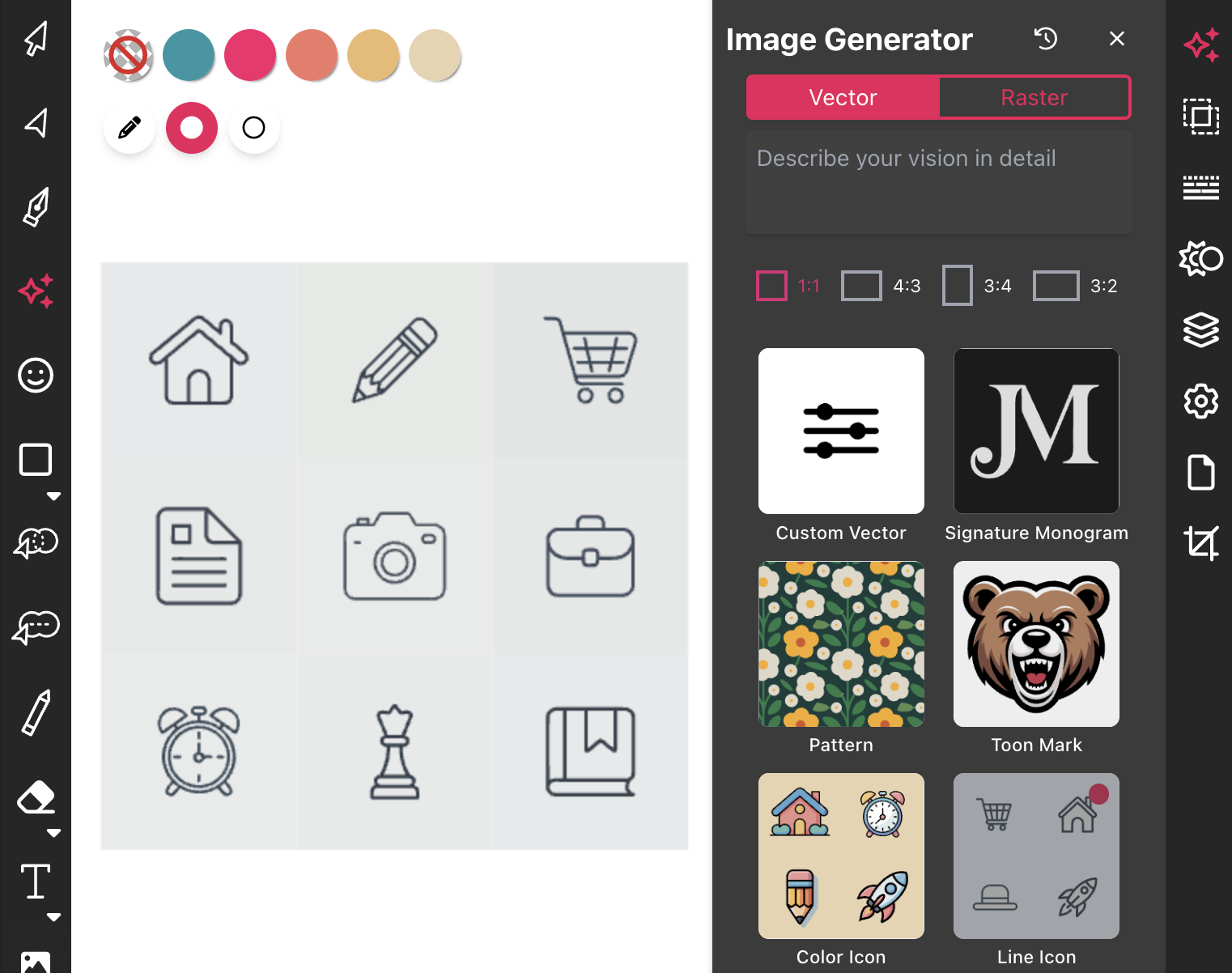
Most icon libraries offer a handful of basic shapes and call it a day. Vect...

In this tutorial, you'll take a rough bird sketch and convert it into a pol...
In this tutorial, we'll guide you step-by-step on how to create a badge log...
In this tutorial, you’ll learn how to create the Flash logo from scratch ...

In this hands-on tutorial, you’ll turn any two letters into a polished lo...