Convert SVG to PNG
Free • UnlimitedUpload your SVG file and set a custom size to generate a pixel-perfect PNG.
Try Another Tool
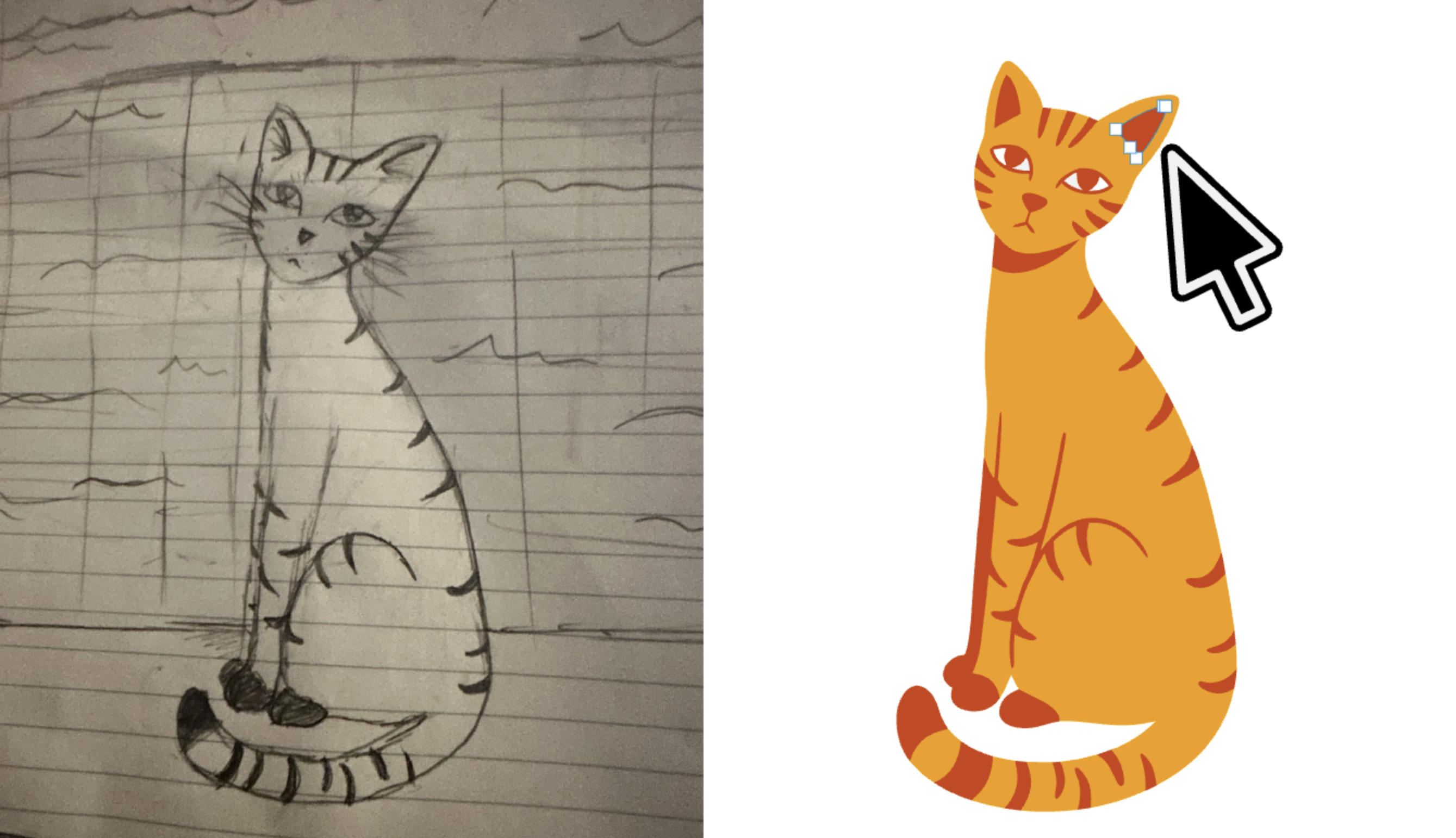
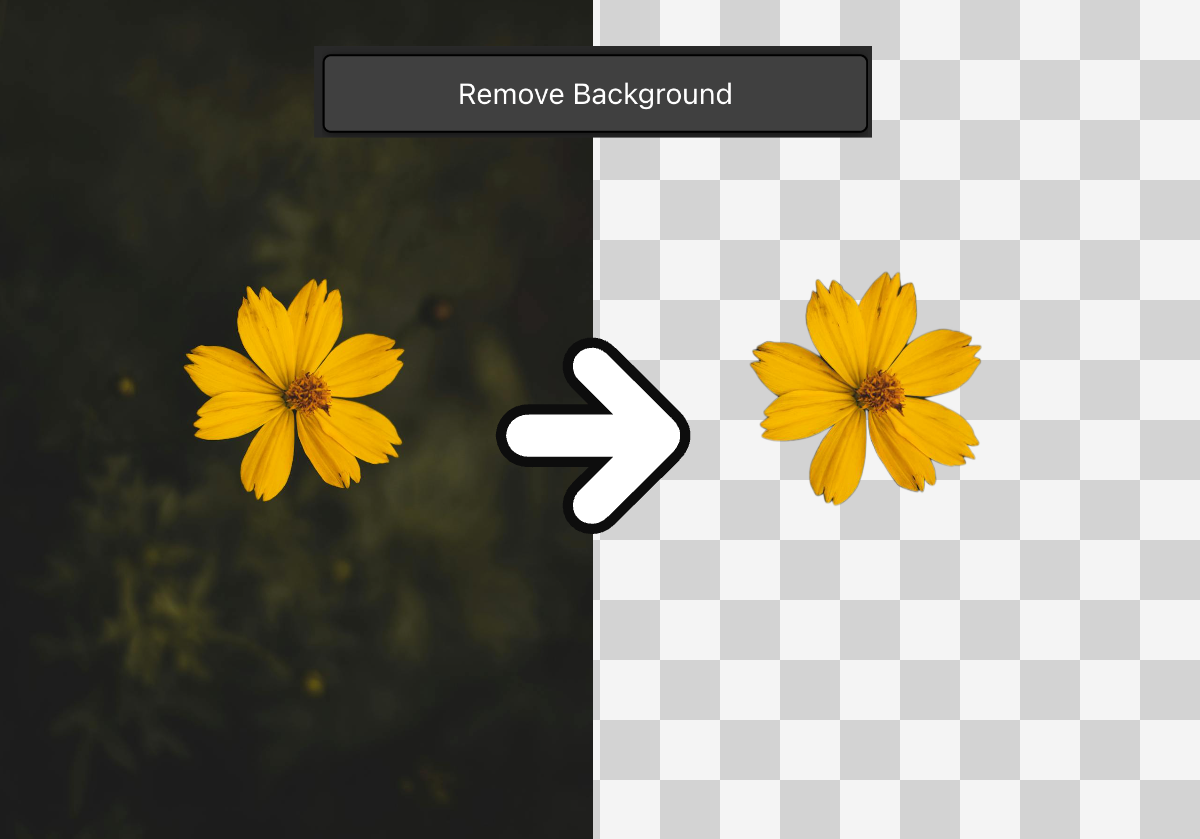


Convert SVG to PNG — With Perfect Quality at Any Size
SVG files are the gold standard for scalable graphics. They're resolution-independent, lightweight, and perfect for logos, icons, and illustrations. But there's a catch: not every platform, tool, or workflow accepts SVG. Social media sites want PNG. Presentation software wants PNG. Your client's email signature needs a PNG. And when you export an SVG to PNG the wrong way — at the wrong size, with the wrong method — you get a blurry, pixelated mess that defeats the purpose of having a vector in the first place. Vector Ink's **SVG to PNG converter** solves this problem completely. Upload any SVG file, set your desired output size, and download a crisp, perfectly rendered PNG. The key difference: instead of simply rasterizing the SVG at its default dimensions and then stretching the result, our tool **scales the SVG vector contents first** and then renders the PNG at the target resolution. The result is a pixel-perfect image with clean edges, sharp text, and zero pixelation — no matter how large you go.
Why You Need to Convert SVG to PNG
SVG and PNG serve fundamentally different purposes, and knowing when to use each format is critical for professional results. SVG is a vector format — it uses mathematical paths to describe shapes, which means it scales infinitely without quality loss. PNG is a raster format — it stores images as a grid of pixels, making it universally compatible but fixed to a specific resolution. The need to **convert SVG to PNG** arises constantly in real-world workflows:
- Social media and web platforms — Most social networks (Instagram, Facebook, LinkedIn, X) don't support SVG uploads. You need PNG versions of your logos, graphics, and promotional images.
- Email and presentations — Email clients and tools like PowerPoint, Google Slides, and Keynote render PNG reliably but often struggle with SVG.
- Print and merchandise — Print-on-demand services, packaging templates, and physical merchandise platforms typically require high-resolution PNG files.
- Client deliverables — When handing off assets to clients or collaborators who don't have vector editing tools, PNG is the universal format everyone can open.
- App and game development — Game engines, UI frameworks, and mobile platforms commonly use PNG for textures, icons, and sprites.
The challenge has never been *whether* to convert SVG to PNG — it's always been how to do it **without losing quality**.
The Pixelation Problem: Why Most SVG to PNG Converters Fail
Here's what typically goes wrong when you convert SVG to PNG with other tools. Most converters take your SVG, render it at its default viewport size (often small — 100px, 200px, or whatever the viewBox specifies), and then resize that raster image to your desired dimensions. The result? A stretched, blurry, pixelated image. You started with a perfectly sharp vector and ended up with something that looks worse than a JPEG from 2004.
This happens because the conversion treated the SVG as a raster image *before* scaling it. Once an image is rasterized at a low resolution, no amount of upscaling can bring back the detail that was never captured in the first place. It's like photocopying a business card and then enlarging the copy to poster size — the quality was lost at the first step.
Vector Ink's **SVG to PNG converter** works differently. When you specify an output size, the tool scales the **vector paths and shapes** within the SVG to match your target dimensions *before* rasterization. Every curve, line, and text element is recalculated at the full target resolution. The PNG is then rendered directly from that scaled vector data, producing an image that's as sharp at 4000px wide as it would be at 400px.
How the SVG to PNG Converter Works
Using Vector Ink's SVG to PNG converter is straightforward:
- Upload your SVG file — Drag and drop or click to browse. Any valid SVG file works, including complex illustrations, multi-path logos, and text-heavy designs.
- Set your desired size — Enter a width in pixels using the size input. The converter will scale the SVG contents proportionally to match your target dimensions before generating the PNG.
- Download your PNG — The output is a clean, high-resolution PNG with transparency preserved (if your SVG has a transparent background). The image is rendered directly from the scaled vector data, so every edge is crisp and every detail is intact.
That's it. No accounts, no watermarks, no software to install. The entire conversion happens in your browser.
The Benefits of Scaling the SVG Before Rasterizing
The core advantage of Vector Ink's approach is that the SVG vector contents are scaled *before* the PNG is generated. This matters more than you might think:
- No pixelation at any size — Whether you need a 64px favicon or a 5000px banner, the PNG will be rendered at native resolution from the vector source. No blurriness, no jagged edges.
- Text remains sharp — SVG files with text elements are particularly sensitive to rasterization quality. By scaling the vector first, every character is rendered with subpixel precision at the target size.
- Fine details are preserved — Thin strokes, hairline borders, small icons within larger compositions — all of these survive the conversion intact because the vector data is resolution-matched before rendering.
- Consistent results — You get the same quality whether you're converting a simple circle or a complex illustration with thousands of paths. The method doesn't degrade with complexity.
- Transparency support — The resulting PNG preserves alpha transparency from your SVG, giving you a ready-to-use asset for layered compositions, overlays, and web graphics.
Who Needs an SVG to PNG Converter?
The need to convert SVG to PNG spans nearly every creative and technical discipline:
- Graphic designers — Export client logos and brand assets as high-resolution PNGs for web, print, and social media use. Set exact dimensions to match platform requirements.
- Web developers — Generate PNG fallbacks for SVG icons and graphics. Create resolution-specific assets for different screen densities (1x, 2x, 3x) by simply changing the output size.
- Marketing teams — Produce social media graphics, email headers, and ad creatives from SVG source files at exactly the dimensions each platform requires.
- E-commerce sellers — Convert product illustrations and logo files to PNG for marketplace listings, storefronts, and promotional materials.
- App and game developers — Generate icon sets, UI assets, and sprite sheets from SVG source files at precise pixel dimensions.
- Crafters and makers — Convert SVG designs to high-resolution PNGs for sublimation printing, sticker production, and other physical crafts where PNG input is required.
- Students and educators — Prepare diagrams, charts, and illustrations as PNGs for presentations, papers, and digital coursework.
Tips for the Best SVG to PNG Conversion
- Set the size larger than you think you need — It's always better to export a larger PNG and scale down later than to start too small. A 2000px or 3000px width gives you flexibility across print and digital uses.
- Check your SVG's viewBox — If your SVG doesn't have a viewBox attribute, the converter will use the default width and height. For best results, ensure your SVG has a properly defined viewBox so it scales proportionally.
- Use transparency wisely — If you need the PNG on a colored background, consider whether your SVG already has a background rectangle. If not, the PNG will have a transparent background, which is usually what you want for logos and overlays.
- Combine with other Vector Ink tools — Use the Vectorizer to convert a raster image to SVG first, then use this tool to export a perfectly sized PNG. Or use the SVG Editor to modify your SVG before converting.
- Test at different sizes — If you're unsure what size you need, try a few different values. Because the conversion scales the vector first, every output will be equally sharp — just pick the dimensions that fit your use case.
SVG vs PNG: When to Use Which Format
Understanding the strengths of each format helps you make better decisions about when to convert:
- Use SVG when you need infinite scalability (logos on websites), editability (design files), small file size for simple graphics (icons), or animation capability.
- Use PNG when you need universal compatibility (social media, email), pixel-precise rendering at a fixed size, transparency support with raster data, or when the receiving platform doesn't accept SVG.
In practice, most design workflows involve both formats. You keep your source files as SVG for flexibility and export to PNG for distribution and publishing. The quality of that export step is what makes or breaks the final result — and that's exactly what Vector Ink's **SVG to PNG converter** gets right.
Convert Your SVG to PNG — Sharp, Sized, and Ready
Stop settling for blurry, pixelated PNG exports. Vector Ink's **SVG to PNG converter** scales your vector artwork to any size before rendering, producing pixel-perfect results every time. Upload your SVG above, set your desired dimensions, and download a crisp, high-quality PNG in seconds. No signup, no software, no compromises. Need to create or edit an SVG first? Open the Vector Ink SVG Editor to design, import, and refine your vectors — then come back here to export them as flawless PNGs at any resolution.