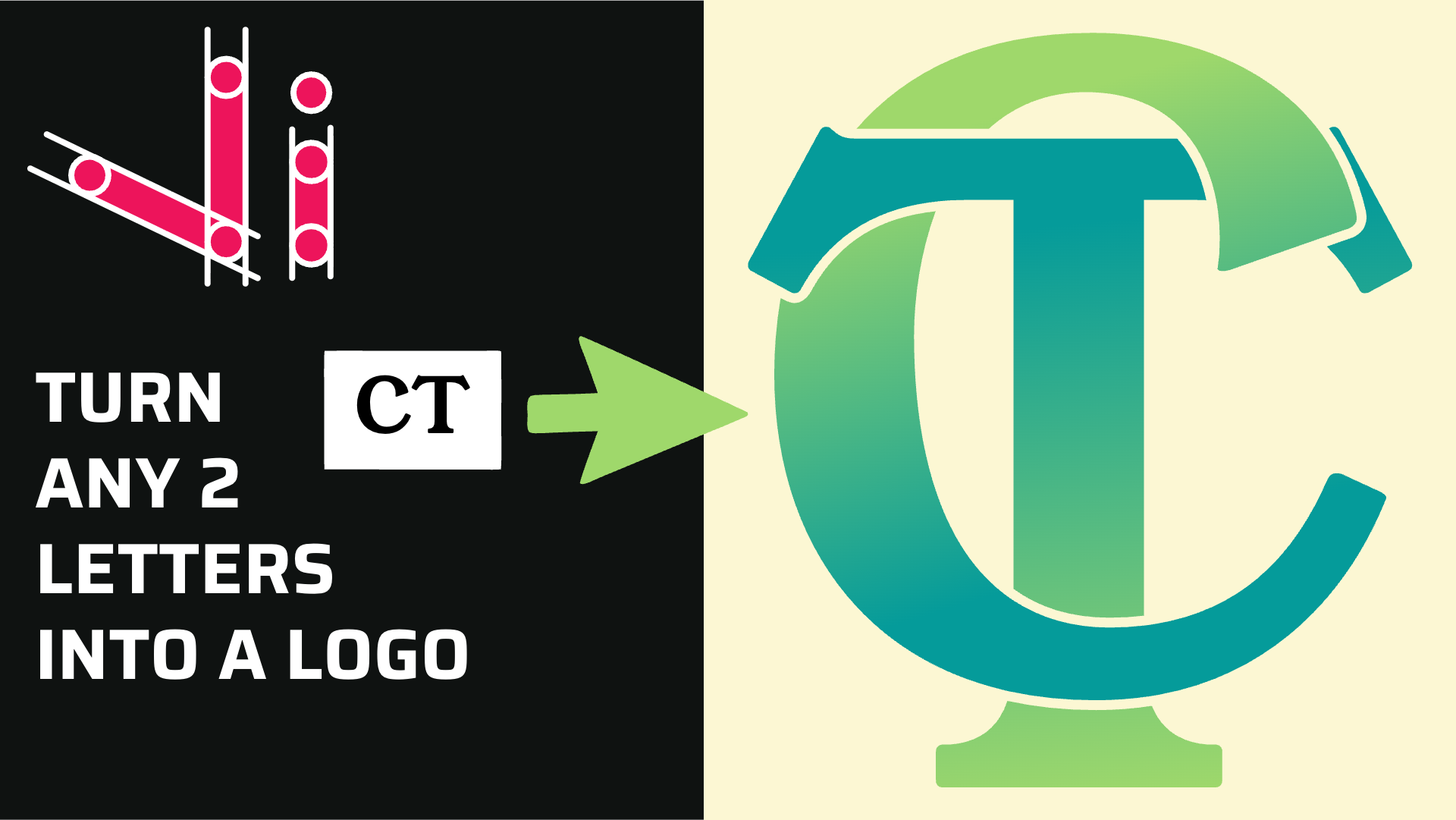
How to Combine Two Letters into One Logo | Intertwined Monogram Design in Vector Ink
In this tutorial, you'll learn how to transform two simple letters into a p...
In this fun Vector Ink tutorial, you'll build a tasty hamburger icon from scratch. We'll stack rectangles, round corners for buns, add cheese, meat, and lettuce, then finish with outlines and sesame seeds. Follow along on desktop or Android—no prior experience required!
Open a new document in Vector Ink and zoom into the canvas (Option/Alt + Mouse Wheel). Select the Rectangle Tool and draw a wide rectangle for the top bun. With it selected, tap Duplicate to create four more rectangles beneath it—these will become ketchup, cheese, meat, and the bottom bun.
Resize the second rectangle to roughly half the height of the first (it should snap). Continue duplicating and arranging so you have a vertical stack of five rectangles (top bun, ketchup, cheese, meat, bottom bun).
Use the Corner Tool to round corners:
With the Selection Tool, nudge the second rectangle up so it meets the bottom of the top bun (it should snap halfway). Do the same for the cheese and meat so each layer meets the one above it. Pull the bottom bun up so it overlaps the meat slightly—this creates a stacked, sandwich-like silhouette.
Open the Fill Color panel and browse the Color Palette Library. Pick warm tones (oranges/reds/yellows) and add a deep brown for outlines. A suggested mapping:
Apply fills to each rectangle. If needed, use Bring to Front on the top bun so it sits over other layers.
Select the Draw Tool. In its properties, set the stabilizer length to about 4 for responsive control. Draw a squiggly line beneath the cheese, overlapping the edges of the meat and bottom bun to ensure intersections.
With the lettuce path selected, open the Path Builder Tool, switch to Join Mode (pencil icon), and trace the region that forms the wavy lettuce edge against the bun. When the region highlights, confirm to create the new lettuce shape. Fill it with green and remove any helper paths you don't need.
To create drips, draw two thin rectangles between the cheese layer and the meat. Round the bottom corners of the lower thin rectangle and the top corners of the upper thin rectangle for a taper effect. Duplicate this pair to add a second drip.
Select the meat plus the two upward-pointing drip rectangles and use a boolean Unite to merge if desired. Then, with the cheese selected, use Path Builder → Join Mode to carve the final drip silhouette that blends cleanly into the cheese. Delete the temporary rectangles and fill the resulting drip shape with the same cheese yellow.
Select everything and open the Stroke panel. Set the stroke color to your darkest brown and increase stroke width (around 8px looks bold and friendly).
For sesame seeds: switch to the Ellipse/Circle Tool, place a few small ovals on the top bun, set fill: white, stroke: 0, and duplicate them around for a natural scatter.
Re-check stacking order (top bun above fillings), tweak spacing, and scale the whole burger as needed. Keep shapes simple and readable—this icon works great at small sizes as a logo or UI graphic.
You just built a delicious hamburger icon using Vector Ink—stacking shapes, rounding corners, carving with the Path Builder, and adding playful details. This same workflow applies to countless food and product icons—clean, bold, and brand-friendly.
Ready to cook up your next icon? Practice with different toppings (onion rings, tomatoes, pickles) and try a few color variations.
Launch Vector Ink and start crafting tasty vector designs in minutes!
In this tutorial, you'll learn how to transform two simple letters into a p...
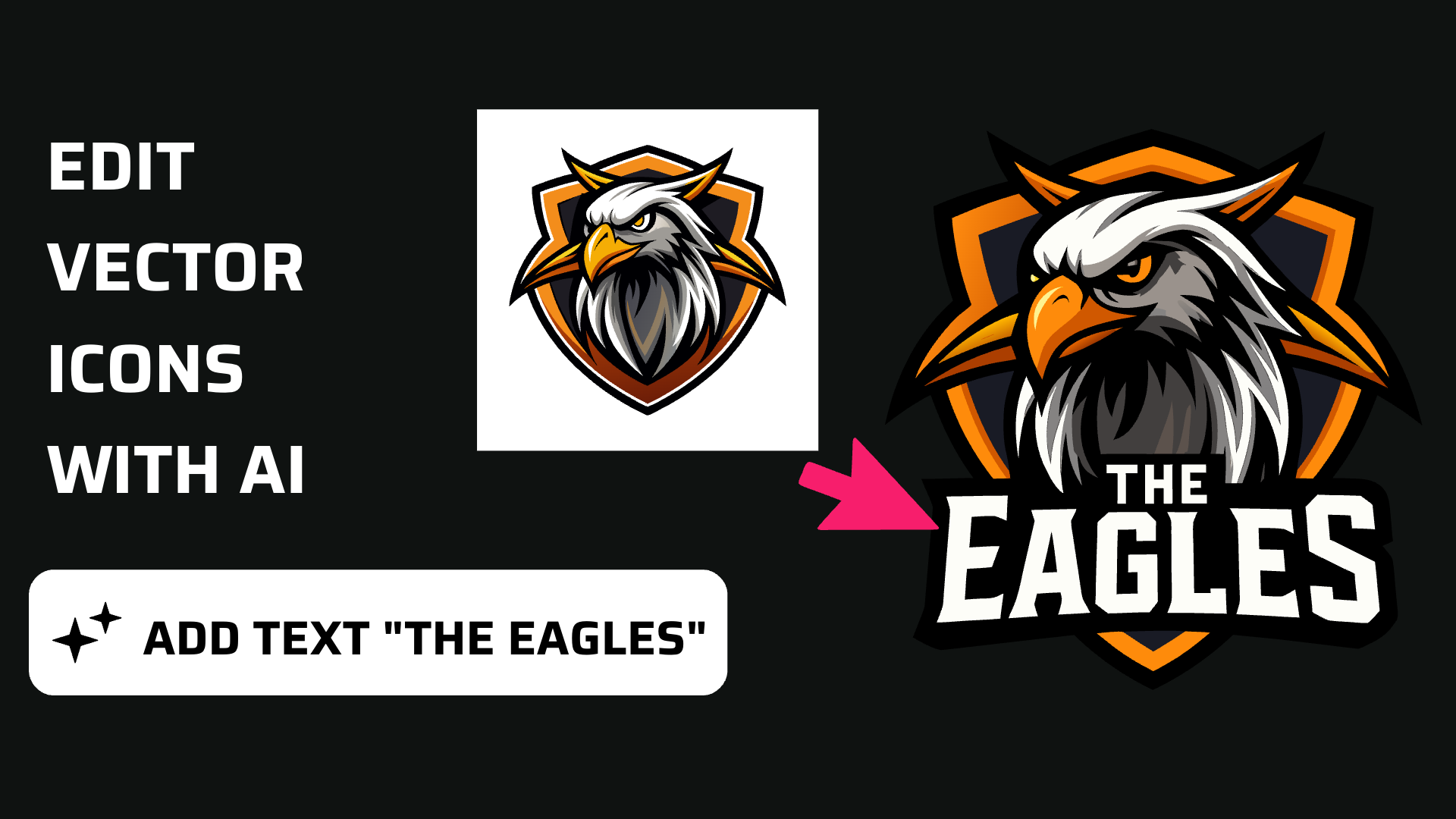
Discover how easy it is to open the Vector Ink Icon Library, import icons t...
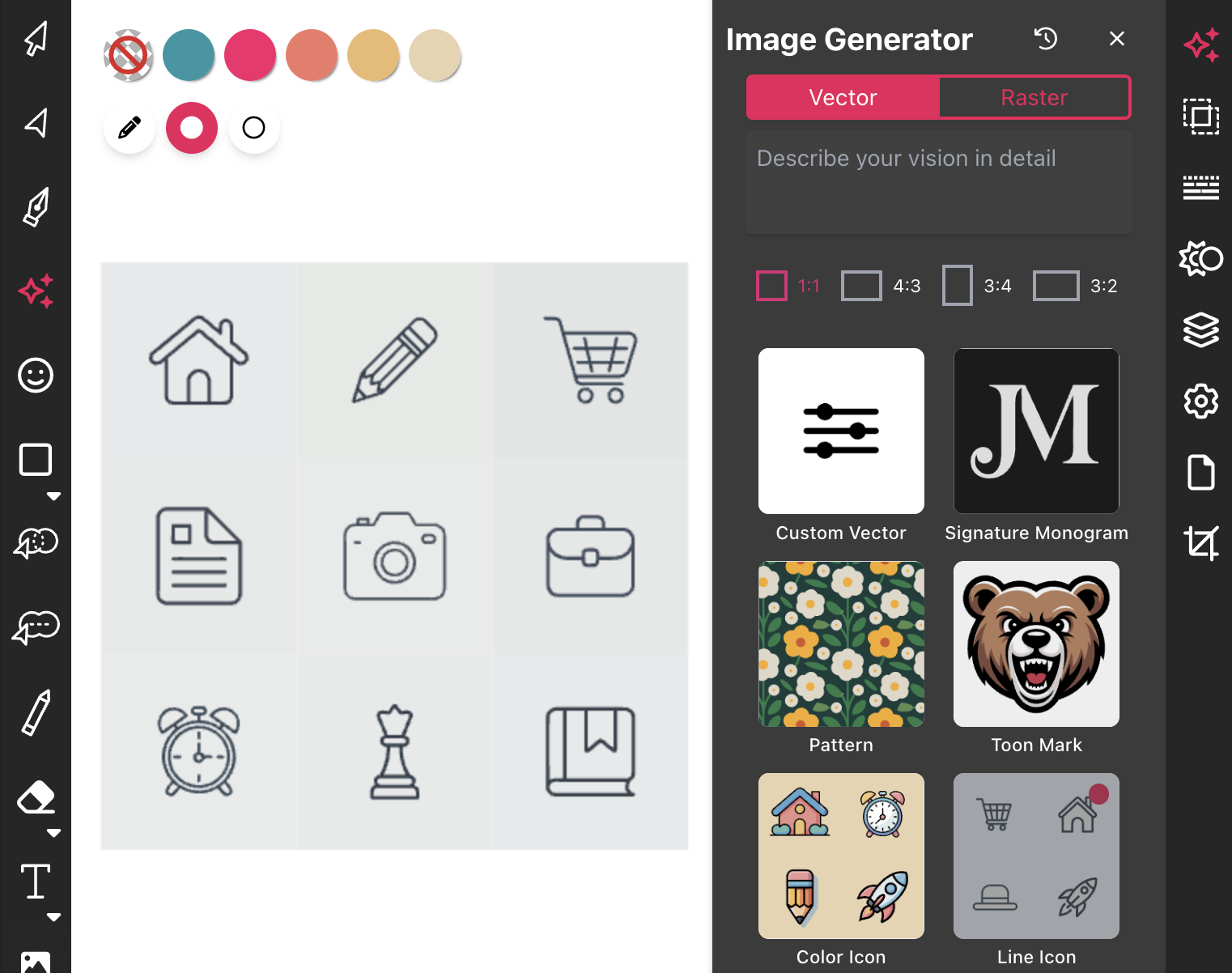
Most icon libraries offer a handful of basic shapes and call it a day. Vect...
In this tutorial, we'll guide you step-by-step on how to create a badge log...

Unlock the art of vector drawing with this detailed introduction to Vector ...
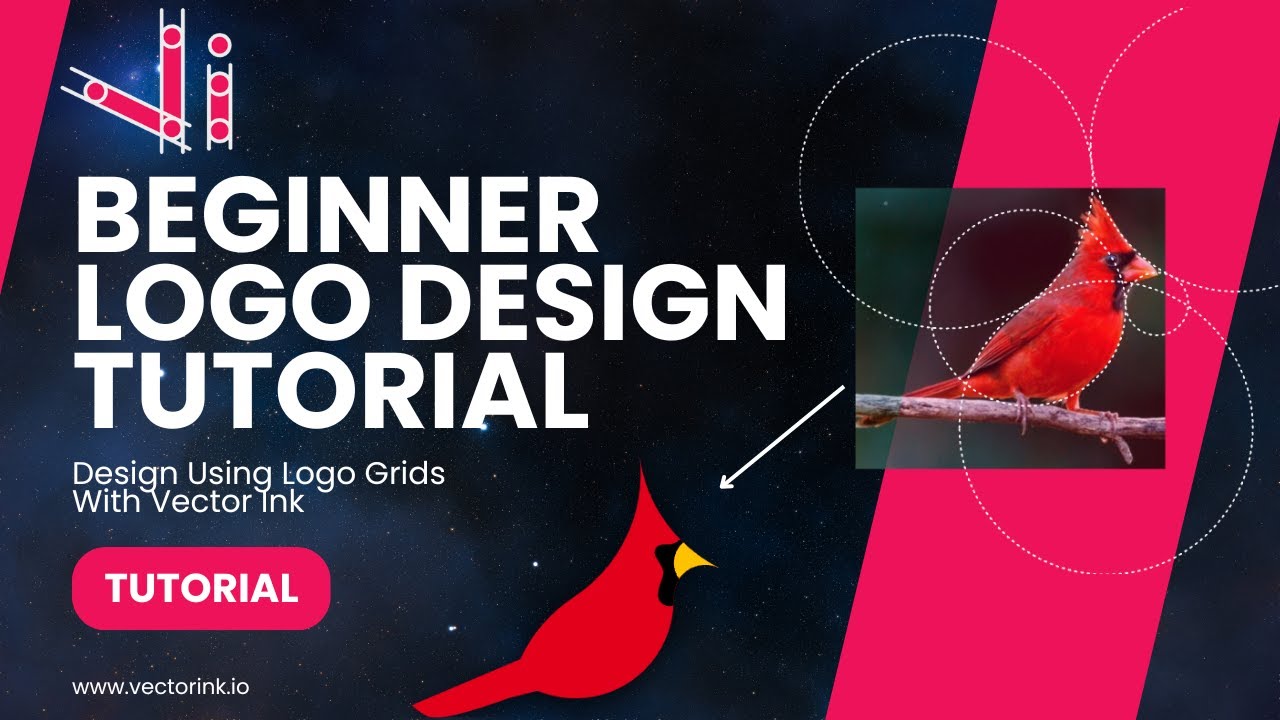
You don't need to be an artist to create a clean, professional logo. In thi...