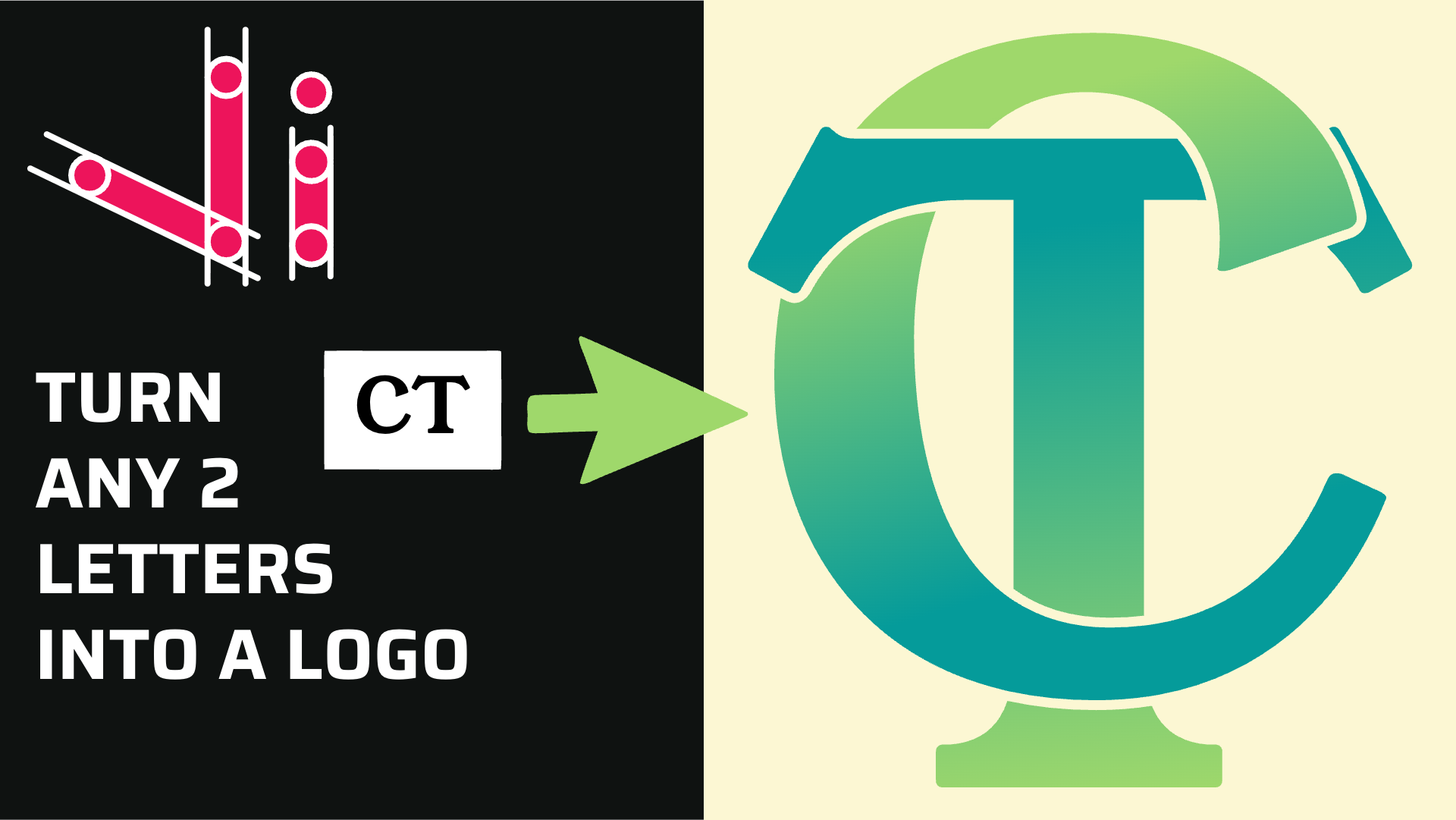
How to Combine Two Letters into One Logo | Intertwined Monogram Design in Vector Ink
In this tutorial, you'll learn how to transform two simple letters into a p...
Unlock the art of vector drawing with this detailed introduction to Vector Ink. In this tutorial, you'll learn how to convert any image into a professional vector illustration using three key tools: the Pen Tool, Path Builder Tool, and Draw Tool. Whether you're a beginner or a skilled artist, these techniques will help you create precise and smooth vector designs.
When you first open Vector Ink, your tools appear on the left-hand side. The default selection is the Selection Tool, which lets you move and select objects. Below it, you'll find the Point Tool (for editing anchor points) and the Pen Tool — the star of this tutorial. The Pen Tool allows you to plot points and connect them to form paths, giving you total control over your shapes and curves.
Let's start by tracing a simple character or image. With the Pen Tool active, tap or click to place your first point. Then, continue tapping to create additional points along the edges of your subject. For curves, tap and drag to pull out directional handles that define the curvature of the path.
If you're using a touchscreen, tap and drag directly with your finger or stylus. On desktop, simply click and drag your mouse. As you continue placing points, you'll see your shape begin to form. Once finished, press Escape or switch tools to end the path.
After drawing your outline, switch to the Point Tool to refine your shapes. You can double-tap a point to toggle between straight and curved segments, and use the control handles to fine-tune curves for smoother results. Vector Ink provides multiple joint types — mirrored, linked, or independent — to give you flexibility in adjusting your shapes precisely.
You can even drag directly on the stroke to reshape a line quickly, without needing to move each handle manually. This makes editing faster and more intuitive.
Here's where Vector Ink truly shines. The Path Builder Tool allows you to combine and refine paths without complex manual editing. If two paths overlap, simply select both, activate the Path Builder Tool, and tap on the areas you want to keep or merge. Vector Ink automatically combines those shapes into one seamless vector.
This approach eliminates the need for tedious copying and trimming. Instead, you can focus on the creative process — building complex shapes by visually selecting the regions you want to form.
For freehand artists, the Draw Tool is a game-changer. It lets you sketch directly on the canvas while automatically smoothing your strokes with its built-in stabilizer. You can adjust the stabilizer's strength in the tool properties panel — higher settings produce smoother curves, while lower settings preserve your natural hand movement.
Even better, if you lift your stylus or mouse, you can resume drawing on the same path without creating a new one. This makes it perfect for tracing detailed features like hair, eyes, or mustaches.
In this tutorial, the character is built using a combination of all three tools. The Pen Tool lays down precise paths, the Point Tool refines them, and the Path Builder Tool merges overlapping shapes seamlessly. When drawing smaller details, such as facial features, the Draw Tool provides a faster and smoother experience.
Vector Ink's unique Path Builder Tool is designed to give you total control. Unlike Illustrator's Shape Builder Tool, it doesn't try to guess what you want — instead, it lets you manually define every joint and connection. This makes it ideal for professional artists who value precision and flexibility.
Once your tracing is complete, adjust colors, strokes, and fills to bring your vector drawing to life. Experiment with mirrored joints, line thickness, and layer organization to achieve a polished look. With Vector Ink, every path remains editable, meaning you can go back and fine-tune any part of your artwork anytime.
You've now learned how to combine the Pen Tool, Path Builder Tool, and Draw Tool to create high-quality vector artwork. Whether you're tracing a photo, sketching from scratch, or designing professional logos, these tools make Vector Ink an incredibly versatile design platform.
Ready to start creating your own vector art? Launch Vector Ink and begin your next masterpiece today.
In this tutorial, you'll learn how to transform two simple letters into a p...
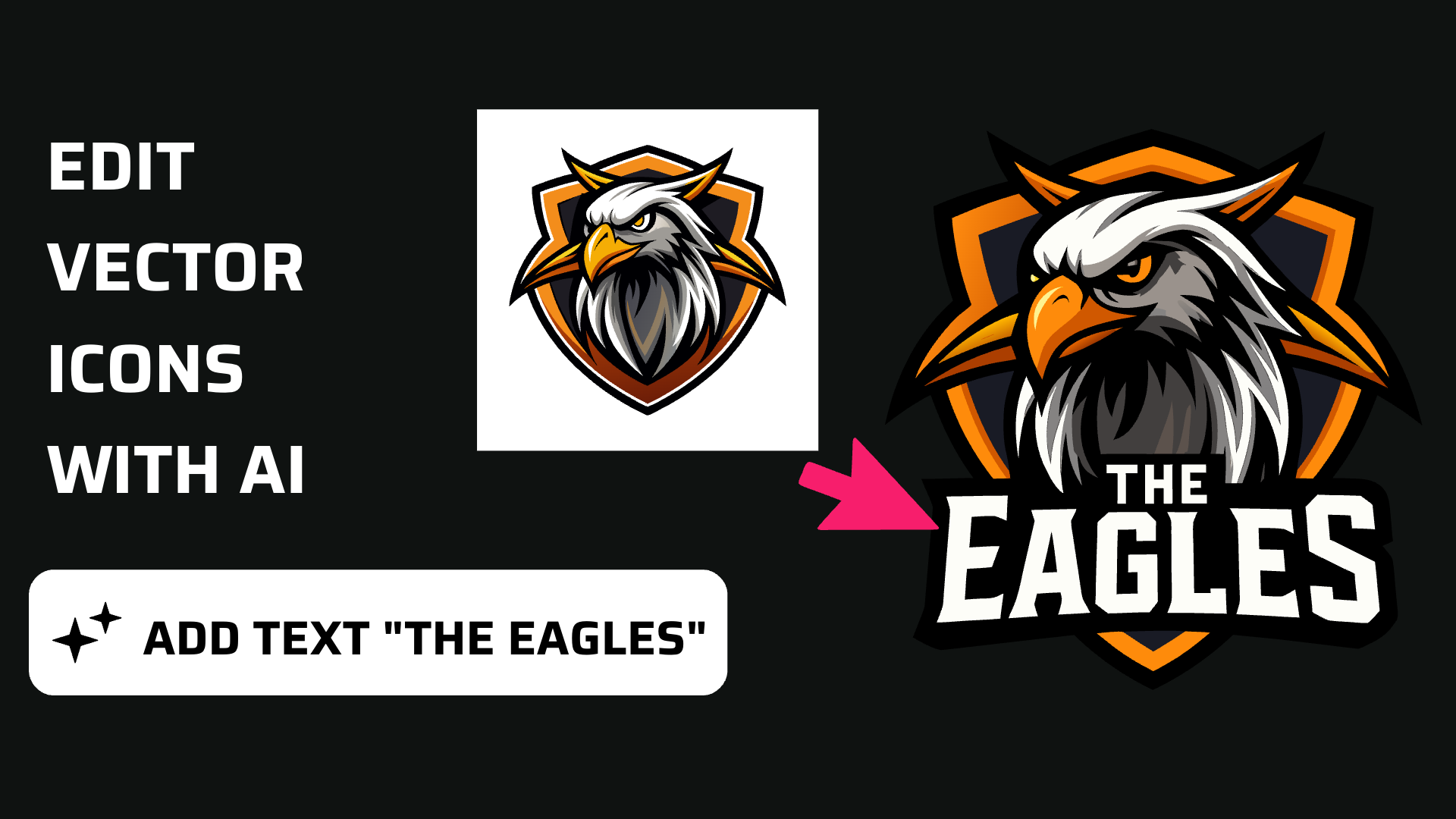
Discover how easy it is to open the Vector Ink Icon Library, import icons t...
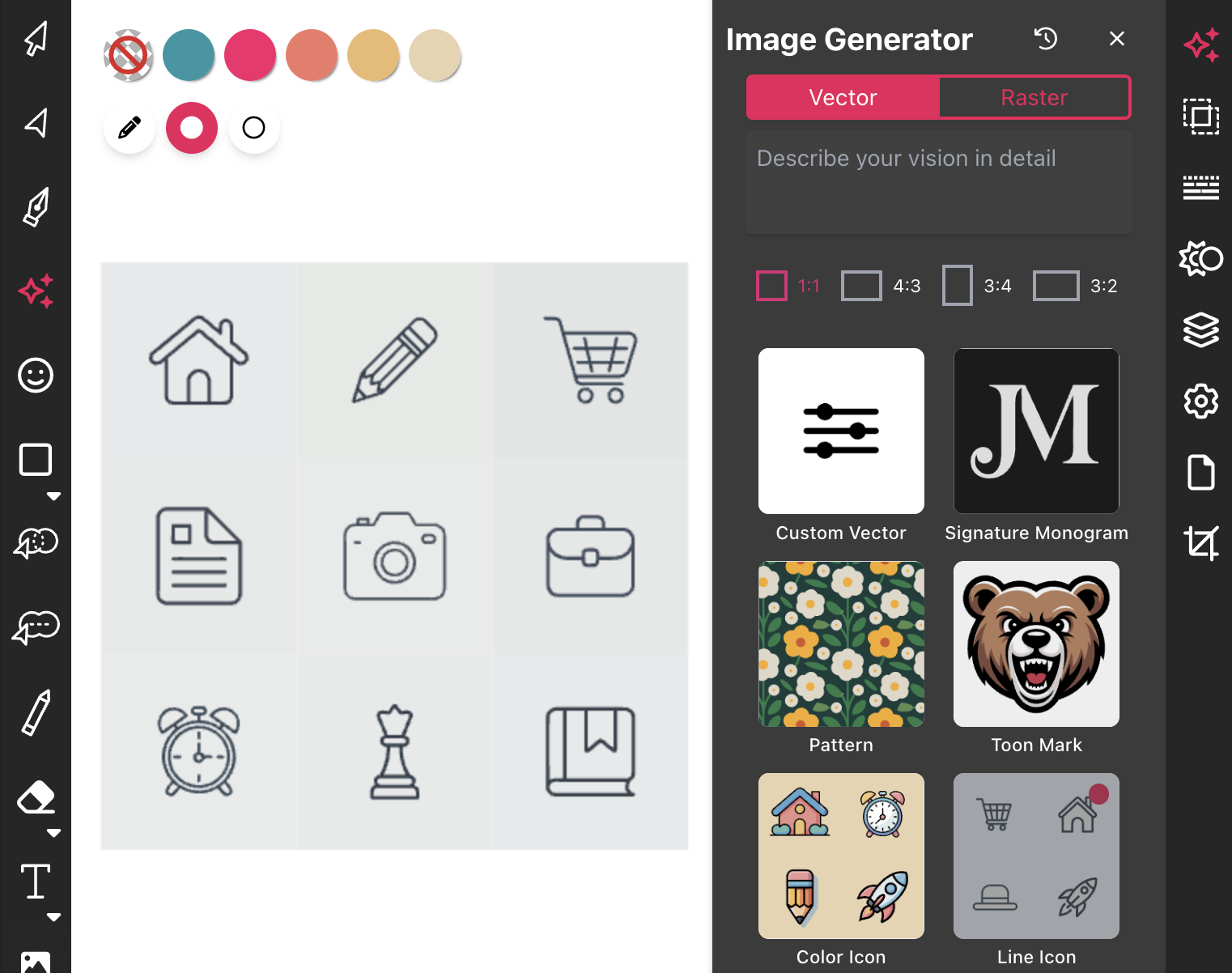
Most icon libraries offer a handful of basic shapes and call it a day. Vect...
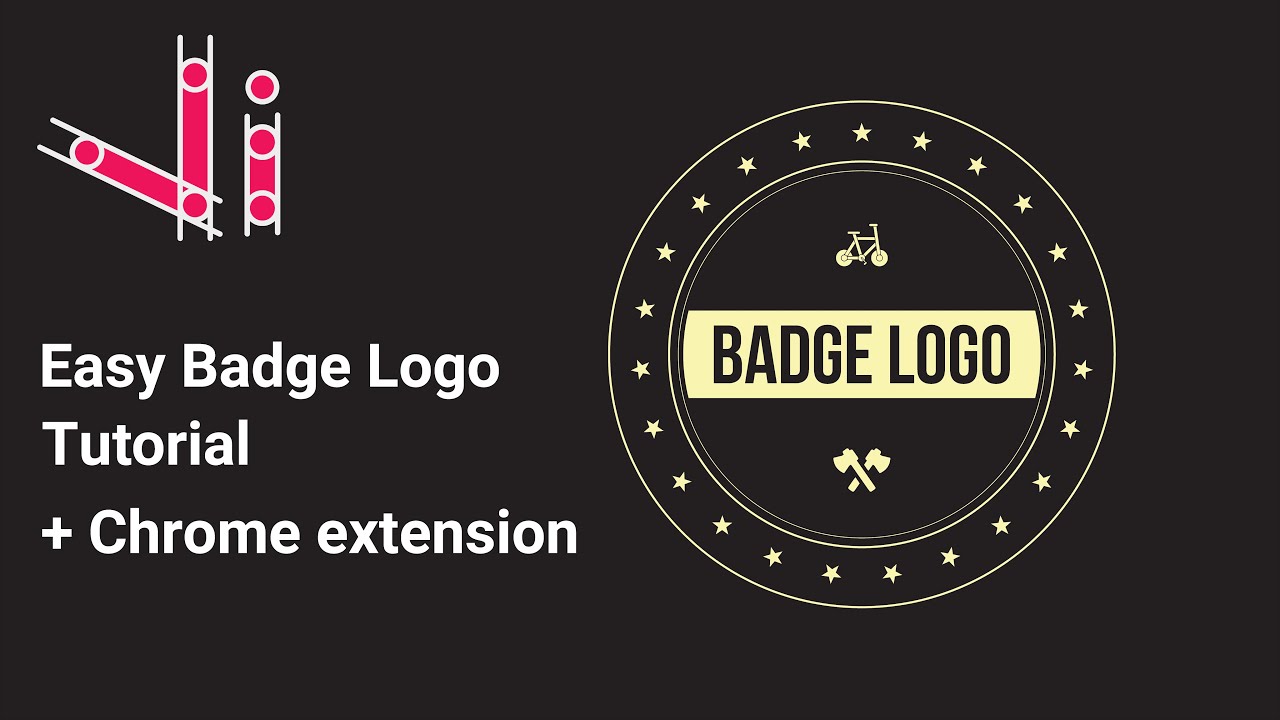
In this tutorial, we'll guide you step-by-step on how to create a badge log...
In this hands-on tutorial, you'll learn how to transform a rough sketch int...
You don't need to be an artist to create a clean, professional logo. In thi...