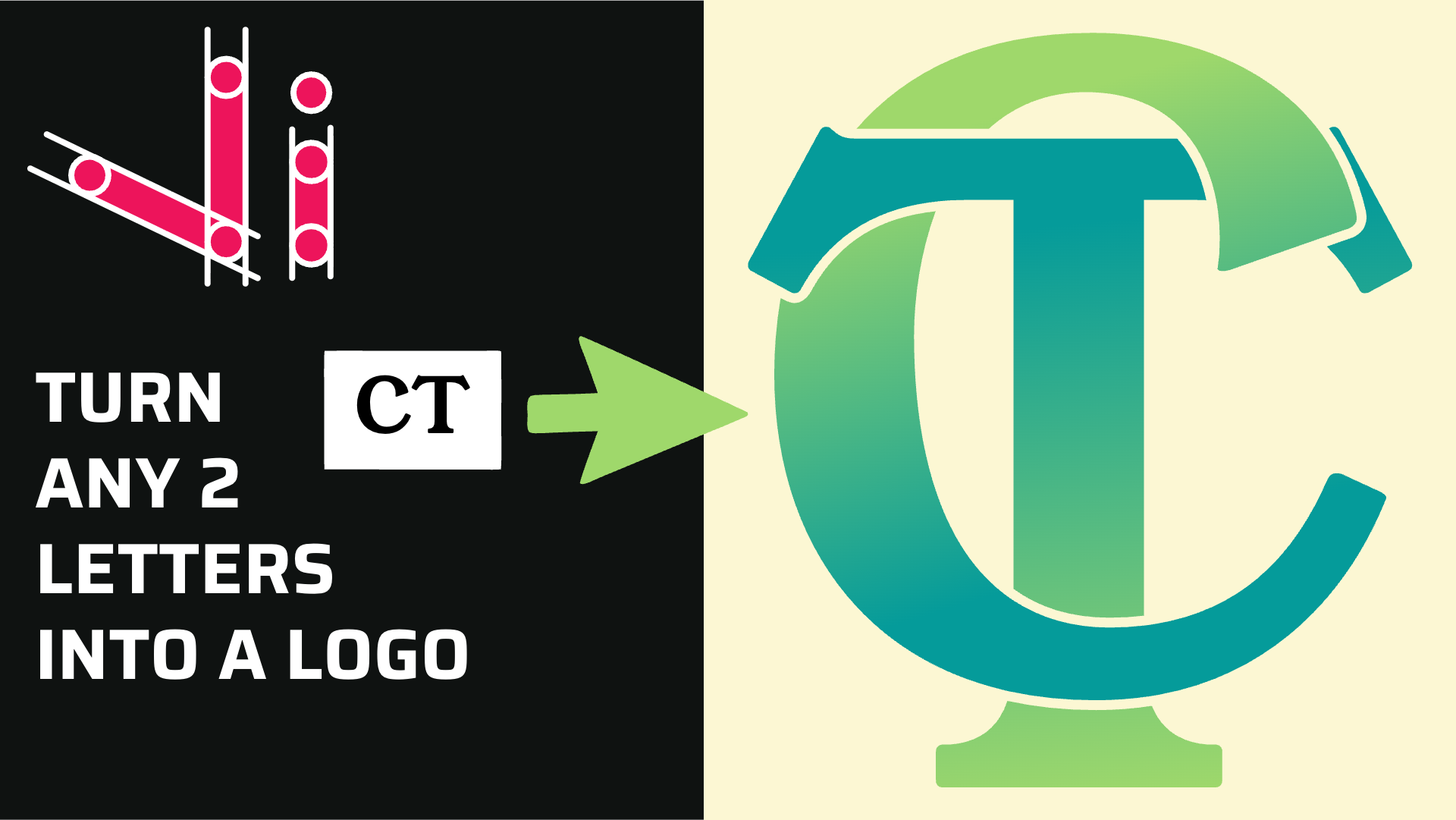
How to Combine Two Letters into One Logo | Intertwined Monogram Design in Vector Ink
In this tutorial, you'll learn how to transform two simple letters into a p...
You don't need to be an artist to create a clean, professional logo. In this step-by-step guide, you'll use Vector Ink to turn a photo into a simple, memorable logo using circles, straight lines, and the Path Builder Tool. We'll import a reference image, build a geometric scaffold, and convert it into crisp vector shapes you can color and export.
For faster importing from Google Images, install the free Vector Ink Chrome extension from the Chrome Web Store. It adds a pin icon to images so you can quickly import photos or palettes. If you prefer, you can still right-click and save any image, then import it manually inside Vector Ink.
Open Vector Ink and create a new document. Import your reference photo (via the extension or Menu → Import). Select the image and tap the top-right single scaling handle to resize proportionally until it fits your canvas. Open Layers → select the image layer → Properties, reduce Opacity (below 50%) so your vectors are visible, then Lock the layer so it won't move while you draw.
Switch to the Circle Tool (enable Constrain or hold Shift) and place circles over the largest curves (e.g., body/belly arcs, head/beak arcs). Return to the Selection Tool to scale/position each circle so its curvature matches the photo in the area you're simplifying.
Pro tip: Select your helper circles and open Stroke Properties to disable Scale Strokes. Now you can zoom without stroke widths growing, making it easier to see tiny gaps or overlaps.
For long straight segments, use the Line Tool. Vector Ink conveniently snaps to 45° angles, which is perfect for simple, modern logo geometry. Arrange lines so they just meet your circles at transition points. Aim for a minimal set of primitives—clean logos come from fewer shapes.
Select all relevant helpers (circles + lines) and activate the Path Builder Tool. Use Join Mode (pencil icon) to click around the outline in order: belly → beak → head → back → close the loop. When the region highlights and turns blue, switch back to the Selection Tool to confirm the new shape. Set the fill alpha lower if you want to keep seeing the photo while you work.
If a junction doesn't connect, zoom in and nudge a circle or line until it kisses its neighbor, then re-join.
Open the Fill panel to browse curated palettes or use the randomizer. For logos, pick 2–3 colors (e.g., primary, accent, neutral). Apply color to each shape and remove strokes unless you're deliberately designing an outlined mark. Simplicity is your friend.
Use the Point Tool to smooth any sharp corners (double-tap a point to add bezier handles). Adjust spacing and alignment until the silhouette reads instantly at small sizes. Hide or delete the photo layer to evaluate the design on its own.
Export as SVG for infinite scalability and as PNG for quick previews. Keep a copy of your geometric scaffold on a hidden layer if you plan future iterations.
You just transformed a photo into a clean, brand-ready logo by simplifying shapes and using Vector Ink's Path Builder to do the heavy lifting. This process works for birds, animals, products—almost anything. Keep it simple, keep edges clean, and your logo will shine at any size.
Ready to try it on your brand idea? Open a new document, drop in a reference, and go from image to icon in minutes.
Launch Vector Ink and start crafting a logo that looks pro, prints crisply, and scales perfectly across web and print.
In this tutorial, you'll learn how to transform two simple letters into a p...
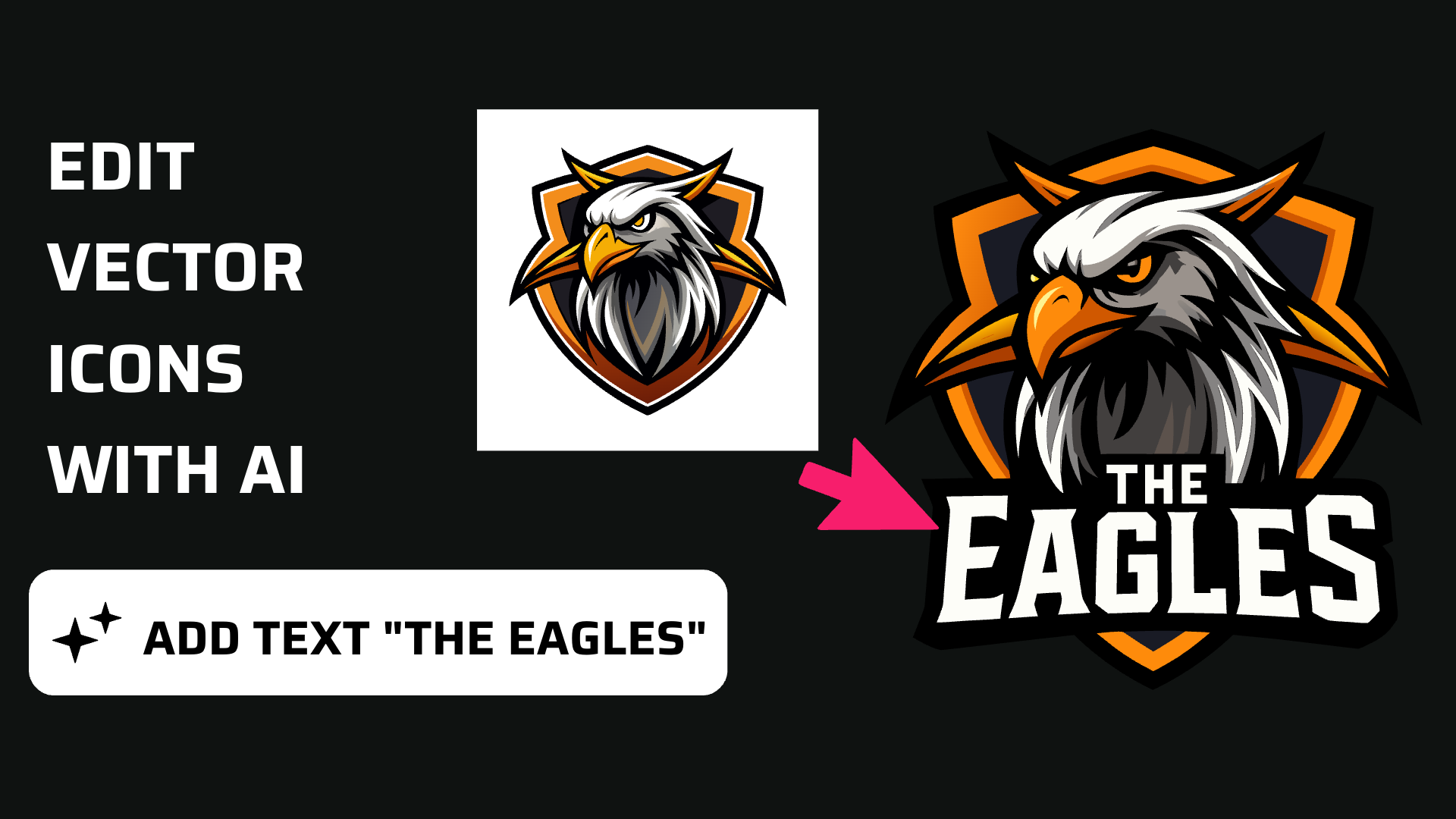
Discover how easy it is to open the Vector Ink Icon Library, import icons t...
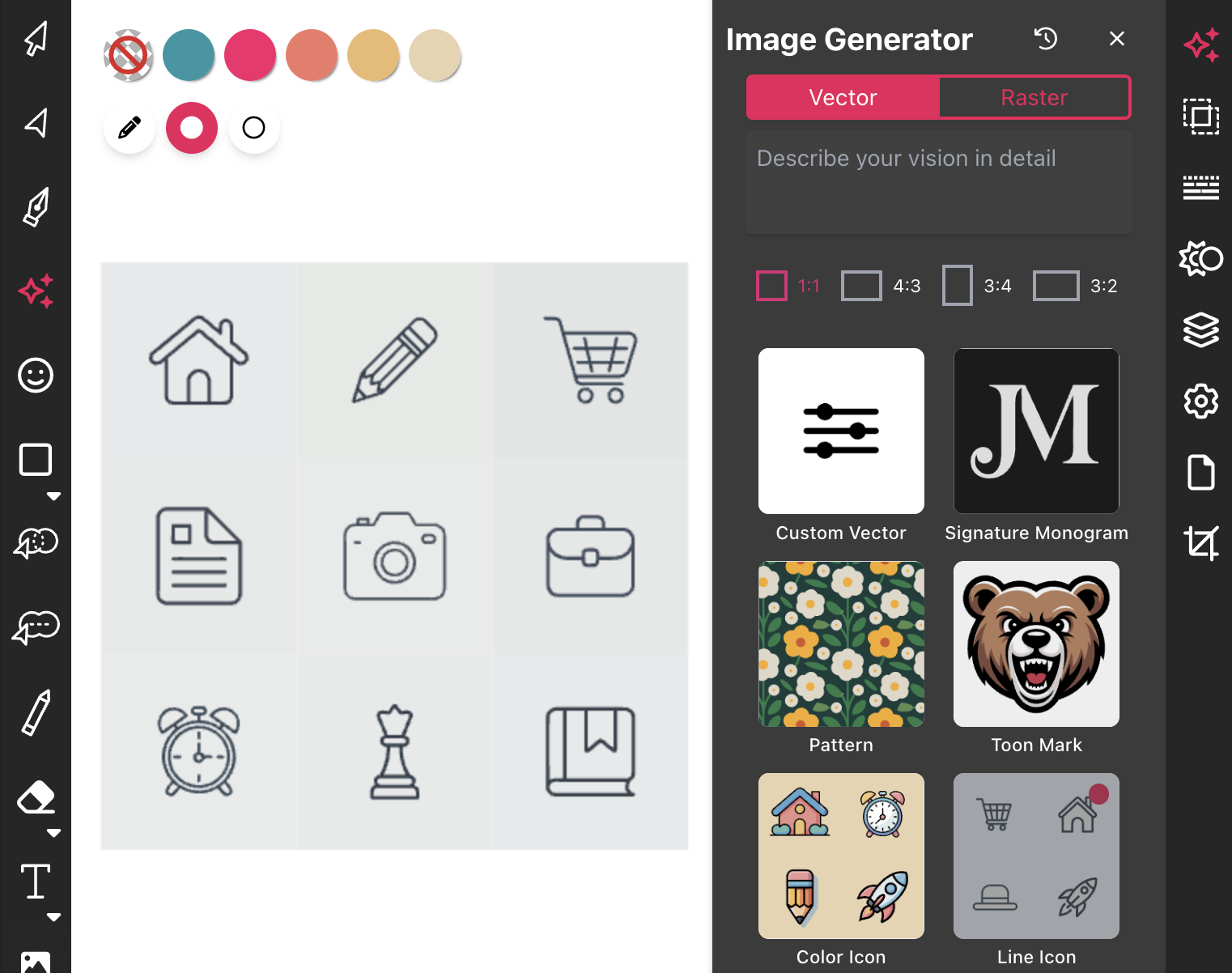
Most icon libraries offer a handful of basic shapes and call it a day. Vect...

Begin by opening the Vector Ink web app. Click "Open" to launch the file ex...
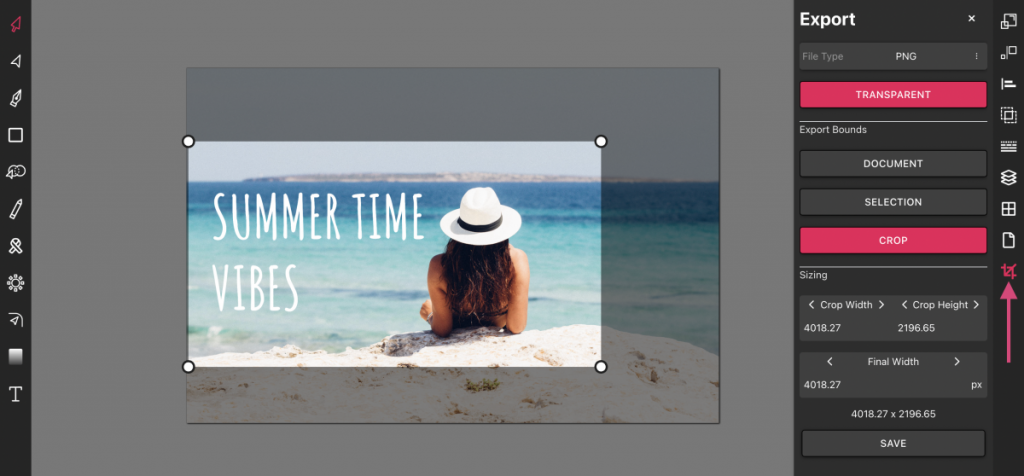
Vector Ink is more than just an online SVG editor; it's a versatile tool th...
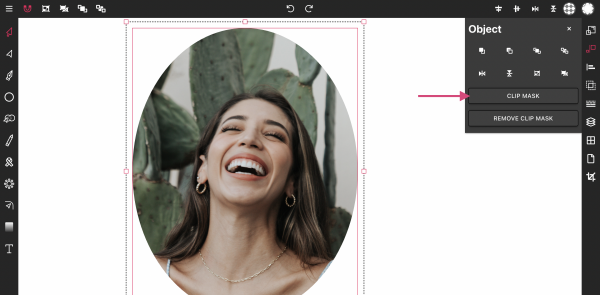
Masking images into any shape is easy and convenient with Vector Ink's onli...