


Improve Image Quality with Vector Ink's AI Image Enhancer
A small, soft, or compressed image can be difficult to reuse. Vector Ink's AI image enhancer increases image resolution while refining edges and visible detail, giving you a clearer result without a complicated editing workflow. Upload a photo, graphic, or digital artwork above and let the enhancer prepare a higher-resolution version that is easier to share, present, print, or continue editing.
The tool works with one image or a batch of up to 20. That makes it useful for a single portrait as well as a folder of product images, thumbnails, or creative assets that need the same quick quality improvement.

What AI Image Enhancement Changes
Simply stretching an image makes every existing pixel larger, which often leaves the result blocky or blurred. AI enhancement analyzes the source and produces a higher-resolution version with smoother contours and clearer visual structure. It is especially helpful when the original is too small for the way you want to use it.
Use the image quality enhancer to:
- Increase image resolution for larger displays and layouts.
- Improve soft edges in photos, illustrations, and web graphics.
- Reduce the pixelated appearance of small or compressed source files.
- Prepare clearer assets for presentations, online stores, portfolios, and print projects.
AI enhancement creates a visually improved interpretation of the source; it cannot recover factual detail that was never captured. For the most natural result, begin with the clearest original file you have and review the enhanced version before using it in detail-sensitive work.
A Batch Image Enhancer for Up to 20 Photos
Enhancing files one at a time quickly becomes repetitive. Vector Ink lets you upload as many as 20 images in one batch. Progress is shown as each image finishes, and completed results can be downloaded separately or together in a ZIP file. You can also add another batch without clearing the results already on the page.
Batch enhancement is particularly useful for product catalogs, real-estate photos, social media graphics, classroom materials, and collections of older images. Each image is processed independently, so one unreadable file does not have to stop the rest of the batch.

Use the AI Photo Enhancer for Portraits, Products, and Artwork
- Product photos – Create clearer images for listings, detail views, and promotional layouts.
- Portraits and personal photos – Improve the resolution of small files before sharing or printing.
- Old digital photos – Make low-resolution scans easier to view while preserving the character of the original.
- Compressed web images – Produce a cleaner working copy when the available source is small or soft.
- Digital art and illustrations – Increase resolution before placing artwork in a larger composition.
Image Enhancer vs. Image Upscaler
The terms are closely related, but they describe different goals. An image enhancer emphasizes perceived quality: clearer edges, improved detail, and a more usable result. An image upscaler emphasizes size: increasing the pixel dimensions so an image can be displayed or printed larger.
Vector Ink uses AI upscaling to achieve both. This page is designed for people who want to enhance image quality and clarity. If your main goal is enlarging a file, comparing upscale workflows, or preparing logos and graphics for vectorization, use the dedicated AI Image Upscaler.
How to Enhance an Image Online
- Upload your images. Select one image or choose a batch of up to 20 compatible photo or graphic files.
- Start the enhancement. Vector Ink processes each selected image and displays live batch progress.
- Review the results. Compare each enhanced image with its original and confirm that it suits your project.
- Download your files. Save individual results or download the completed batch together as a ZIP.
Tips for the Best Image Enhancement Results
- Use the original file rather than a screenshot or repeatedly compressed copy whenever possible.
- Avoid enhancing an image over and over; review the first result before running it again.
- Keep text and tiny interface screenshots at their original size when exact letterforms are important.
- For transparent logos or graphics that need to become editable shapes, enhance first and then try the Image to SVG Converter.
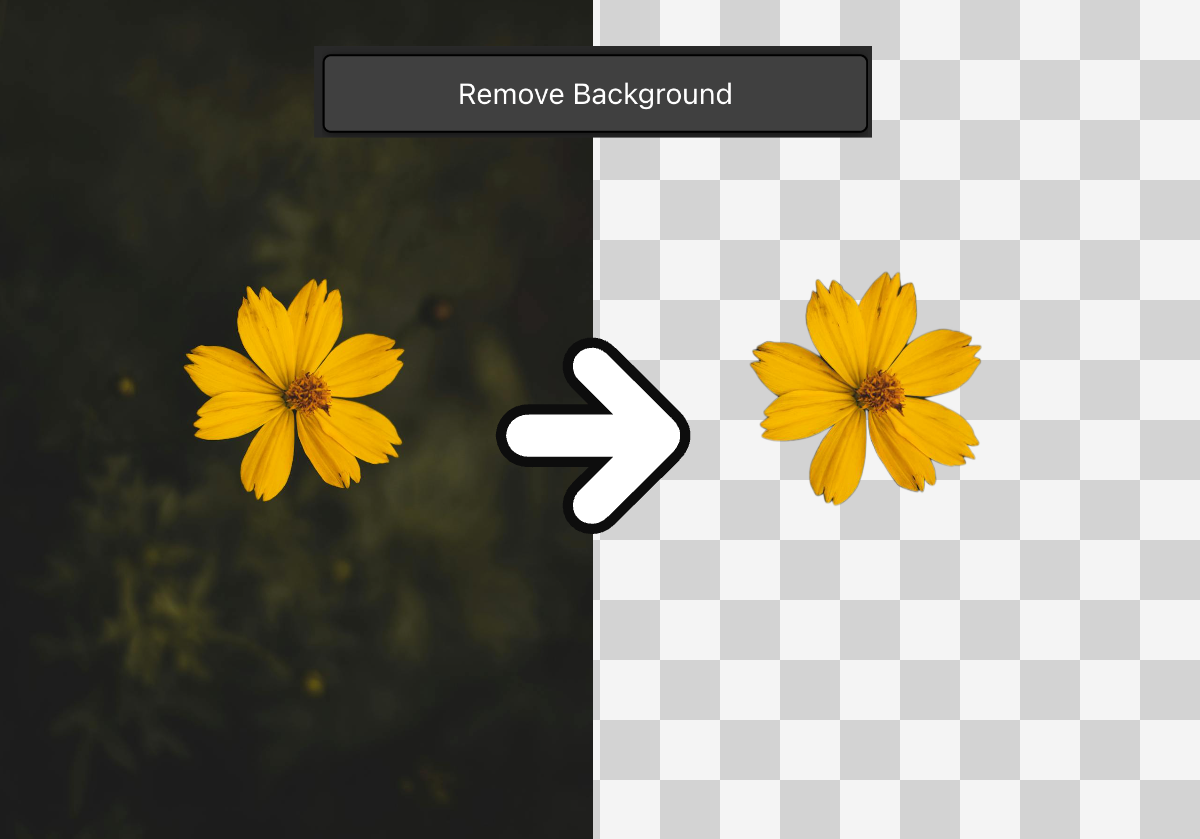
- If you need a transparent subject, use the Background Remover after checking the enhanced result.
Frequently Asked Questions
What does an AI image enhancer do?
An AI image enhancer analyzes a low-resolution image and creates a larger, clearer version with smoother edges and more visible detail. The result is intended to look more useful at a larger size than a basic pixel resize.
Can I enhance multiple images at once?
Yes. Vector Ink can process a batch of up to 20 images. Finished files can be downloaded individually or together in a ZIP file.
Can the enhancer fix a blurry or pixelated image?
It can improve the appearance of many soft, small, or pixelated images by increasing resolution and reconstructing visual detail. Results depend on the source, and no enhancer can recover exact information that was never present.
What is the difference between an image enhancer and an image upscaler?
Image enhancement focuses on perceived clarity and detail, while image upscaling focuses on increasing pixel dimensions. Vector Ink uses AI upscaling to accomplish both in one process.
Is the AI image enhancer free?
Free usage is available. The tool shows the current allowance and any credit requirement before additional images are processed, so you remain in control of the batch.
Can I use enhanced images in Vector Ink?
Yes. After downloading an enhanced result, open the Vector Ink Canvas to combine it with vector artwork, add text, remove a background, or prepare a complete design.
Enhance Your Images Online
Upload an image above to improve its quality and resolution, or select a batch to enhance several files in one workflow. Vector Ink keeps the process focused: choose your images, review the AI-enhanced results, and download the files you want to keep.