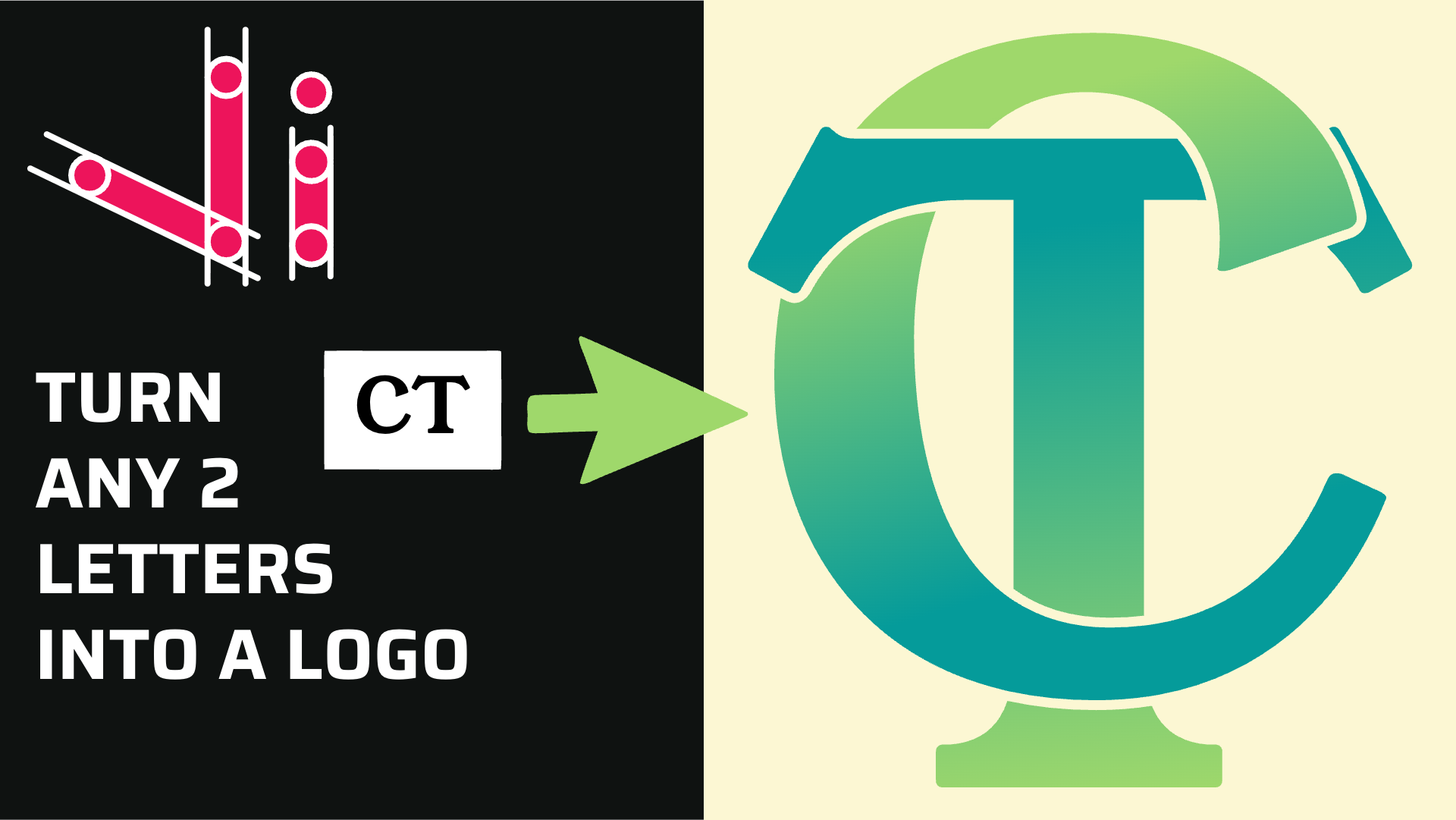
दो अक्षरों को एक लोगो में कैसे मिलाएँ | वेक्टर इंक में गुंथा हुआ मोनोग्राम डिज़ाइन
इस ट्यूटोरियल में, आप जानेंगà...
यदि आप एक क्राफ्टर हैं जो अक्सर ऑनलाइन प्रेरणादायक छवियों पर आते हैं और उन्हें सटीकता और आसानी के साथ कट-तैयार डिज़ाइनों में बदलना चाहते हैं, तो आप सही जगह पर हैं। यह ब्लॉग पोस्ट आपको SVG फ़ाइलों की मूल बातें समझने और, इससे भी महत्वपूर्ण बात यह है कि उन्हें Vector Ink - आपके मुफ़्त SVG निर्माता का उपयोग करके सहजता से कैसे बनाया जाए, इस पर एक ज्ञानवर्धक यात्रा पर ले जाएगी।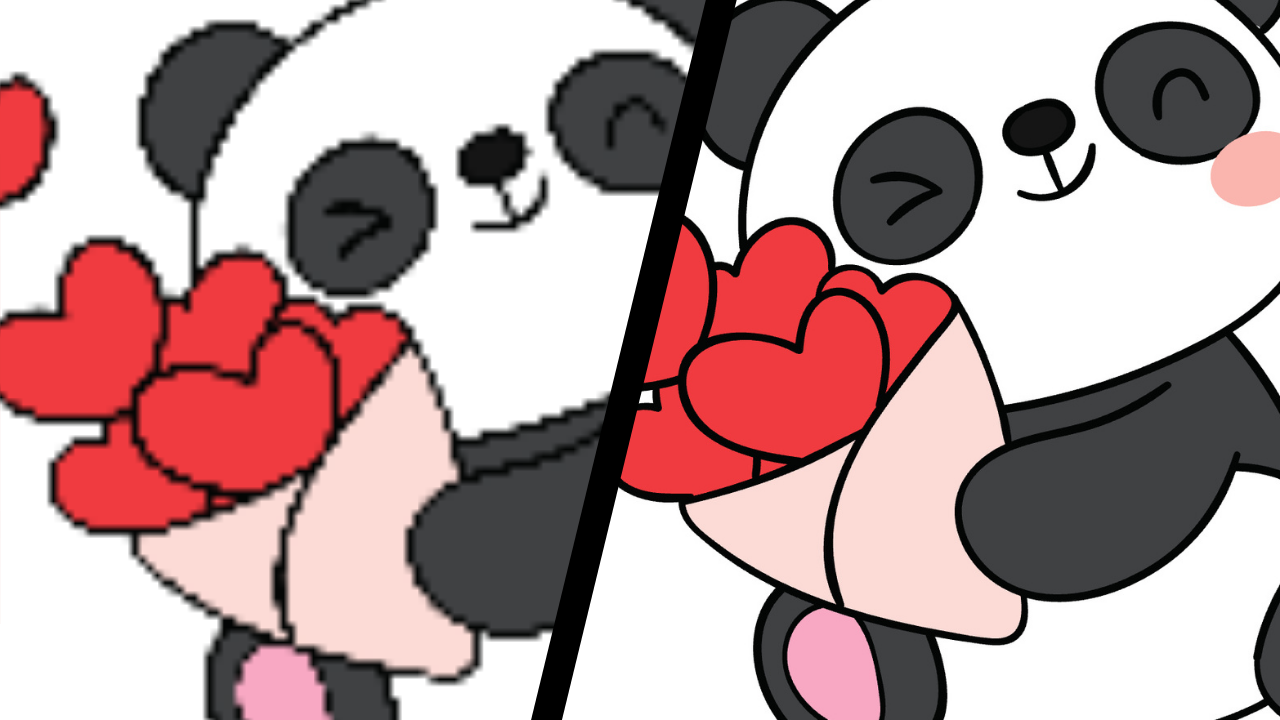
इससे पहले कि हम कैसे करें में गोता लगाएँ, रास्टर और वेक्टर ग्राफिक्स के बीच मौलिक अंतर को समझना महत्वपूर्ण है। रैस्टर को एक मोज़ेक कलाकृति के रूप में कल्पना करें, जो हज़ारों छोटी-छोटी टाइलें (या पिक्सल) से बनी होती है, जबकि वेक्टर ग्राफिक्स रेखाओं और आकृतियों को परिभाषित करने वाले गणितीय समीकरणों की तरह होते हैं। इसलिए, जब आप किसी रैस्टर ग्राफिक (जैसे JPEG या PNG) को बड़ा करते हैं, तो वे छोटी-छोटी टाइलें खिंच जाती हैं और विकृत हो जाती हैं, जिसके परिणामस्वरूप एक धुंधली या पिक्सिलेटेड छवि बनती है। दूसरी ओर, वेक्टर ग्राफिक्स, गणितीय रूप से स्केलेबल होने के कारण, चाहे आप उनका आकार कितनी भी बार बदलें, अपनी स्पष्टता बनाए रखते हैं - जो उन्हें आपके क्राफ्टिंग के काम के लिए एक बेहतरीन विकल्प बनाता है।SVG क्राफ्टर की पसंदीदा फ़ाइल प्रकार क्या बनाता है SVG, या स्केलेबल वेक्टर ग्राफिक्स, क्राफ्टिंग में आपके लिए एकदम सही सहयोगी हैं क्योंकि वे पूरी तरह से स्केल होते हैं, साफ-सुथरे कटते हैं, और सबसे महत्वपूर्ण बात यह है कि वे आपकी रचनात्मक प्रक्रिया में रंग या परत पृथक्करण की अनुमति देते हैं। इस मजबूती का मतलब है कि आपका डिज़ाइन चाहे कितना भी जटिल हो या उसे कितना भी बड़ा या छोटा काटना हो, SVG फ़ाइलें हर बार आपको सबसे सटीक परिणाम देंगी।
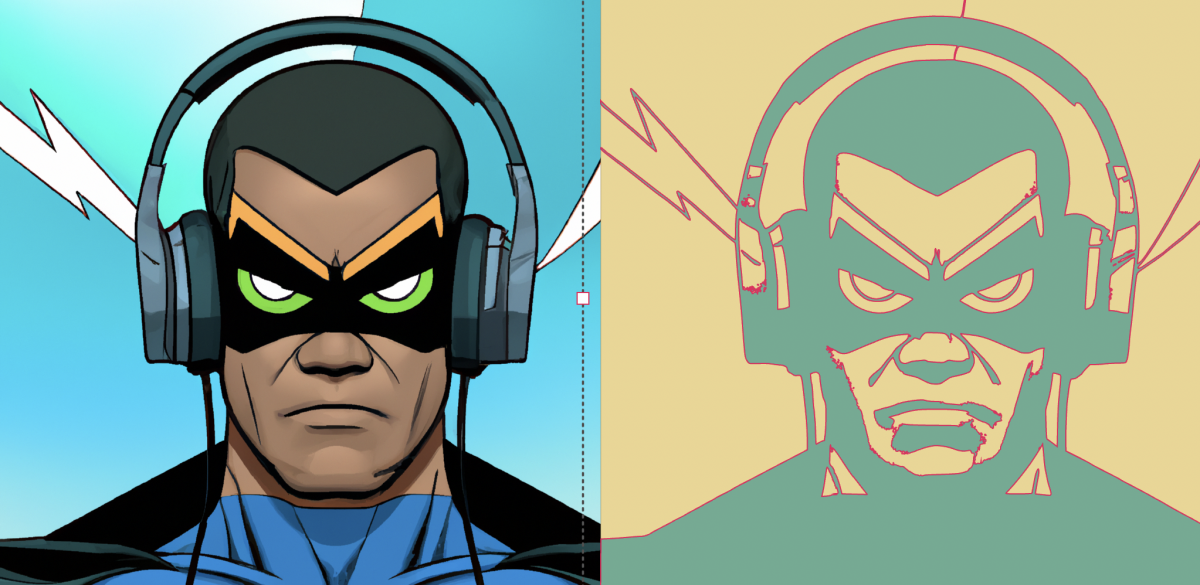
वेक्टर इंक एक मुफ़्त वेब-आधारित टूल प्रदान करता है जो आपकी पसंदीदा रास्टर छवियों को पल भर में संपादन योग्य SVG में बदल सकता है। यहाँ Vector Ink SVG कनवर्टर का उपयोग करने के लिए एक चरण-दर-चरण मार्गदर्शिका दी गई है।
एक बार जब आपके पास अपना SVG हो, वेक्टर इंक आपको विभिन्न संपादन उपकरणों के साथ इसे परिष्कृत और उत्तम बनाने की अनुमति देता है। आप आकृतियों को अनग्रुप कर सकते हैं, उन्हें फिर से रंग सकते हैं, टेक्स्ट जोड़ सकते हैं, या एक अनूठा कट-रेडी डिज़ाइन बनाने के लिए अपने SVG को अन्य वेक्टर तत्वों के साथ मर्ज भी कर सकते हैं।
आपकी क्राफ्टिंग यात्रा का मकसद अपनी अनूठी कल्पना को हकीकत में बदलना है और वेक्टर इंक अपने SVG कन्वर्टर के साथ इस सफ़र को आसान, परेशानी-मुक्त और मज़ेदार बनाने के लिए यहाँ है। आप जैसे कारीगरों के लिए विशेष रूप से डिज़ाइन किया गया एक मुफ़्त SVG निर्माता होने के नाते, यह उन सुंदर छवियों (रास्टर से SVG) को सटीक, स्केलेबल, कट-रेडी डिज़ाइनों में बदलने के लिए एक आदर्श मंच है।
तो क्राफ्टर्स, अब 'कम-परफेक्ट' कट्स को अलविदा कहने और SVG के साथ सटीक क्राफ्टिंग को हैलो कहने का समय आ गया है। आज ही वेक्टर इंक पर जाएँ और अपनी पहली छवि को SVG में बदलें। हम आपसे वादा करते हैं, यह खुद क्राफ्टिंग प्रोजेक्ट जितना ही मजेदार और संतोषजनक है। हैप्पी क्राफ्टिंग!
इस ट्यूटोरियल में, आप जानेंगà...
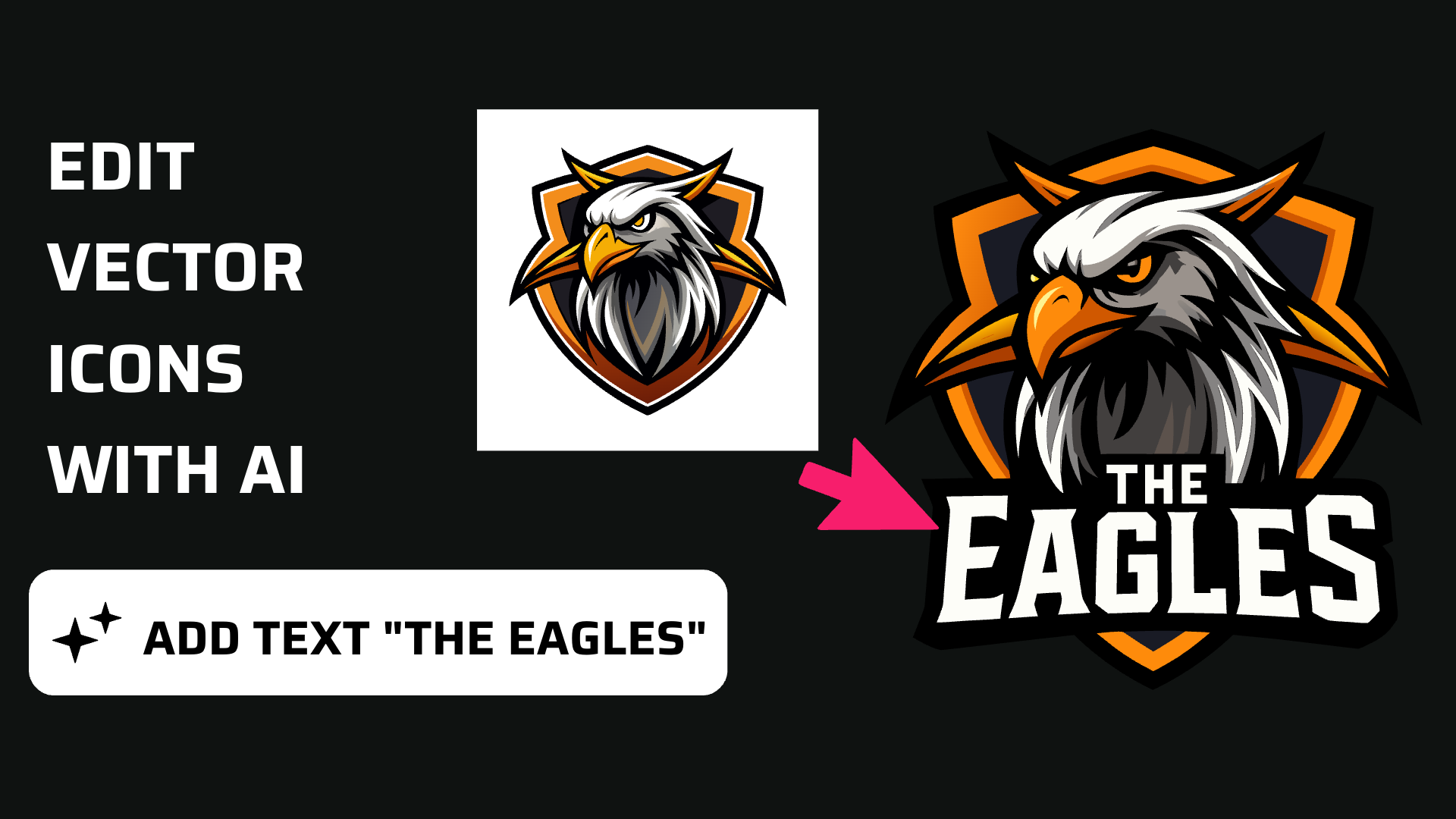
जानें कि Vector Ink आइकन लाइब्रेरी ...
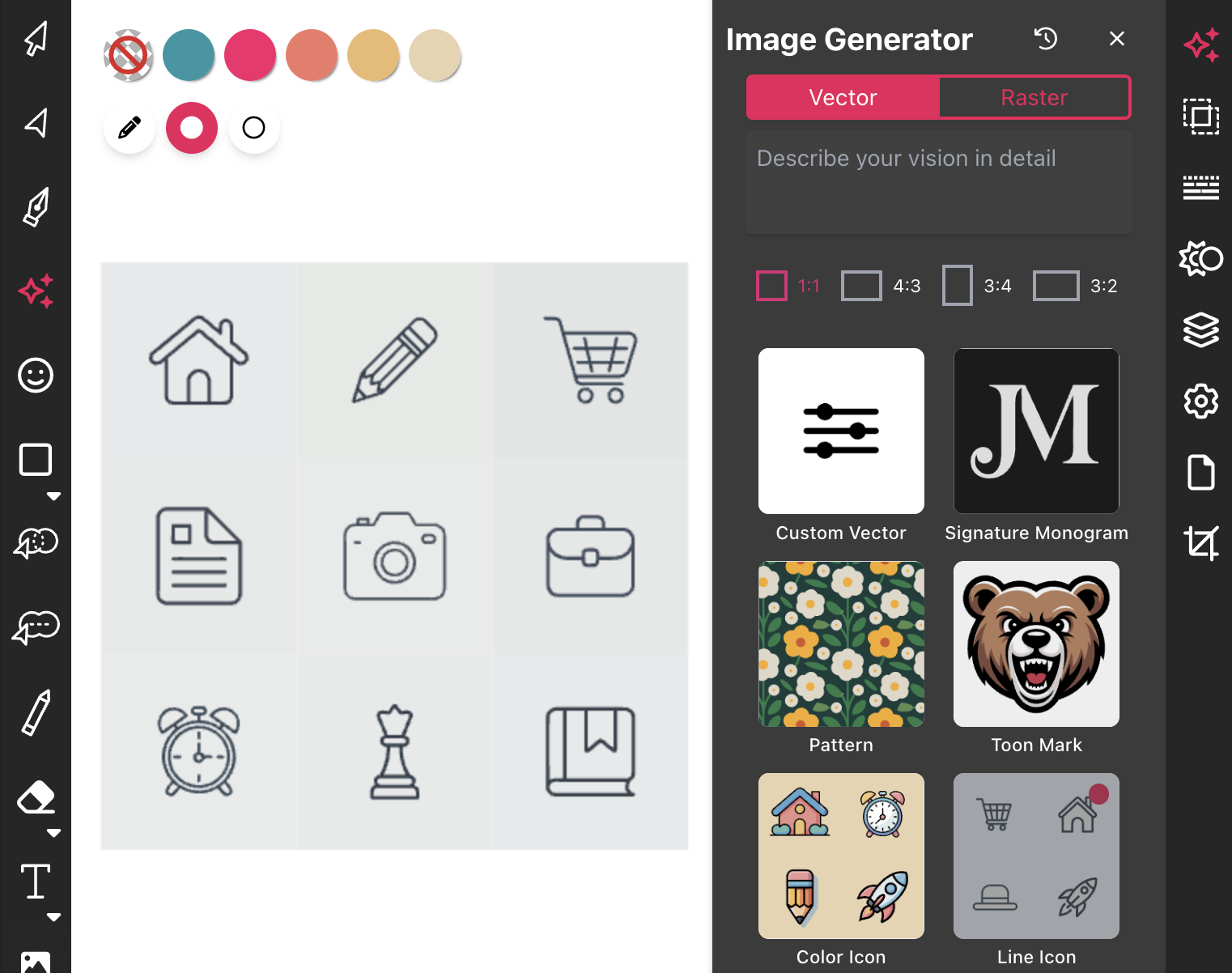
अधिकांश आइकन लाइब्रेरीज़ कु...
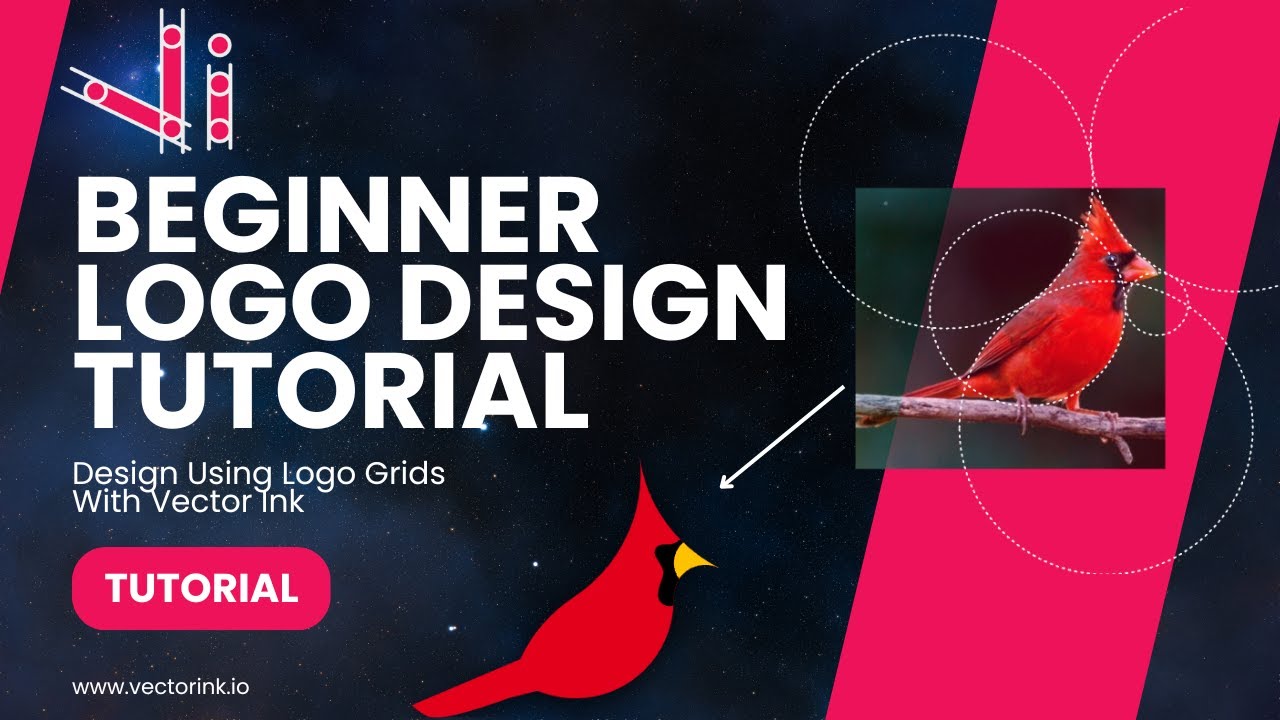
एक साफ-सुथरा, पेशेवर लोगो बना...
सबसे पहले Vector Ink वेब ऐप खोलें। à¤...
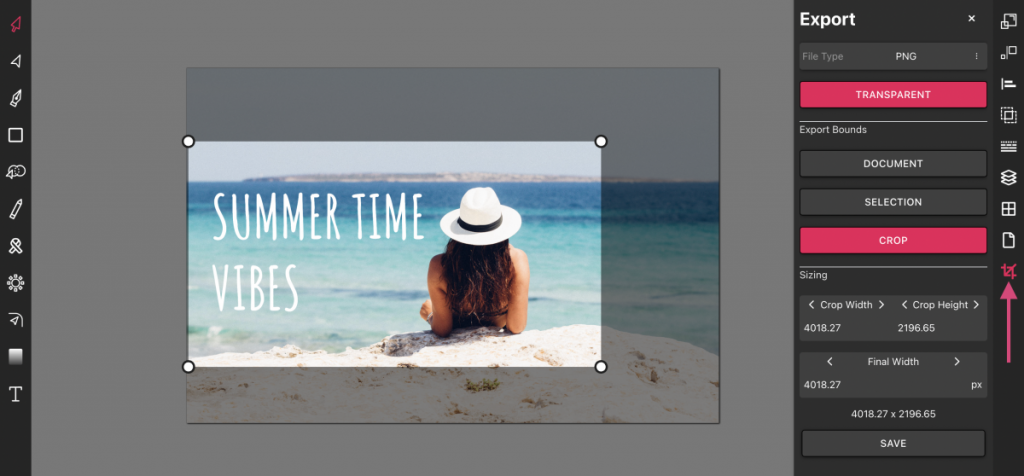
Vector Ink सिर्फ एक ऑनलाइन SVG संपादक...