Vector Ink Path Builder Tool Tutorial: Create Custom Shapes from Paths
Vector Ink’s Path Builder Tool lets you combine, cut, and create complete...
The Draw Tool is essential for freehand drawing, offering options for smooth strokes and automatic connection to other paths. This allows you to lift and resume your drawing without breaking the path. To begin, select the Draw Tool from the toolbar, press down on the canvas, and start drawing.
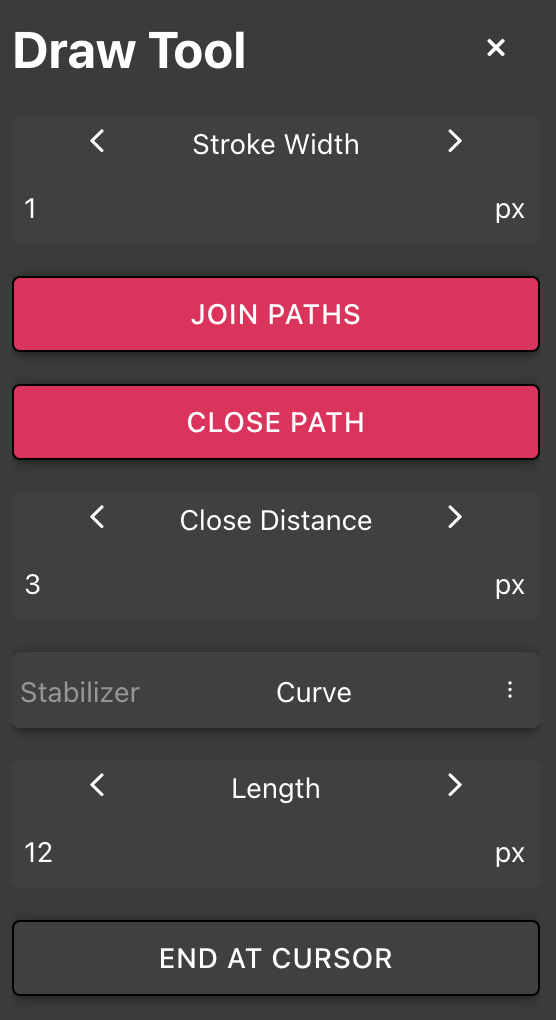
Set the width of your stroke directly through the "Stroke Width" property under the Draw Tool properties. Adjustments in the Stroke panel will not affect this setting.
Activate the "Join Paths" toggle to connect your new stroke to an open path by starting your stroke at either end of any existing open path. When you finish drawing, your stroke will seamlessly connect to the selected path and adopt its properties.
With the "Close Path" toggle on, the Draw Tool will automatically attempt to close the path if the start and end points are close enough, defined by the "Close Distance" setting.
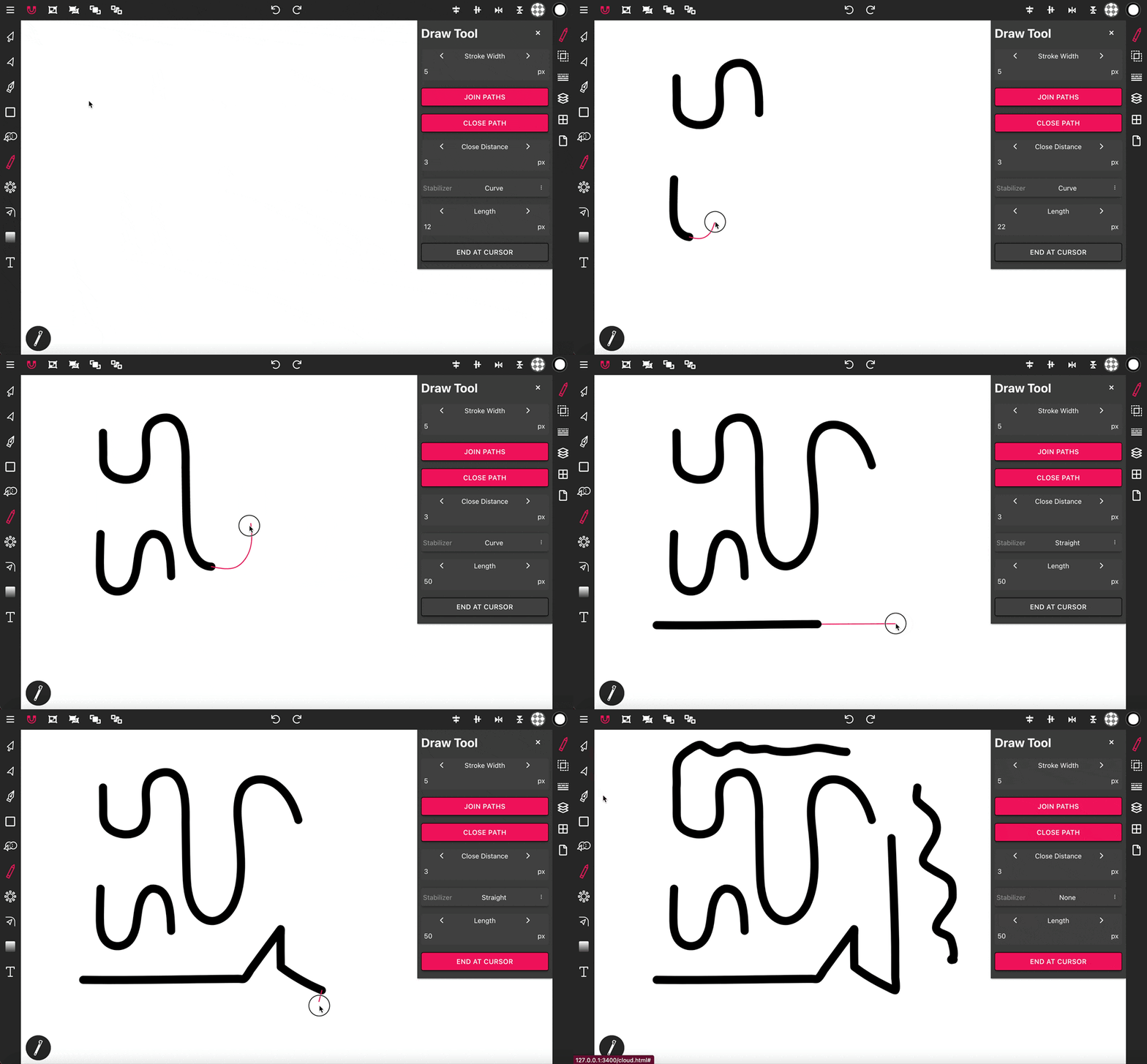
The Stabilizer enhances control over the smoothness and direction of your strokes, with several options available:
Set the length of the Stabilizer to adjust how far the stabilization effect extends from the drawing point. The "End At Cursor" option, when toggled on, ensures that the end point of your stroke aligns with the front of the Stabilizer rather than the tail, providing precision in finishing strokes exactly where the cursor is located.
Vector Ink’s Path Builder Tool lets you combine, cut, and create complete...

Vector cleanup doesn’t have to be tedious. With Vector Ink’s Erase, Kni...

A well-organized design isn’t just about aesthetics — it’s about effi...
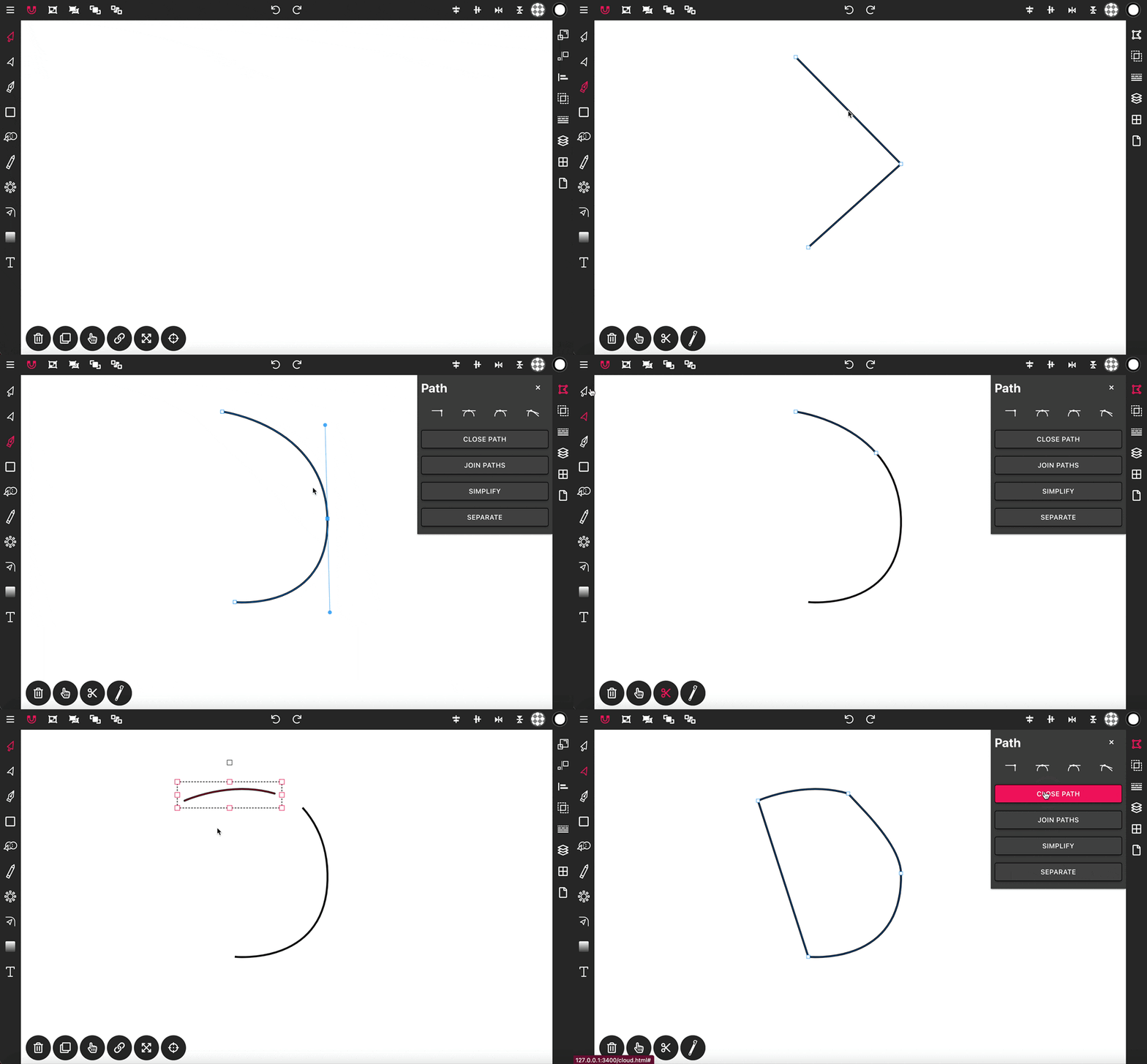
With the Pen Tool, you can draw paths with sharp or smooth anchor points an...
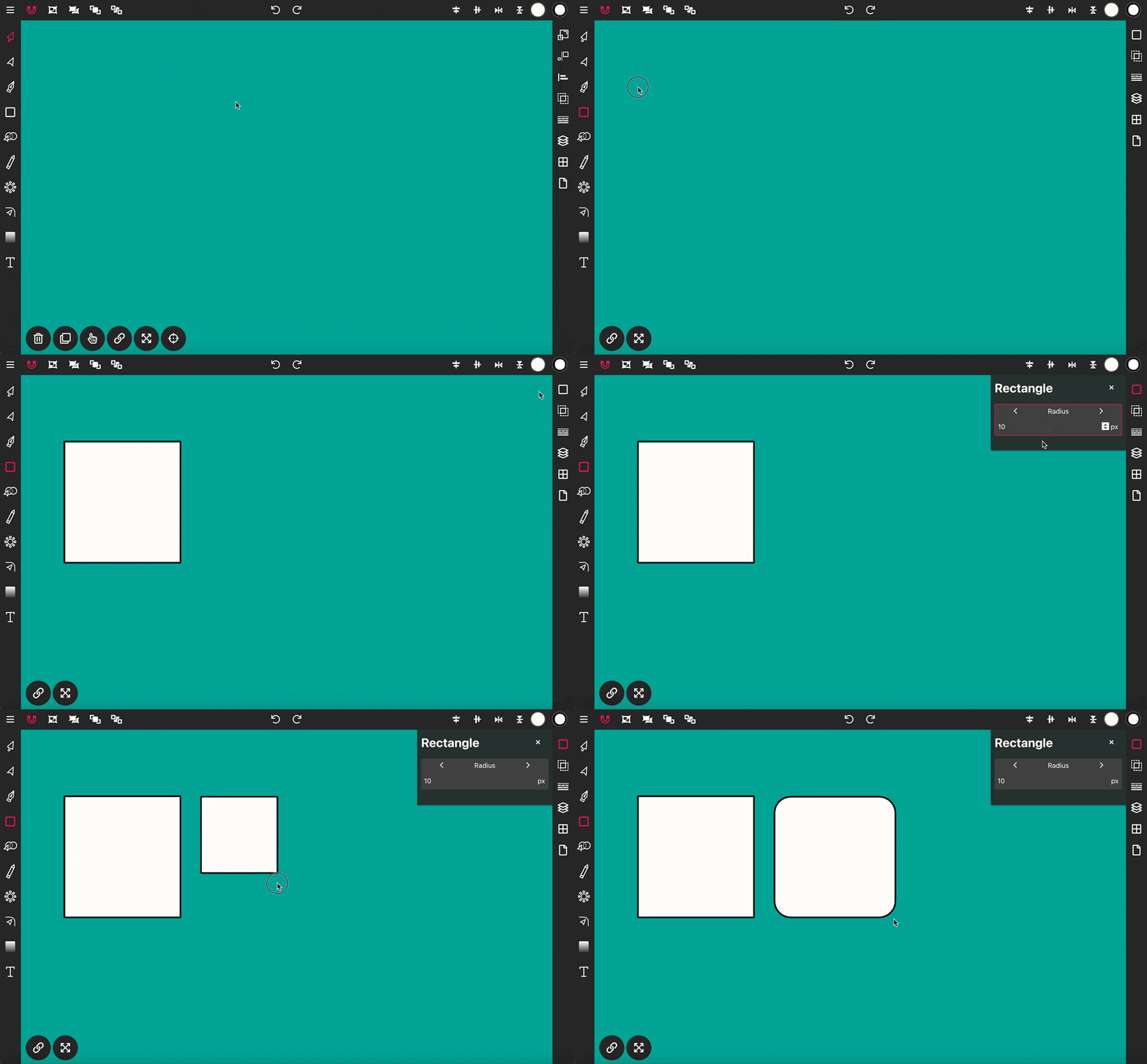
Use the Rectangle Tool to draw a rectangle shape onto the canvas. To get st...