
How to Make a Character Reference Sheet: A Guide for Concept Artists and Animators
A character reference sheet is the single source of truth for how a charact...
Vector Ink’s Path Builder Tool lets you combine, cut, and create completely new shapes from existing paths with intuitive precision. Whether you’re crafting a complex logo or a minimal icon, this tool gives you the power of traditional shape builders — but with more control and freedom.
The Path Builder Tool is located under the Shape Tool in the toolbar. It allows you to create new vector shapes from a group of existing ones — lines, circles, or any paths that overlap or intersect.
To get started:
The Path Builder Tool offers several Replace Modes that control what happens to your original shapes when you finalize your new path:
You can access these options in the Path Builder properties panel on the right side of the screen.
When you trace or connect overlapping paths, Vector Ink automatically detects closed regions. Once a shape is fully enclosed, the tool fills it with your current color to show that it’s a complete shape.
If you want to keep your original paths, set Replace to None before finalizing — that way, your new shape will be added without deleting the source geometry.
Sculpt Mode automatically detects nearby path intersections and intelligently includes them when you draw or trace over shapes — ideal for quick, organic selections.
Join Mode (pencil icon) lets you manually click or drag on exact path segments to include them in your shape. This mode provides more precision for fine-tuned design work.
You can switch between Sculpt, Join, and Erase using the icons in the Path Builder Tool panel.
A unique advantage of the Path Builder Tool is the ability to assign fill colors as you build shapes. Before drawing, select a color from your palette. Each shape you create will automatically apply that color when finalized — allowing you to quickly visualize your design in color as you go.
You can also use the Path Builder to cut and rebuild shapes using individual segments. For example, select one shape that overlaps others, activate the tool, and set it to Replace All to cut intersections cleanly and form new compositions. This is especially useful for logo construction or subtractive artwork.
Unlike traditional Shape Builder tools (such as Adobe Illustrator’s), Vector Ink’s Path Builder offers a more manual, drawing-based workflow. It’s designed to feel intuitive — like sketching shapes directly on the canvas — while giving you full control over which segments to keep, merge, or remove.
The Path Builder Tool is perfect for designers who want both freedom and precision. Combine paths, cut shapes, and build completely new designs in seconds. Try it now in Vector Ink and start creating custom vector artwork that stands out.
A character reference sheet is the single source of truth for how a charact...
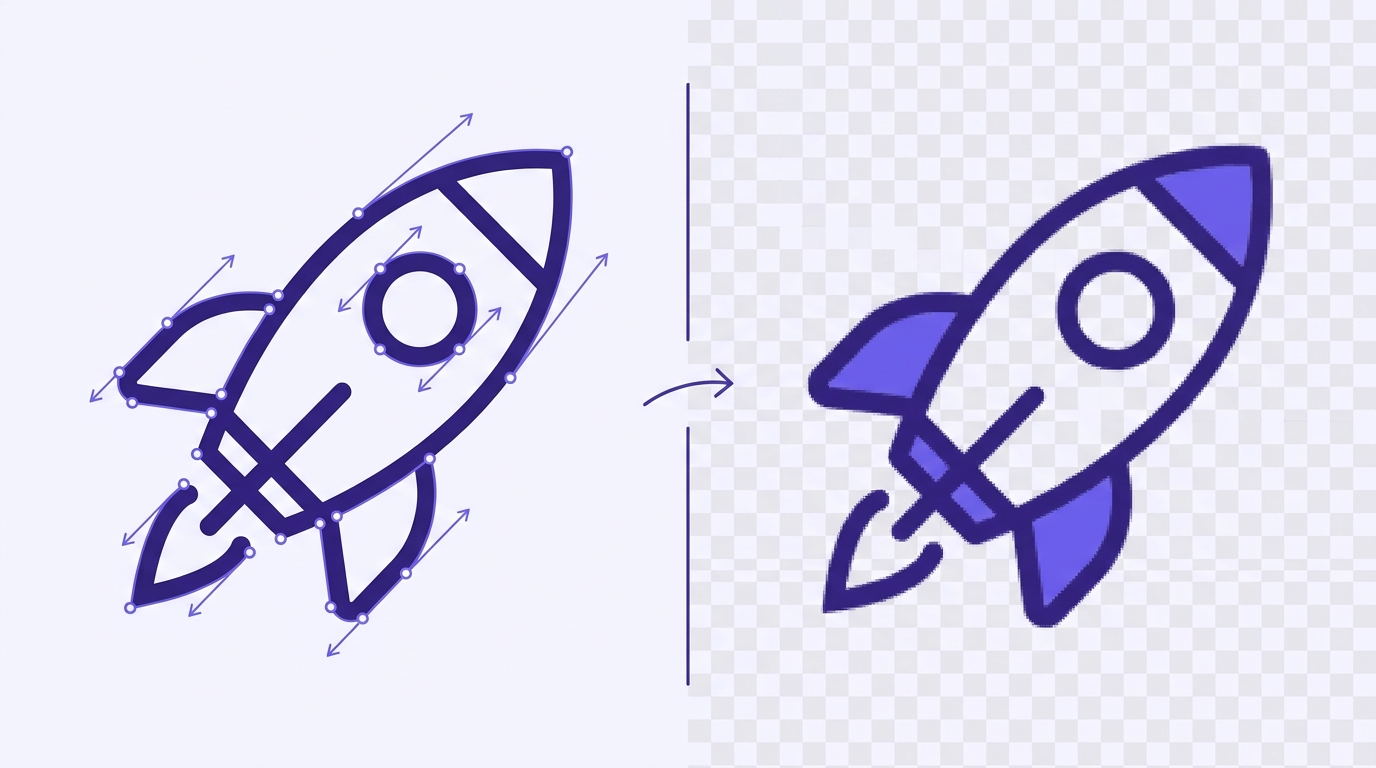
Sooner or later every designer, crafter, and marketer hits the same wall: y...
Organization is key to efficient vector design. In this tutorial, we’ll e...

A well-organized design isn’t just about aesthetics — it’s about effi...
Vector Ink’s AI Image Generator lets you create logos, icons, illustratio...
This continuation of our Selection Tool series dives into the Control Bar a...