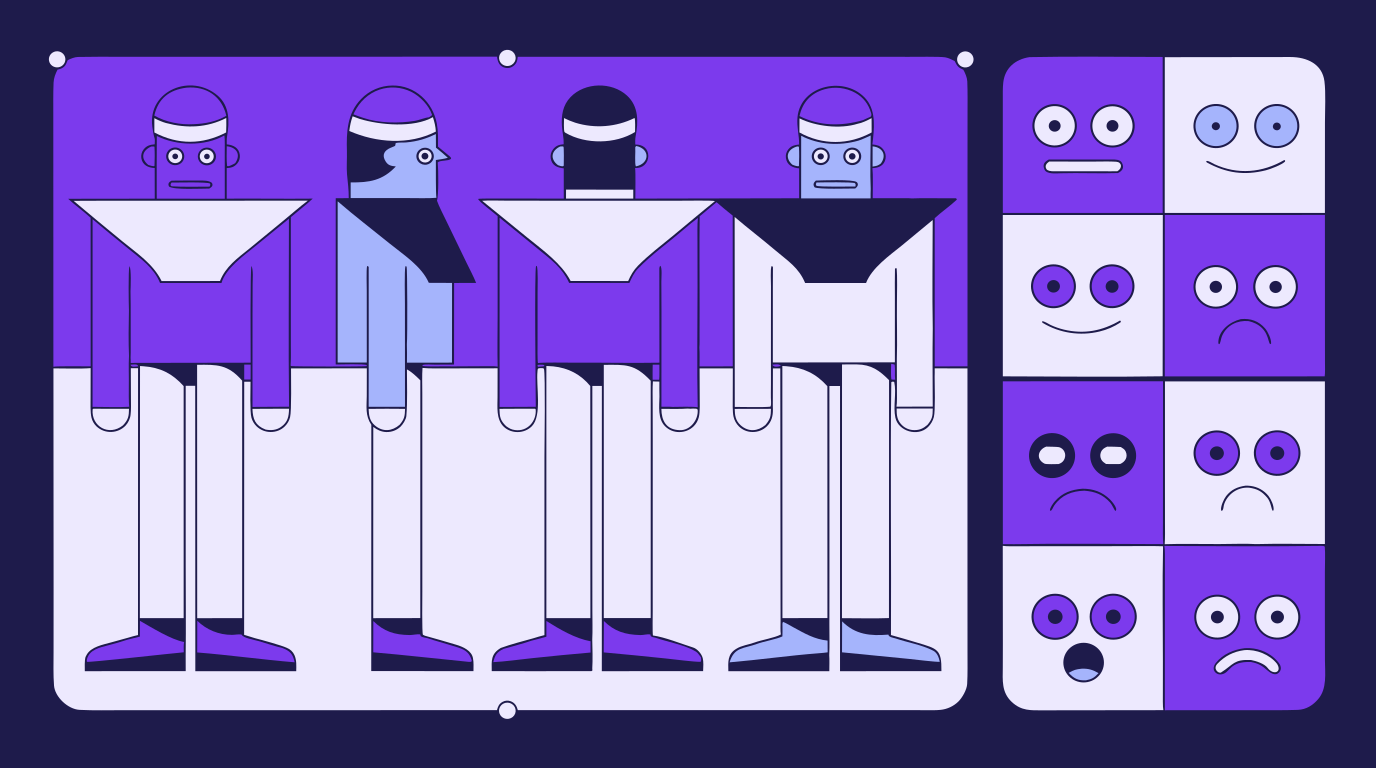
How to Make a Character Reference Sheet: A Guide for Concept Artists and Animators
A character reference sheet is the single source of truth for how a charact...
A well-organized design isn’t just about aesthetics — it’s about efficiency. The Layers Panel in Vector Ink lets you keep your artwork tidy, making it easy to manage complex logos, illustrations, and UI layouts. In this tutorial, you’ll learn how to create, rename, and manage layers like a pro so your workspace stays clean and your process stays smooth.
The Layers Panel can be found in the control bar on the right side of the screen. On mobile devices, it’s located along the bottom. Tap the Layers icon to open the panel and view the list of layers in your project.
If you only have one layer, tap its thumbnail twice to expand it. You’ll see all the groups and objects contained within that layer — each object can be individually selected, edited, or rearranged.
Inside the Layers Panel, each object or group has a grip icon on the right. Use this handle to drag and change the object’s order in the hierarchy. This determines which elements appear on top of others.
You can also toggle the visibility (eye icon) to show or hide objects, or tap the lock icon to prevent accidental edits. These controls are perfect for focusing on specific elements in complex artwork.
Each object or layer has a gear icon that opens additional settings. Here you can rename the object, adjust its opacity, and fine-tune other properties. Always tap Save to confirm your changes before closing the panel.
Naming layers clearly — for example, “Logo Text,” “Background,” or “Icons” — helps you stay organized and quickly locate the elements you need later.
To keep different elements organized, add new layers for each part of your design. For example, one layer for your logo, another for background graphics, and another for icons or text. You can rename a layer by tapping its name in the panel, and delete it if you no longer need it.
Moving objects between layers is as simple as dragging them from one layer’s list to another — a powerful way to organize your composition for easier editing.
When working on fine details, locking or hiding layers prevents distractions and accidental changes. Tap the eye icon to hide a layer temporarily, or the lock icon to make it unselectable. This is especially helpful when working with overlapping elements or transparent backgrounds.
Mastering the Layers Panel is one of the fastest ways to improve your workflow in Vector Ink. It helps you stay organized, minimize mistakes, and focus on creativity — not chaos. Whether you’re crafting a complex illustration or a simple logo, layers keep your project efficient and easy to manage.
Take control of your workspace and experience smoother, cleaner design sessions —
Launch Vector Ink and start organizing your projects like a pro today.
A character reference sheet is the single source of truth for how a charact...

Sooner or later every designer, crafter, and marketer hits the same wall: y...
Typography can make or break a design — and Vector Ink gives you total fr...

Vector cleanup doesn’t have to be tedious. With Vector Ink’s Erase, Kni...
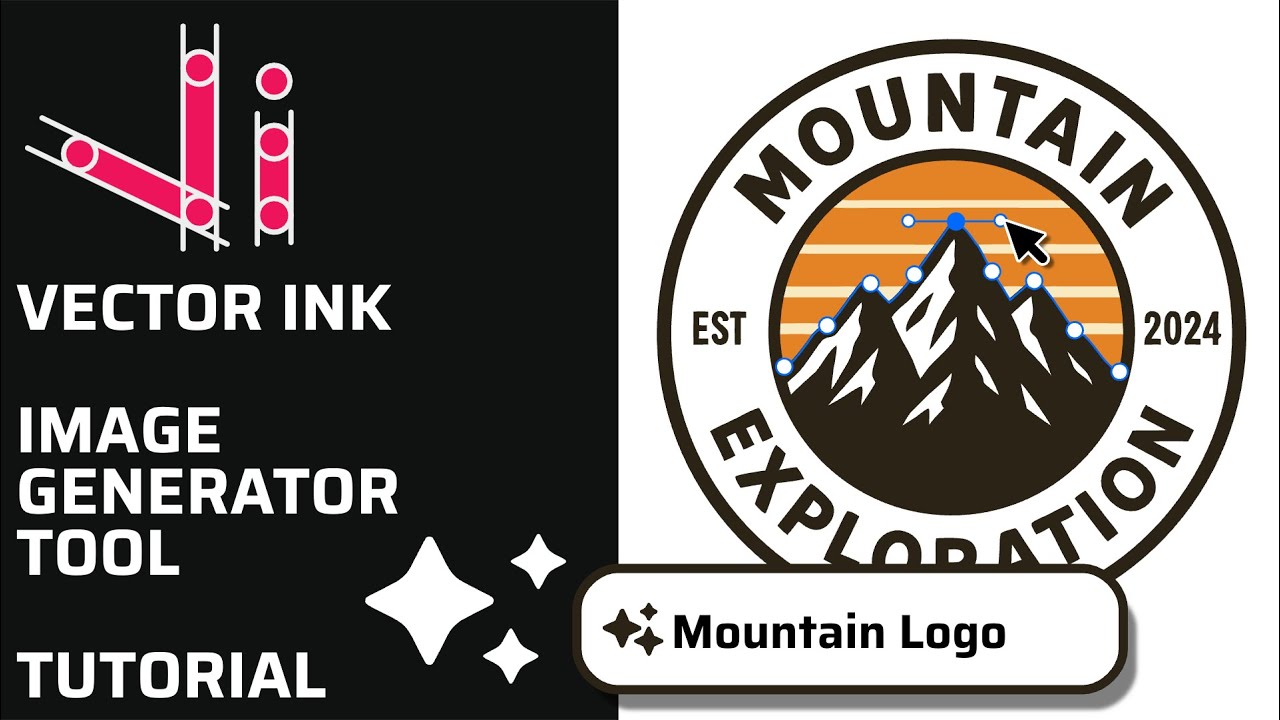
Vector Ink’s AI Image Generator lets you create logos, icons, illustratio...
This continuation of our Selection Tool series dives into the Control Bar a...