Vector Ink Shadow Tool Tutorial | Add Depth with Custom Shadow Properties
Shadows add instant depth, hierarchy, and polish to your vector designs. In...
Outlining a font simply means taking a text object and converting it to a vector path object, thus allowing you to edit the points and curves that make up the shape of the text. This is really easy to do in Vector Ink.
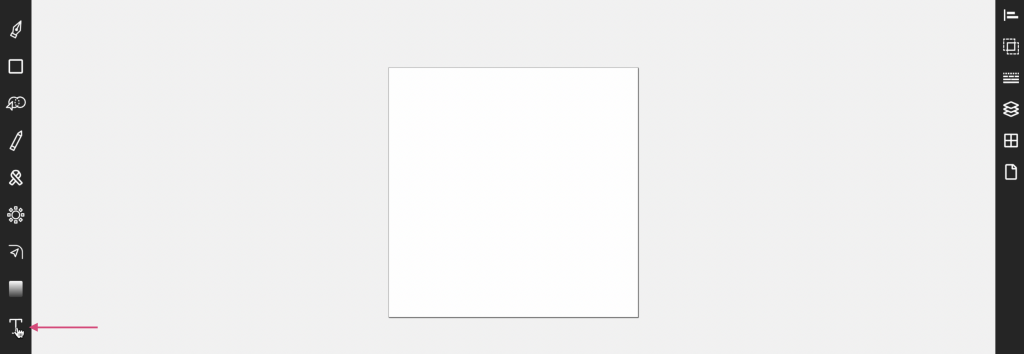
Step 1. Add text to the canvas. Tap on the Text icon located at the bottom of the toolbar.
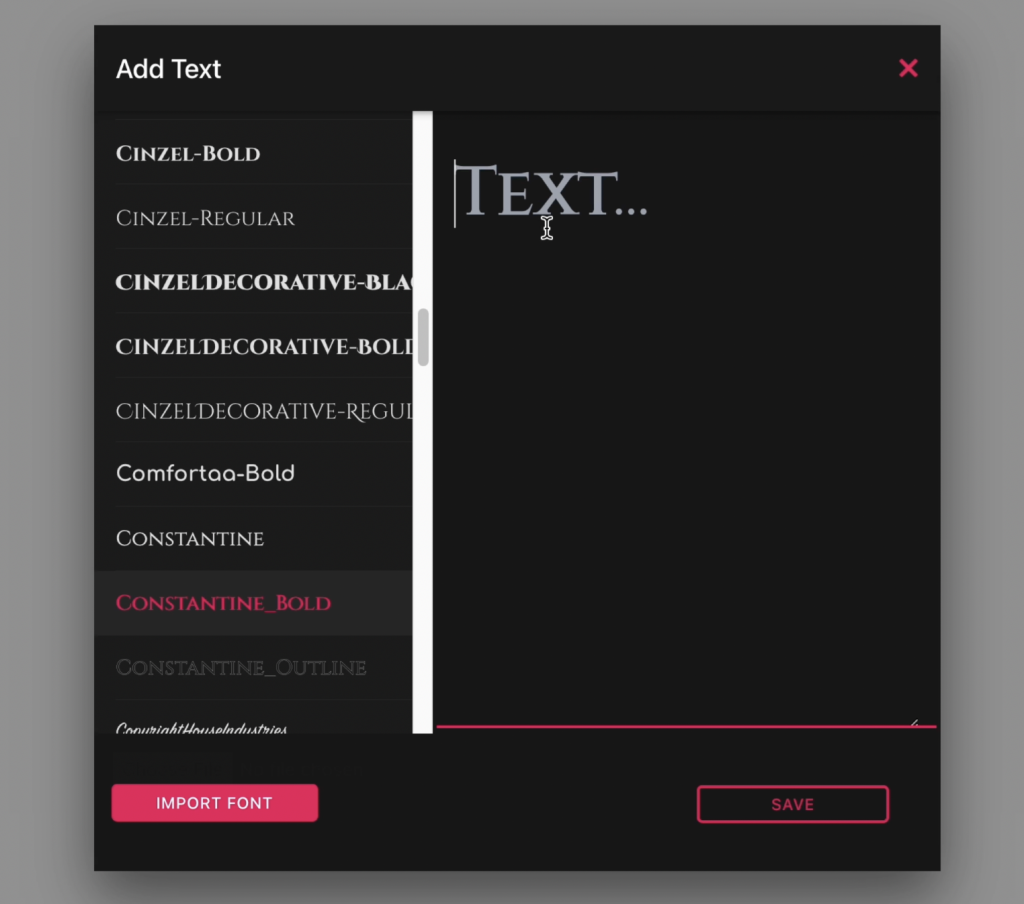
Step 2. Choose a font, add some text int he text box, and tap save.
Step 3. Select the text on the canvas, open the text panel on the right, and select [TEXT TO PATH].
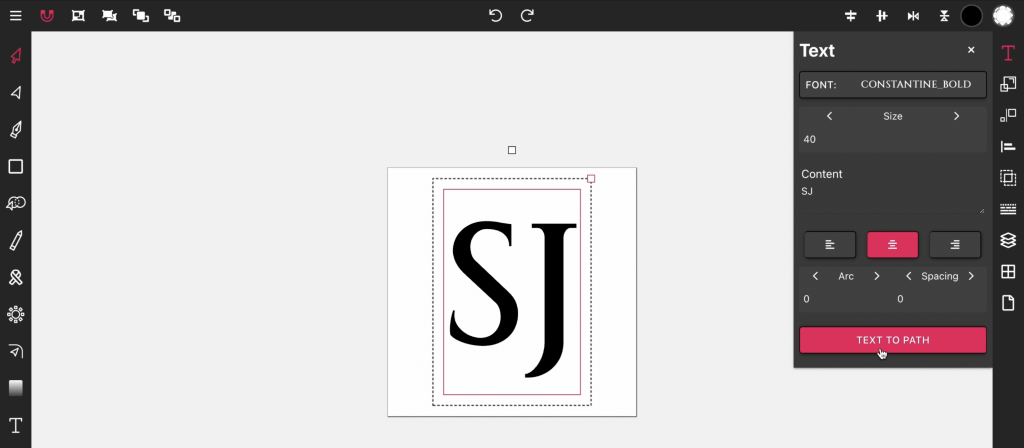
That it! Your text is now a vector path ready for editing.
Shadows add instant depth, hierarchy, and polish to your vector designs. In...

Vector cleanup doesn’t have to be tedious. With Vector Ink’s Erase, Kni...
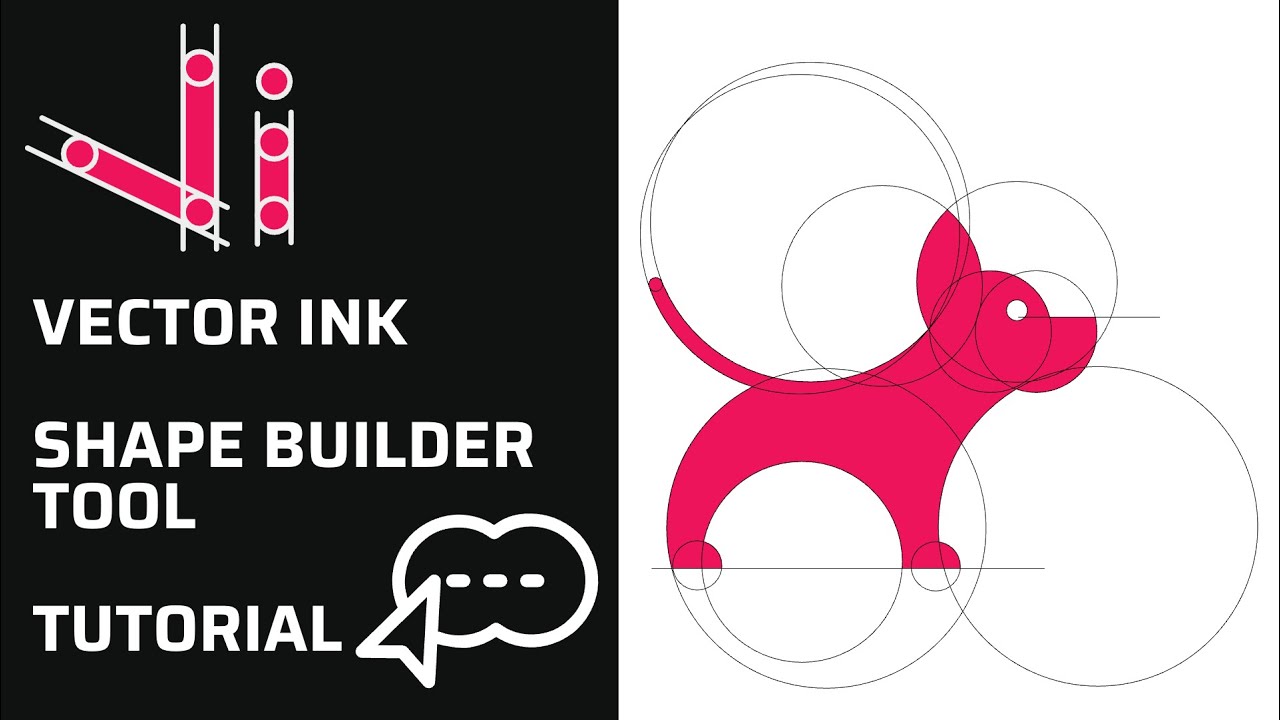
Vector Ink’s new Shape Builder Tool is a total game-changer for vector de...
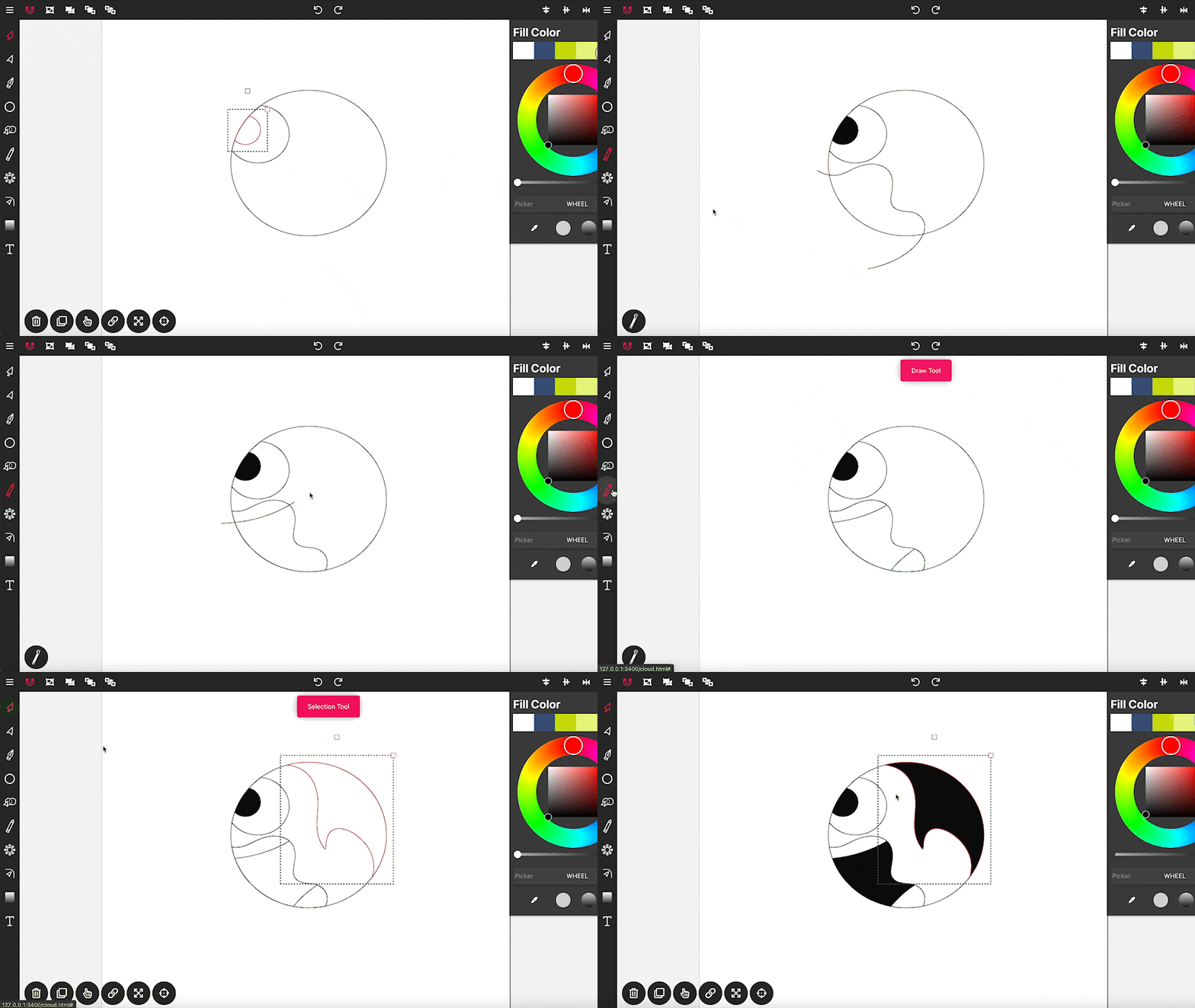
Drawing in Vector Ink is not only super easy but also incredibly intuitive....
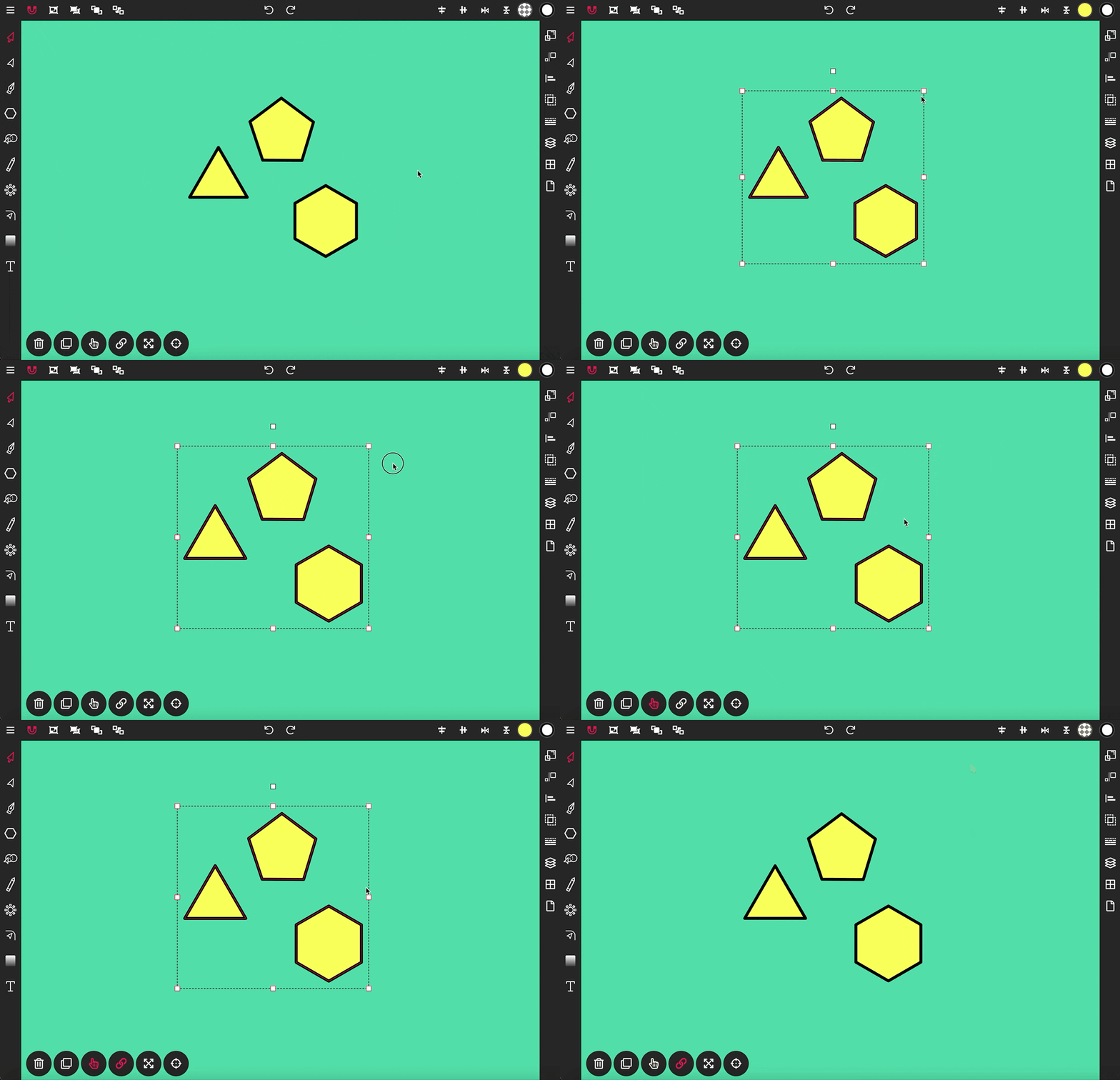
The Selection Tool is a fundamental component of Vector Ink, essential for ...
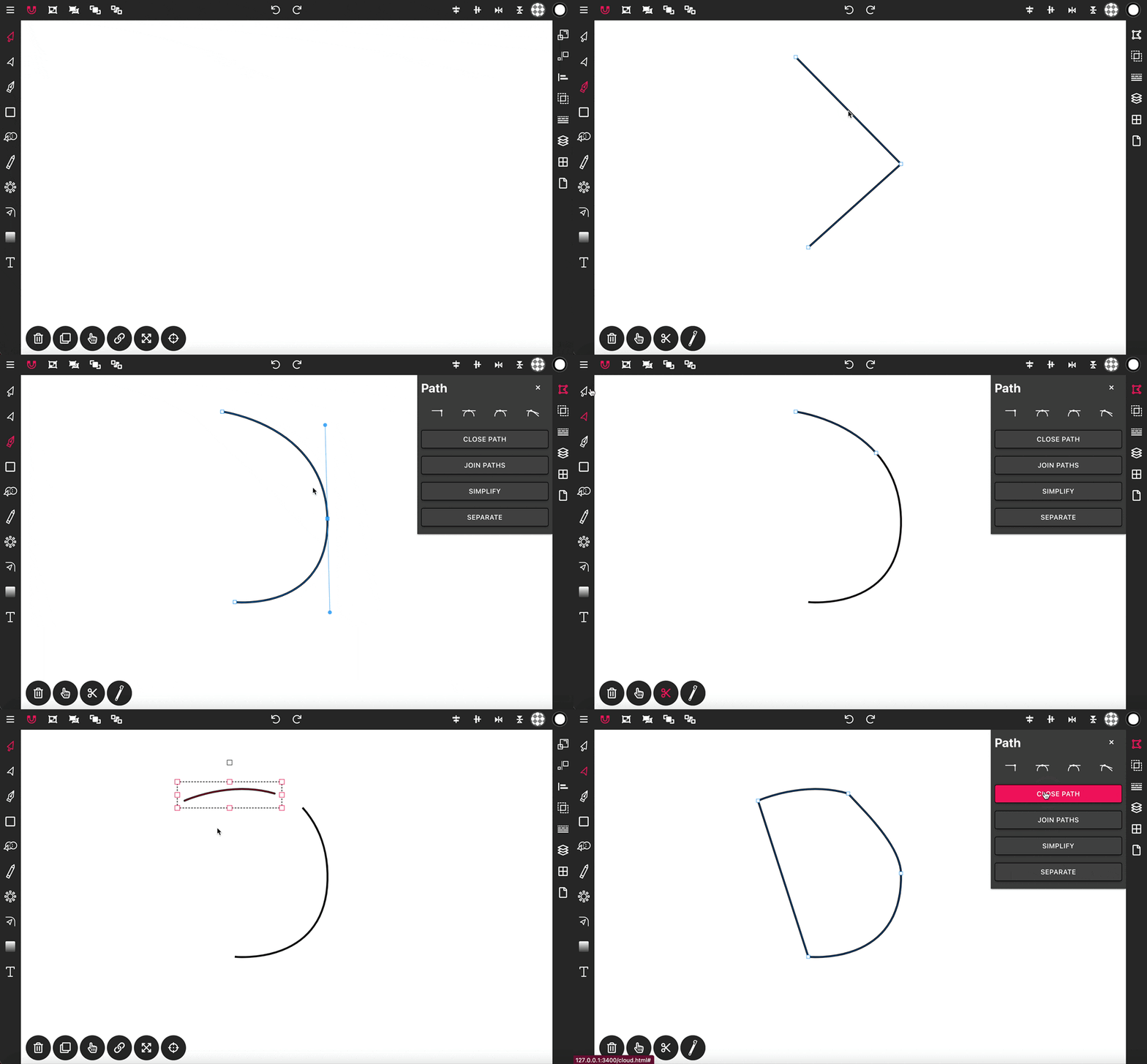
With the Pen Tool, you can draw paths with sharp or smooth anchor points an...