✓ {{ purchaseCreditsAdded }} {{ 'credits added. Thanks — you\'re all set.' | locale }}
Upscale an Image
Turn blurry images into sharp, high-resolution graphics in seconds.
{{ 'Up to 4× resolution · sharpens edges and text · PNG or JPG · no watermark' | locale }}
✓ {{ '1 free upscale — no account needed' | locale }}
{{ 'Batch: drop up to 20 photos at once' | locale }}



Give Your Images a New Life with Vector Ink’s Free AI Upscaler
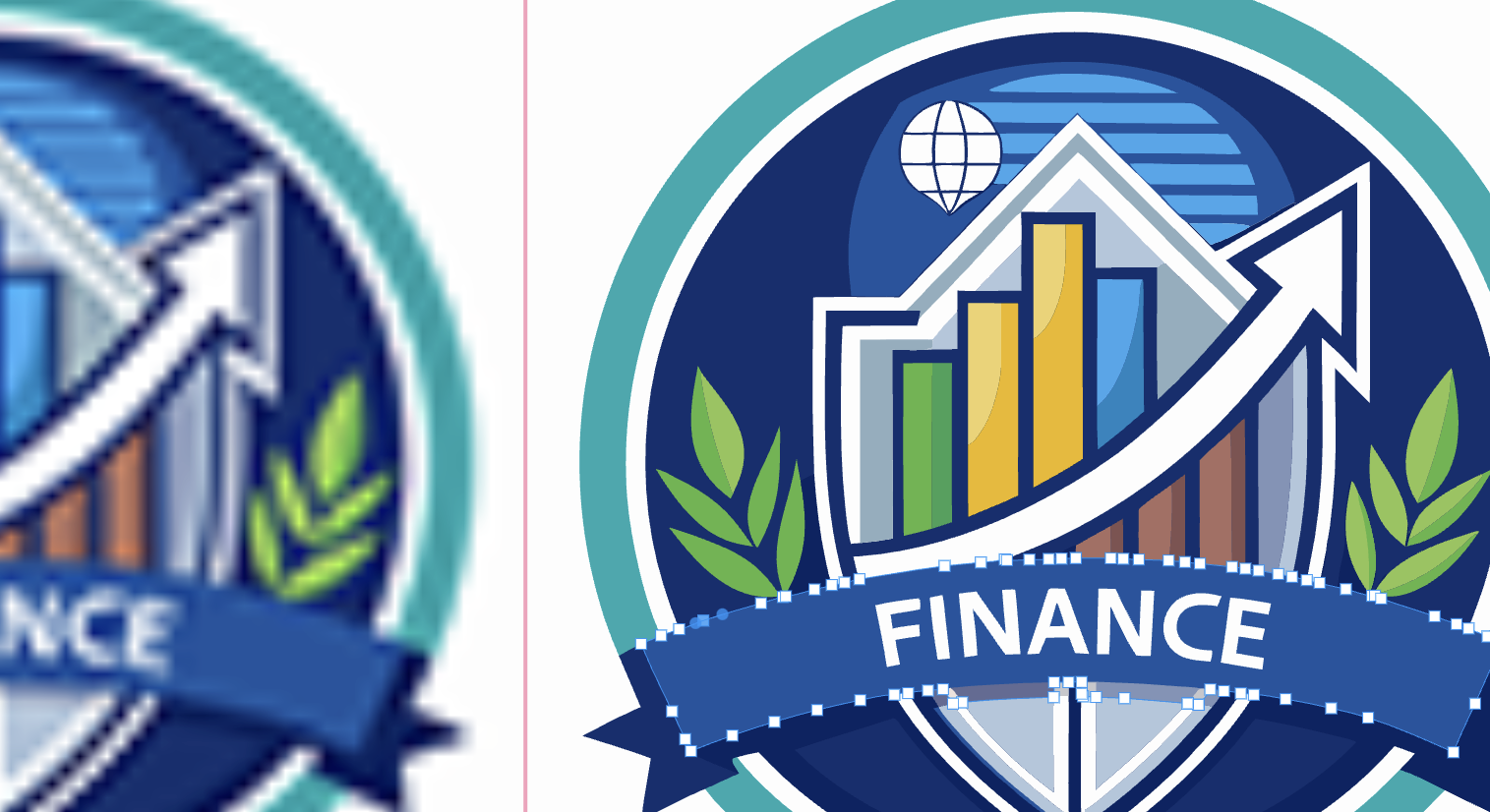
Blurry photo? Pixelated logo? With Vector Ink’s new **AI Image Upscaler**, you can enhance image resolution in seconds — completely free. Instead of simply stretching pixels, our AI reconstructs missing detail and smooths edges for crystal-clear results. Whether you’re preparing an old image for print, cleaning up a logo, or getting ready to vectorize, the upscaler gives you studio-quality sharpness right in your browser.

What Image Upscaling Actually Does
Traditional resizing just enlarges pixels, making an image look blocky or soft. AI upscaling, on the other hand, analyzes every edge, color gradient, and texture to *intelligently fill in* lost details. It’s like teaching your image what it was always meant to look like — sharper, smoother, and ready for design or print.
If your priority is improving perceived clarity rather than increasing dimensions, try Vector Ink's dedicated AI Image Enhancer. It uses the same enhancement engine with guidance for photos, compressed images, and batch quality improvement.
Common uses include:
- Restoring clarity to old or compressed images.
- Making small graphics print-ready without losing detail.
- Improving source quality before converting to SVG with the Vectorizer.
- Sharpening photos for thumbnails, product shots, or marketing materials.

Use the Upscaler Inside the Vector Ink Web App
You can also upscale directly inside the Vector Ink Web App. Here’s how:
- Go to Vector Ink Web App.
- Import your image onto the canvas.
- Select it, then open the Image Properties Panel.
- Click Upscale — a sharper version will appear instantly on your canvas.
This workflow lets you stay creative in one place, improving and reusing your upscaled images instantly for logos, illustrations, or printable artwork.

Upscale + Vectorizer: The Secret to Clean, Sharp SVGs
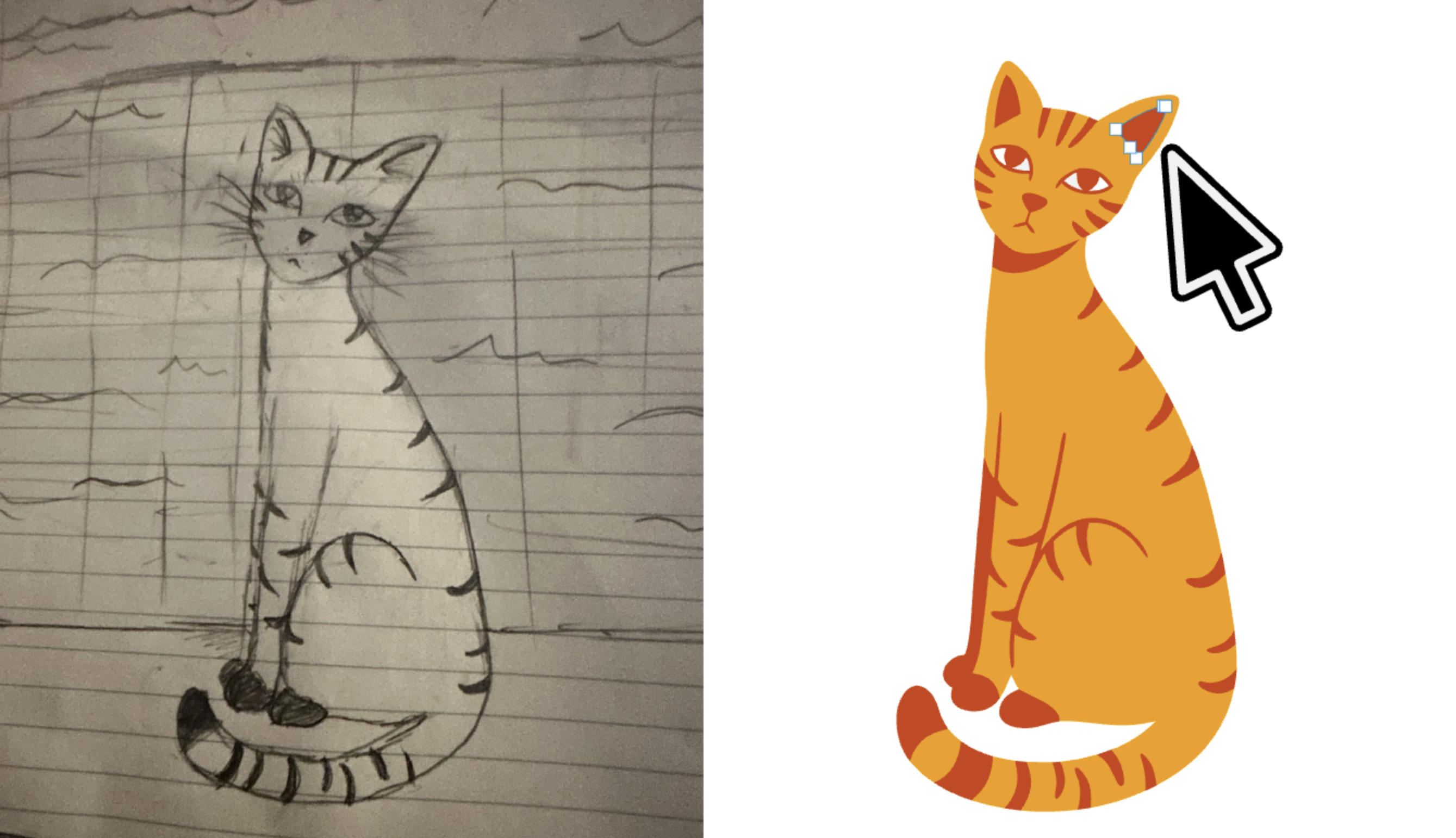
If your image is low-quality and your SVG results come out rough or incomplete, try upscaling first. The AI Upscaler improves clarity and contrast, giving our Vectorizer more detail to interpret. The result? Cleaner edges, smoother lines, and professional-grade vector output.
Quick tip: When working with small logos, upscale 2× or 4× before vectorizing to ensure every curve and color is accurately captured.
Who Can Benefit from the Upscaler?
- Crafters & DIY Designers – Enlarge photos for cutting machines like Cricut or Silhouette.
- Logo Designers – Clean up pixelated marks before tracing or refining in Vector Ink.
- Photographers & Artists – Restore older or compressed images for portfolios.
- Students & Educators – Improve image quality for projects and visual presentations.
Tips for Best Results
- Start with at least a 512px wide image for optimal output.
- Use Upscale first, then Vectorize for the cleanest SVGs.
- Combine Upscaler with the Background Remover for cut-ready designs.
- For very large images, upscale once, review, then upscale again for more refinement.
Bring Your Images Back to Life
Turn blurry photos into sharp masterpieces and low-res graphics into professional assets. Try Vector Ink’s **Free AI Image Upscaler** today and see the difference for yourself. Then take it further — launch Vector Ink to design, vectorize, and create anywhere.