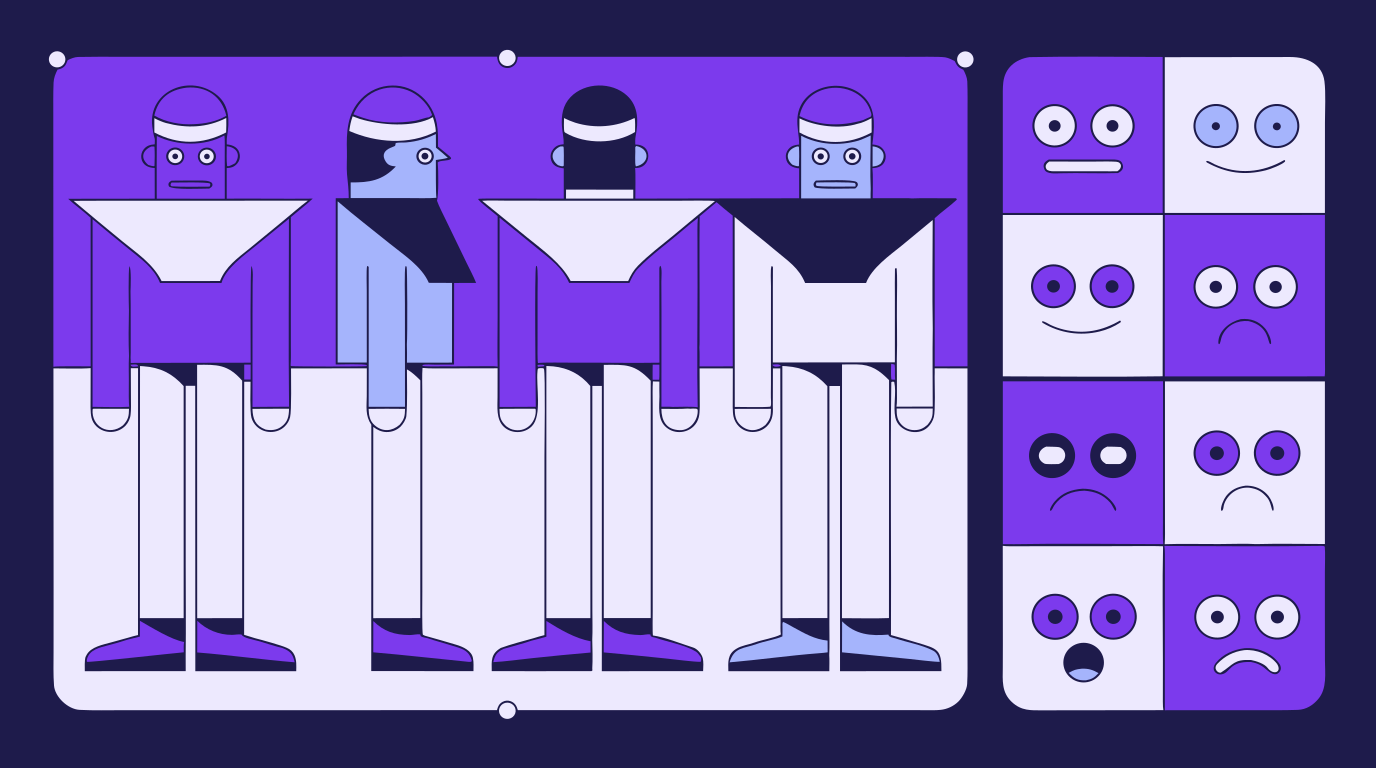
How to Make a Character Reference Sheet: A Guide for Concept Artists and Animators
A character reference sheet is the single source of truth for how a charact...
Boolean actions are the fastest way to build complex shapes from simple ones. In this tutorial, you’ll learn how to merge, cut, and combine paths in Vector Ink to create clean, professional vector artwork for logos, icons, and more.
Union (Merge): Combines selected shapes into a single path. Great for fusing overlapping geometry into one clean object.
Subtract (Minus Front): Uses the top shape to cut away from the shape beneath it. Perfect for punching holes or carving details.
Intersect: Keeps only the overlapping area between shapes. Ideal for precise cutouts and emblem centers.
Exclude Overlap: Removes the overlapping region and keeps non-overlapping parts. Useful for decorative rings and frames.
A compound path is a single object made from multiple sub-paths (for example, an outer shape with an inner “hole”). After a Subtract, you often end up with a compound path: the outer contour plus an inner contour, stored together as one editable object.
Open two overlapping shapes in Vector Ink and try each Boolean action. In minutes, you’ll be constructing logos, badges, and icons with crisp, edit-friendly geometry.
A character reference sheet is the single source of truth for how a charact...
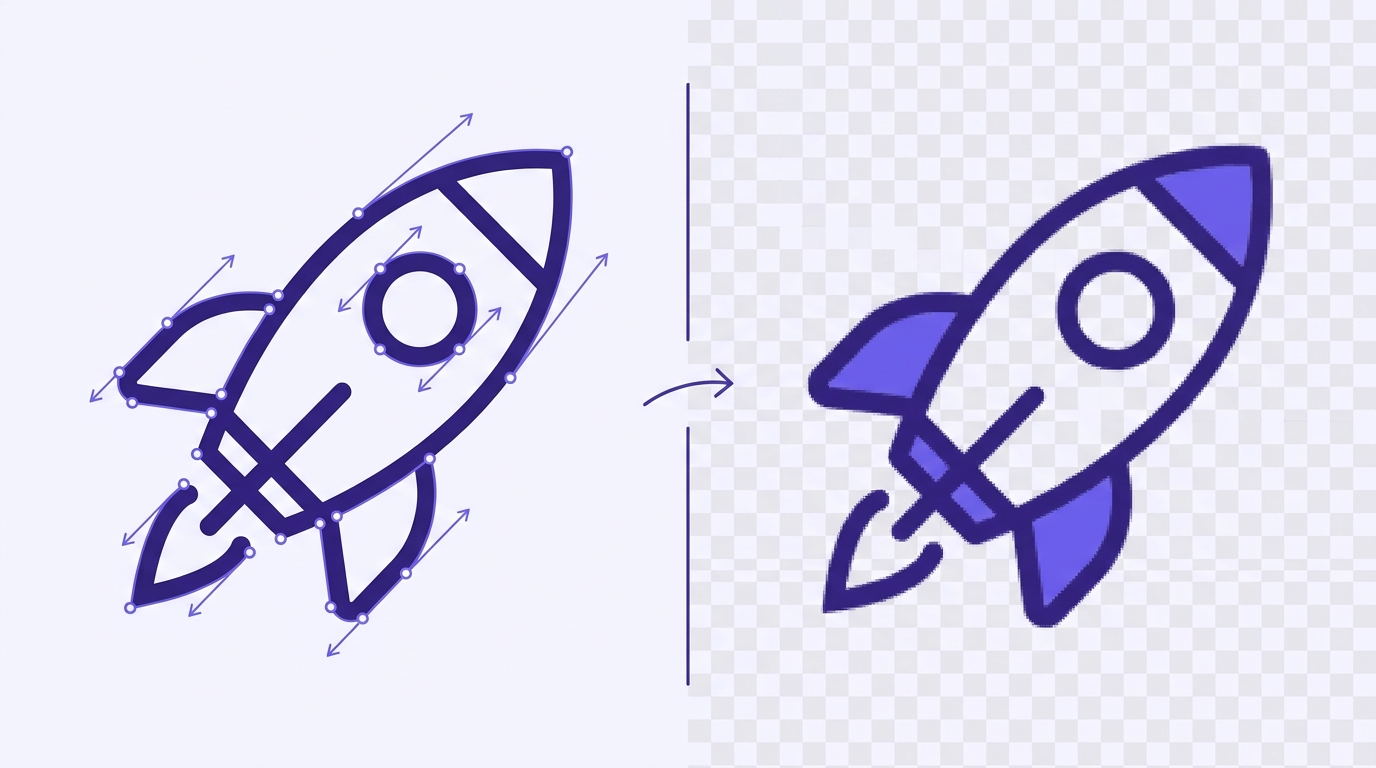
Sooner or later every designer, crafter, and marketer hits the same wall: y...
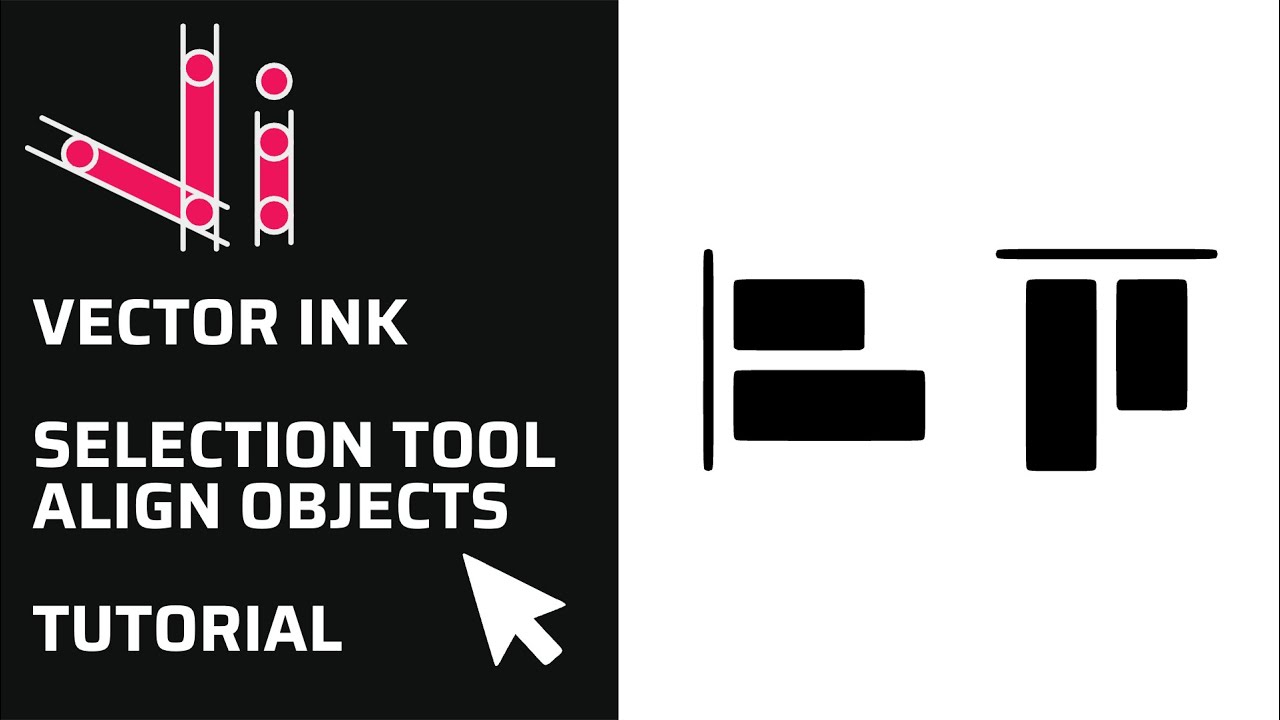
Whether you’re designing a logo, interface, or intricate vector illustrat...
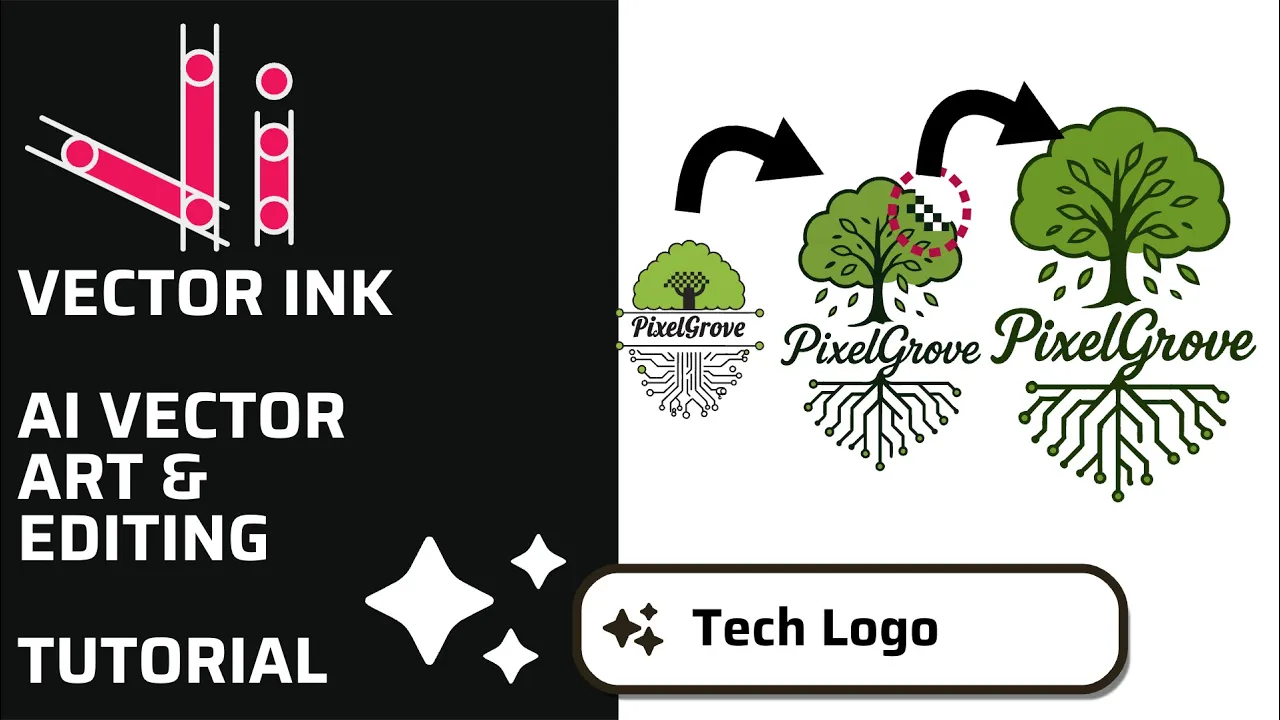
In this tutorial, we create a professional logo in minutes using the AI Ima...
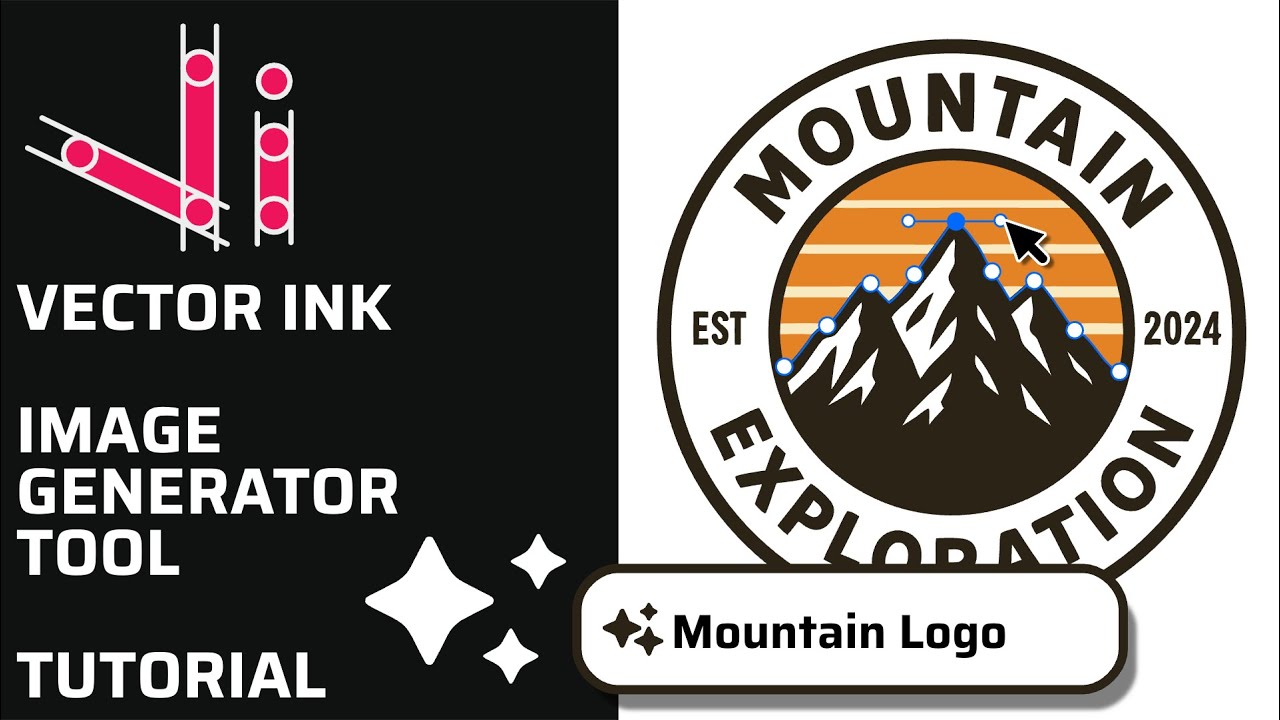
Vector Ink’s AI Image Generator lets you create logos, icons, illustratio...
This continuation of our Selection Tool series dives into the Control Bar a...