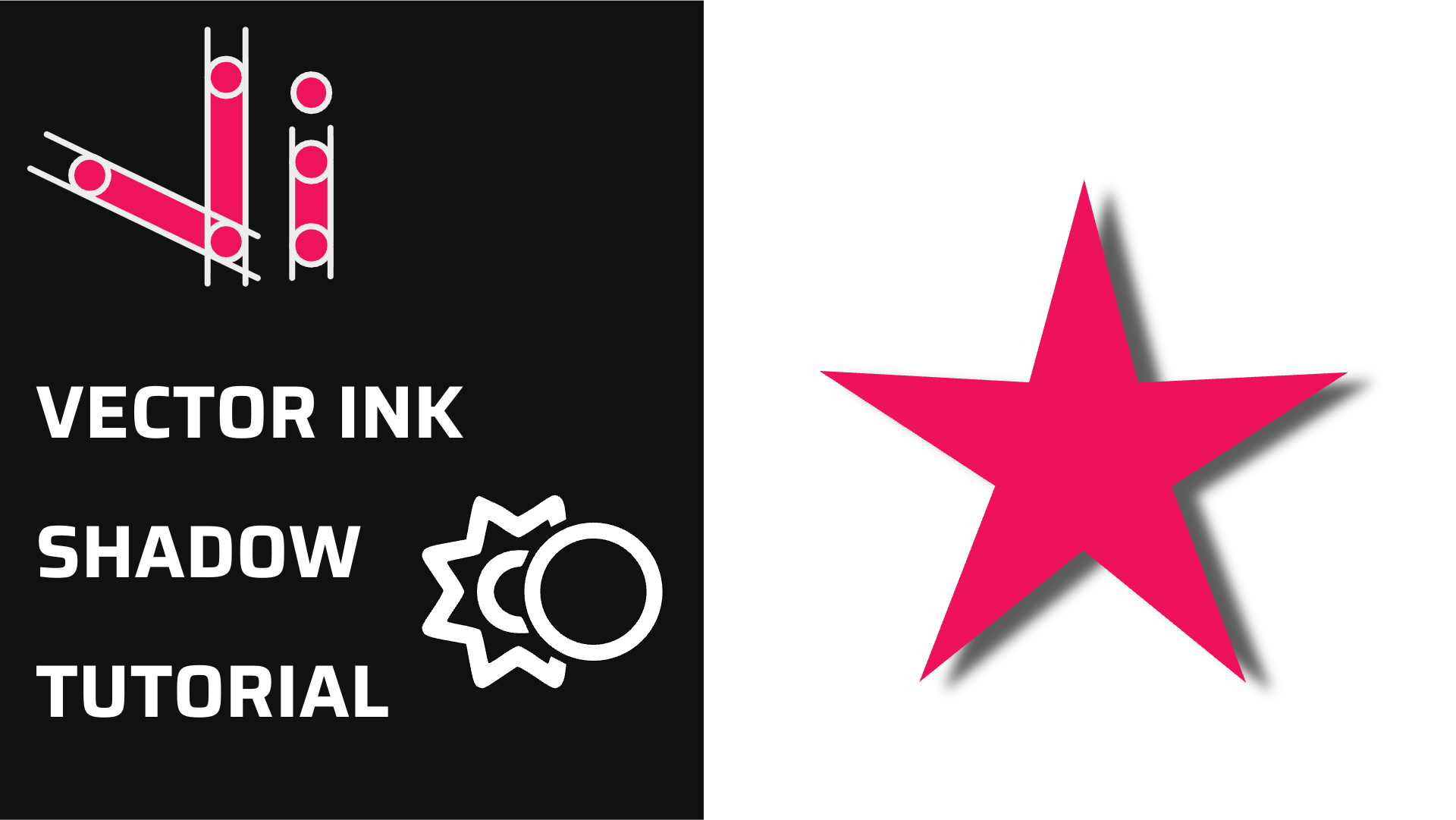
वेक्टर इंक शैडो टूल ट्यूटोरियल | कस्टम शैडो प्रॉपर्टीज़ के साथ गहराई जोड़ें
छायाएँ आपके वेक्टर डिज़ाइनो...
गोल कोने एक कठोर वेक्टर आकार को एक साफ, आधुनिक और परिष्कृत डिज़ाइन में बदल सकते हैं। इस ट्यूटोरियल में, आप जानेंगे कि वेक्टर इंक के अपग्रेड किए गए कॉर्नर टूल का उपयोग करके किनारों को नरम कैसे करें, कोने की त्रिज्या को समायोजित करें, और स्केल करने के बाद भी उन वक्रताओं को कैसे बनाए रखें।
एक या एक से अधिक कोनों को एक साथ कैसे चुनें और गोल करें। पिक्सेल सटीकता के साथ कोने के त्रिज्या को मैन्युअल रूप से समायोजित करना। स्केलिंग करते समय वेक्टर इंक कोने की गोलता को कैसे बरकरार रखती है। कोनों को संशोधित करते समय पथों को संपादन योग्य रखने के लिए सुझाव।
एक ऑब्जेक्ट चुनें — उदाहरण के लिए, एक आयत या परिभाषित कोनों वाला कोई आकार। टूलबार से कोर्नर टूल सक्रिय करें। आप प्रत्येक कोने पर गुलाबी वृत्त दिखाई देंगे, जो यह दर्शाते हैं कि उन्हें गोल किया जा सकता है। सभी चयनित कोनों को एक साथ गोल करना शुरू करने के लिए कैनवास पर क्लिक और ड्रैग करें। अकेले कोनों को गोल करने के लिए, बाकी कोनों को अनचयनित करने के लिए किसी एक कॉर्नर नोड पर क्लिक करें और केवल उसी को समायोजित करने के लिए ड्रैग करें।
सटीक मानों के लिए, कोना नियंत्रण पैनल (Corner Control Panel) खोलें और एक संख्यात्मक त्रिज्या (जैसे, 20px) दर्ज करें। यह तुरंत सभी सक्रिय कोनों पर यह परिवर्तन लागू करता है, जिससे आपको गोलाकारता पर पिक्सेल-परफेक्ट नियंत्रण मिलता है। आप अपनी डिज़ाइन आवश्यकताओं के अनुसार मैन्युअल ड्रैगिंग और सटीक संख्यात्मक इनपुट के बीच स्वतंत्र रूप से स्विच कर सकते हैं।कोना संरक्षण स्केलिंग के दौरान पहले के संस्करणों के विपरीत, वेक्टर इंक 6 कोनों की वक्रता को तब भी बनाए रखता है जब आप अपने आकारों का आकार बदलते हैं या उन्हें स्केल करते हैं। इसका मतलब है कि आपके गोल किनारे पूरी तरह से चिकने और एकसमान बने रहते हैं, चाहे आप किसी लोगो आइकन को छोटा करें या किसी बैकग्राउंड आकार को बड़ा करें।
यह सुविधा डिज़ाइनों में दृश्य एकरूपता सुनिश्चित करती है, जो इसे स्केलेबल ब्रांडिंग संपत्तियों को बनाने के लिए एकदम सही बनाती है।कोना गोल करने के बाद संपादन यदि आप किसी आकार के कोनों को गोल करने के बाद पॉइंट टूल का उपयोग करके उसमें संशोधन करते हैं, तो उस खंड में मौजूदा गोल कोने रीसेट हो सकते हैं। ऐसा इसलिए होता है क्योंकि वेक्टर इंक नई पथ ज्यामिति का पता लगाता है और स्वचालित रूप से कोने के बिंदुओं को फिर से परिभाषित करता है। अपने गोल किनारों को बनाए रखने के लिए, कॉर्नर टूल लागू करने से पहले अपने आकार के बुनियादी संपादन पूरे करें — या बिंदु समायोजनों के बाद बस कोने को गोल करना फिर से लागू करें।व्यावहारिक उपयोग के मामले लोगो डिज़ाइन: एक दोस्ताना, सुलभ रूप के लिए ज्यामितीय लोगो या आइकन को नरम करें।
यूआई एलिमेंट्स: एकसमान गोल कोनों वाले बटन, टैब या बैज बनाएं। टाइपोग्राफी: अनोखे लोगो टेक्स्ट के लिए अक्षरों में हल्की गोलियत जोड़ें। इलस्ट्रेशन: वस्तुओं को बिना किसी कठोर कोण के एक प्राकृतिक, परिष्कृत रूप दें।
प्रो टिप्स बारीक आइकन वर्क के लिए छोटे रेडियस का उपयोग करें, और बैज या यूआई पैनलों के लिए बड़े रेडियस का।
कोनों को ड्रैग करते समय शिफ्ट (Shift) दबाकर रखें (यदि समर्थित हो) ताकि रेडियस सममित बने रहें। जटिल बूलियन ऑपरेशंस (Boolean operations) के बाद हमेशा कोनों की जाँच करें — यदि आवश्यक हो तो राउंडिंग को फिर से लागू करें।
हर किनारे को वेक्टर इंक से चिकना करें साफ़-सुथरा डिज़ाइन सटीकता और संतुलन के बारे में है — और कॉर्नर टूल से, आप दोनों को बेहतरीन बना सकते हैं। इसे अभी वेक्टर इंक में आज़माएँ और अपने अगले डिज़ाइन में मुलायम, पेशेवर वक्र लाएँ। छायाएँ आपके वेक्टर डिज़ाइनो... वेक्टर क्लीनअप थकाऊ नहीं होà¤... एक सुव्यवस्थित डिज़ाइन सिर्... दोहराव संतुलित, संरचित और कुà... Vector Ink का AI इमेज जनरेटर आपको निर... हमारी Selection Tool श्रृंखला का यह अà¤...
वेक्टर इंक शैडो टूल ट्यूटोरियल | कस्टम शैडो प्रॉपर्टीज़ के साथ गहराई जोड़ें

वेक्टर इंक इरेज़, चाकू, कैंची और हटाने के उपकरण: कटें, ट्रिम करें और प्रो की तरह साफ करें

वेक्टर इंक लेयर्स पैनल ट्यूटोरियल | एक प्रो की तरह अपने डिज़ाइनों को व्यवस्थित करें
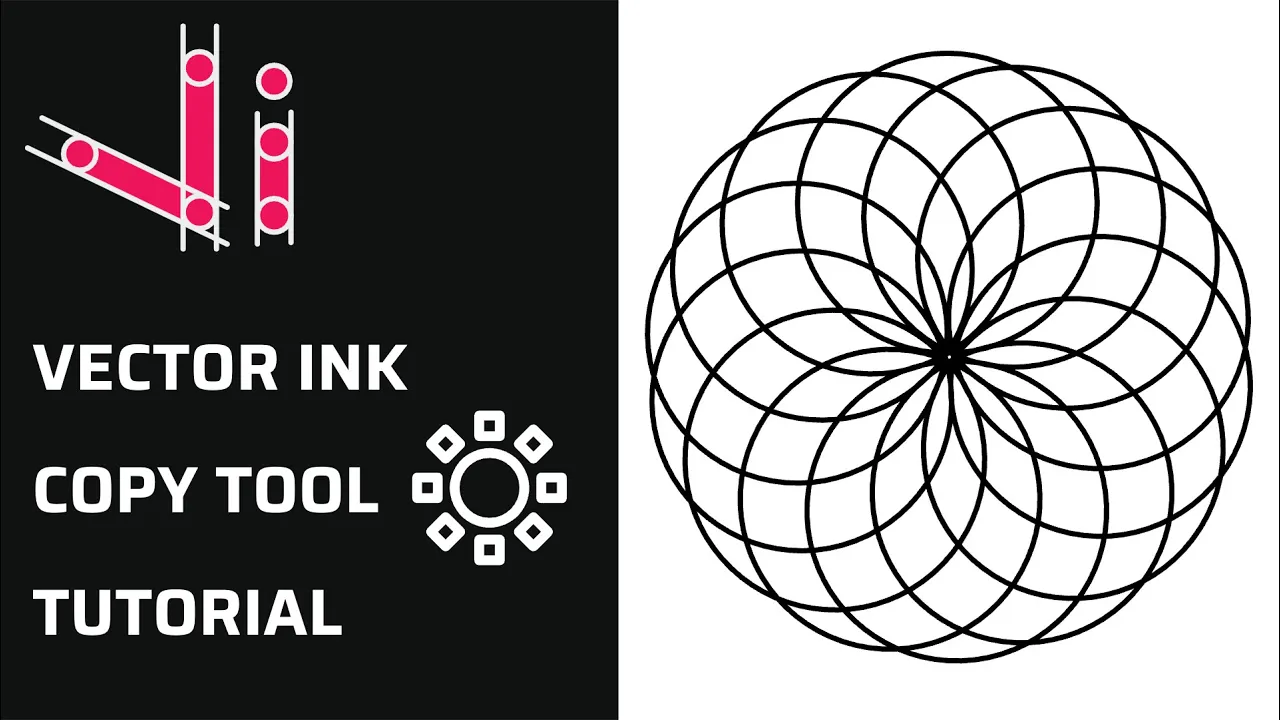
वेक्टर इंक कॉपी टूल ट्यूटोरियल | लाइनों, ग्रिडों और पथों में ऑब्जेक्ट्स की नकल
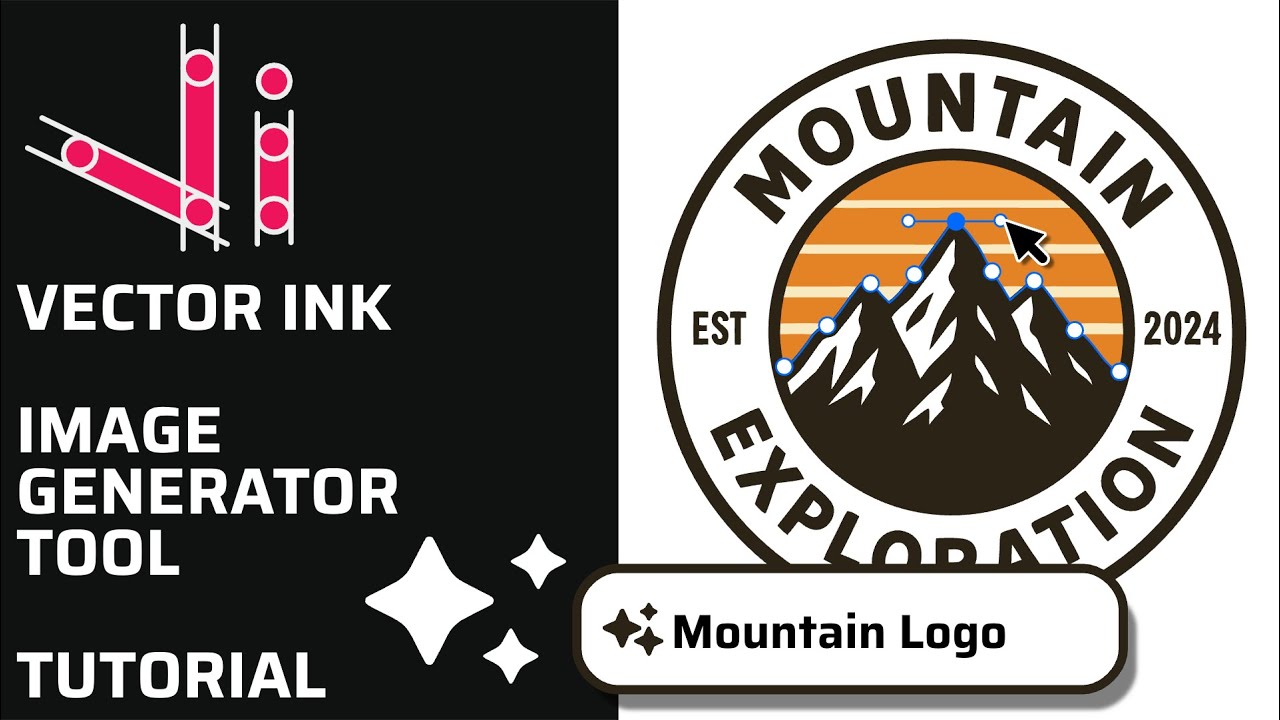
वेक्टर इंक एआई इमेज जनरेटर: शैलियाँ, विशेषताएँ, और इमेज-टू-इमेज रीड्रा
चयन उपकरण भाग 2: नियंत्रण पट्टी और रूपांतरण पैनल में महारत हासिल करें