Vector Ink Path Builder Tool Tutorial: Create Custom Shapes from Paths
Vector Ink’s Path Builder Tool lets you combine, cut, and create complete...
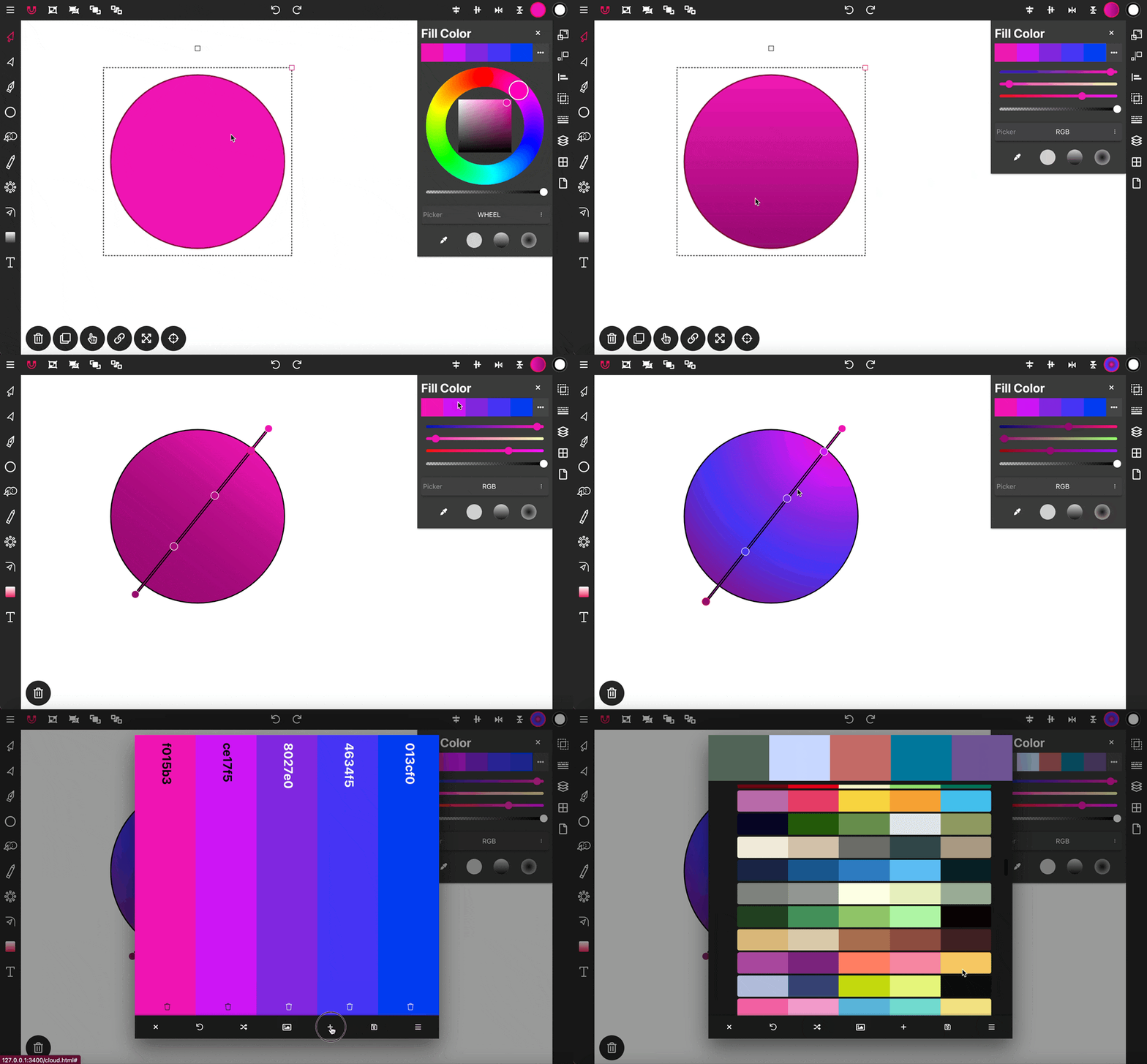
Vector Ink's Color Panels offer a variety of color picker options, gradient choices, and automatically generate a new color palette at the start of every new project, enhancing the color selection process for your designs.
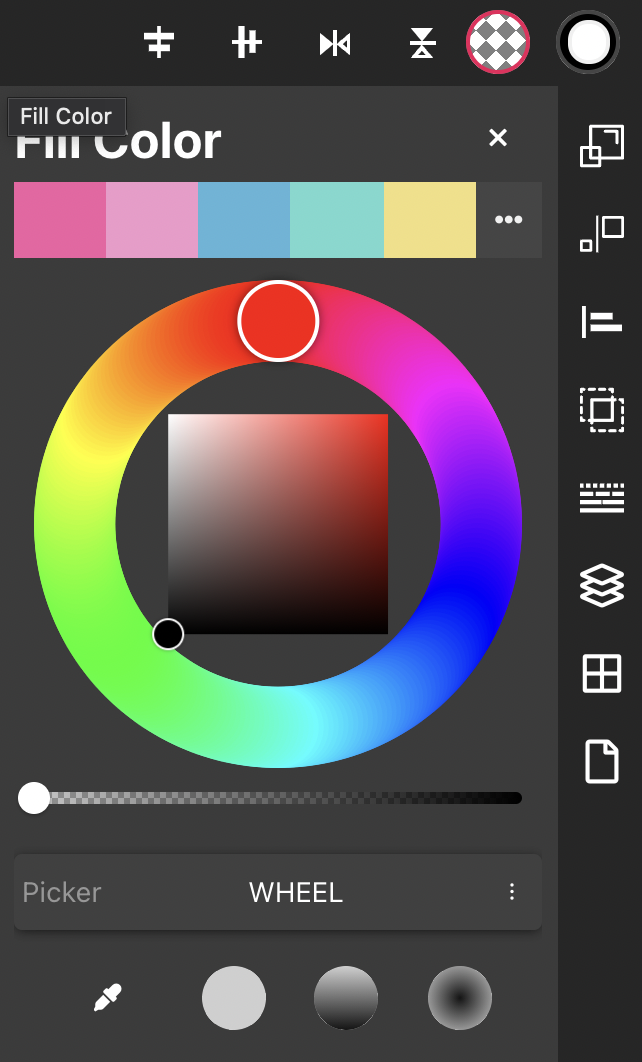
The Color Panels are located in the top right corner of the application window. The Fill Color Panel manages the color of selected objects, while the Stroke Color Panel handles the stroke color.
At the top of the Color Panel, the project's color palette is displayed. At the start of each new project, a new color palette with five colors is auto-generated, providing fresh inspiration for your designs.
Below the color palette is the color picker. If you are using the color picker but not seeing your object change color, be sure to raise the transparency slider located under the picker. Available picker options include the Color Wheel, RGB Picker, HSB Picker, Color Palettes, and HEX Input.
Below the Color Picker list is the eyedropper tool. To use it, select the eyedropper, find an object on the canvas whose color you want to sample, click that object, and the color will transfer to your color picker.
Adjacent to the eyedropper are three gradient options: the first removes the gradient from an object, the second applies a linear gradient, and the third applies a radial gradient to an object.
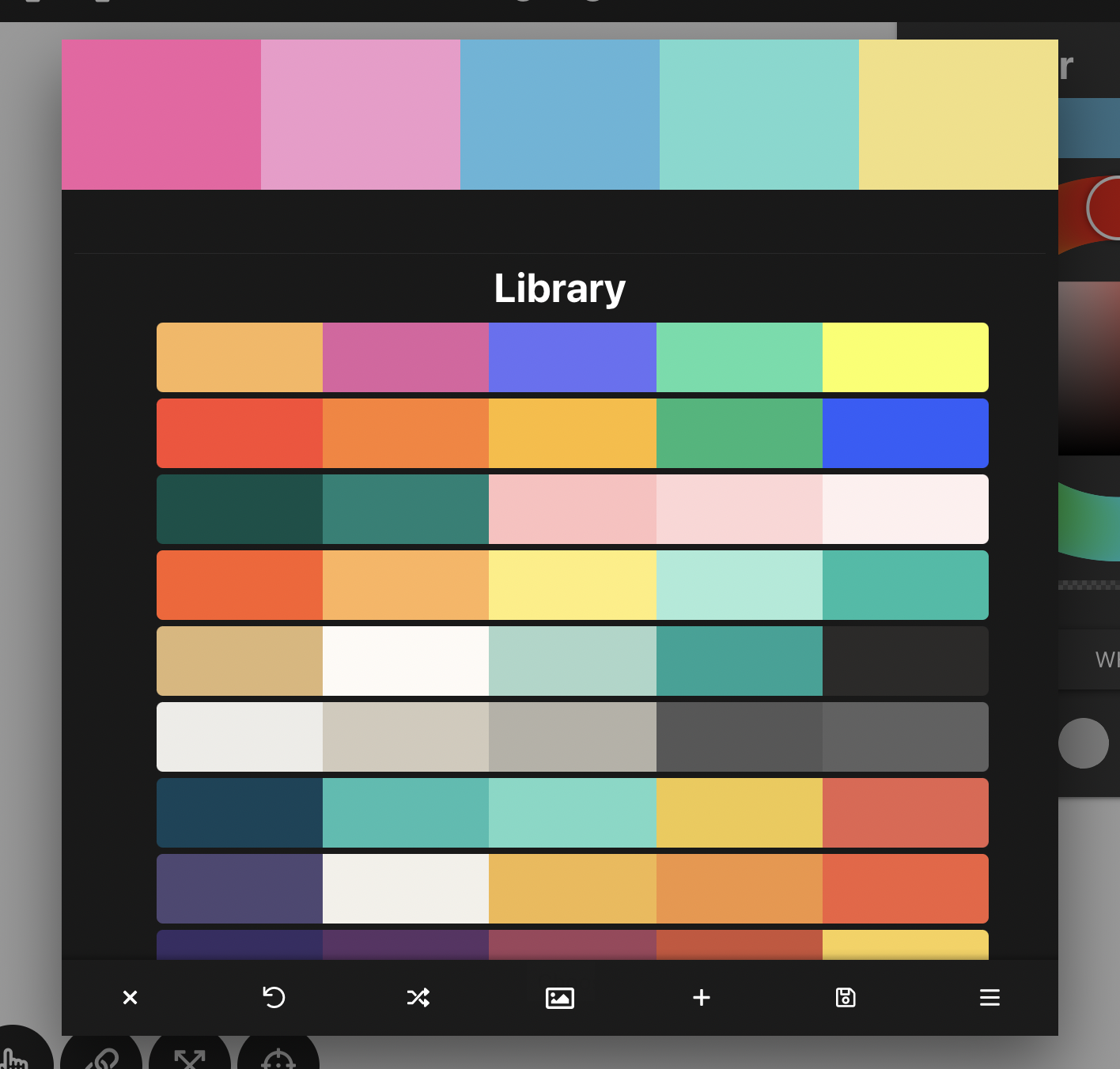
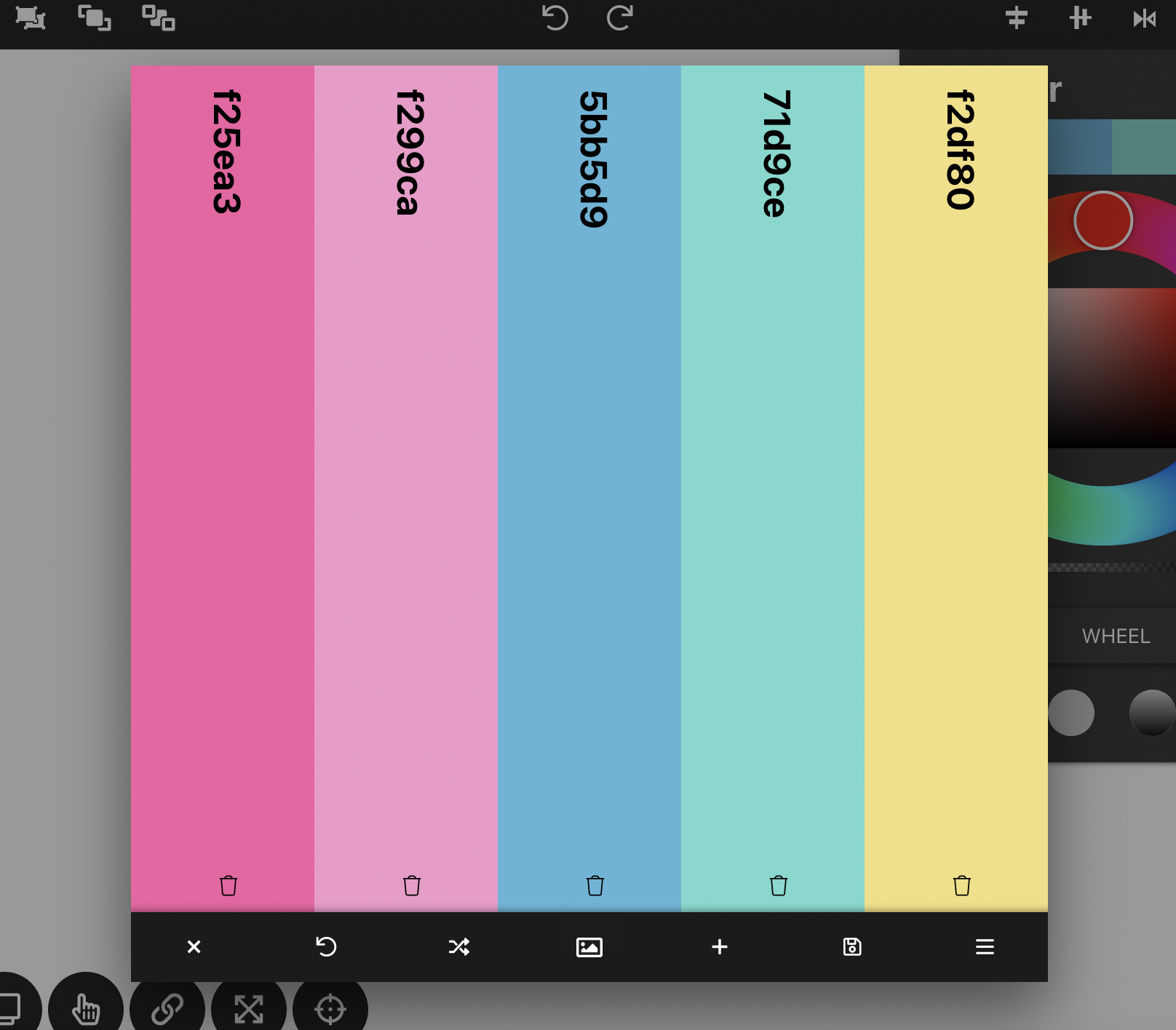
To edit your color palette, click the three dots next to the palette at the top of the Color Panel to open the Color Palette Editor. Here, you can click a color to edit it, select a new color from the palette library menu, or delete a color by clicking the trash icon at the bottom of the color.
The toolbar of the Color Palette Editor includes several options: Exit (closes the editor), Undo (reverts changes made since opening the editor), Generate (creates a new random color palette), Import Photo (generates a palette from an imported photo), Add (adds a new complementary color), Save (saves changes to the palette), and Menu (opens the color palette library).
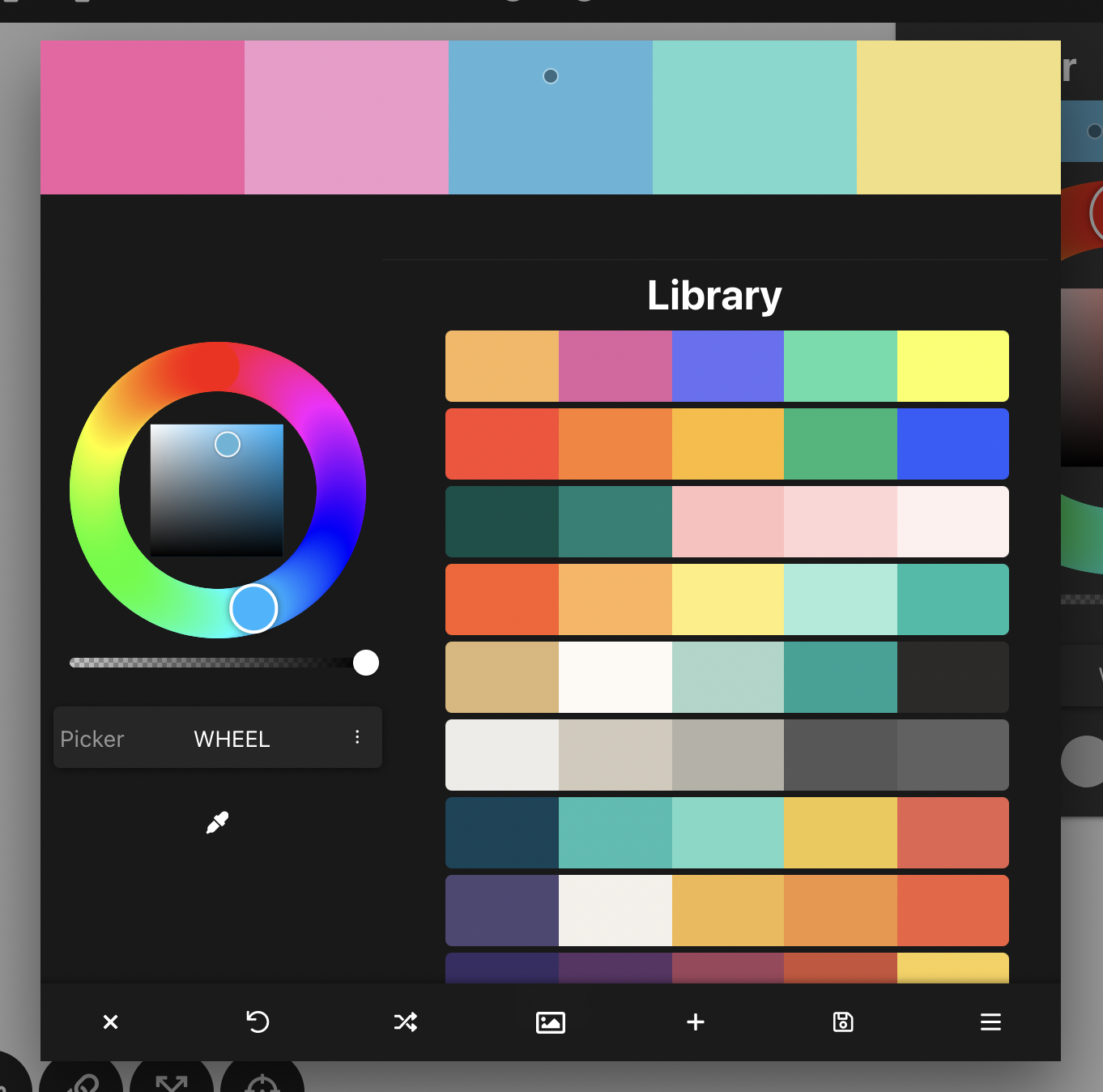
The color palette library houses your saved palettes and offers a selection of new palettes to replace the current one. When editing a color, you can use the color picker or select a color from any saved palette in the library.
Vector Ink’s Path Builder Tool lets you combine, cut, and create complete...

A well-organized design isn’t just about aesthetics — it’s about effi...

Vector cleanup doesn’t have to be tedious. With Vector Ink’s Erase, Kni...
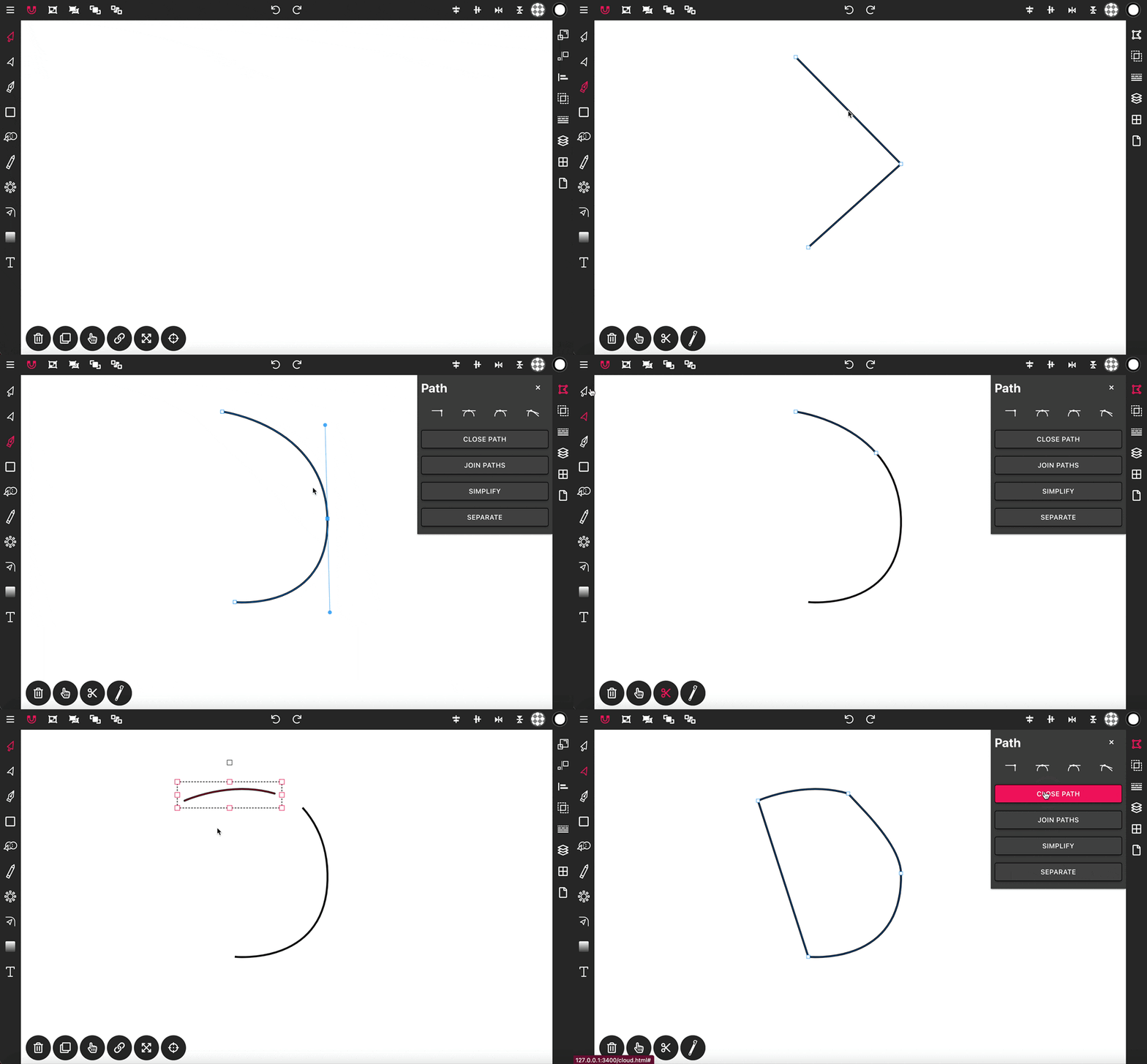
With the Pen Tool, you can draw paths with sharp or smooth anchor points an...
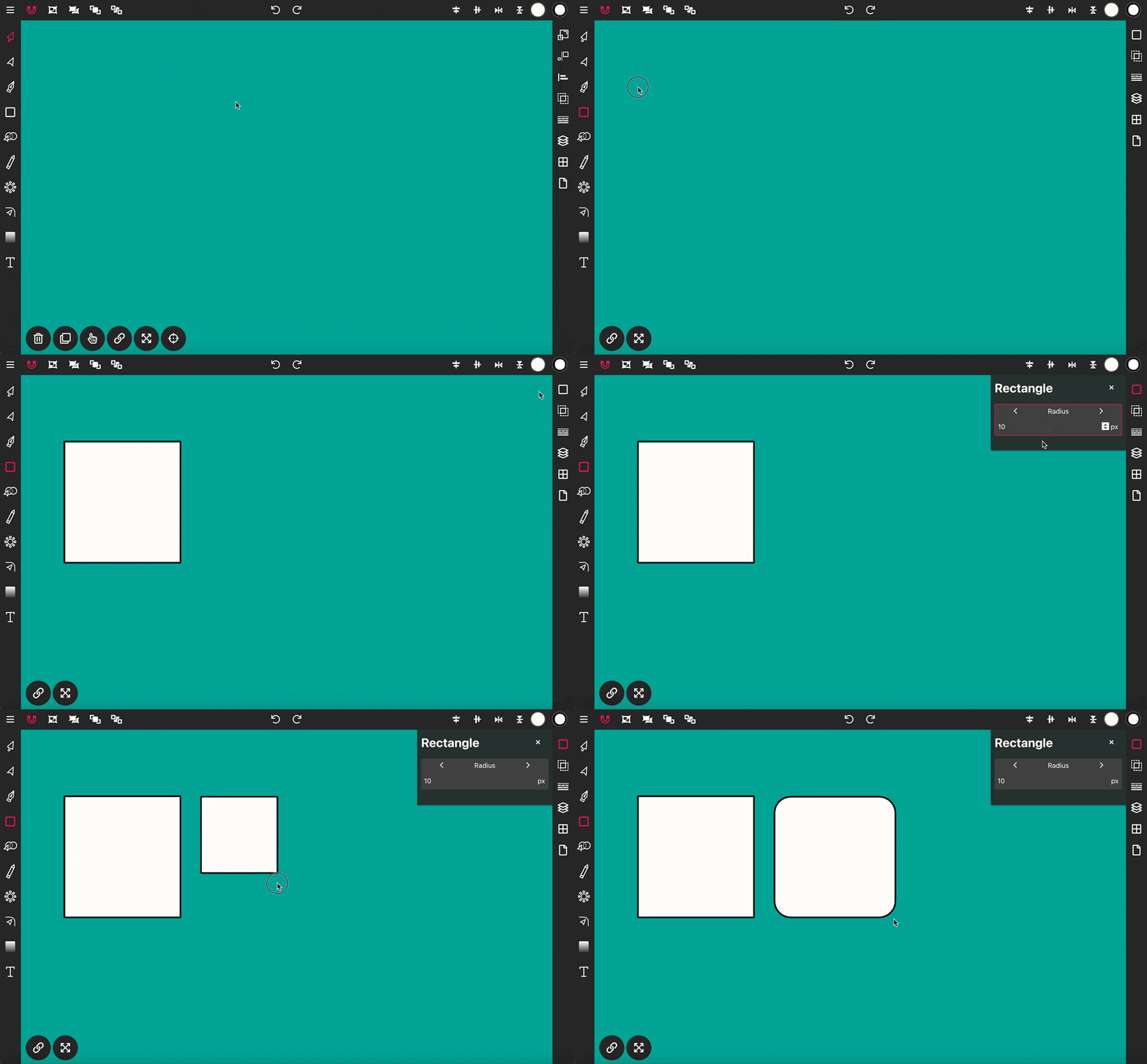
Use the Rectangle Tool to draw a rectangle shape onto the canvas. To get st...
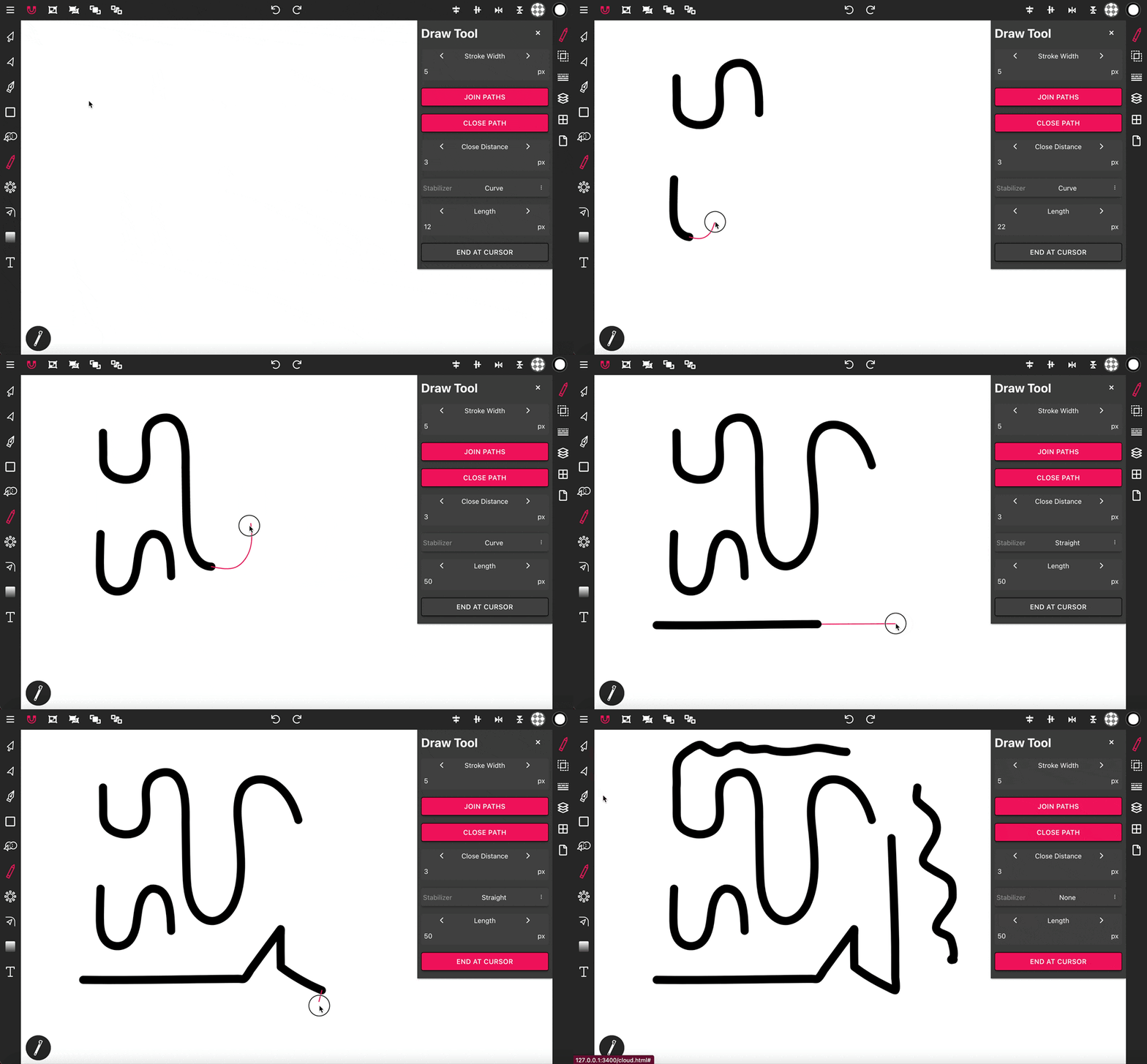
The Draw Tool is essential for freehand drawing, offering options for smoot...