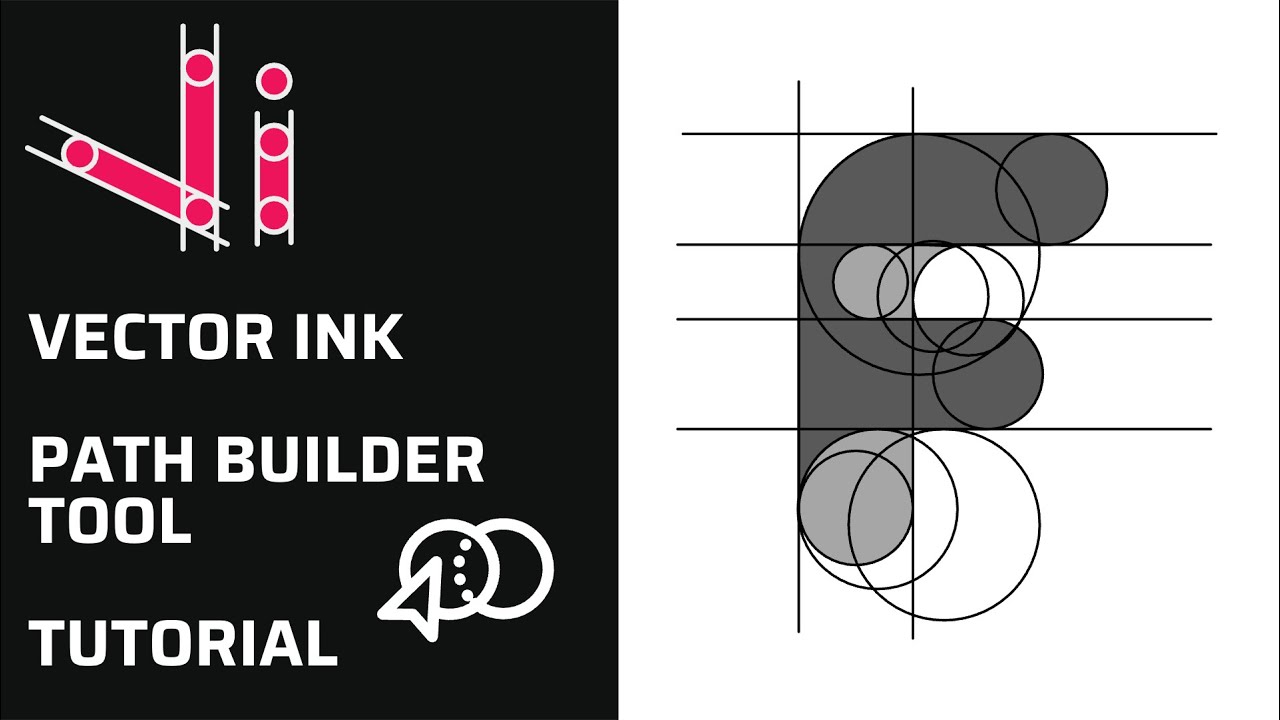
Vector Ink Path Builder Tool Tutorial: Create Custom Shapes from Paths
Vector Ink’s Path Builder Tool lets you combine, cut, and create complete...
In this tutorial, we create a professional logo in minutes using the AI Image Generator inside Vector Ink. You’ll see text-to-image generation, smart redraws that riff on your selection, and masked image-to-image edits to surgically change parts of a design while keeping the rest intact.
AI vector outputs come in as grouped vectors—just Ungroup and edit any path, color, or text. Logos generated under your account are yours to use commercially, so you can refine, export, and deploy across your brand assets.
Are AI results fully vector?
Yes—when generating with Vector, results are editable vectors you can ungroup and modify.
How many credits does it cost?
Each generation costs 1 credit (text-to-image, image-to-image, and masked variations).
My masked edit failed—why?
Ensure the mask stays within the artwork bounds (use a background rectangle if needed), then try again with a concise prompt.
Jump into Vector Ink, open the AI Image Generator, and spin up your first logo concept in minutes. Iterate with redraws and masked edits until it’s perfect—then export and launch your brand.
Vector Ink’s Path Builder Tool lets you combine, cut, and create complete...
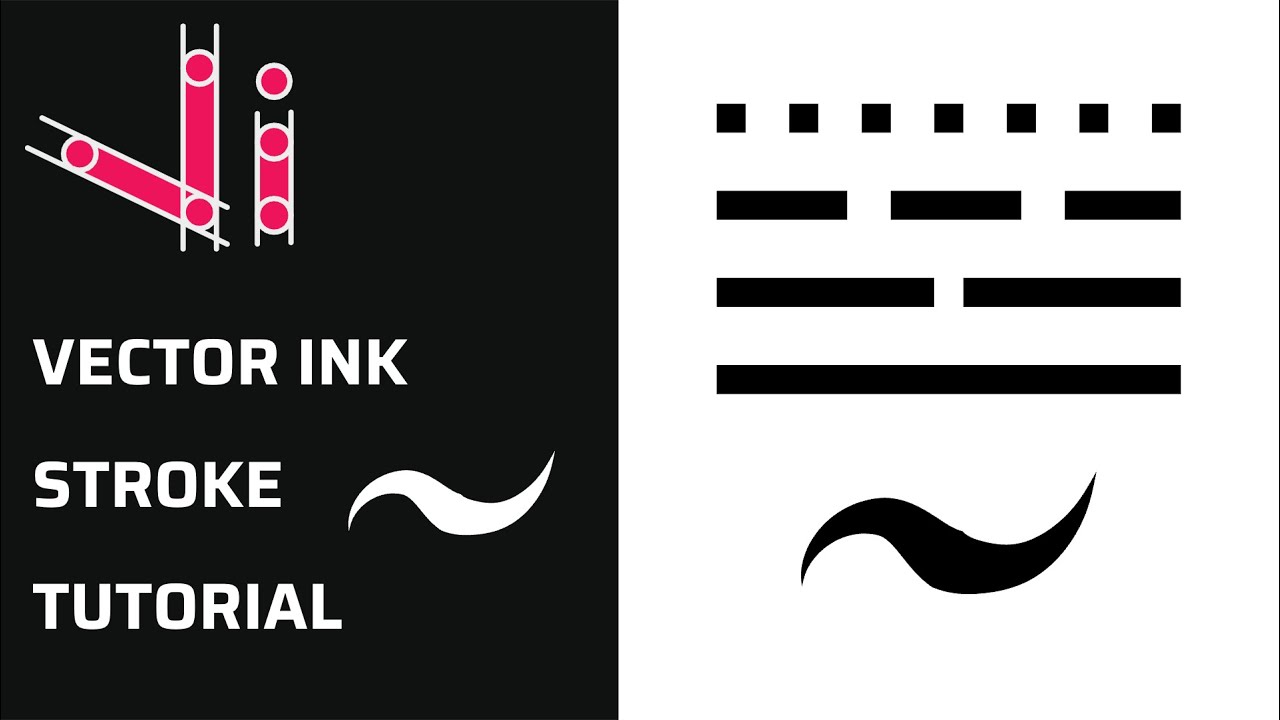
Take complete control of your outlines with the Stroke Properties Panel in ...
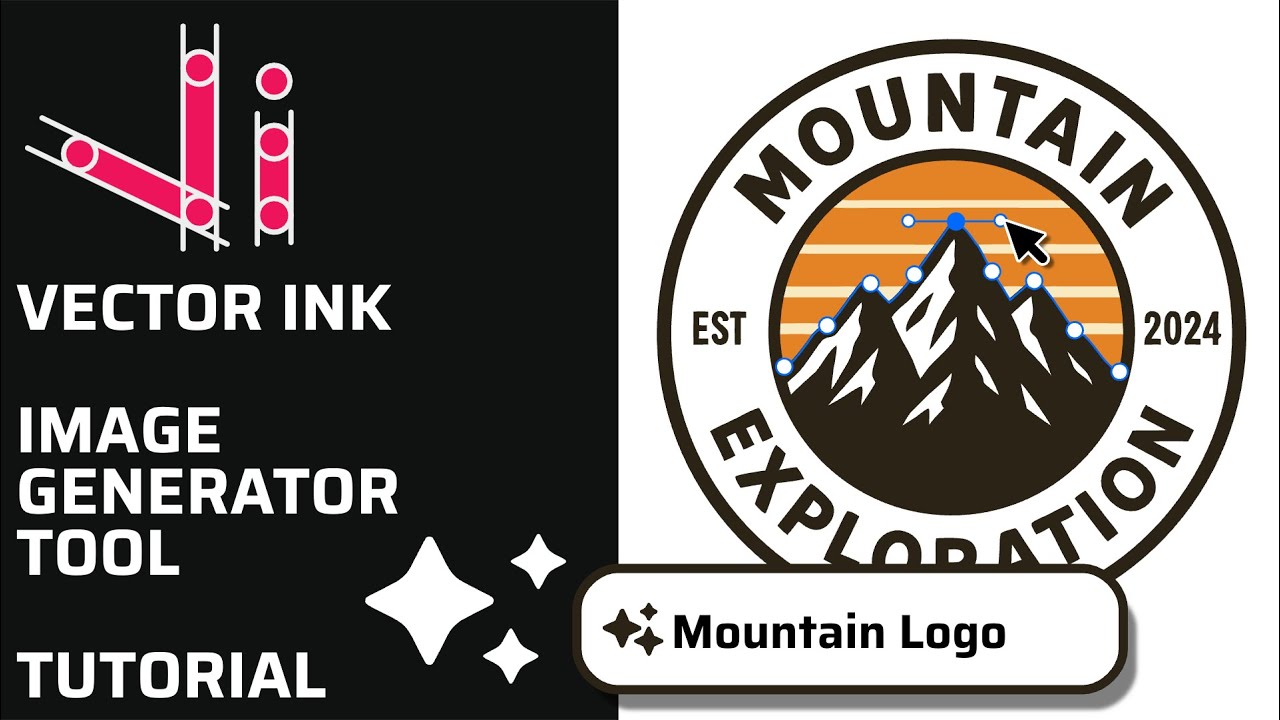
Vector Ink’s AI Image Generator lets you create logos, icons, illustratio...
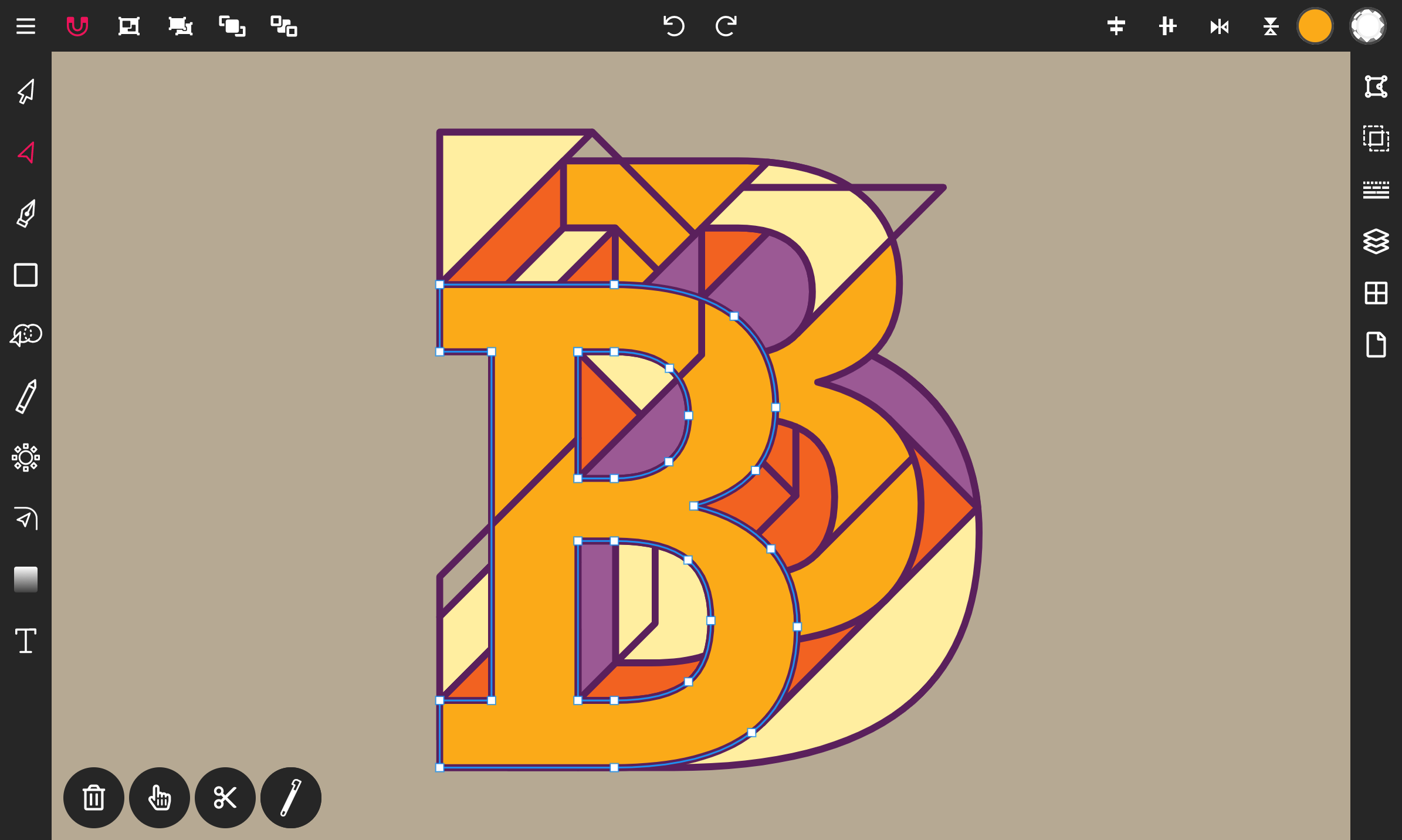
Step 1. Add text to the canvas. Tap on the Text icon located at the bottom of the toolbar.
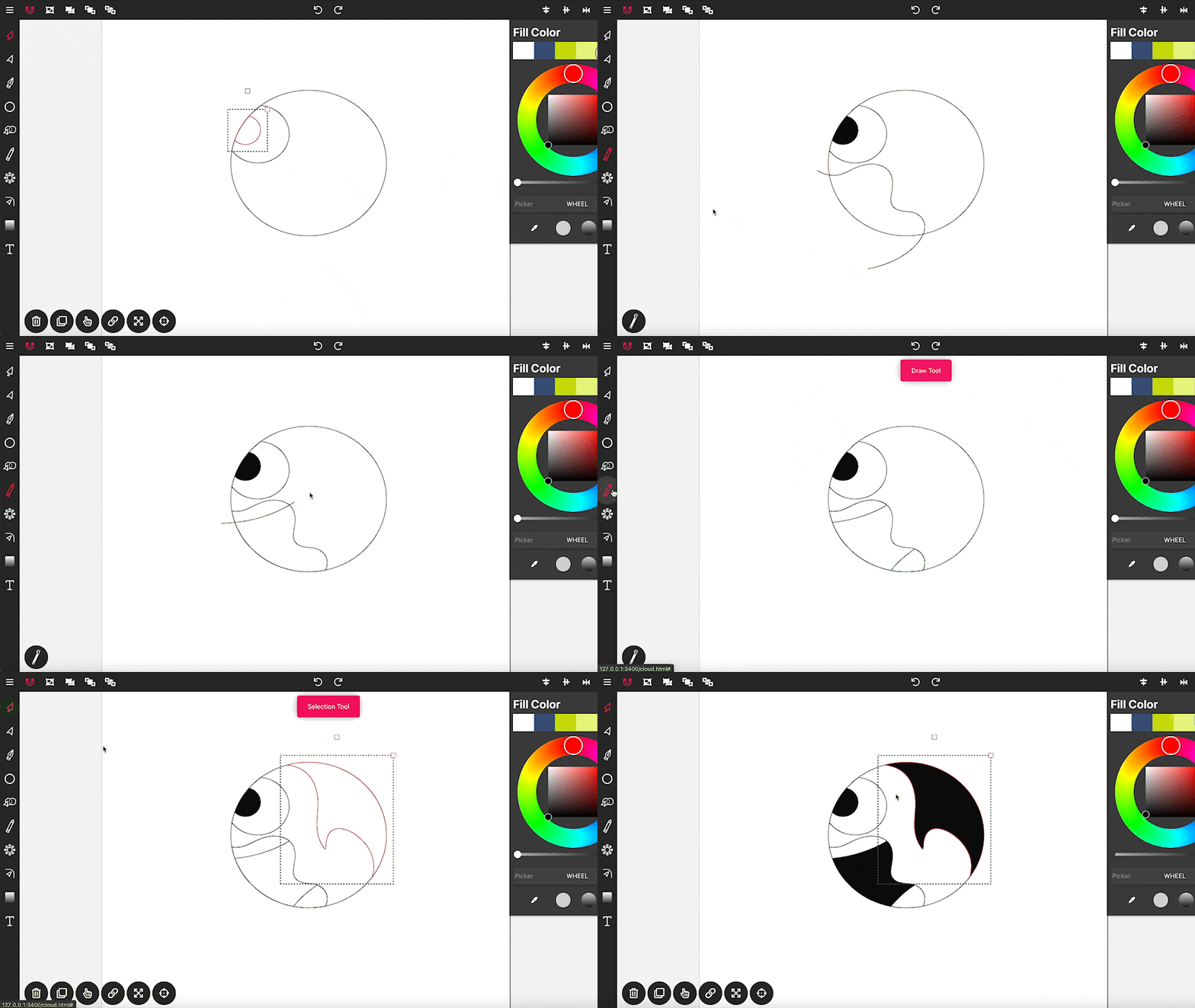
Drawing in Vector Ink is not only super easy but also incredibly intuitive....
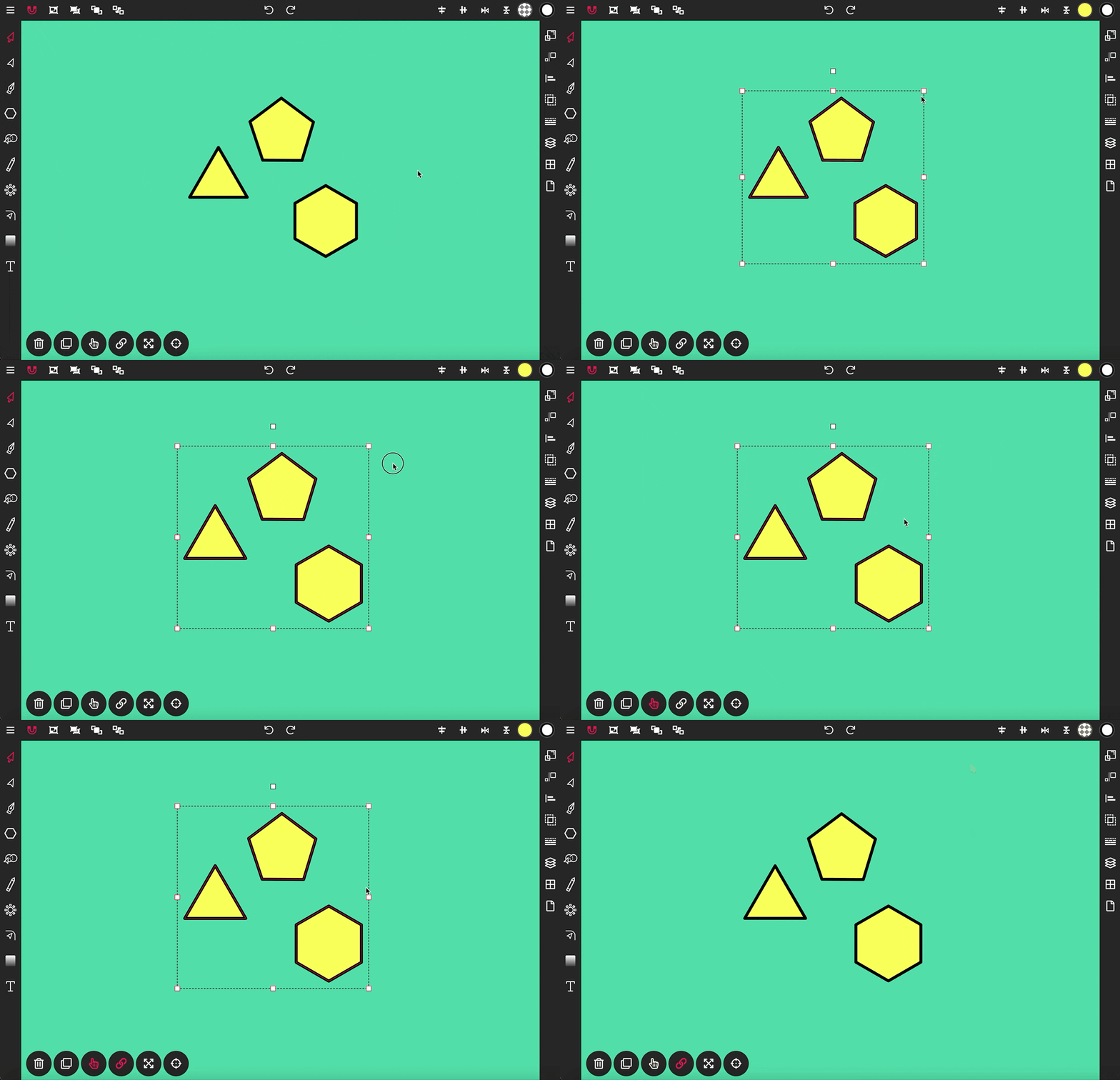
The Selection Tool is a fundamental component of Vector Ink, essential for ...