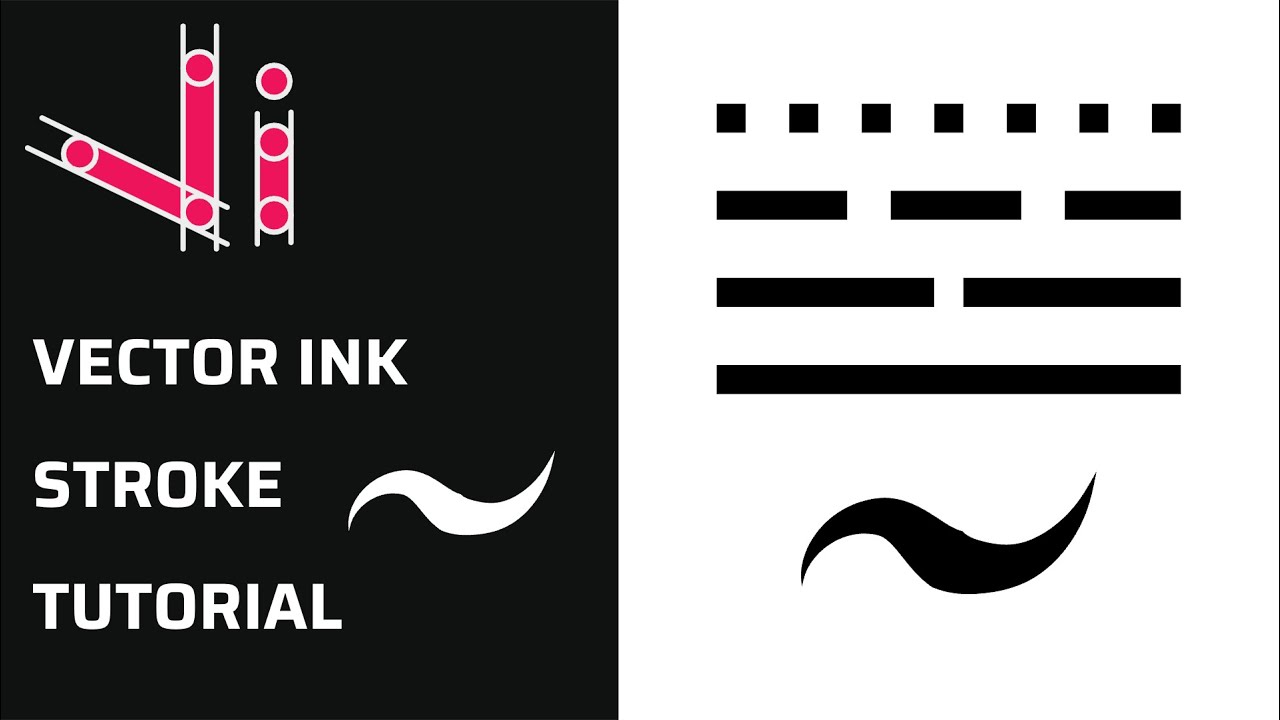
Master Stroke Properties in Vector Ink: Outlines, Widths & End Caps Explained
Take complete control of your outlines with the Stroke Properties Panel in ...
Vector cleanup doesn’t have to be tedious. With Vector Ink’s Erase, Knife, Scissor, and Remove tools, you can carve, split, and tidy paths in minutes. This guide shows how each tool behaves with single paths, compound paths, and groups, plus quick tips for smooth, precise edits.
Select the Erase tool (under the Draw tool) and drag across a path to remove geometry along your stroke. For compound paths, it removes only the intersected segments. For groups, the Erase tool won’t affect members—either ungroup or select the specific path.
Size control: Open the Erase properties in the control bar and increase the brush size (e.g., 24) for broader cuts, or reduce it for delicate cleanup.
Use it when… you need organic trims, irregular holes, or to quickly knock out overlapping bits without worrying about exact endpoints.
The Scissor tool cuts wherever your drawn line intersects the target path(s), leaving open endpoints. After cutting, use Path Properties → Close Path if you need to reconnect ends for a continuous stroke/fill.
Use it when… you want a freeform split line that follows curves or avoids objects while keeping manual control over the cut route.
The Knife tool works like Scissor but enforces a straight cut that snaps in 45° increments. This keeps your trims tidy and repeatable across multiple objects.
Use it when… you need precise, aligned slices (logos, badges, UI elements) and want consistent angles or grid-friendly edits.
Remove lets you delete objects in context: individual paths inside a group, images, or entire groups—without first switching back to Selection. It’s perfect for rapid cleanup passes: click, remove, click, remove.
Use it when… you’re pruning stray paths, unwanted icons, or extra shapes after Boolean operations or AI generations.
Open a logo or illustration and test each tool on a safe duplicate. In a few minutes, you’ll feel how Erase, Scissor, Knife, and Remove each shine in different situations—and how they combine for fast, polished results.
Launch Vector Ink and put these techniques to work. Start by carving a small detail, slice a path for a color break, then remove stray bits for a clean finish.
Take complete control of your outlines with the Stroke Properties Panel in ...
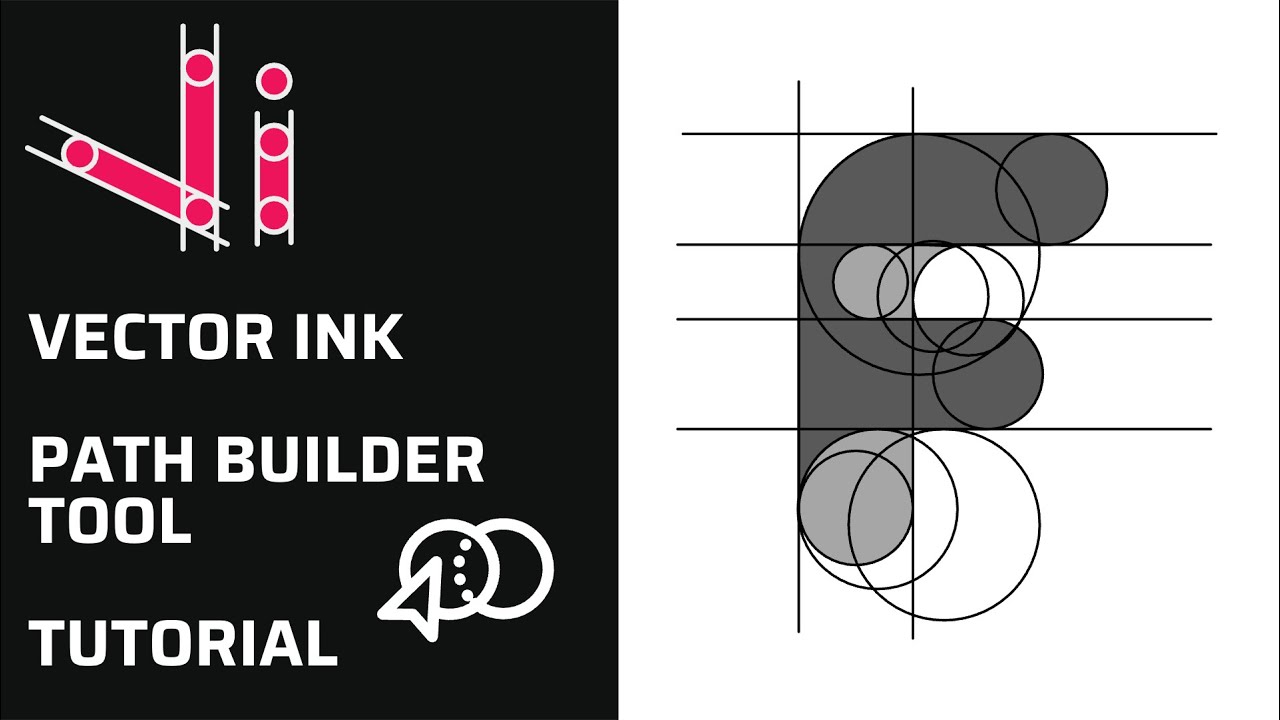
Vector Ink’s Path Builder Tool lets you combine, cut, and create complete...
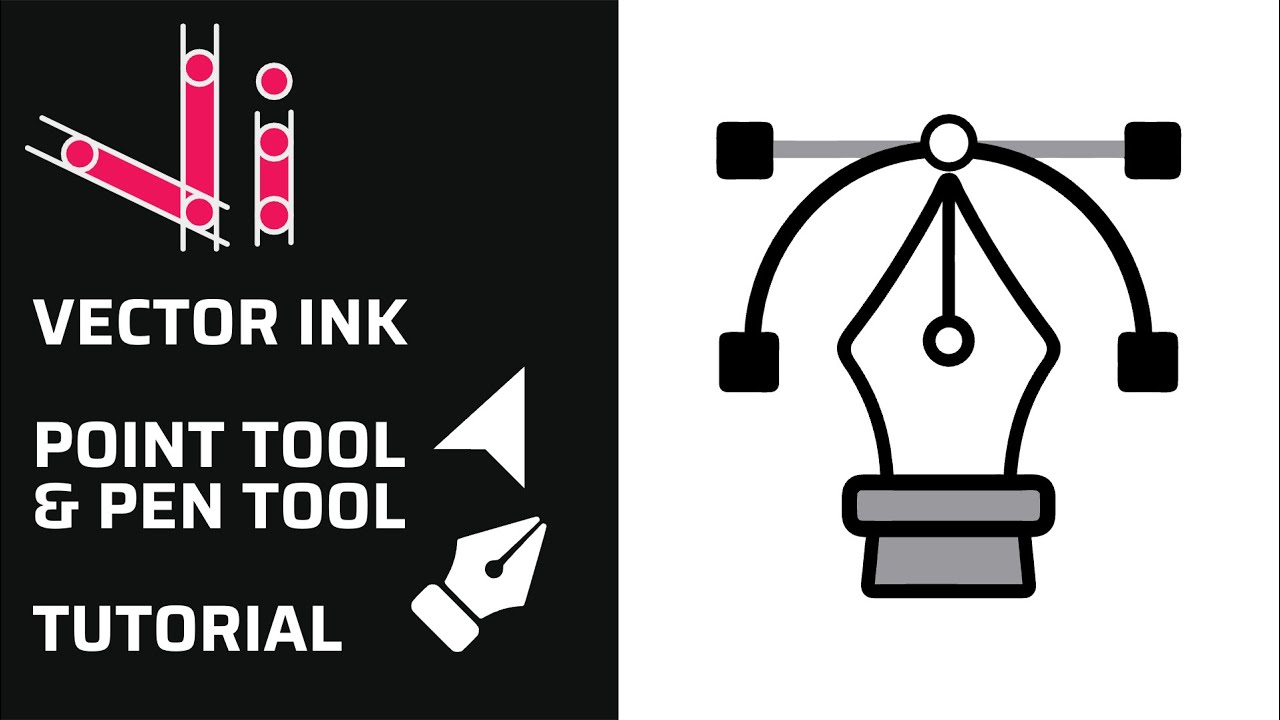
Clean vector paths are the backbone of logos, icons, and illustrations. In ...
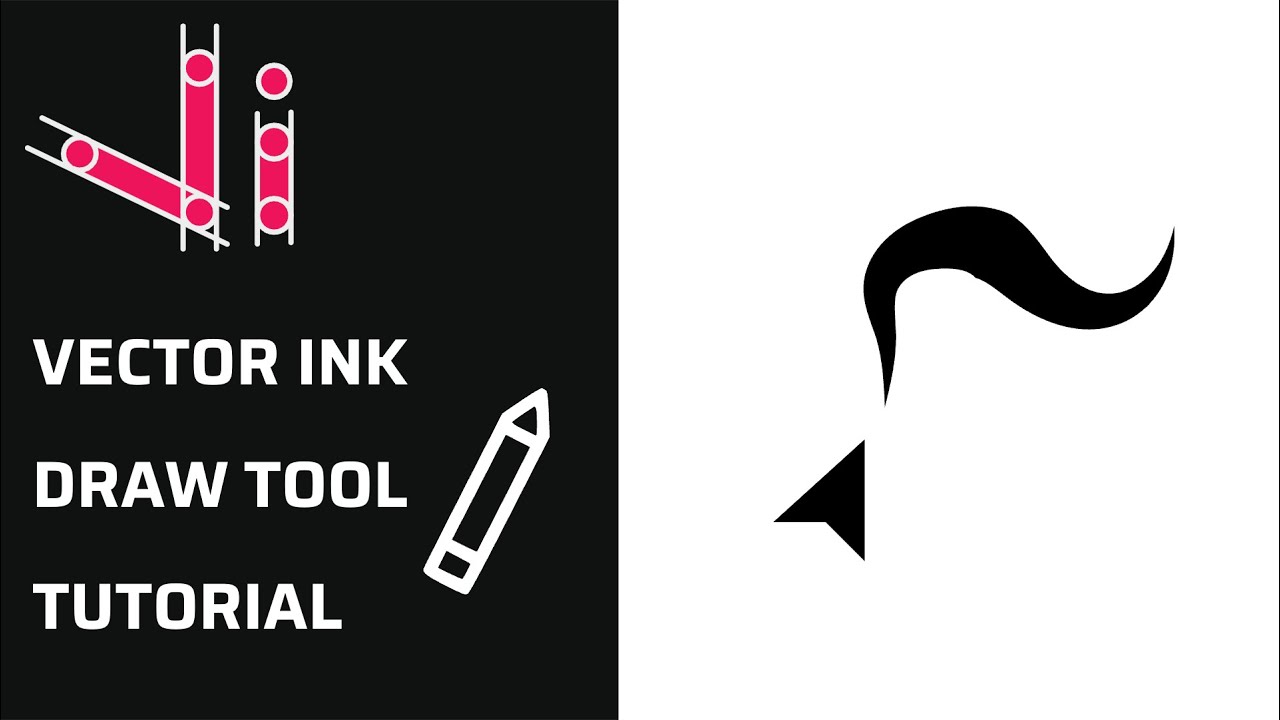
The Draw Tool in Vector Ink makes freehand sketching feel natural while del...
Vector Ink’s AI Image Generator lets you create logos, icons, illustratio...
Boolean actions are the fastest way to build complex shapes from simple one...