
How to Make a Character Reference Sheet: A Guide for Concept Artists and Animators
A character reference sheet is the single source of truth for how a charact...
The Draw Tool in Vector Ink makes freehand sketching feel natural while delivering clean, editable vectors. In this quick guide, you’ll learn stroke width, pressure profiles, stabilizer modes (curve/straight/none), auto-join/close, and practical tips for smooth lettering and illustration.
My lines look wobbly.
Increase stabilizer length or switch to Curve. Consider enabling Follow for the cleanest finish.
Shapes aren’t closing.
Enable Close Path and raise Close Distance a few pixels.
Pressure not changing stroke width.
Ensure Pressure is enabled in the Draw panel and your input device supports pressure, or craft a custom pressure curve.
Open Vector Ink, select the Draw Tool, and experiment with stabilizer modes and pressure. Combine Join Paths and Close Path for fast, clean shapes—then refine with the Selection and Point tools.
A character reference sheet is the single source of truth for how a charact...

Sooner or later every designer, crafter, and marketer hits the same wall: y...
Clean, consistent shapes are the foundation of strong vector design. In thi...
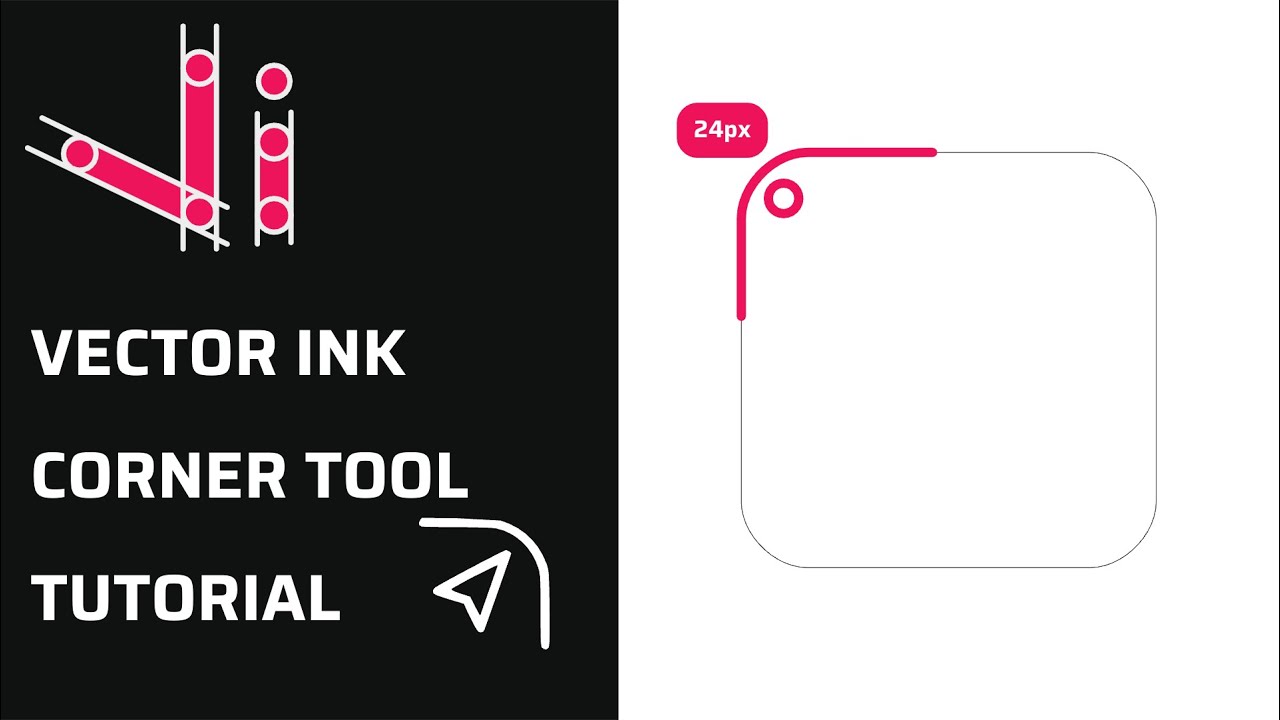
Rounded corners can transform a rigid vector shape into a clean, modern, an...
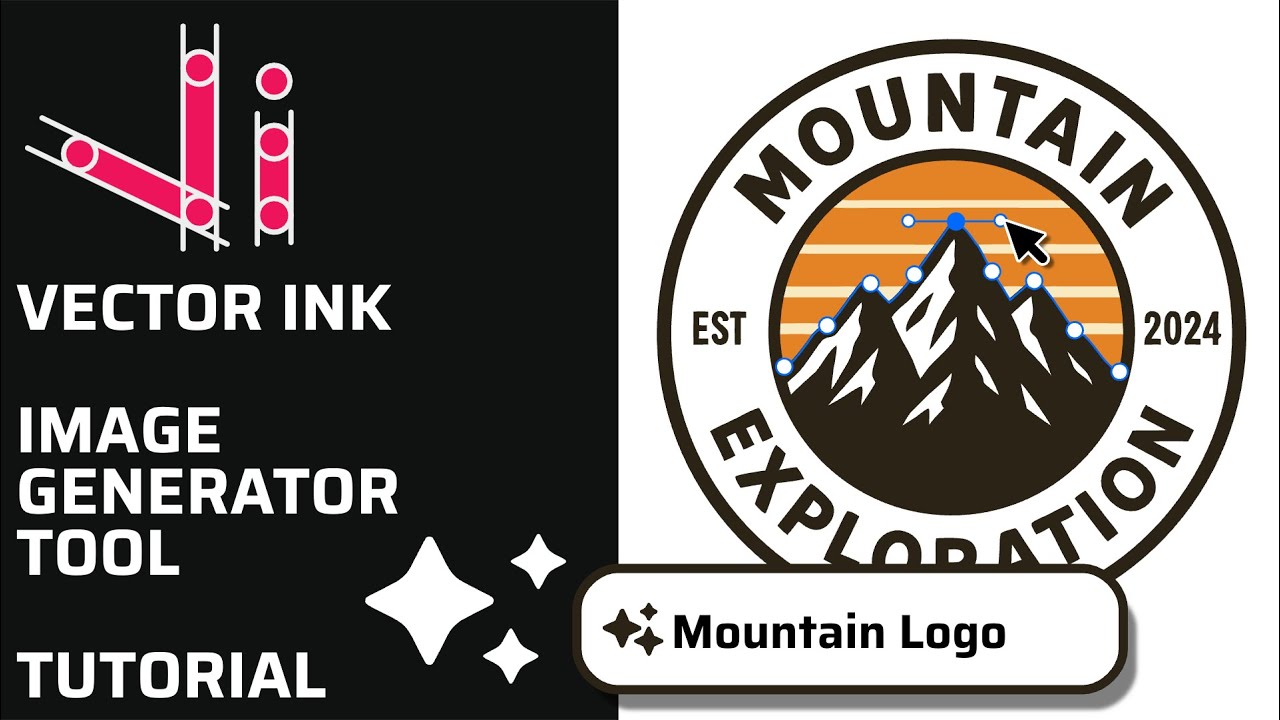
Vector Ink’s AI Image Generator lets you create logos, icons, illustratio...
This continuation of our Selection Tool series dives into the Control Bar a...