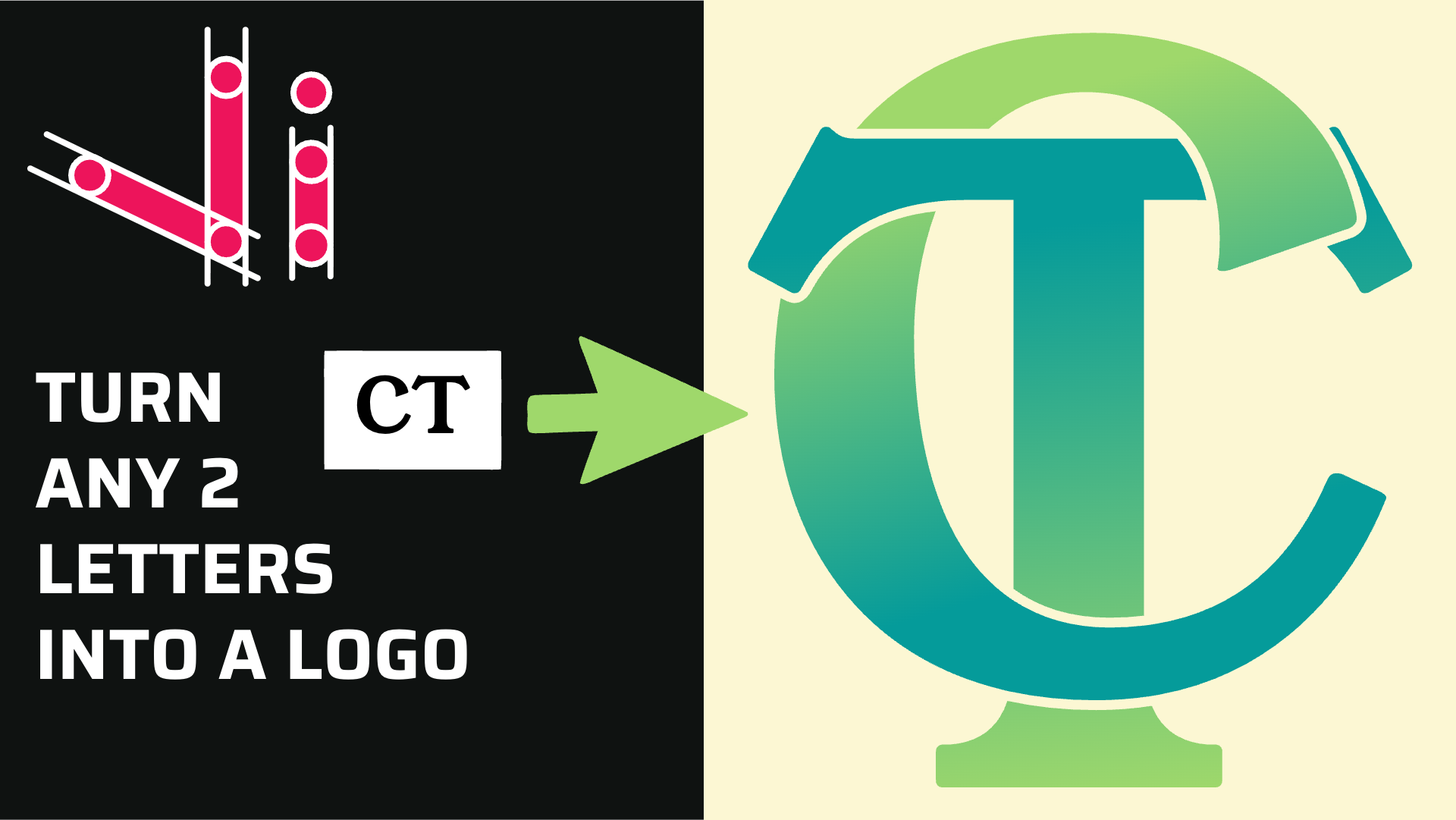
How to Combine Two Letters into One Logo | Intertwined Monogram Design in Vector Ink
In this tutorial, you'll learn how to transform two simple letters into a p...
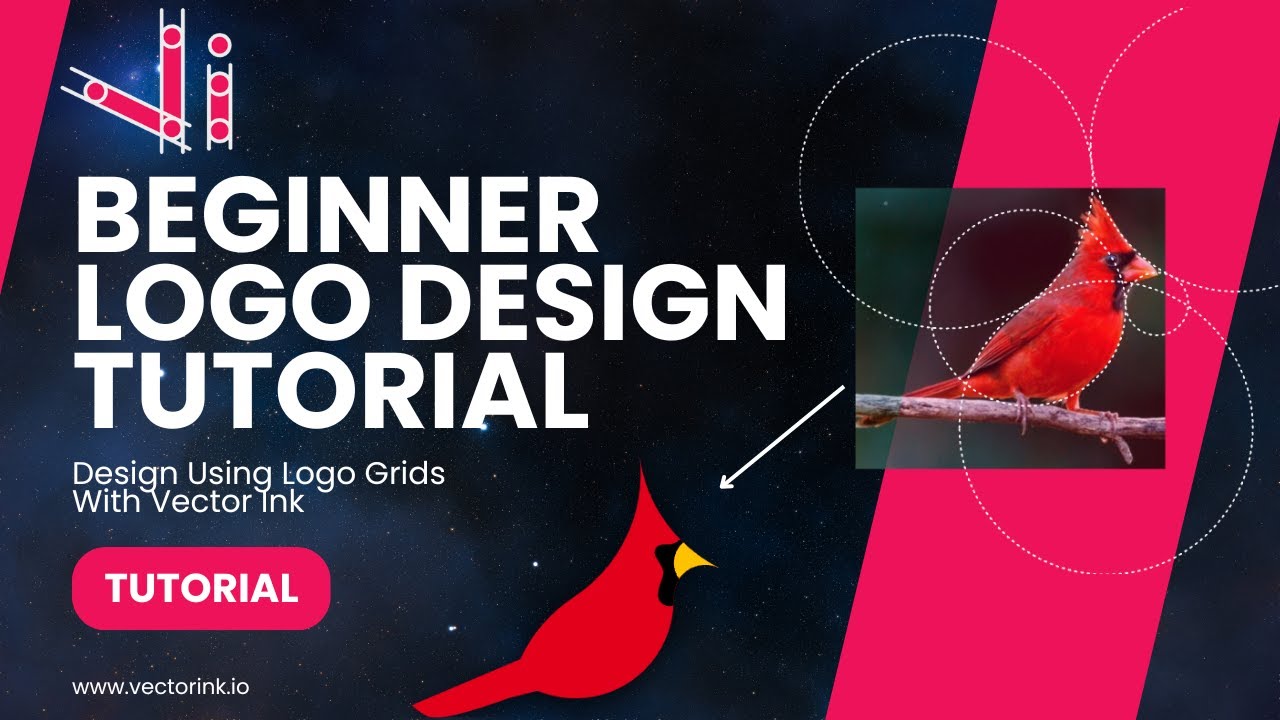
In this tutorial, you'll take a rough bird sketch and convert it into a polished, scalable logo using Vector Ink. We'll import a sketch, set up layers, build precise curves with circles, and use the Path Builder Tool to merge everything into a clean vector mark. Perfect for beginners and pros who want a fast, repeatable workflow.
Go to Menu → Import and select your sketch image. With the sketch selected, use the single scaling handle (tap the top-right handle once) to resize it to fit the canvas. Center it using the Align buttons (also available in the Align Panel).
Open the Layers panel, tap Properties, reduce the image Opacity so your vector paths are easy to see, then Lock the layer so it can't be moved while tracing.
Select the Circle Tool. Hold Shift (or enable Constrain) and place a perfect circle to match the head curve. Return to the Selection Tool to position it. Duplicate the circle to trace other major curves: upper body, back, chest, and tail bends.
Tip: Open Stroke Properties and turn off Scale Strokes so stroke widths stay consistent while you scale helpers. Aim to get circles to barely touch at transition points — Path Builder will pick up those contacts.
For the beak and tricky curves, use a mix of circles and short lines. Duplicate circles, nudge and scale them to follow the sketch. It doesn't need to be 100% perfect — the goal is a clean, geometric scaffold that captures the design intent.
If a curve looks slightly off, increase or decrease a circle's size and reposition until it kisses its neighbor. Small overlaps or hairline gaps are okay at this stage.
Select all construction shapes you've placed. Activate the Path Builder Tool. Turn on Join Mode to trace the outline path by tapping the regions in order (head → back → tail → belly → beak). If a junction doesn't latch immediately, zoom in and adjust a circle, then continue.
When you switch back to the Selection Tool, your joined path replaces the scaffolding in that region. Repeat as needed to finish the primary silhouette.
For internal shapes (like a wing patch), use two overlapping circles sized and positioned to match the sketch. With both selected, open the Path Builder Tool and tap the area to carve the wing shape. Rotate or nudge slightly for the best fit. This keeps the logo clean and symmetric.
Open the Fill panel and explore palettes. For a modern look, try a subtle Gradient on the body (lighter toward the top, darker at the bottom). Remove strokes where appropriate for a flat, brandable silhouette. Set the Document background to a neutral gray to evaluate contrast.
Export your logo as SVG for infinite scalability, and as PNG for quick previews or mockups.
You've transformed a rough sketch into a crisp, professional vector mark using Vector Ink's construction shapes and the Path Builder Tool. This method makes it easy to turn hand-drawn ideas into clean, scalable logos ready for print or digital use.
Now it's your turn to bring your sketches to life. Whether you're crafting a personal emblem or a client logo, Vector Ink gives you all the precision tools you need — right in your browser.
Launch Vector Ink and start transforming your next idea into a stunning vector design today!
In this tutorial, you'll learn how to transform two simple letters into a p...
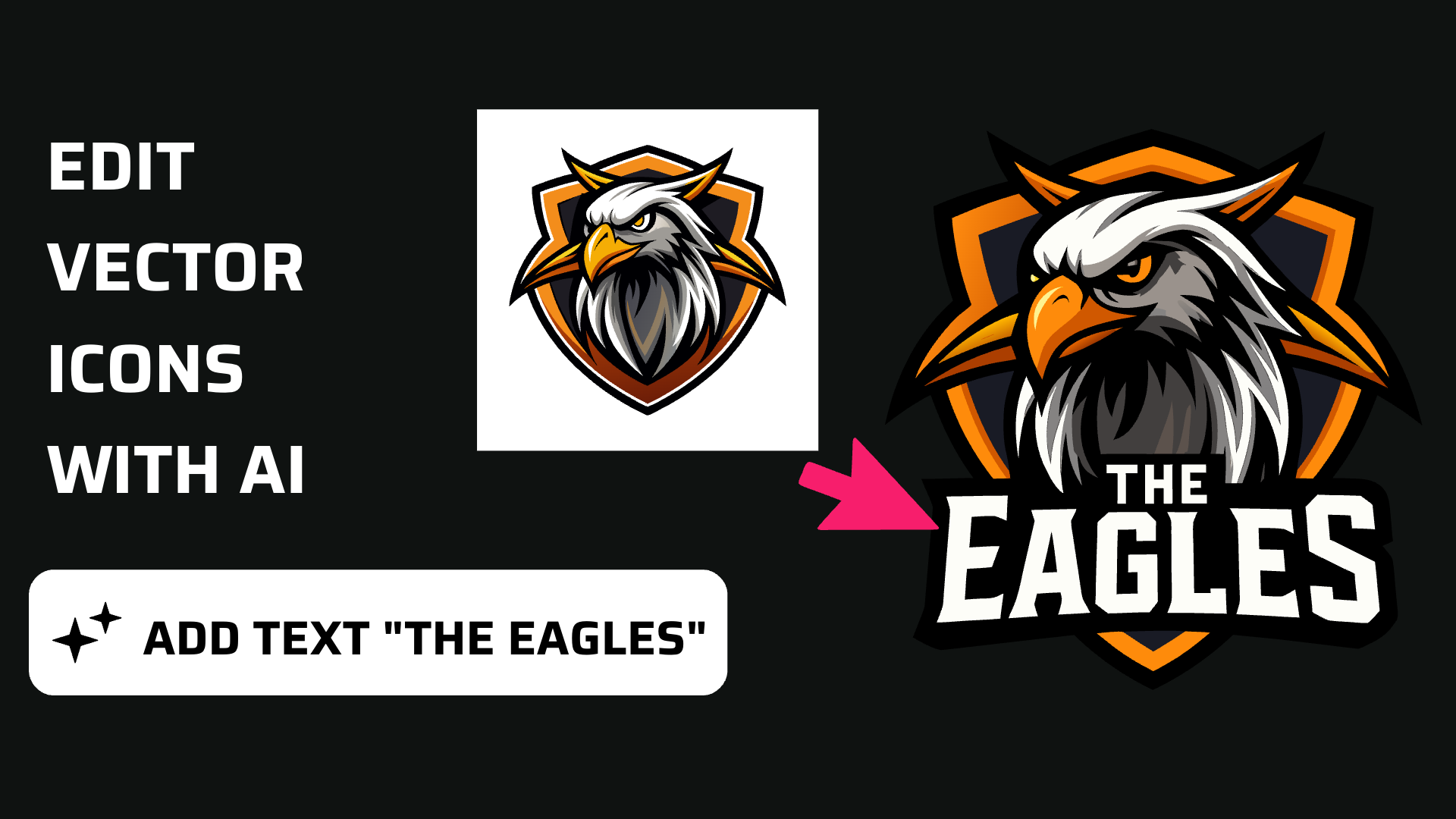
Discover how easy it is to open the Vector Ink Icon Library, import icons t...
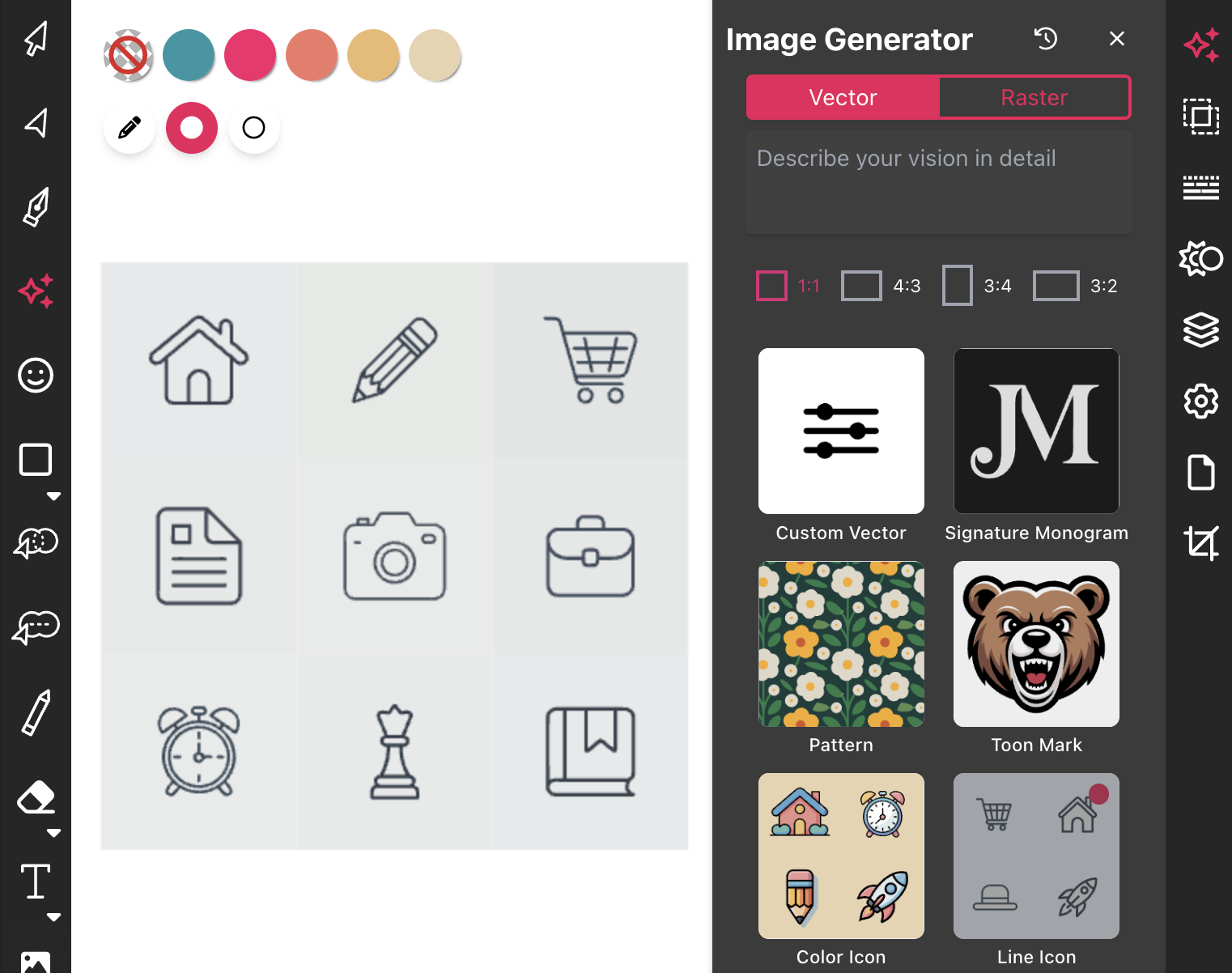
Most icon libraries offer a handful of basic shapes and call it a day. Vect...
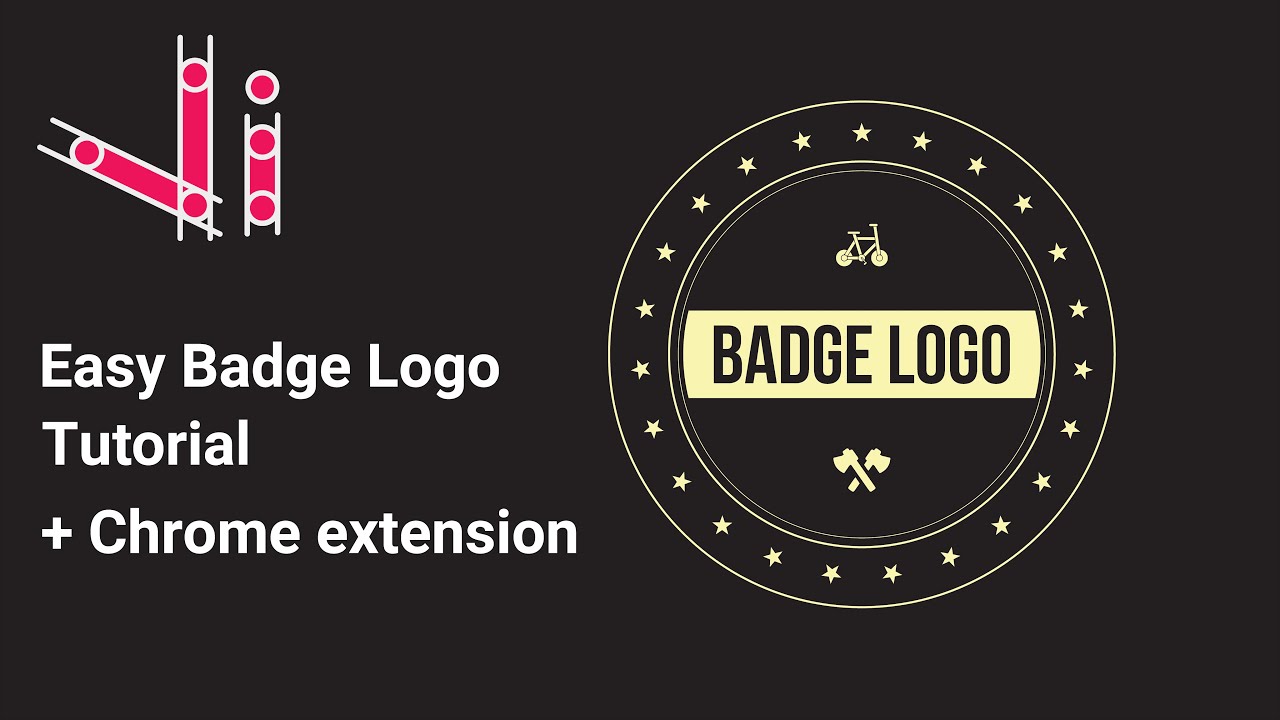
In this tutorial, we'll guide you step-by-step on how to create a badge log...
You don't need to be an artist to create a clean, professional logo. In thi...

In this hands-on tutorial, you’ll turn any two letters into a polished lo...