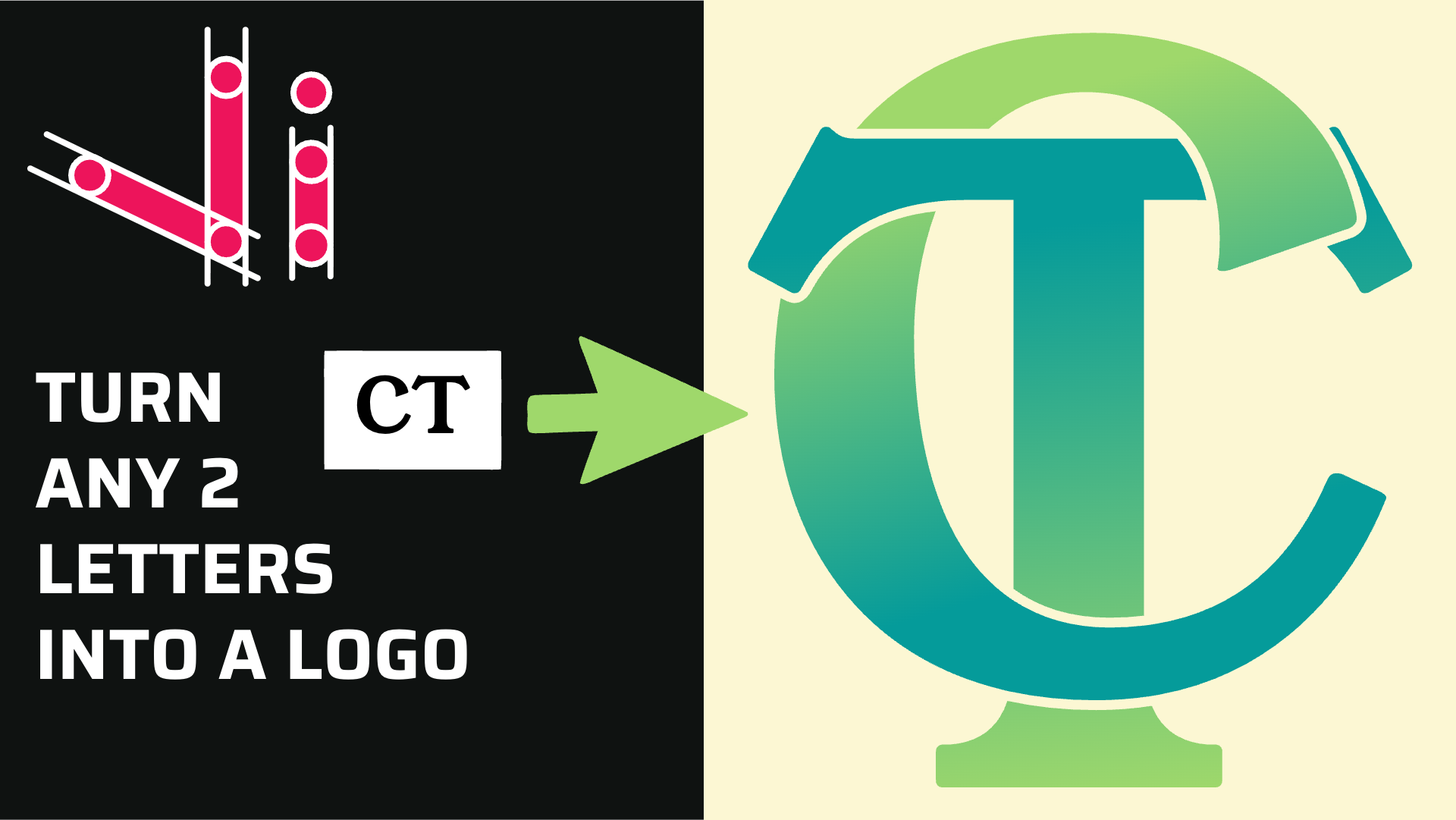
How to Combine Two Letters into One Logo | Intertwined Monogram Design in Vector Ink
In this tutorial, you'll learn how to transform two simple letters into a p...
In this hands-on tutorial, you’ll turn any two letters into a polished logo. We’ll combine the Text Tool with the new Shape Builder Tool to weave letters over/under each other, then finish with color and export. Use any font you love and follow along on desktop, tablet, or phone.
1) Add your letters
Activate the Text tool and type two letters (e.g., J and L). Pick a font that matches your vibe—cursive for flowy logos, geometric for techy marks. Scale with the Selection tool.
2) Convert text to paths
Open the Text panel and choose Text to Path. Your letters are now vector shapes you can edit like any path.
3) Separate letter parts (optional)
In the Path panel, choose Separate. If a letter loses its counters (holes), select the letter shape plus the inner shapes and use the Boolean panel → Subtract to recreate the holes.
4) Overlap the letters
Arrange one letter over the other until you see interesting intersections. Think about where each letter should pass over vs. under to create that intertwined effect.
5) Weave with Shape Builder
Select both letters → activate Shape Builder. Choose a fill color first (so regions you create are colored on release). Now drag across regions to merge the parts that should be continuous. Skip (or erase) the regions that should pass under the other letter. Use Undo freely to refine the over/under pattern.
6) Color for contrast
Switch colors as you build to differentiate the two letters or to create depth. You can recolor any region later with the Selection tool.
7) Clean up & group
Remove unused fragments if any remain, then Group the final shape so it moves as one logo.
8) Export
Go to Export. Choose SVG for infinite scalability or PNG (with transparency) for quick sharing. For social previews, export a larger PNG (e.g., 2048px width) so it looks crisp everywhere.
Jump into Vector Ink, type your initials, and weave them into a logo in minutes. Post your results and tag #VectorInk — we love sharing community work!
In this tutorial, you'll learn how to transform two simple letters into a p...
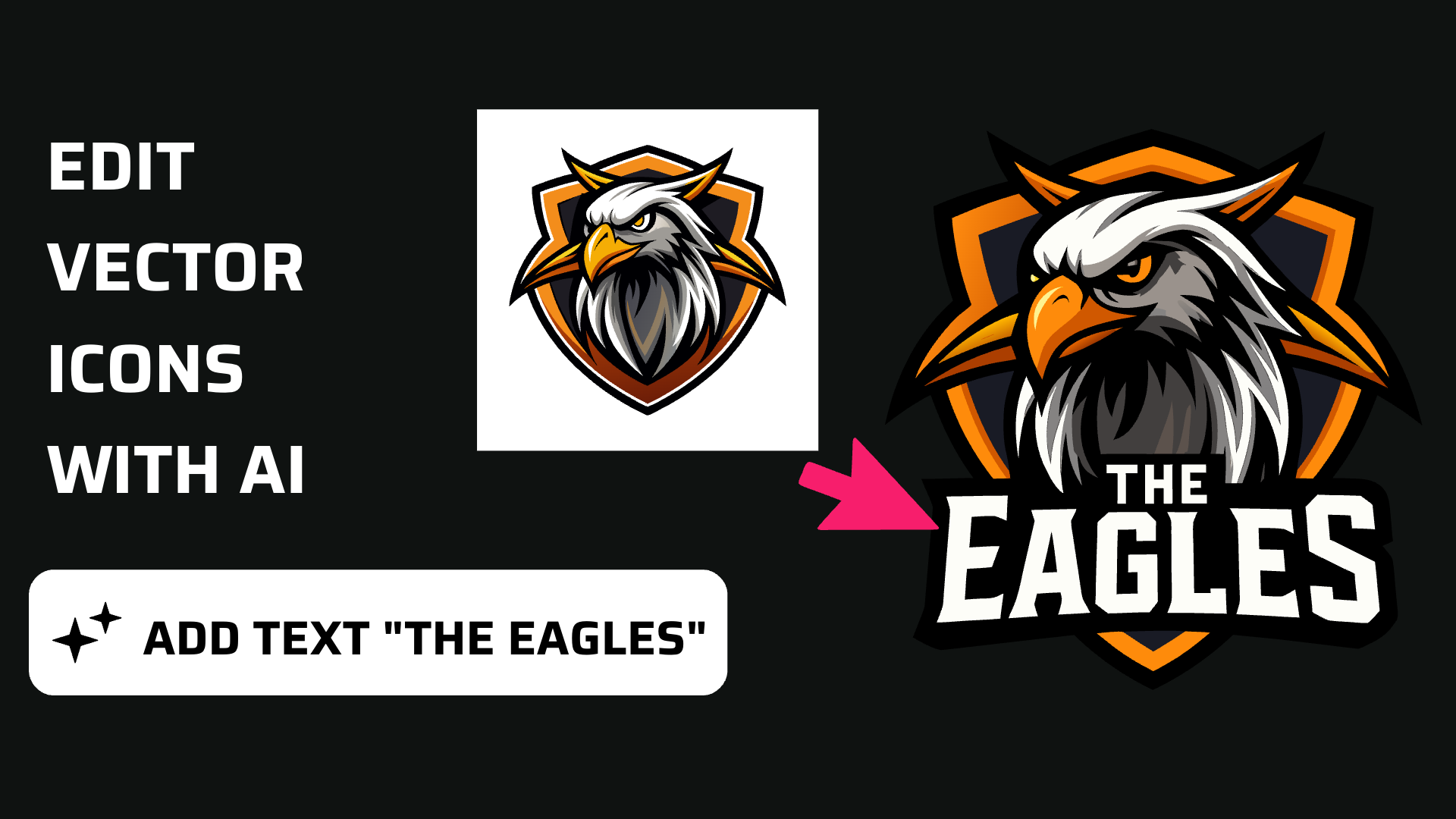
Discover how easy it is to open the Vector Ink Icon Library, import icons t...
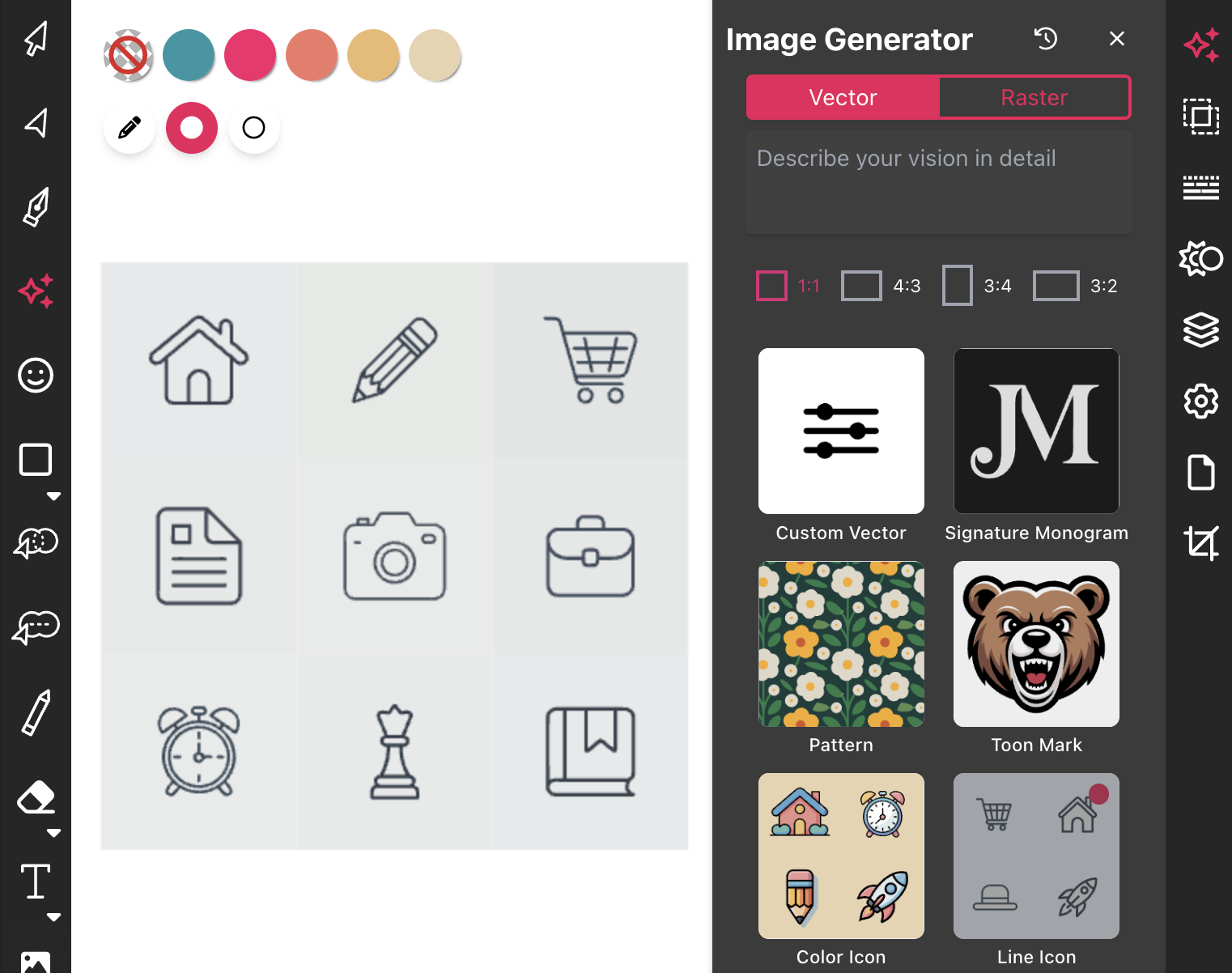
Most icon libraries offer a handful of basic shapes and call it a day. Vect...
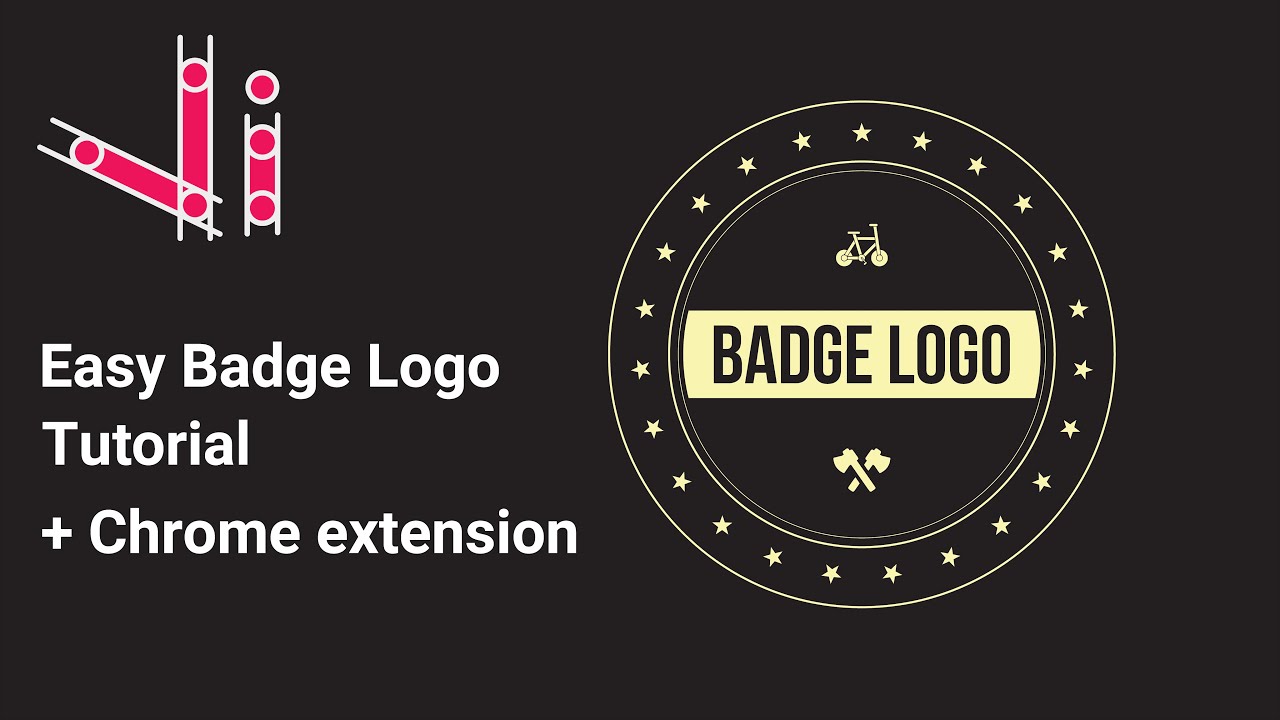
In this tutorial, we'll guide you step-by-step on how to create a badge log...
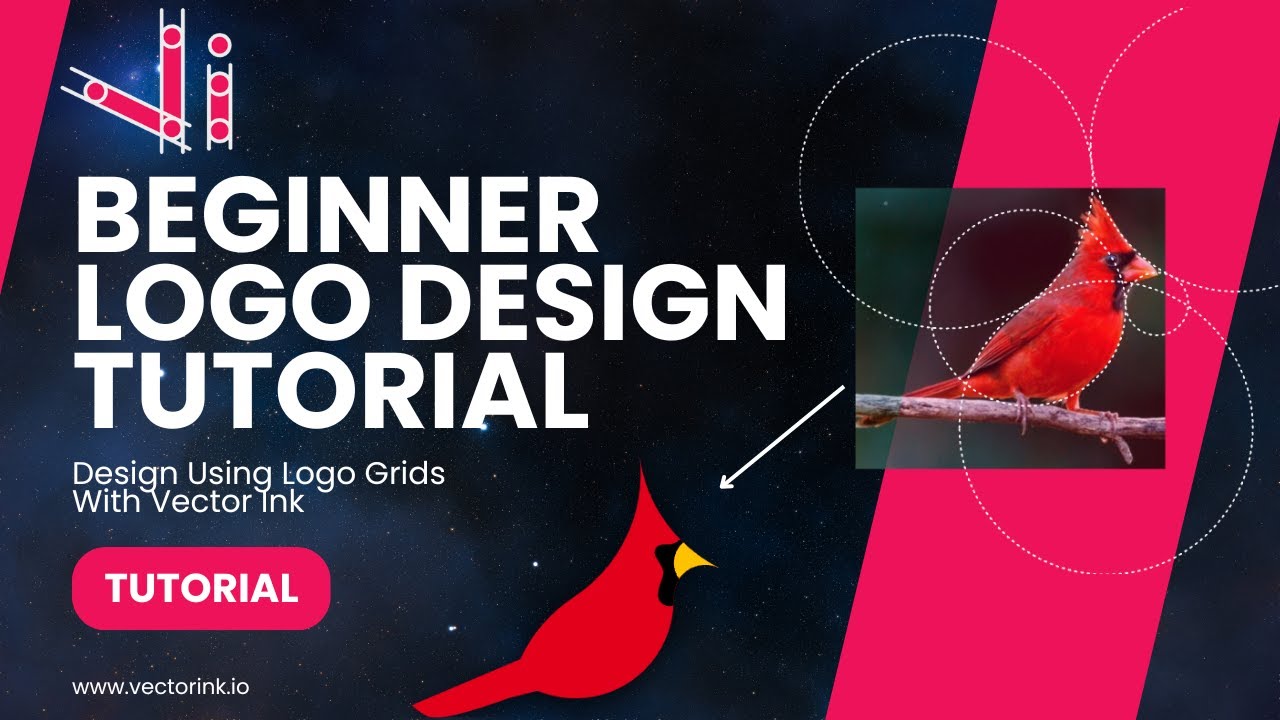
You don't need to be an artist to create a clean, professional logo. In thi...
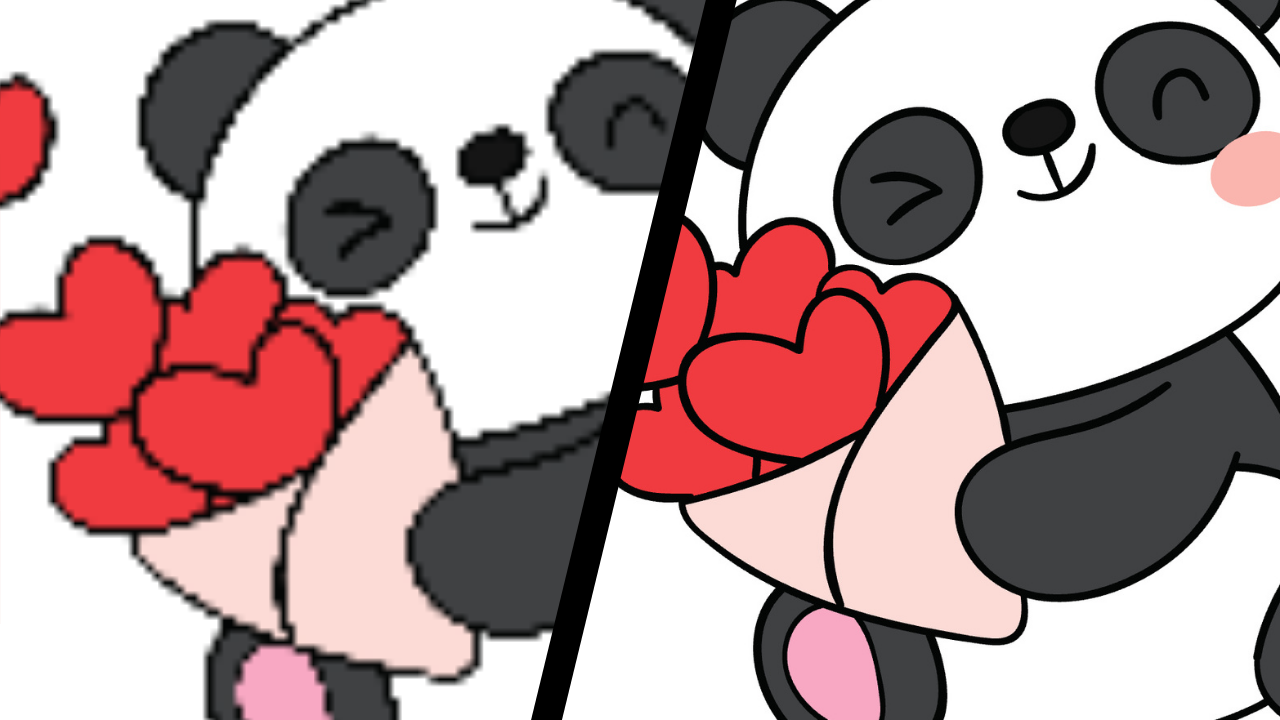
If you're a crafter who often lands on inspiring images online and wishes t...