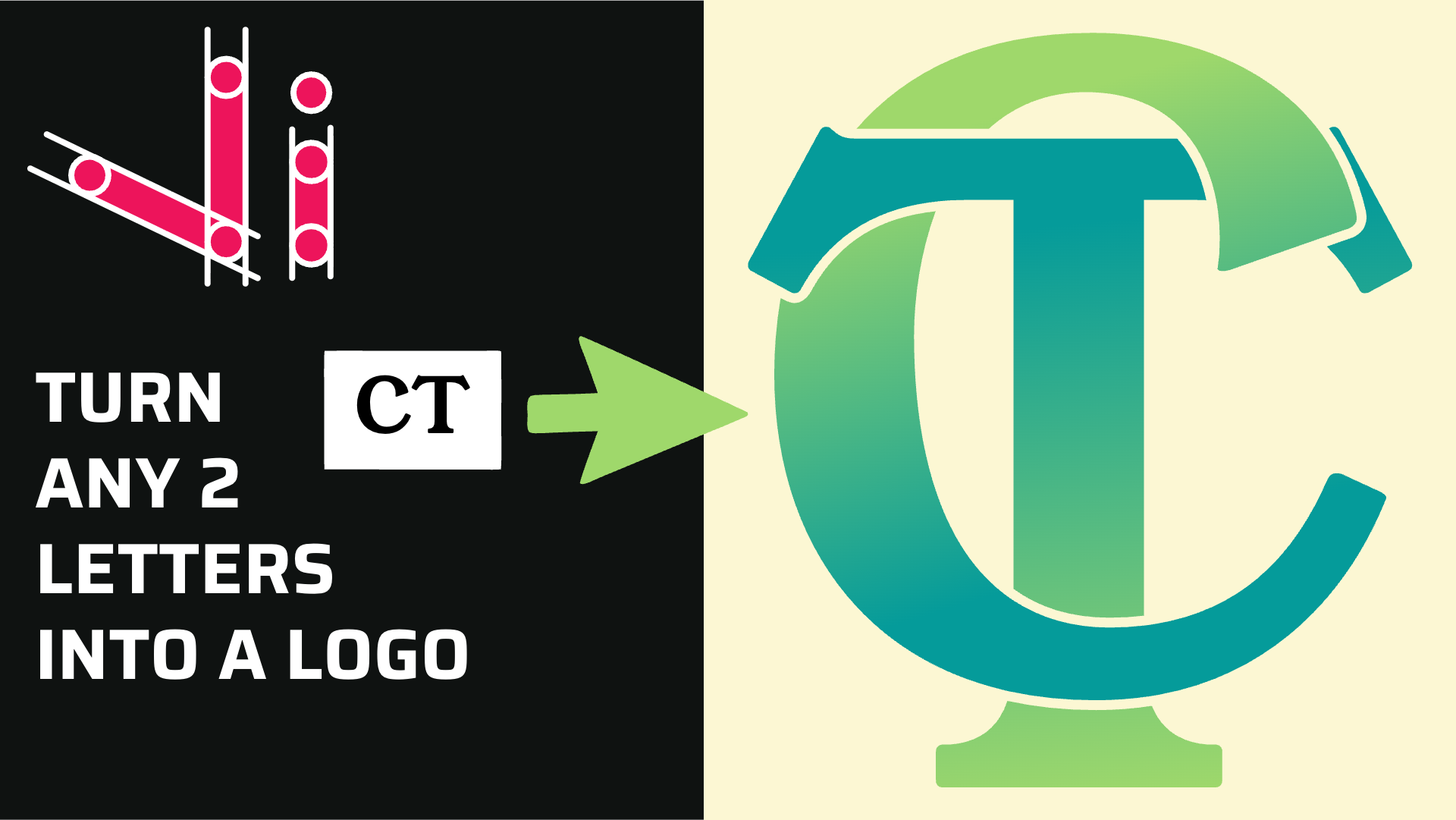
How to Combine Two Letters into One Logo | Intertwined Monogram Design in Vector Ink
In this tutorial, you'll learn how to transform two simple letters into a p...
In this tutorial, we'll guide you step-by-step on how to create a badge logo using Vector Ink. You'll learn how to use the Circle Tool, Star Tool, and Copy Tool to form the perfect badge design, and discover how the Vector Ink Chrome Extension helps you import SVG graphics instantly from your browser. Whether you're designing on desktop or mobile, this guide will help you unlock a clean, geometric style for your next logo project.
Start by selecting the Circle Tool and draw an even circle on your canvas. Align it to the center of the canvas and resize it to your desired size. Then, duplicate the circle twice—each time making the new one slightly smaller. These circles will form the base of your badge, defining its borders and depth.
You don't need to worry about perfect dimensions—eyeballing the spacing works fine for this design.
Next, select the Star Tool and draw a star shape on your canvas. Adjust the number of points to five for a classic look. Rotate the star so one of its points faces straight upward, and position it between the first two circles.
Now, open the Copy Tool. Move the tool's anchor point to the center of your circles. Open the Copy Tool's properties and increase the number of copies to about 22. This will automatically duplicate the star evenly around the circumference of your circles, creating a perfect circular pattern of stars.
With the circular pattern in place, select the innermost circle and duplicate it. Reduce its size slightly—just enough to create a visible boundary. Then, grab the Rectangle Tool and draw a rectangle across the center of your badge so it overlaps the inner circle. Align it to the center of the canvas.
Activate the Path Builder Tool and use it to cut the rectangle shape out from the inner circle. Once the cut is complete, delete the original inner circle. You should now see a clean cutout through the middle of your badge.
Now it's time to add graphics inside your badge. Using the Vector Ink Chrome Extension, you can import SVG graphics directly into your project without downloading files manually.
For demonstration, visit flaticon.com and choose a sample icon such as a bicycle or axes. Activate the Vector Ink extension, select the icon, and choose Import SVG using Vector Ink. The SVG will instantly appear on your canvas, ready to position within your badge.
Note: Only use these icons for mockups and personal projects—avoid commercial use unless you have proper licensing.
Add your brand or title text to the center of the badge using the Text Tool. For example, type "Badge Logo" and align it perfectly in the center of your design. Then, open the Color Palette to experiment with hues that complement your theme.
In the video, the designer uses a warm yellow color for the stars and background elements. To match this, select all the stars, remove their strokes, and fill them with a golden yellow tone for a clean, unified look.
Once everything is aligned and colored, review your badge logo for symmetry and balance. You can scale it up or down to fit various use cases—social icons, patches, or brand labels. When ready, export your finished design as an SVG or PNG directly from Vector Ink.
You've just designed a polished badge logo using Vector Ink's simple yet powerful tools! By combining the Circle, Star, and Copy tools—and enhancing your workflow with the Vector Ink Chrome Extension—you can create professional-grade designs with ease. This workflow is perfect for mockups, icons, and emblem-style branding.
Ready to start designing your own badge logo? Launch Vector Ink now and explore limitless creative possibilities right from your browser. 🎨
In this tutorial, you'll learn how to transform two simple letters into a p...
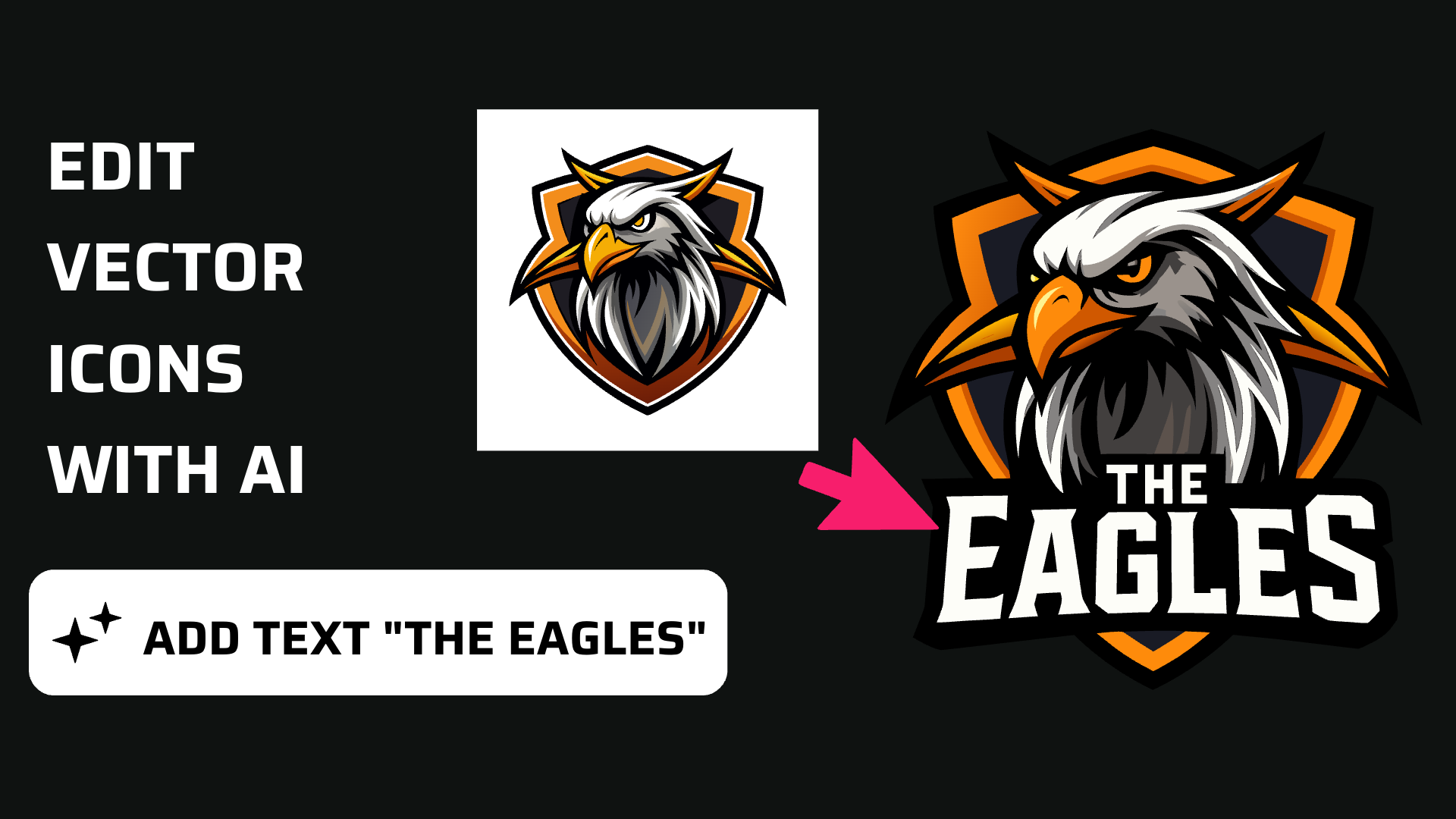
Discover how easy it is to open the Vector Ink Icon Library, import icons t...
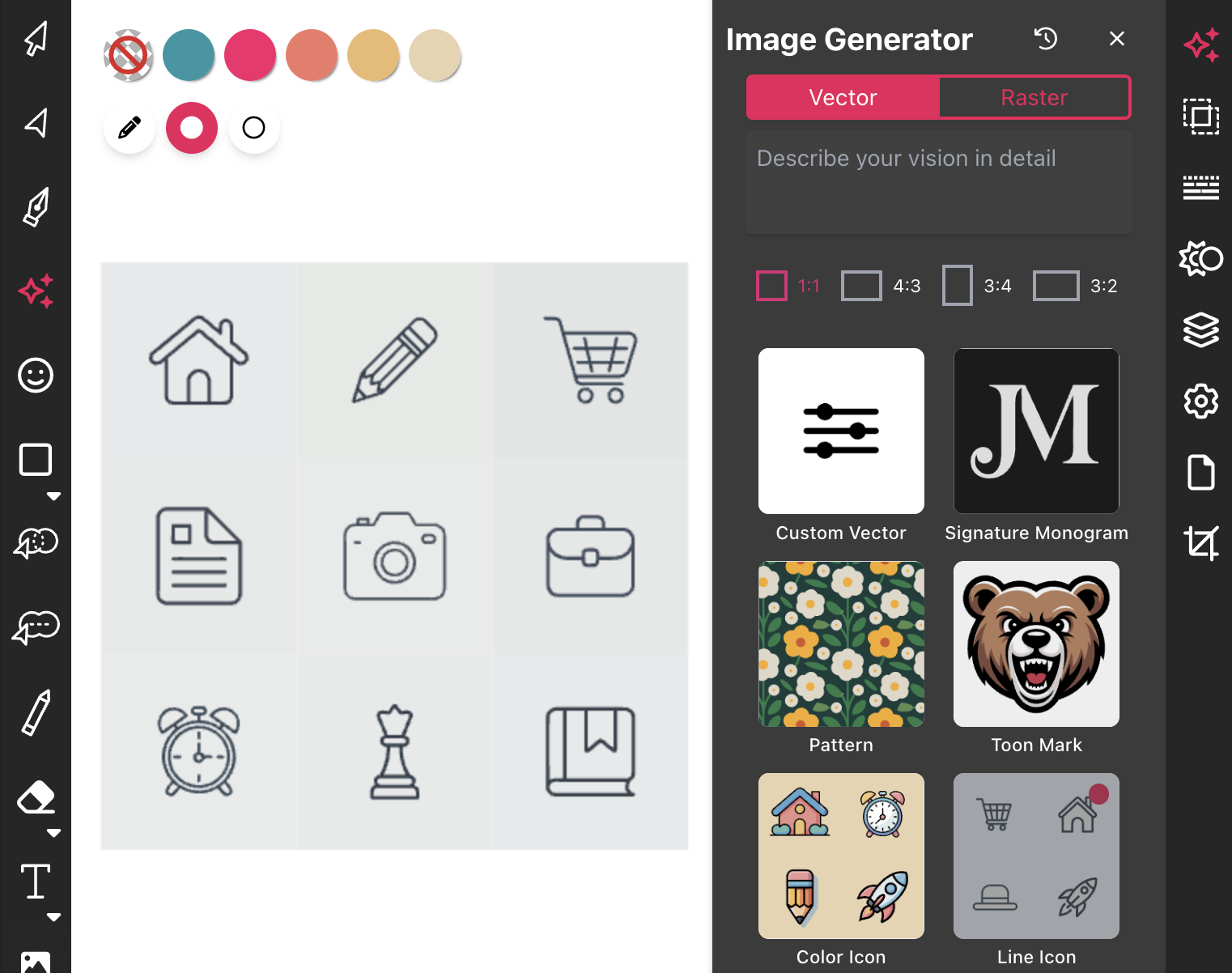
Most icon libraries offer a handful of basic shapes and call it a day. Vect...
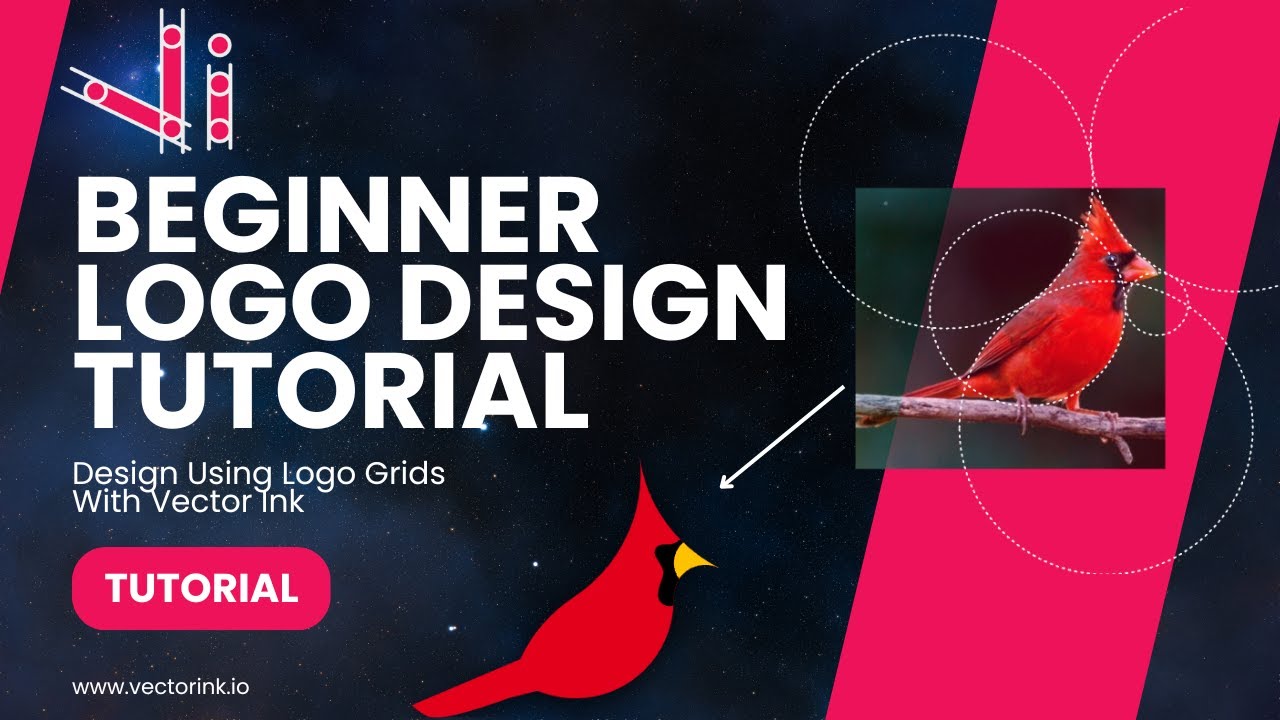
You don't need to be an artist to create a clean, professional logo. In thi...

If you're a crafter who often lands on inspiring images online and wishes t...

Begin by opening the Vector Ink web app. Click "Open" to launch the file ex...