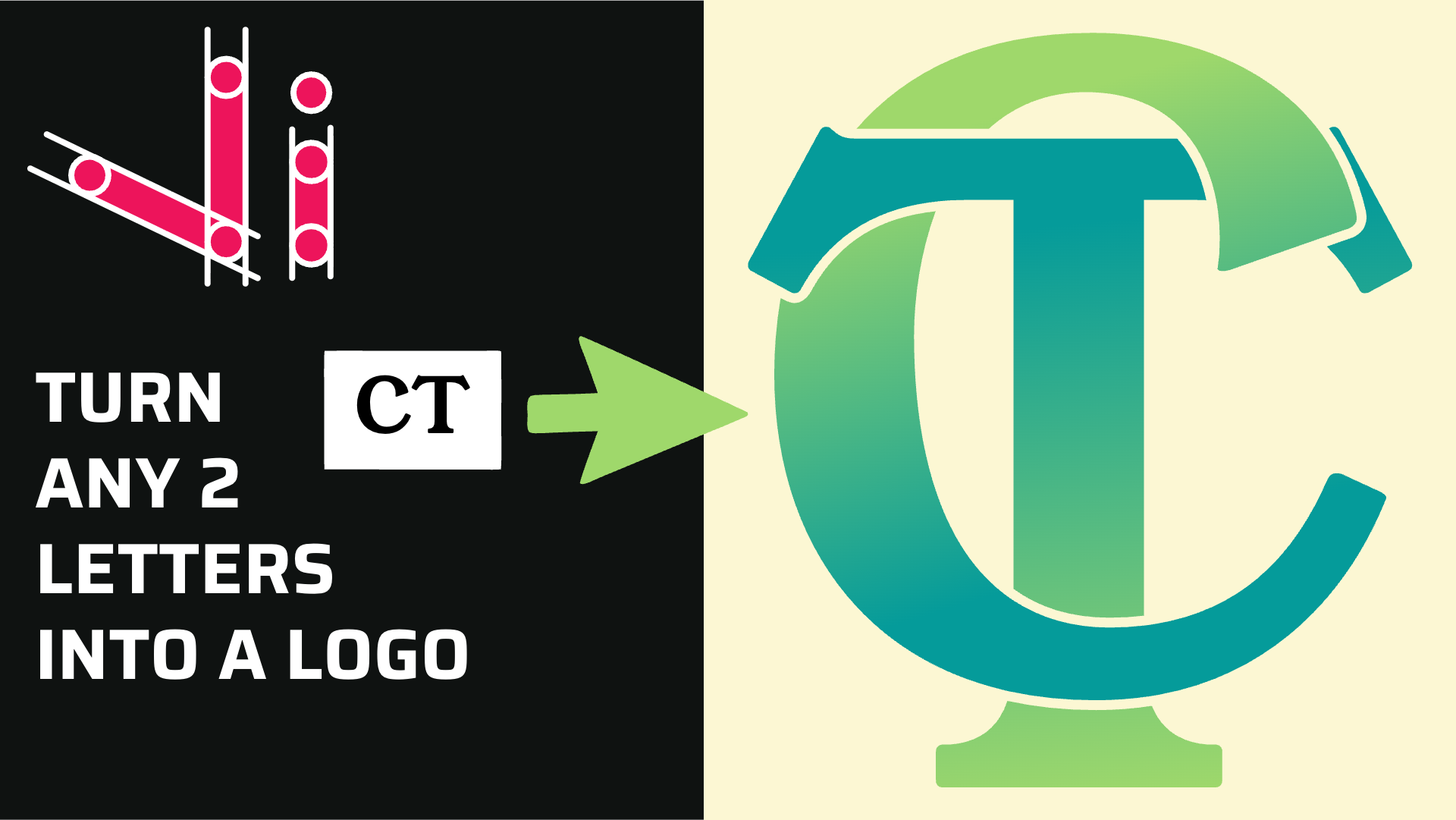
How to Combine Two Letters into One Logo | Intertwined Monogram Design in Vector Ink
In this tutorial, you'll learn how to transform two simple letters into a p...
In this hands-on tutorial, you'll learn how to transform a rough sketch into a clean, scalable logo using Vector Ink's Logo Grid approach. We'll trace key curves with circles and straight segments with lines, then combine everything using the Path Builder Tool. Finally, we'll generate a color palette and apply subtle gradients for a professional finish.
From the menu, choose Import and select your sketch. Zoom out if needed, then tap the top-right resize handle so a single handle appears—this keeps scaling proportional. Resize the image to fit inside the canvas. Open the Align panel and center it horizontally and vertically.
Open Layers → select the image layer → Properties. Reduce Opacity so vector paths are easy to see, then Lock the layer to prevent accidental moves while you trace.
Activate the Circle Tool (enable Constrain or hold Shift) and place a perfect circle to match a primary curve from your sketch (e.g., a bottom or top corner). Switch to the Selection Tool to position the circle precisely, then Duplicate it to trace additional arcs.
For straight edges, switch to the Line Tool. Vector Ink snaps to 45° by default—perfect for diagonal constructs. Duplicate lines to maintain spacing symmetry where needed.
Pro setup: Select all helper shapes, open Stroke settings, and disable Scale Strokes. Now you can zoom in without stroke width changes masking tiny gaps. Aim for circles and lines to just touch at transitions; slight hairline gaps are fine—Path Builder can still resolve them.
Use duplicates of your circles to capture recurring curves (top & bottom corners, inner turns). For mirrored edges, select a pair of guide lines, duplicate them together, then use Flip X/Flip Horizontal to mirror across the design. Keep circle sizes consistent to ensure uniform curvature throughout the mark.
Select all relevant guides (circles + lines) and activate the Path Builder Tool. There are two powerful modes:
If a junction won't latch, zoom in and nudge a helper circle or line until contact is clear, then try again. Once an area is created, returning to the Selection Tool will show a clean vector shape replacing your scaffolding there.
Open the Fill panel and launch the Color Palette Generator. You can:
Pick a simple light-to-dark sequence (e.g., light pink to deep blue). Remove unused swatches so you're left with a concise working palette (light, mid, dark). Apply fills to your new shapes—use high contrast strategically to emphasize edges and direction.
With a shape selected, enable a Linear Gradient. Vector Ink starts by darkening the base color on one end. For more control, set one stop to your light tone and the other to your dark tone. Keep the blend short and subtle to suggest form without muddying the logo. Repeat on other shapes where a hint of shading improves hierarchy.
Avoid heavy gradients across tiny shapes; consistency and restraint keep the mark crisp and brandable.
Hide or delete the raster sketch layer in Layers. Review curves at 200–400% zoom and simplify any extra points for smoother paths. When you're satisfied, export as SVG for infinite scalability and as PNG for quick previews and sharing.
You've just converted a sketch into a polished logo using a structured grid, precise guides, and Vector Ink's Path Builder. This method keeps curves consistent, intersections clean, and color application intentional—perfect for professional identity work.
Ready to build your next logo idea with confidence? Create a new document, drop in a sketch, and put this workflow into practice.
Launch Vector Ink and start designing with the Logo Grid method today—your most refined marks are only a few circles, lines, and joins away!
In this tutorial, you'll learn how to transform two simple letters into a p...
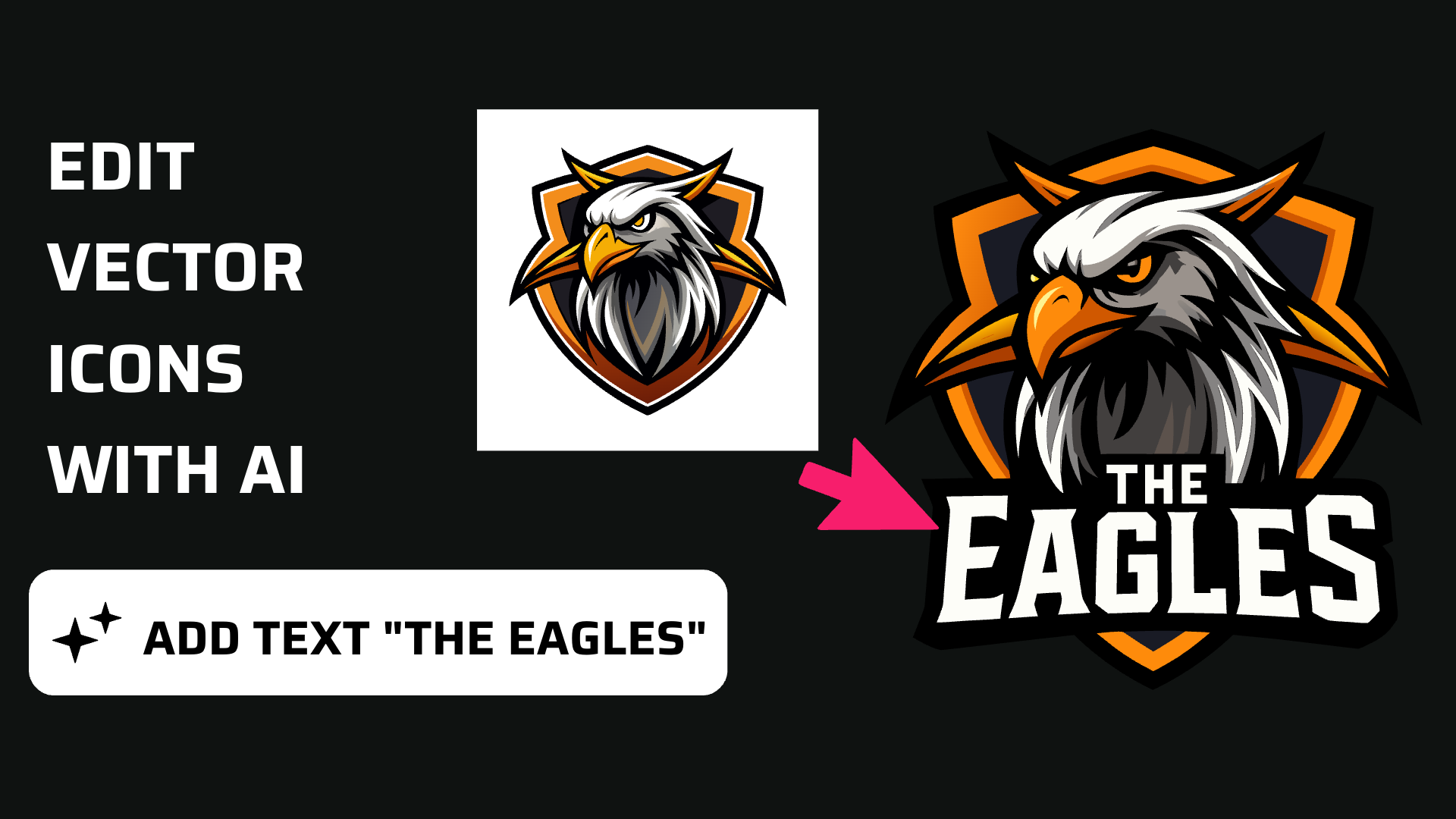
Discover how easy it is to open the Vector Ink Icon Library, import icons t...
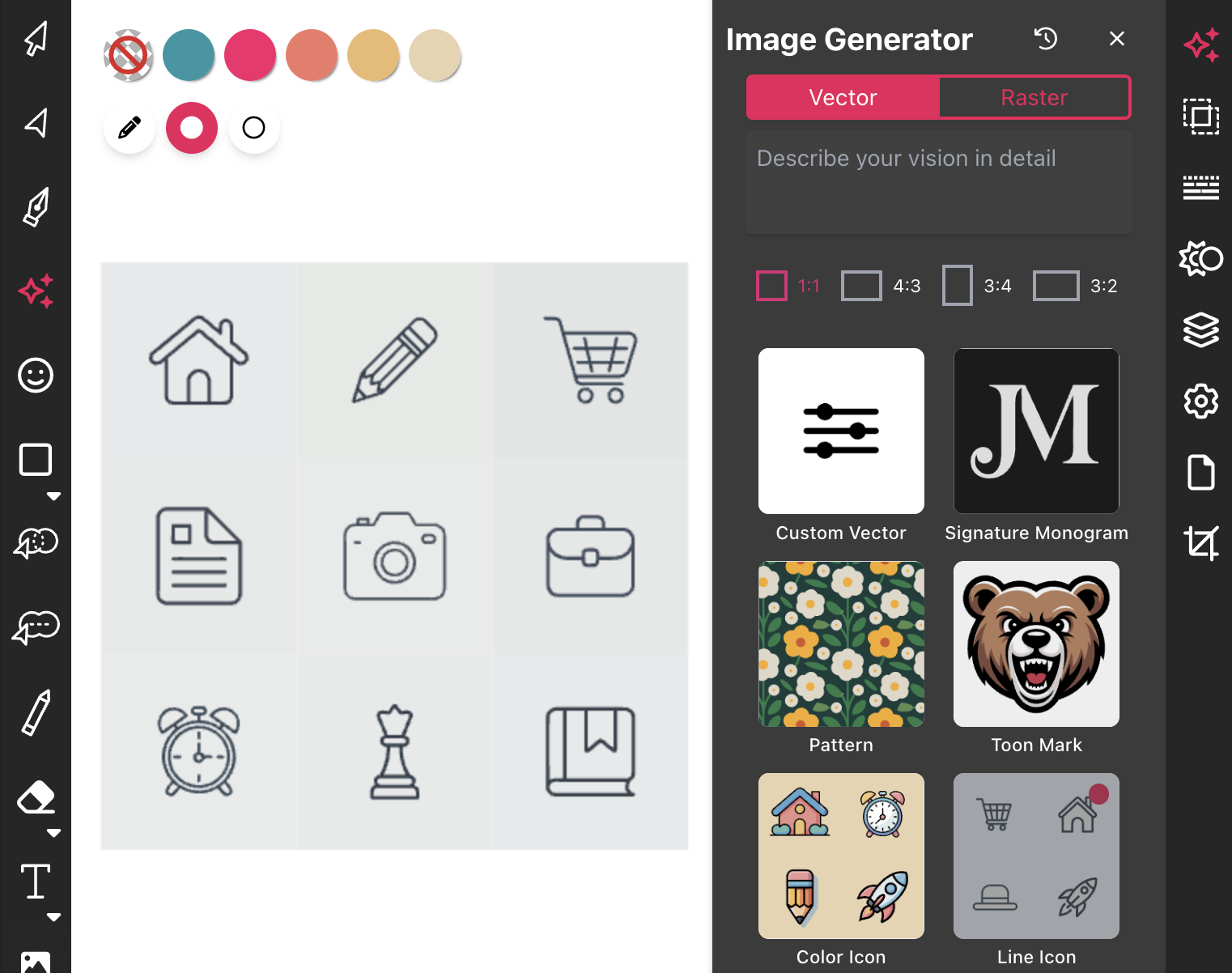
Most icon libraries offer a handful of basic shapes and call it a day. Vect...
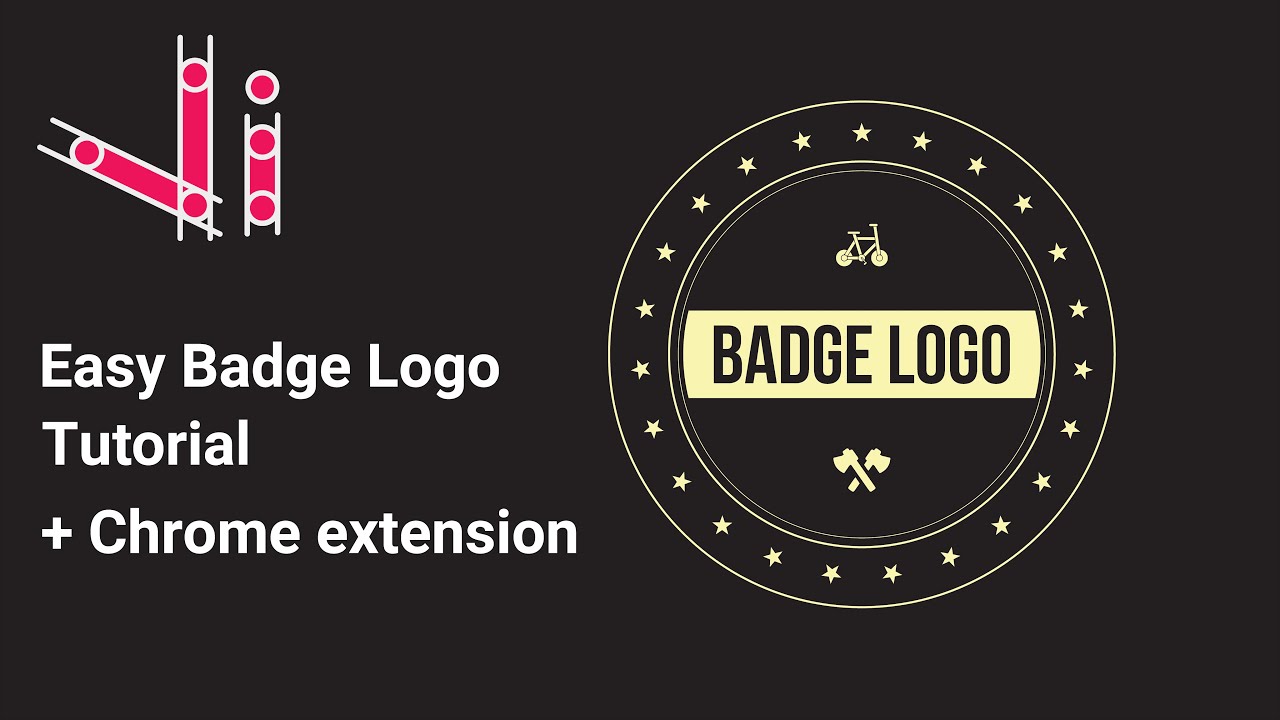
In this tutorial, we'll guide you step-by-step on how to create a badge log...

In this tutorial, you'll take a rough bird sketch and convert it into a pol...
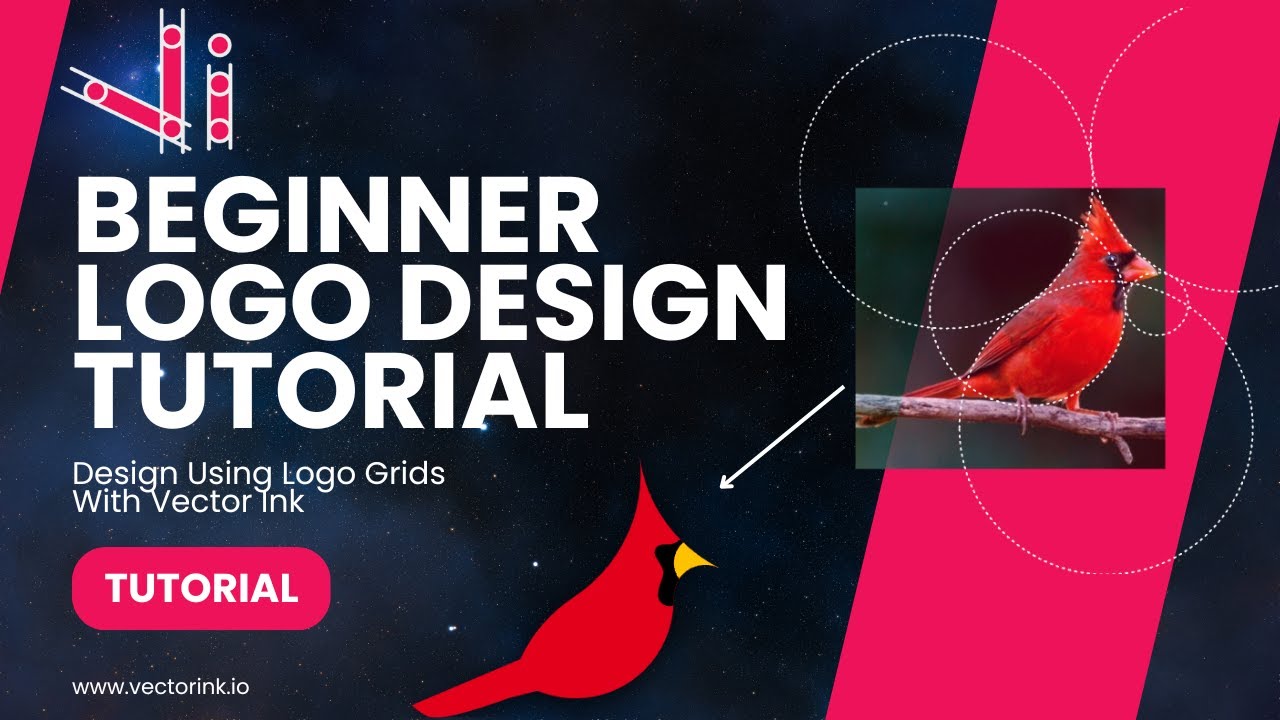
You don't need to be an artist to create a clean, professional logo. In thi...