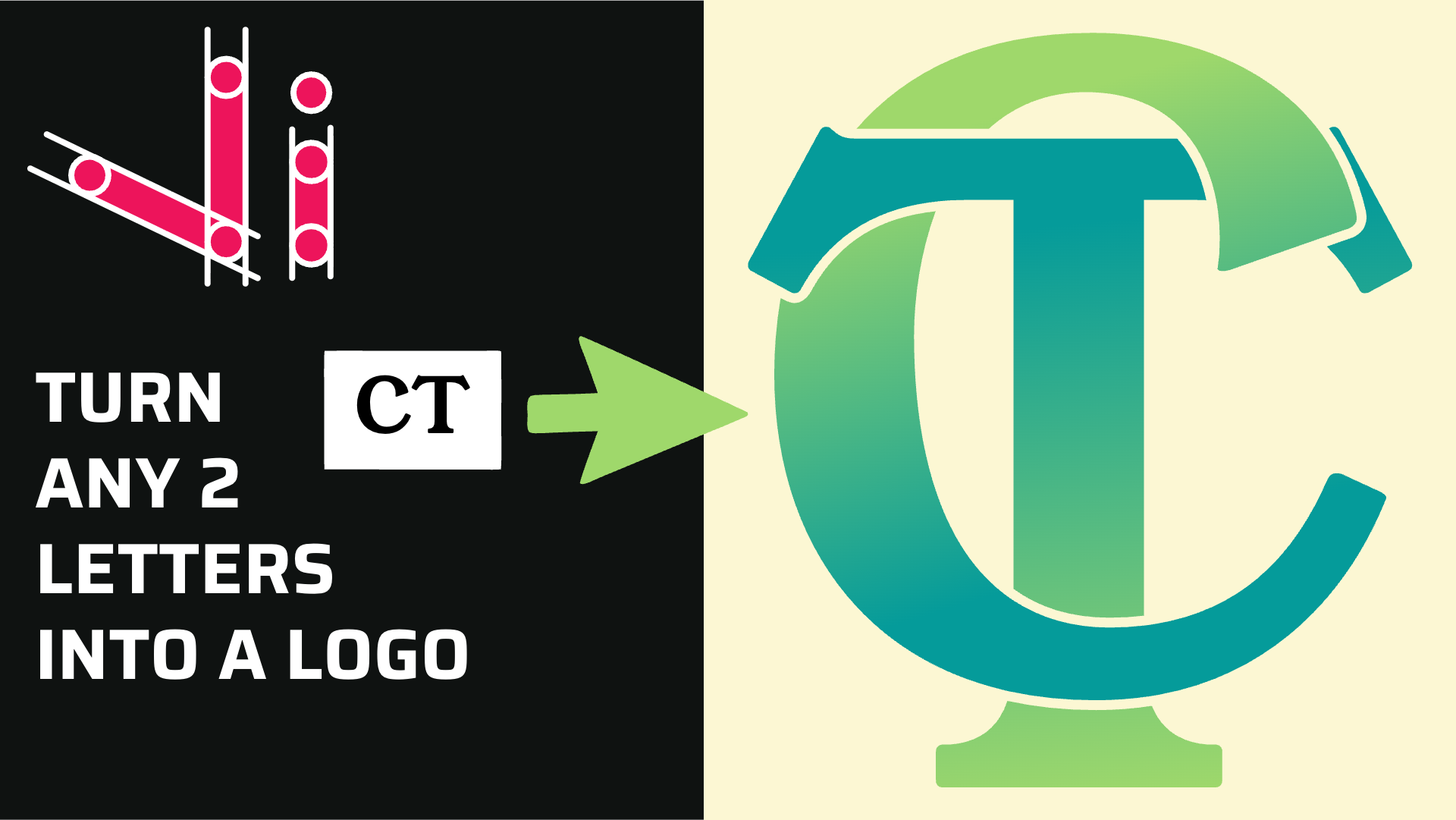
How to Combine Two Letters into One Logo | Intertwined Monogram Design in Vector Ink
In this tutorial, you'll learn how to transform two simple letters into a p...
Discover how easy it is to open the Vector Ink Icon Library, import icons to your canvas, and fully customize them — all in your browser. In this quick tutorial, you’ll see how to browse thousands of editable vector icons, add one to the canvas, ungroup it to edit every layer, and even use AI in-painting to add custom text that perfectly matches the icon’s style.
1) Open the Icon Library
From the Vector Ink home page or inside the web app, open the Icon Library and pick an icon (for example, an esports eagle). Add it to your canvas to begin editing.
2) Ungroup for Full Control
Select the icon and ungroup it to expose the underlying shapes. Now you can recolor fills and strokes, tweak curves, adjust stacking order, and refine details with precision.
3) Re-Palette in One Move
Open the Color panel to quickly map the icon to your brand palette. This keeps contrast and hierarchy consistent while giving the whole mark an on-brand look.
4) Add Text with AI In-Painting
Draw a rectangle where you want text to appear. Open the Image Generator, set that rectangle as a mask, then select both the mask and the icon. Provide a short prompt like “add text: THE EAGLES” and click Redraw. Vector Ink will generate stylized, vector text that blends with the icon’s visual language.
5) Edit the Result Like Any Vector
Ungroup the AI result to fine-tune colors, outlines, or shapes. If you want a different vibe, adjust the mask or prompt and run Redraw again for fast iterations.
Vector Ink combines a massive, ready-to-edit icon library with fully vector outputs and AI in-painting. That means you can start from a strong base, customize everything at the path level, and then use AI to add stylistically consistent text or details — all in minutes and all in your browser.
Ready to customize your next icon? Open the web app and start editing right in your browser: Launch App
In this tutorial, you'll learn how to transform two simple letters into a p...
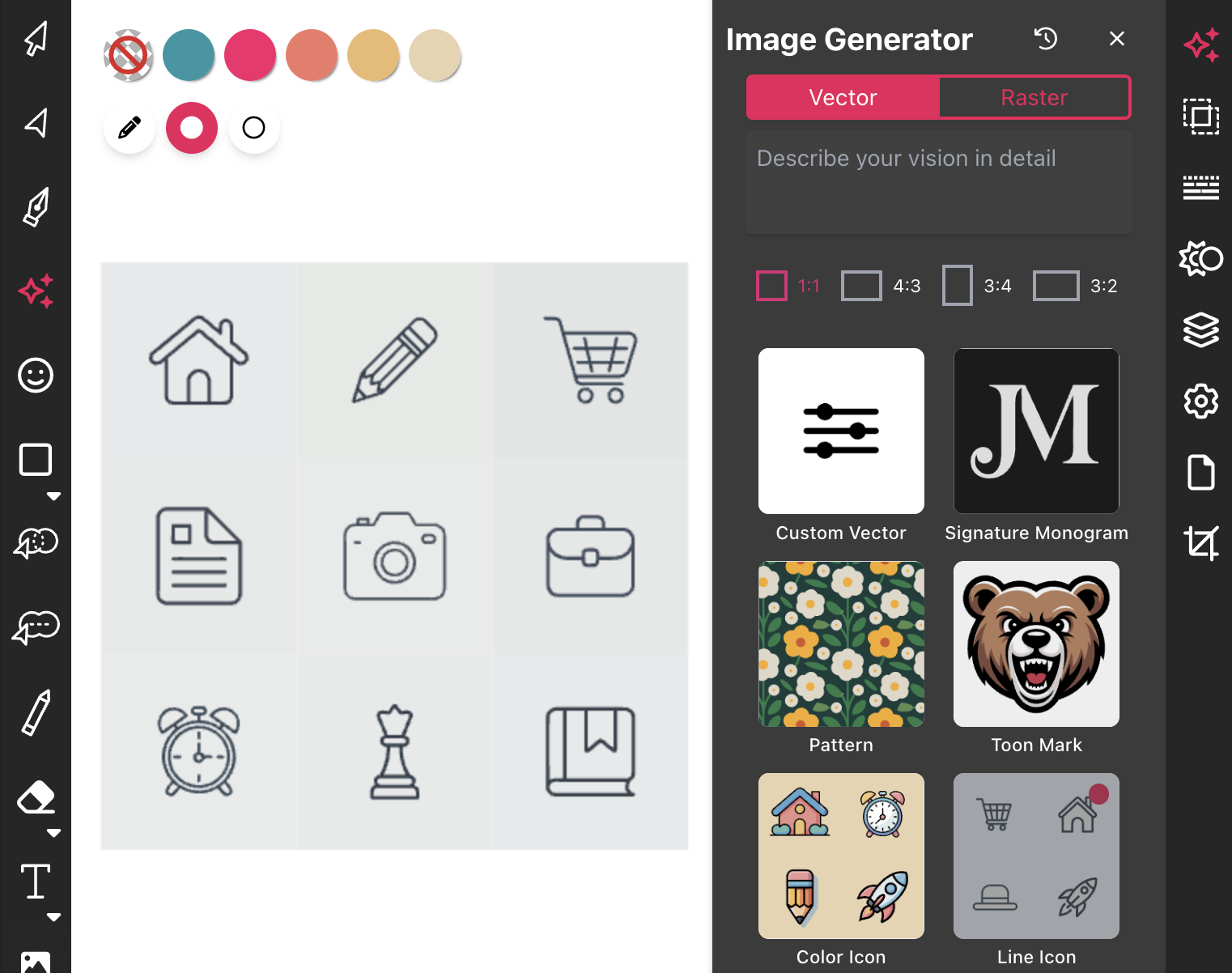
Most icon libraries offer a handful of basic shapes and call it a day. Vect...

In this tutorial, you'll take a rough bird sketch and convert it into a pol...

In this hands-on tutorial, you’ll turn any two letters into a polished lo...

Unlock the art of vector drawing with this detailed introduction to Vector ...
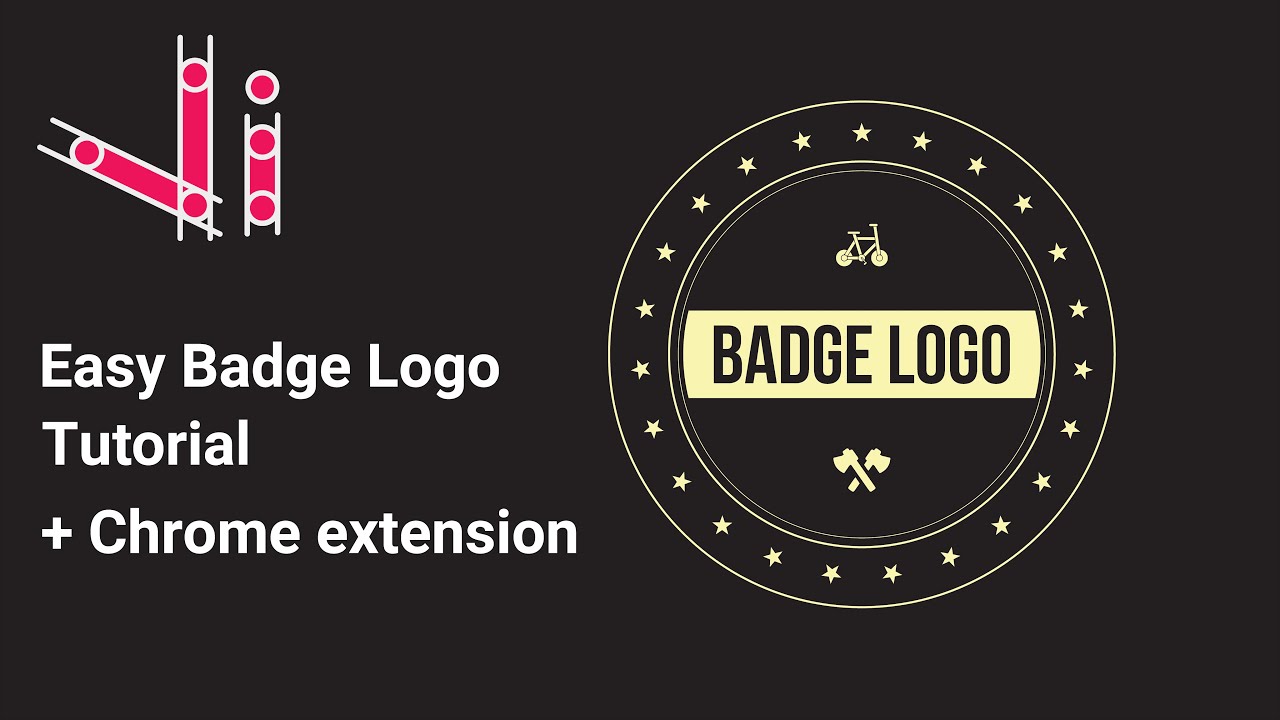
In this tutorial, we'll guide you step-by-step on how to create a badge log...