Master the Text Tool in Vector Ink: Add, Edit, and Curve Text Along Any Path
Typography can make or break a design — and Vector Ink gives you total fr...
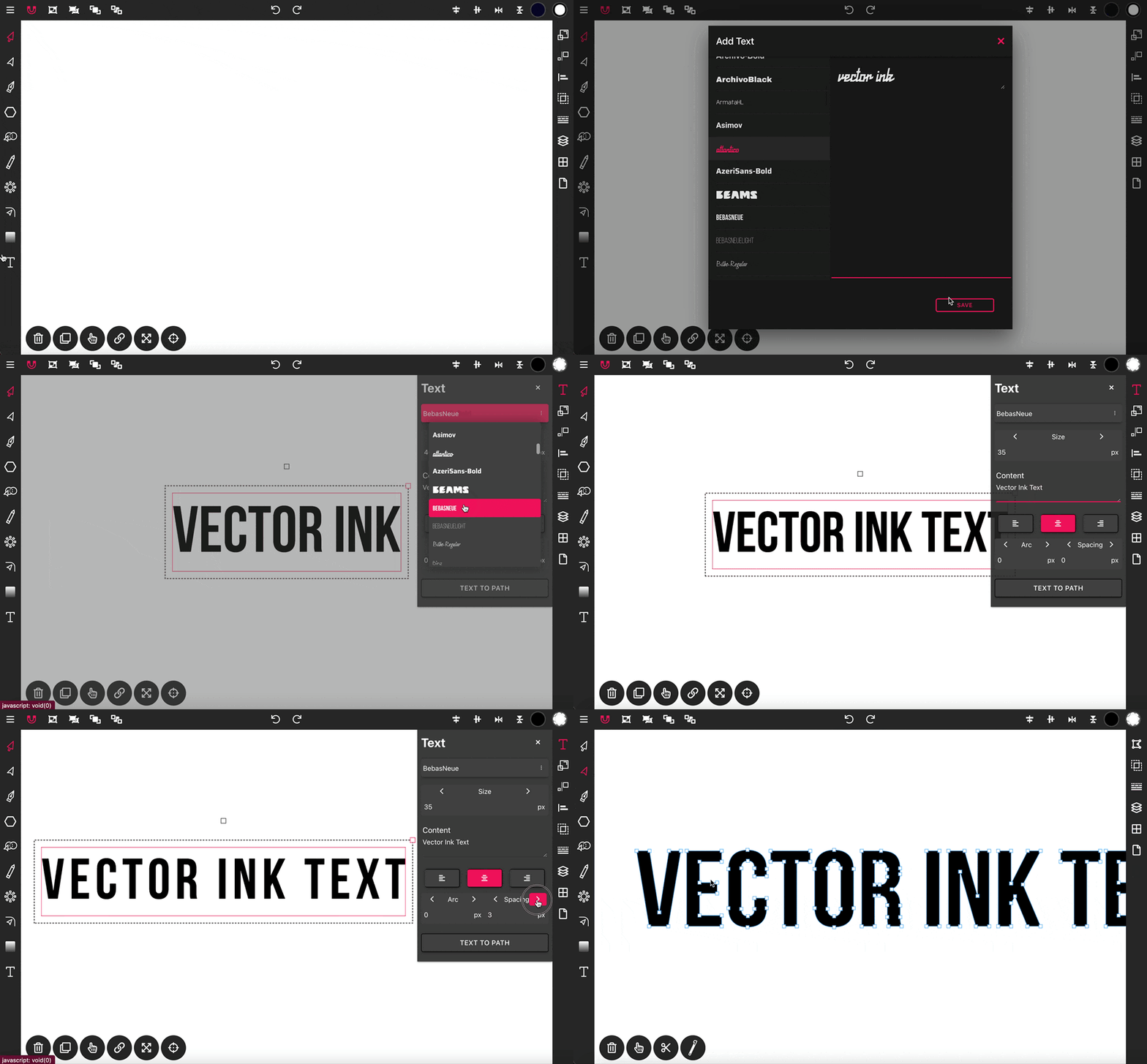
Vector Ink offers a range of text options that allow you to add and customize text on your canvas as needed. Start by selecting the Text tool from the toolbar. This action will prompt a popup window where you can enter your text into the input field.
After entering your text, select a font and click "Save" to apply the text to the canvas. Next, open the Text properties panel to further customize your text.
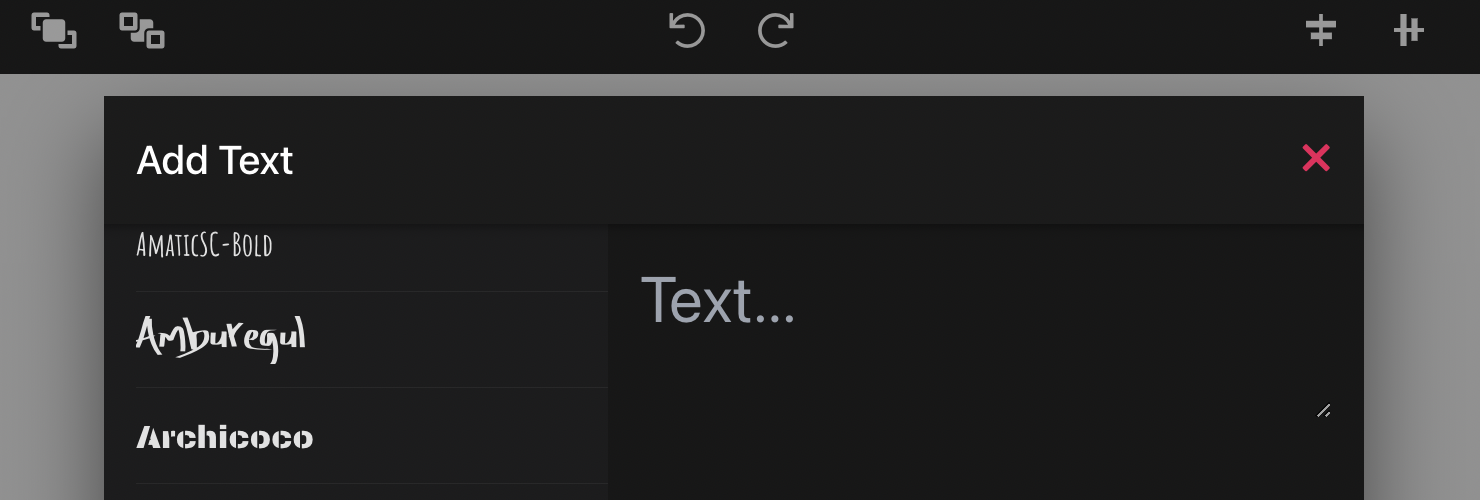
Font Property: Use the dropdown menu to change the font of your text.
Size: Controls the size of your font.
Content: Here, you can edit the text content.
Alignment: Below the Content box, you will find options to justify the text left, center, or right.
Arc: Adjust this setting to apply an arc effect to the text; set it to anything other than zero to activate this feature.
Spacing: Increase this value to add spacing around each letter, enhancing readability and aesthetic appeal.
Text to Path: By selecting this option, you can convert your text object into a path object. Once converted, the text panel will disappear, and your text will become editable like any other path, allowing for more intricate modifications.
Typography can make or break a design — and Vector Ink gives you total fr...
Rounded corners can transform a rigid vector shape into a clean, modern, an...

The Selection Tool is your everyday driver in Vector Ink. It’s how you se...
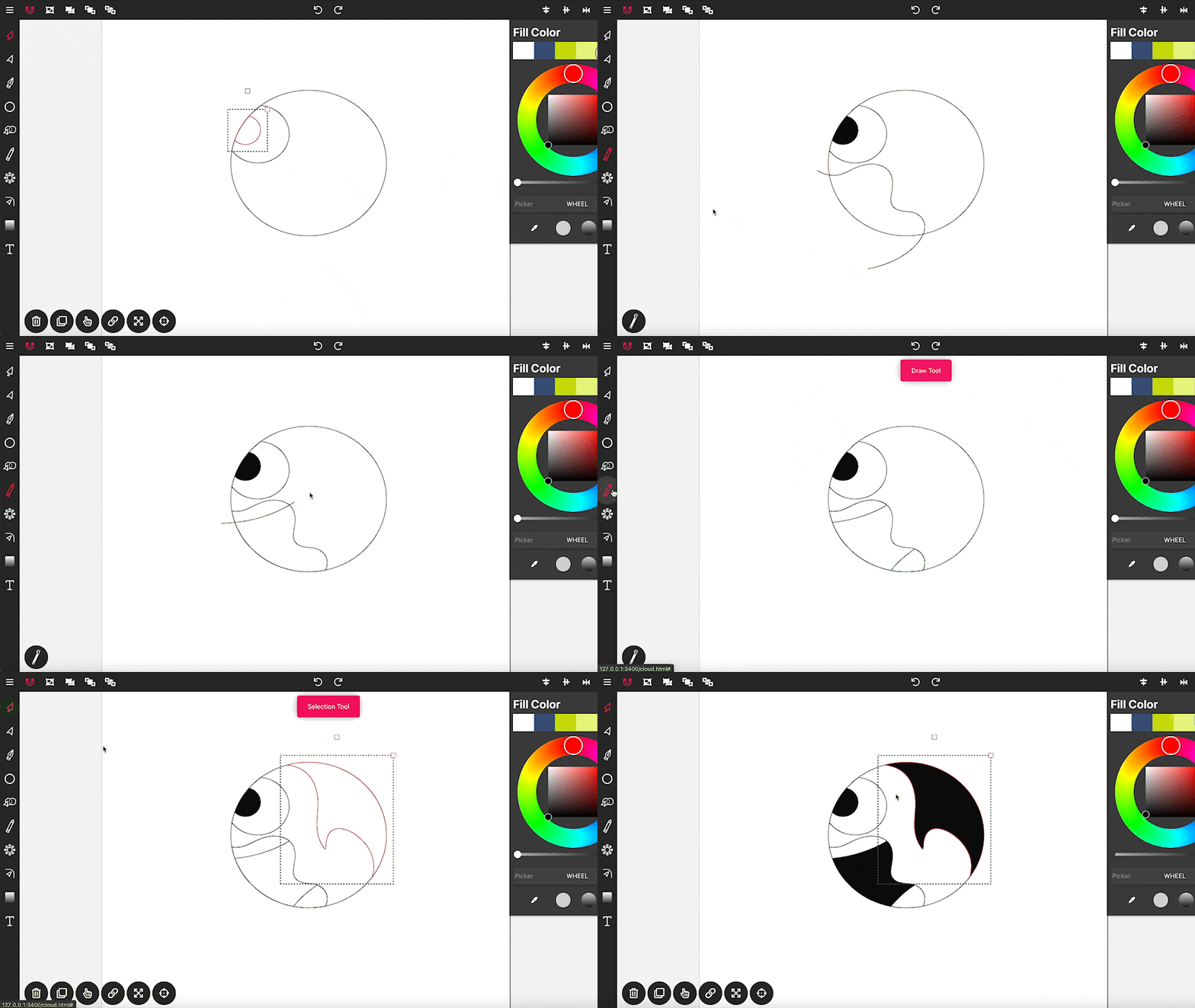
Drawing in Vector Ink is not only super easy but also incredibly intuitive....
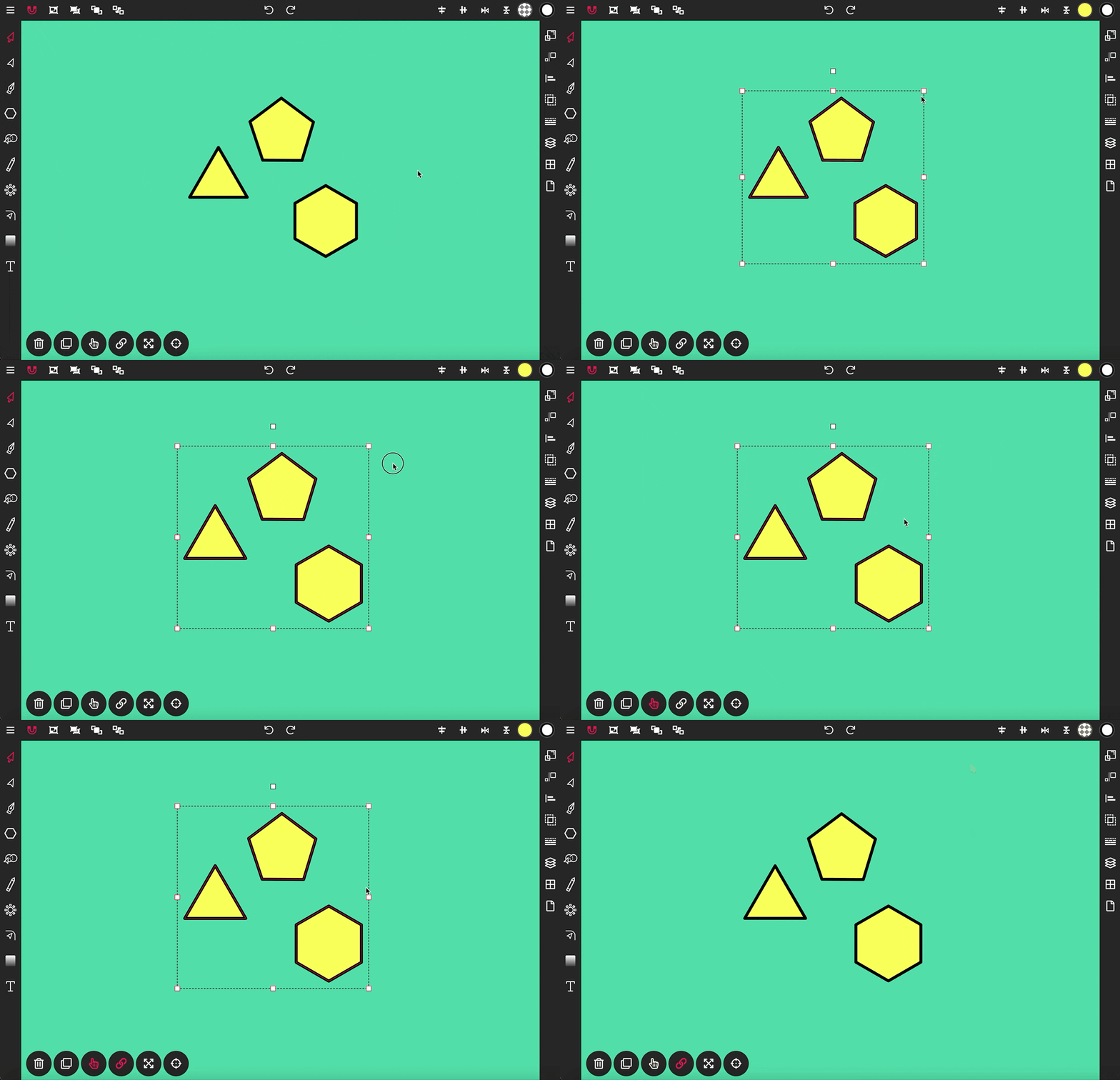
The Selection Tool is a fundamental component of Vector Ink, essential for ...
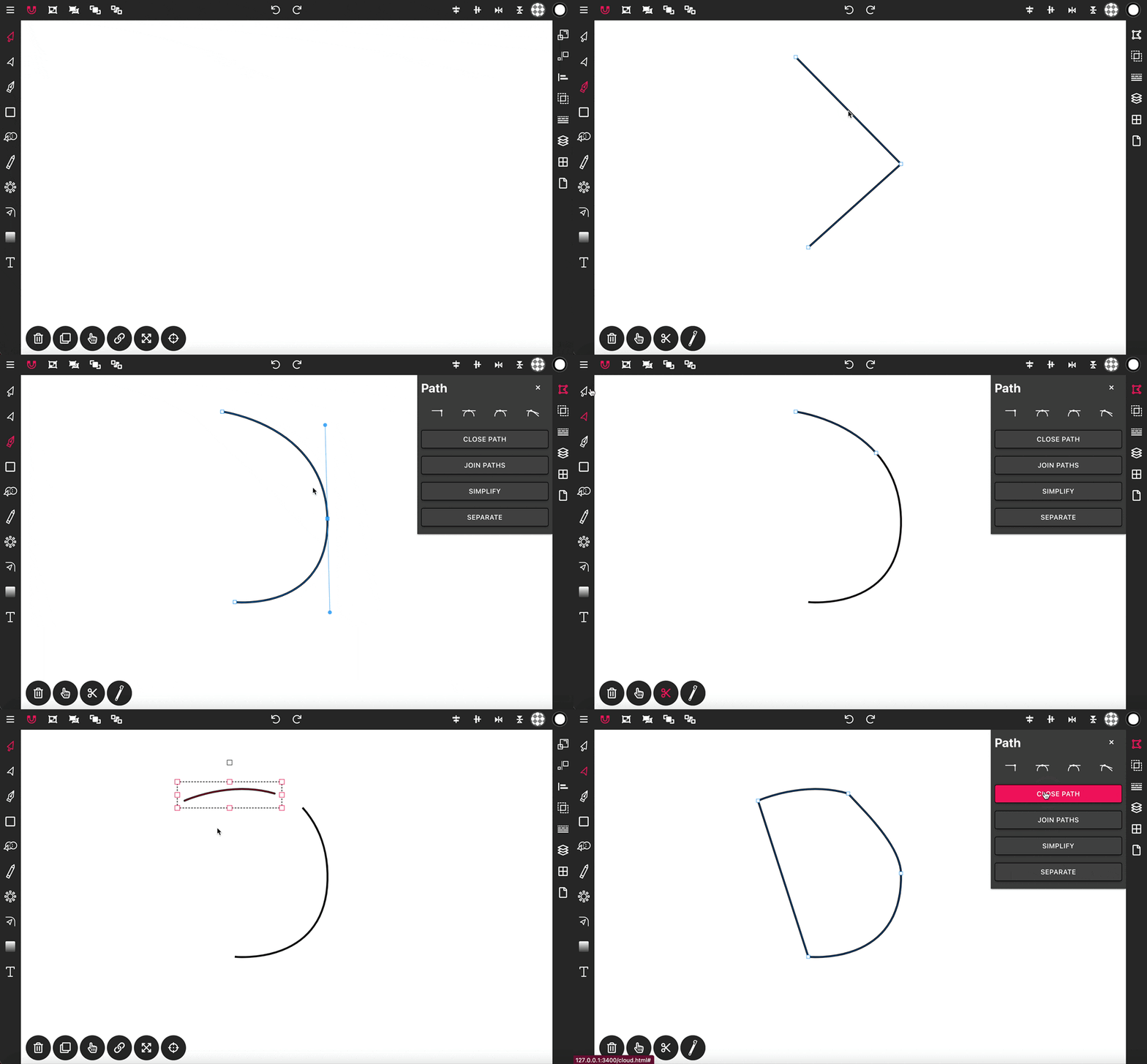
With the Pen Tool, you can draw paths with sharp or smooth anchor points an...