
How to Make a Character Reference Sheet: A Guide for Concept Artists and Animators
A character reference sheet is the single source of truth for how a charact...
The Selection Tool is your everyday driver in Vector Ink. It’s how you select, move, resize, rotate—and it unlocks powerful actions like multi-select, target-based alignment, scale from center, and anchor-based transforms. Whether you’re on desktop, tablet, or phone, this quick guide shows you how to work faster and more precisely.
Use Target Selection to align objects relative to a specific object instead of the canvas. Select several objects, choose a target (e.g., a logo mark), then apply Align actions—the selection snaps to your target’s bounds for pixel-perfect layout.
Shift while resizing to constrain proportionally.Shift during resize.Open a recent logo or icon and try these moves: constrain-resize a mark, set an anchor to pivot a highlight, then align your text to a target object for a polished lockup. When flow clicks, everything else in Vector Ink feels easier.
Launch Vector Ink and start building cleaner layouts, tighter logo lockups, and faster edits—right now.
A character reference sheet is the single source of truth for how a charact...

Sooner or later every designer, crafter, and marketer hits the same wall: y...
Dial in your workspace and outputs the right way. This tutorial covers Proj...

A well-organized design isn’t just about aesthetics — it’s about effi...
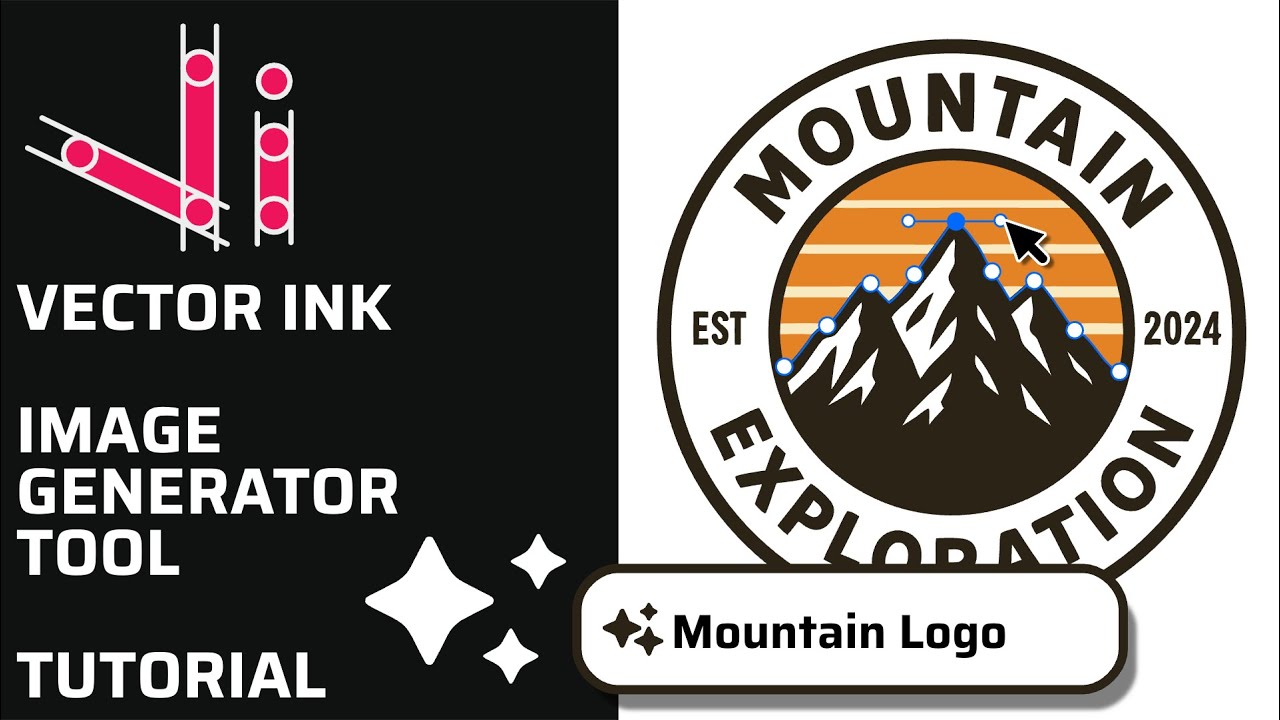
Vector Ink’s AI Image Generator lets you create logos, icons, illustratio...
This continuation of our Selection Tool series dives into the Control Bar a...