Create a Logo in Minutes with Vector Ink’s AI Image Generator
Introduction
In this tutorial, we create a professional logo in minutes using the AI Image Generator inside Vector Ink. You’ll see text-to-image generation, smart redraws that riff on your selection, and masked image-to-image edits to surgically change parts of a design while keeping the rest intact.
What You’ll Learn
How to generate logo concepts from a simple prompt.
How to use image-to-image to keep core traits while exploring variations.
How to apply masked image-to-image to edit only specific regions (e.g., remove elements, add detail).
How to ungroup and fully edit the vector result.
Quick Start: From Prompt to Polished Logo
Activate AI Image Generator → Choose Vector as the output type and pick a suitable style (e.g., Modern Logo).
Write a clear prompt (example): “Tech logo titled Pixel Grove that blends tech and nature.” Generate.
Pick your favorite result → Ungroup to edit shapes, colors, and text independently.
Try Image-to-Image on your selection to iterate (e.g., “add leaves falling from the tree”).
Use Masked Image-to-Image to change only a region: draw a mask over the area, select it as a Mask, then describe the adjustment.
Masked Edits: Pro Tips
Keep the mask inside bounds: If your mask extends outside the artwork’s bounds, add a temporary white rectangle behind the logo so the masked region stays within the overall image area.
Target small fixes: Mask just the problem area (e.g., stray pixels or unwanted symbols) for cleaner, more predictable results.
Iterate lightly: Short, direct prompts (“remove pixel squares,” “simplify leaves”) yield more consistent outcomes.
When to Use Redraw vs. Text-to-Image
Text-to-Image: Best for fresh concepts. It’s fast, but may need edits.
Image-to-Image: Best for variations that preserve overall vibe (layout, motif, style).
Masked Image-to-Image: Best for precise tweaks without rebuilding the whole logo.
Edit Freely & Own the Result
AI vector outputs come in as grouped vectors—just Ungroup and edit any path, color, or text. Logos generated under your account are yours to use commercially, so you can refine, export, and deploy across your brand assets.
FAQ
Are AI results fully vector? Yes—when generating with Vector, results are editable vectors you can ungroup and modify.
How many credits does it cost? Each generation costs 1 credit (text-to-image, image-to-image, and masked variations).
My masked edit failed—why? Ensure the mask stays within the artwork bounds (use a background rectangle if needed), then try again with a concise prompt.
Try It Now
Jump into Vector Ink, open the AI Image Generator, and spin up your first logo concept in minutes. Iterate with redraws and masked edits until it’s perfect—then export and launch your brand.
Vector Ink’s Path Builder Tool lets you combine, cut, and create completely new shapes from existing paths with intuitive precision. Whether you’re crafting a complex logo or a minimal icon, this tool gives you the power of traditional shape builders — but with more control and freedom.
Take complete control of your outlines with the Stroke Properties Panel in Vector Ink. This tutorial walks you through every setting that defines how your lines behave — from width and pressure to end caps, joins, and dashed patterns — giving your artwork precision and style.
Vector Ink’s AI Image Generator lets you create logos, icons, illustrations, badges, textures, and more with guided styles and prompt controls — then refine results directly on the canvas. In this guide, you will learn how to generate art, switch styles, redraw existing images, vectorize raster results, and remove backgrounds, all without leaving Vector Ink.
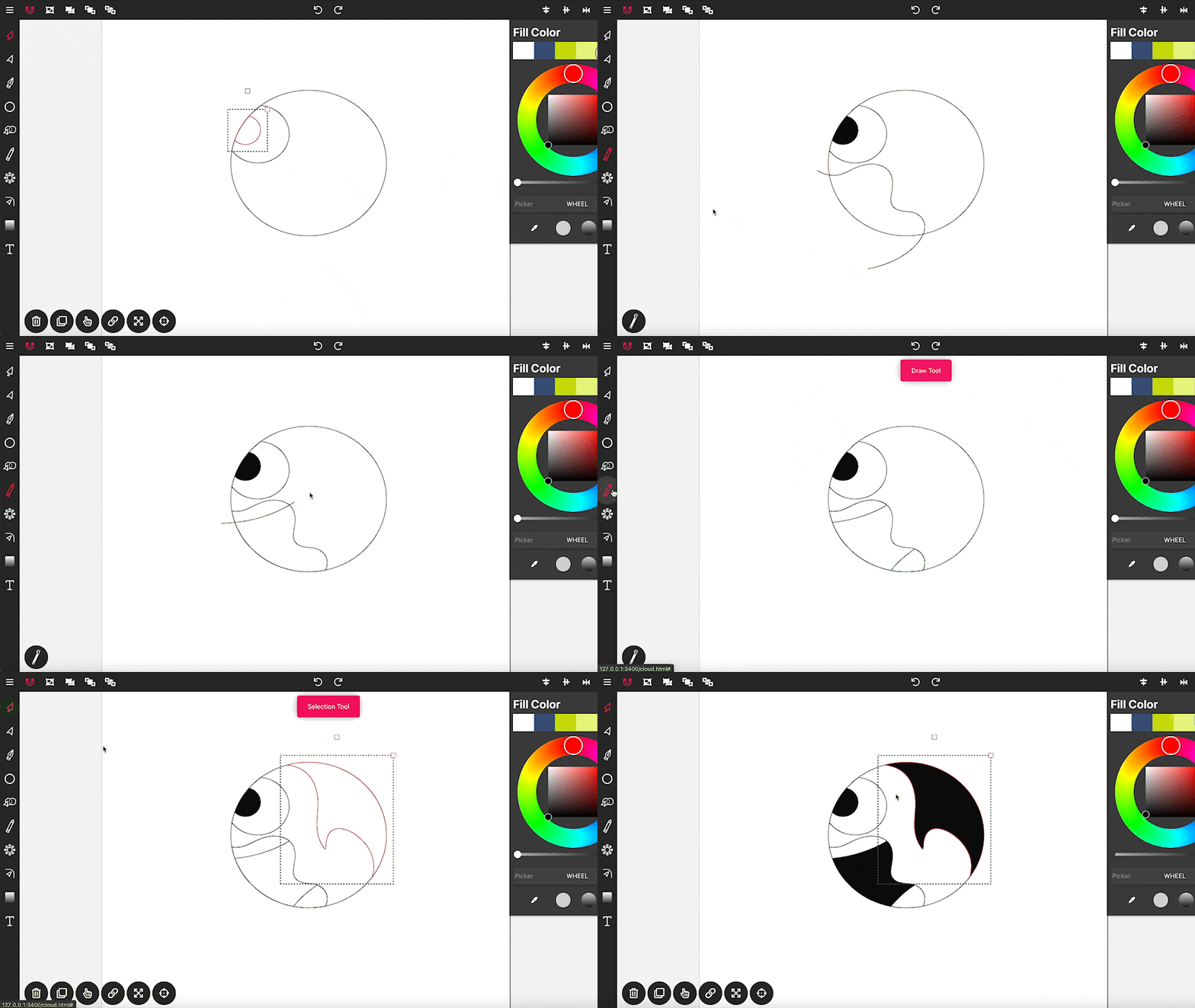
Drawing in Vector Ink is not only super easy but also incredibly intuitive. Whether you're armed with just a mouse or using a tablet without the luxury of a stylus, Vector Ink simplifies the process, making freehand drawing accessible to everyone.
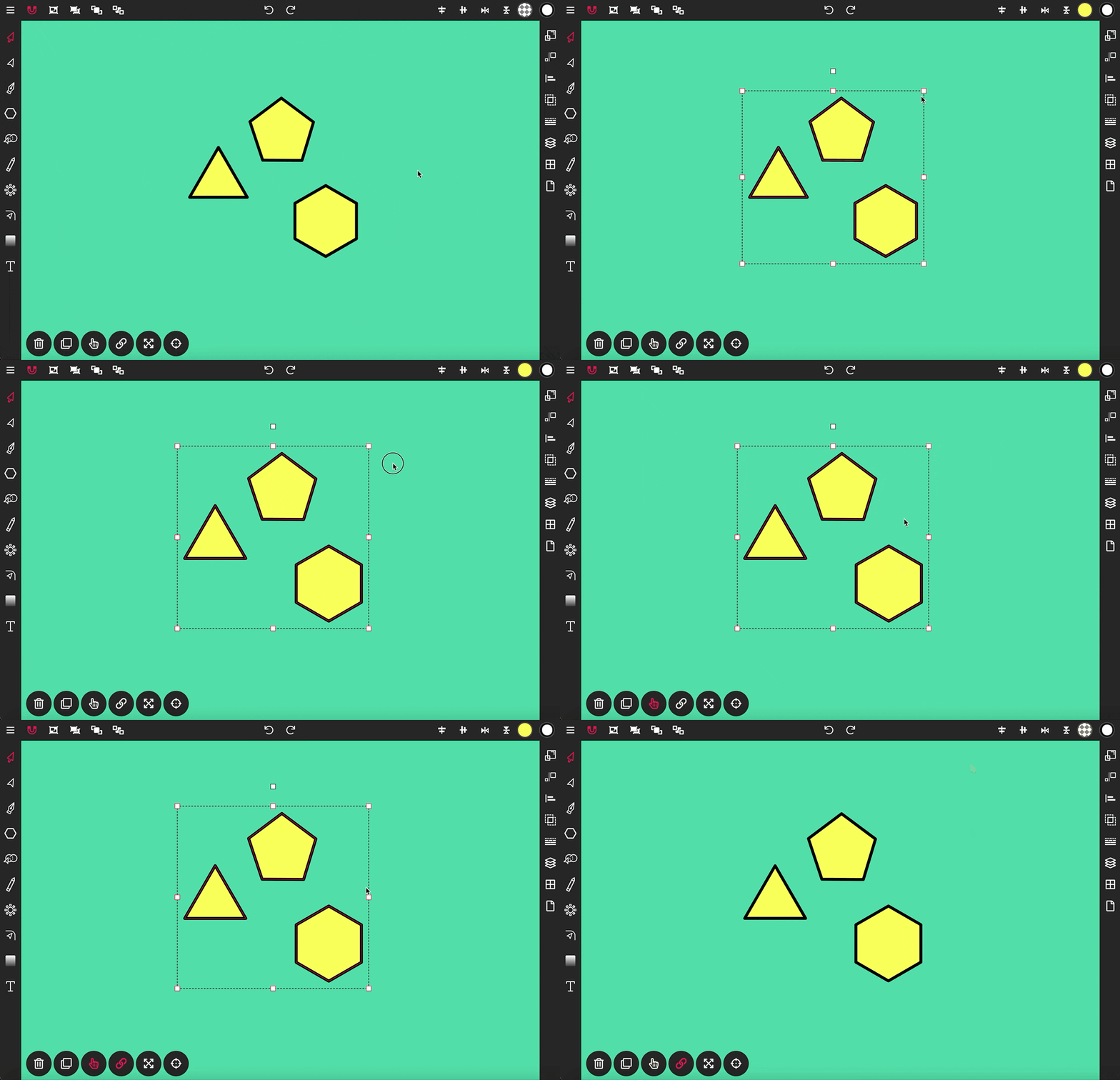
The Selection Tool is a fundamental component of Vector Ink, essential for moving and transforming objects on your canvas. This tool is accompanied by an array of options, shortcuts, and controls designed to streamline your design process.