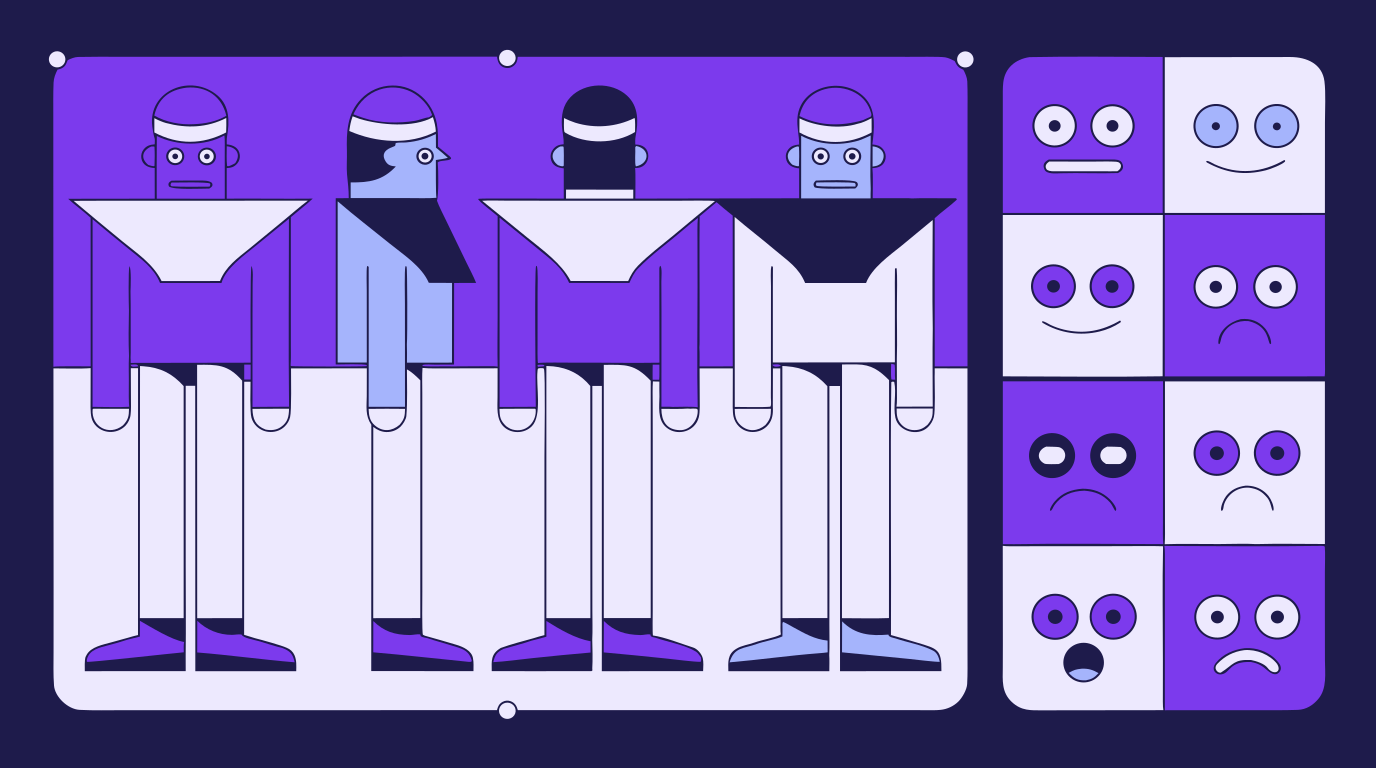
How to Make a Character Reference Sheet: A Guide for Concept Artists and Animators
A character reference sheet is the single source of truth for how a charact...
Sooner or later every designer, crafter, and marketer hits the same wall: you have a perfect SVG file, and the tool you need to put it into — an email platform, a social scheduler, a slide deck, a print-on-demand uploader — refuses to accept it. The fix is a thirty-second SVG to PNG conversion, and you can do it free in your browser with our SVG to PNG converter. But if you have ever wondered what actually happens to your file in that moment, why the two formats exist at all, and how to convert without ending up with a blurry logo, this guide covers all of it.
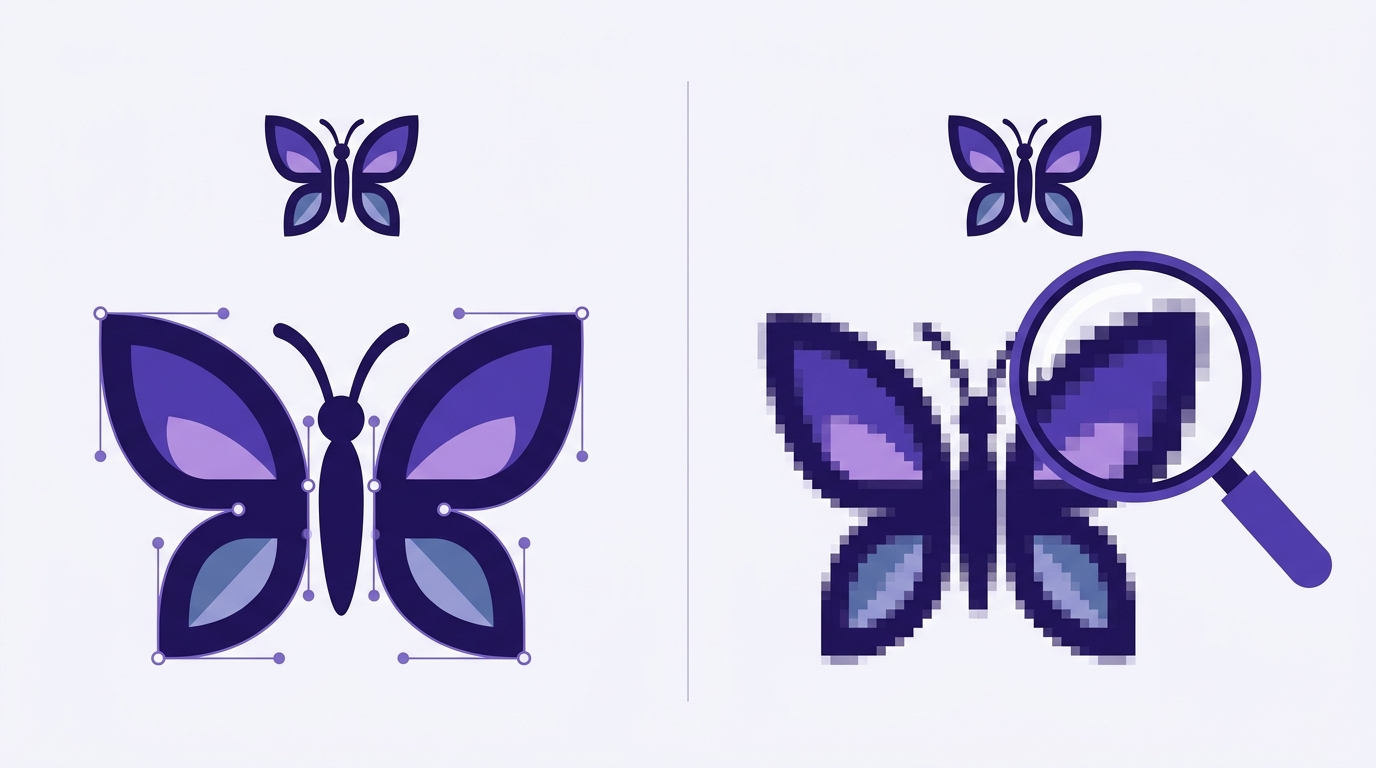
An SVG (Scalable Vector Graphics) file is not a picture in the way most people think of one. It is a set of instructions — mathematical descriptions of curves, points, fills, and strokes — that your browser or design app draws fresh every time the file is opened. That is why an SVG stays razor sharp whether it is rendered at 16 pixels or 16 feet: the math scales, so the shapes scale with it.
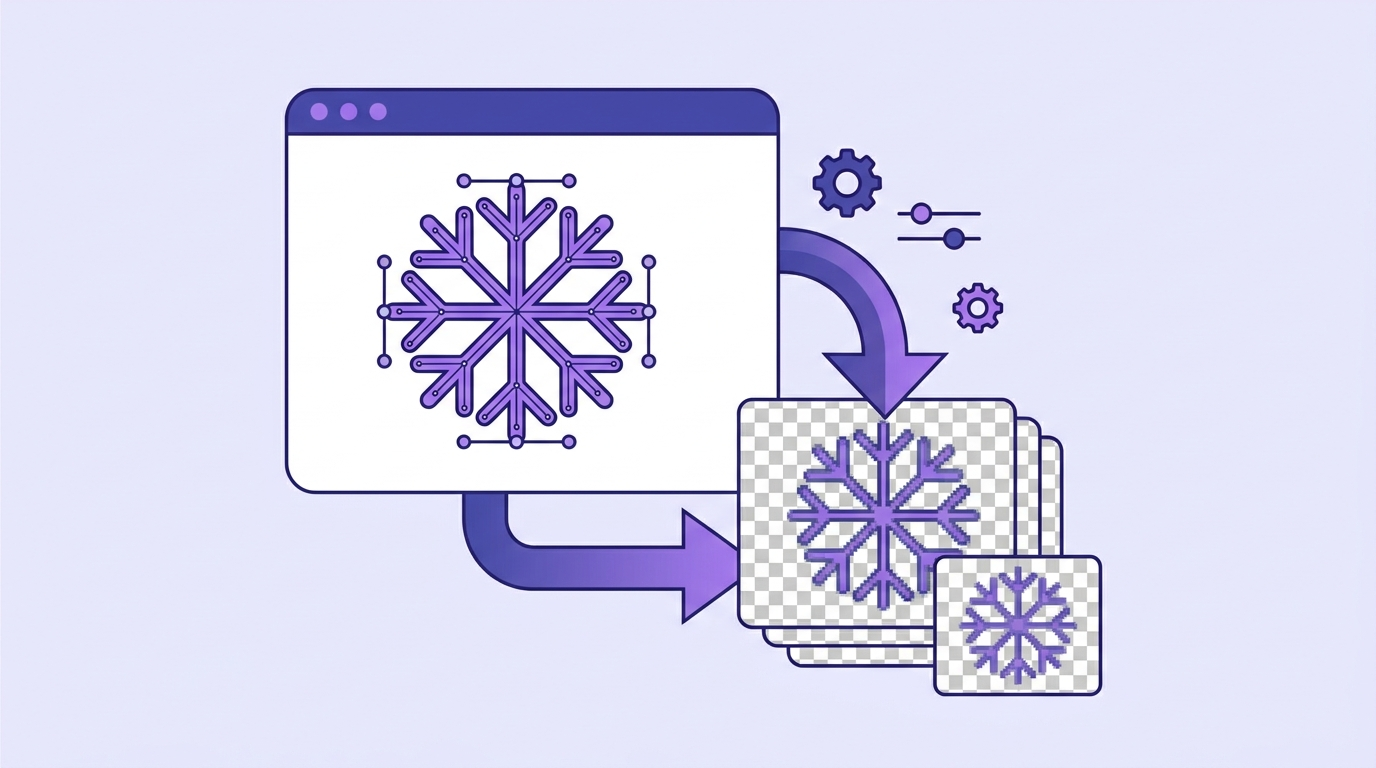
A PNG (Portable Network Graphics) file is the opposite: a fixed grid of pixels, each one a stored color value. When you convert SVG to PNG, a renderer draws the vector instructions once, at one specific size, and then freezes that drawing into a pixel grid. The process is called rasterization. Nothing about your original artwork changes — you are taking a snapshot of it at a resolution you choose. That snapshot keeps PNG's best feature, full transparency support, which is why a converted logo still sits cleanly on any background color.
The practical differences come down to how each format stores the image, and they explain every "which one should I use" decision you will ever make:
If SVG is sharper and more flexible, why downgrade to pixels at all? Because the destination decides the format, not the artwork. The most common reasons to turn an SVG into a PNG:
The rule of thumb: design and store your artwork as SVG so you never lose quality, and export a PNG copy whenever a platform demands pixels. The SVG stays your master file; the PNG is disposable output you can regenerate at any size, any time.
You do not need to install anything. The fastest way to convert SVG to PNG is a browser-based tool:
And if the SVG needs a tweak first — a color swap, a removed element, resized artboard — you can open it in the Vector Ink design app, edit the actual paths, and export PNG (or JPG, or ICO) straight from the editor. That beats converting, spotting a mistake, re-editing, and converting again.
Because the converter above runs entirely in the browser, the answer is the same on every operating system — there is nothing to install and no OS-specific app to hunt down. That said, if you prefer local tools: on Windows, Paint and Paint 3D can open some SVGs and save as PNG, but they frequently mangle gradients and text. On a Mac, Preview does not open SVG natively at all. Desktop apps like Inkscape or Illustrator do the job well if you already have them, but for a one-off conversion, opening a full design suite is overkill — a browser tab gets you the same pixels in a fraction of the time.
Sometimes you do not have an .svg file at all — you have SVG code: a block of <svg>...</svg> markup copied from a website, a developer handoff, or an AI chat. That markup is a complete image; it just needs to be saved with an .svg extension. Paste the code into any text editor, save it as icon.svg, and run it through the same SVG to PNG converter — the output is identical to converting a "real" file, because it was a real file all along. This is one of the most common tricks for turning icon-library snippets and AI-generated vector code into usable images.
The single biggest mistake people make when they save an SVG as PNG is exporting too small. Remember: the moment you rasterize, scaling up is over. A 200-pixel PNG logo dropped into a 1200-pixel banner will look blurry no matter how perfect the SVG was. Work backwards from the destination — find the largest size the graphic will ever appear at, then export at that size or larger. For screens with high-DPI displays (which is most phones and laptops now), export at 2× the display dimensions: a logo shown at 300×100 should be exported at 600×200. Pixels are cheap; a PNG that is bigger than needed scales down gracefully, but one that is too small never recovers.
For print, translate physical size into pixels at 300 DPI: a 3-inch sticker needs roughly a 900-pixel PNG. This is also why keeping the SVG as your master matters so much — next month, when someone asks for the same design at twice the size, you export a fresh PNG in seconds instead of trying to upscale a raster image after the fact.
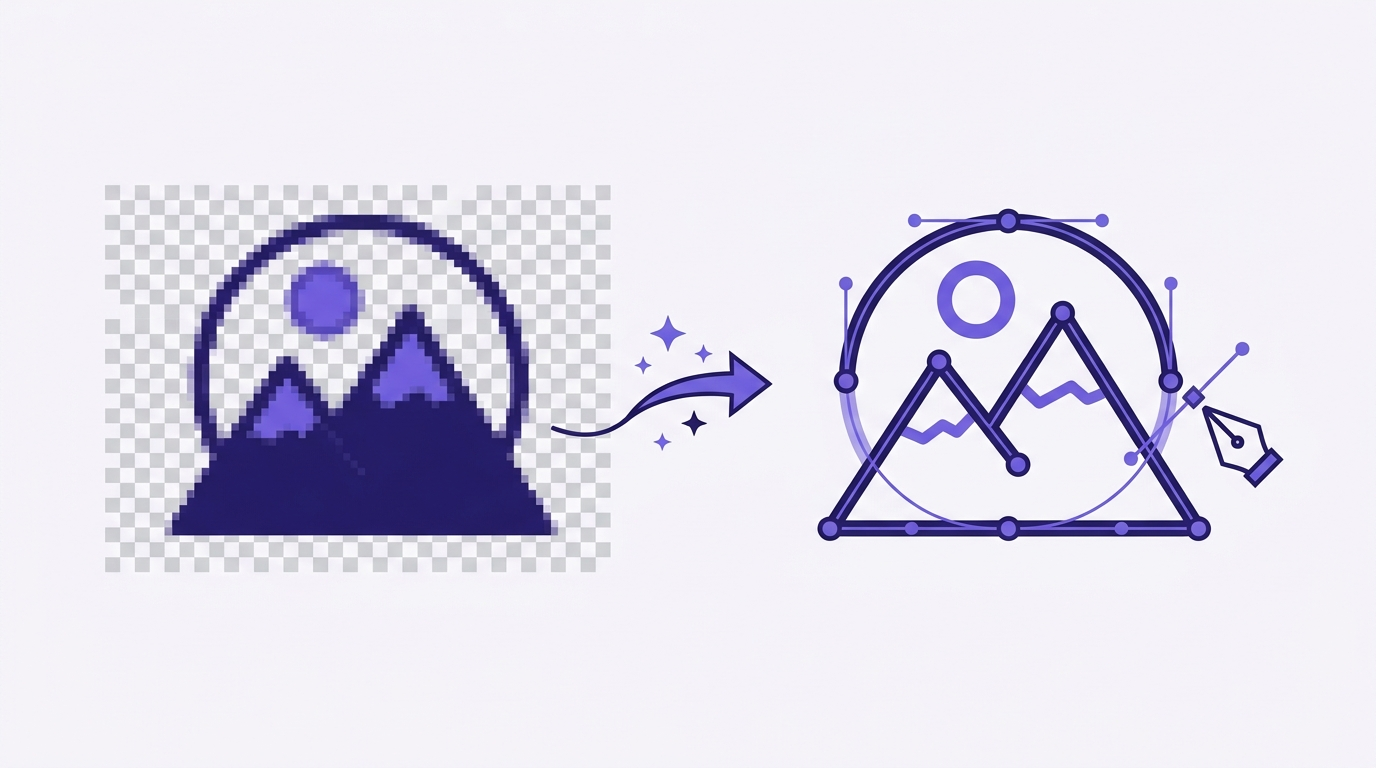
Converting the other direction — PNG to SVG — is a fundamentally different, and harder, problem. Going from SVG to PNG just renders math into pixels; going from PNG to SVG means reconstructing the math from pixels, a process called vectorization or tracing. Software has to look at the pixel grid, find the edges, and rebuild them as clean curves and paths. Our free image to SVG converter does exactly that, and it works best on the same kinds of images SVG was made for: logos, icons, lettering, and flat illustrations with defined edges.
This is the escape hatch for every designer who has been handed "the logo" as a tiny PNG with the source file long lost. Trace it back to vector, clean up the paths in the editor, and you have a master SVG again — ready to export at any size, forever. For the full workflow, including how to prep low-quality images before tracing, see our ultimate guide to vectorizing images.
Does converting SVG to PNG lose quality? Not at the size you export. The PNG is pixel-perfect at its exported dimensions — quality is only lost if you later enlarge that PNG beyond them. Export big enough and you will never notice.
Does the PNG keep transparency? Yes. PNG supports full alpha transparency, so anything transparent in your SVG stays transparent in the export.
Is it safe to convert SVG to PNG online? With a converter that renders in your browser, the file is processed on your own machine rather than living on someone's server — which is exactly how the Vector Ink converter works.
Should I delete the SVG after converting? Never. The SVG is the master. The PNG is one snapshot of it. Keep both, and regenerate PNGs on demand.
The SVG-versus-PNG question is not either/or — a healthy asset workflow uses both. Design and edit in vector, store the SVG as your source of truth, and convert SVG to PNG whenever a platform asks for pixels. Vector Ink covers the whole loop in one browser tab: a free converter for the quick jobs, a full vector editor for when the artwork needs work first, and a tracer for rescuing raster files back into vector.
The Ultimate Guide to Vectorizing Images · The Ultimate Guide to AI Image Upscaling · The Web Design Process
A character reference sheet is the single source of truth for how a charact...
This continuation of our Selection Tool series dives into the Control Bar a...
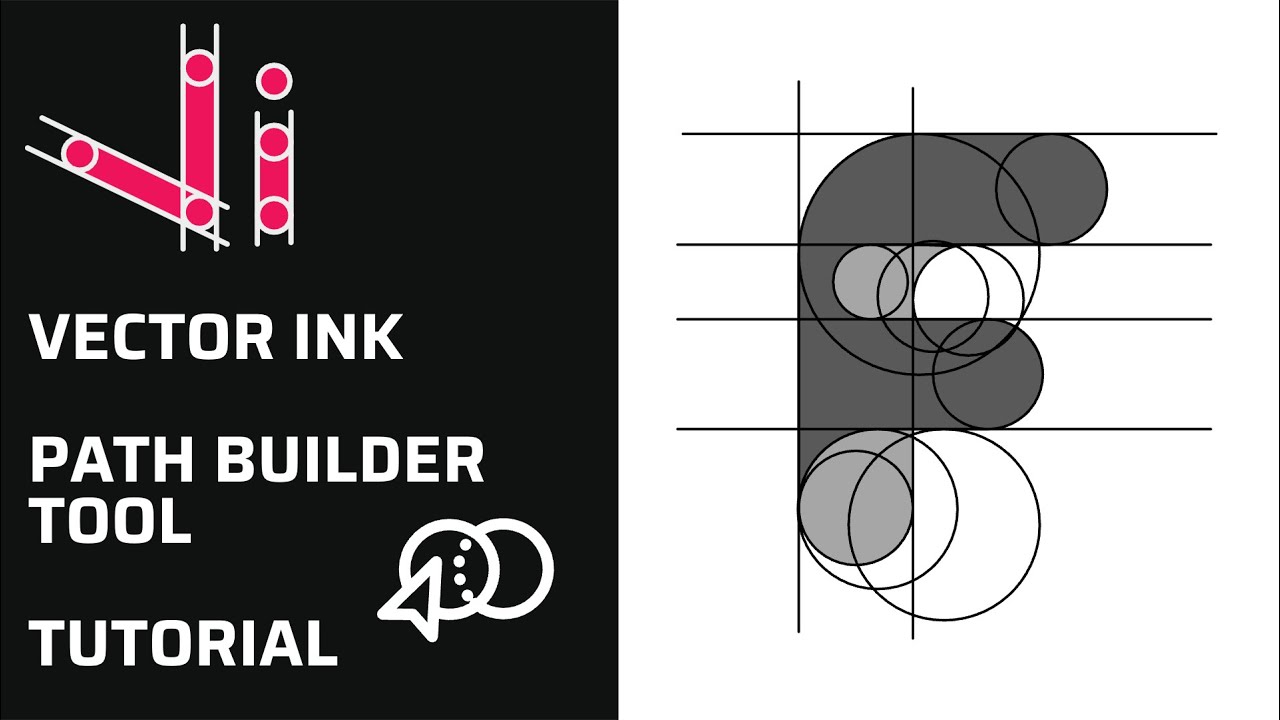
Vector Ink’s Path Builder Tool lets you combine, cut, and create complete...
Clean, consistent shapes are the foundation of strong vector design. In thi...
Typography can make or break a design — and Vector Ink gives you total fr...

A well-organized design isn’t just about aesthetics — it’s about effi...