SVG to PNG: How to Convert SVG Files to PNG (and When You Should)
Sooner or later every designer, crafter, and marketer hits the same wall: y...
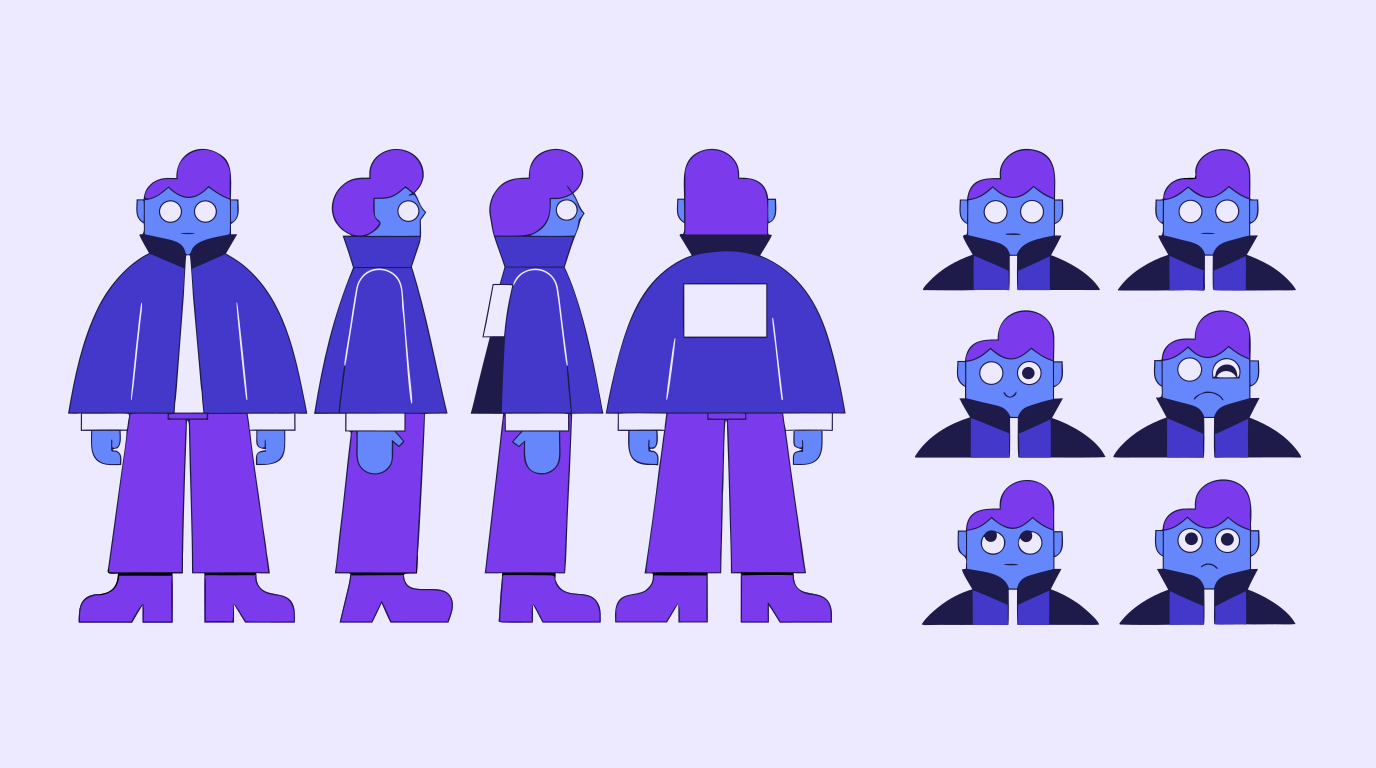
A character reference sheet is the single source of truth for how a character looks — proportions, colors, expressions, and outfit details all in one place, so nobody has to guess. Whether you're animating a short film, designing a game character, or illustrating a mascot for a brand, a solid character reference sheet keeps every artist, animator, and outsourced studio drawing the same character. This guide covers what belongs on one, how to build it step by step, and where AI concept art and vector tools can cut hours off the process.
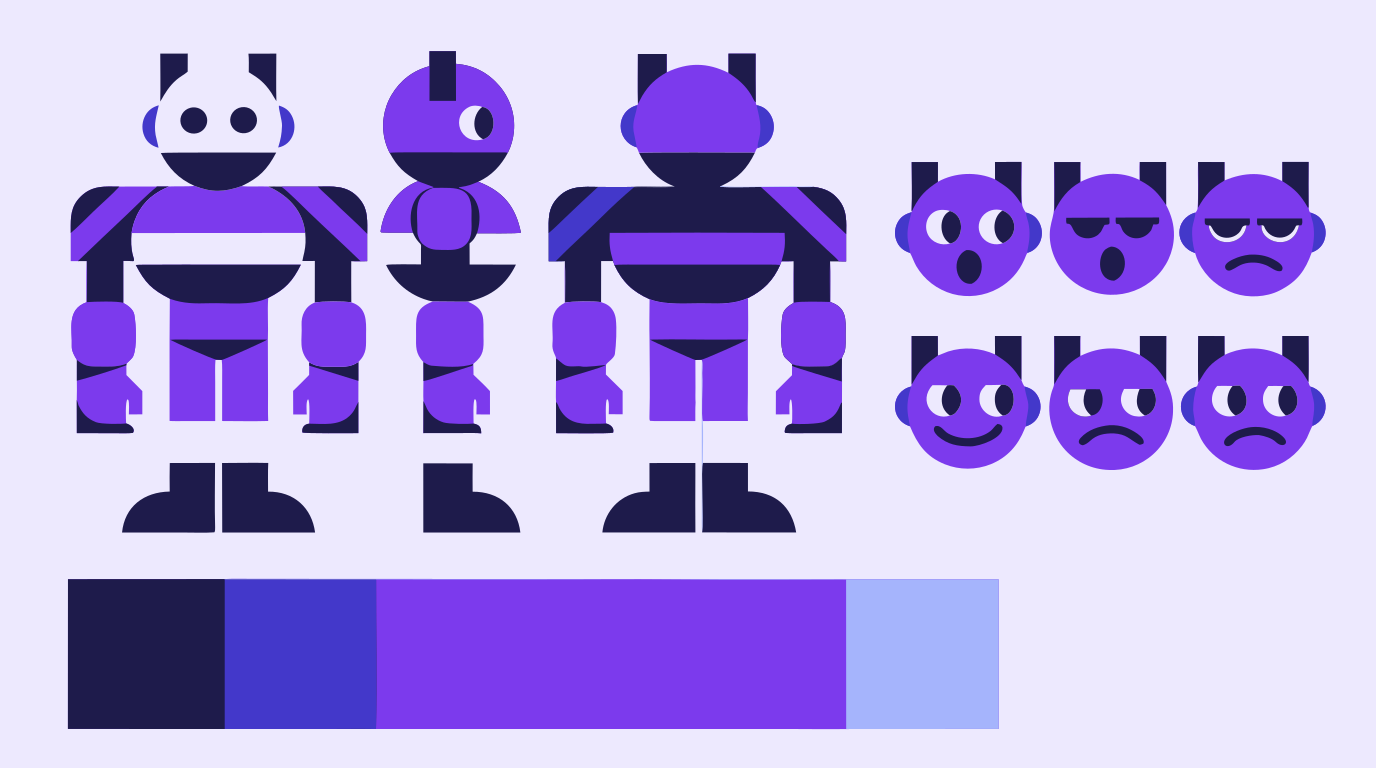
A character reference sheet (sometimes called a ref sheet, character sheet, or model sheet) is a single document showing a character from multiple angles and in multiple states — front, side, and back views, key facial expressions, and often a color palette and outfit breakdown. It's different from concept art, which explores ideas and mood, and different from a storyboard, which shows a character acting within a scene. A reference sheet exists purely so the character stays consistent no matter who's drawing, animating, or rigging it next.
The slowest part of building a reference sheet is usually getting the first strong pose right, then repeating it consistently from four or five angles. AI image generation shortens that loop: describe the character once, generate a front view, then use image-to-image redraws to carry the same proportions, palette, and style into 3/4, side, and back angles instead of redrawing each one from scratch. It's the same generative approach we cover in our guide to Vector Ink's AI image generator styles and image-to-image redraw. This works especially well for early concept art passes, where the goal is exploring silhouettes and color directions fast, before anyone commits to a final design.
Generated images rarely nail every angle on the first try — a hand might be malformed, an expression might read wrong, or an outfit detail might not match across views. Rather than regenerating the whole image and losing everything that already works, AI in-painting lets you select just the problem region — a face, a hand, a piece of clothing — and regenerate that area alone. That keeps the rest of the character locked in place while you iterate on the part that isn't working yet. We walk through this same regional-fix workflow in editing vector icons with AI in Vector Ink.
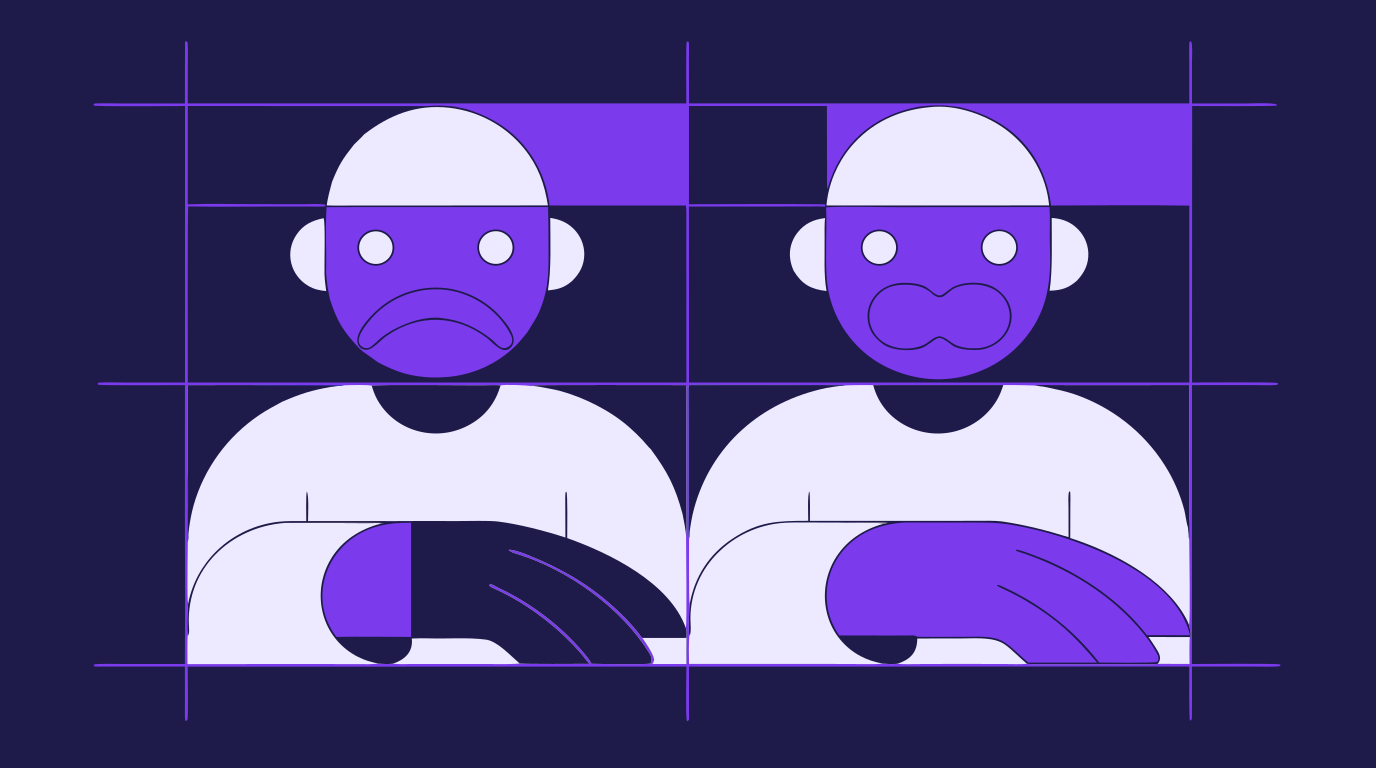
A finished reference sheet needs to hold up at any size — pinned to a production Slack channel, printed on a wall, or zoomed into for a single hand gesture. Raster sketches and AI-generated images blur and pixelate when scaled up, which is where vectorization matters: converting a sketch or generated image into clean, editable vector paths. Once a character is vector-based, every line is an editable path, so you can nudge a jawline, tighten a silhouette, or fix a proportion issue across the whole sheet without redrawing it. Vector Ink handles generation, vectorization, and path editing in the same canvas, so a character can go from a rough AI concept to a clean, exportable reference sheet without switching tools.
It's easy to conflate the two, but they serve different jobs. A character reference sheet is static — it defines what a character looks like, independent of any specific scene. A storyboard is sequential — it shows how that character moves, reacts, and interacts across a series of shots. In practice, the reference sheet comes first: you can't storyboard a consistent character until you know exactly how they should look from every angle. For teams building both, our guide to AI storyboarding for film, video, and design teams is the natural next step once your reference sheets are locked.
Whether you're an indie animator, a game studio's concept artist, or a design team building a brand mascot, the workflow is the same: generate a strong first pose, carry it across angles with AI redraws, fix problem areas with in-painting, then vectorize and refine the line art so the finished sheet stays sharp at any size. That whole loop — generation, in-painting, and vector editing — lives in one browser tab, and every reference sheet can be exported as SVG, PNG, or ICO for whatever pipeline picks it up next. For AI-first concept work, Vector Ink Studio is built specifically for this kind of exploratory, generation-heavy process; see the full approach in our post on creative workflow automation for design, web, and film teams.
Keep reading: AI Storyboarding for Film, Video, and Design Teams · AI Image Generator Styles and Image-to-Image Redraw · Edit Vector Icons with AI
Sooner or later every designer, crafter, and marketer hits the same wall: y...
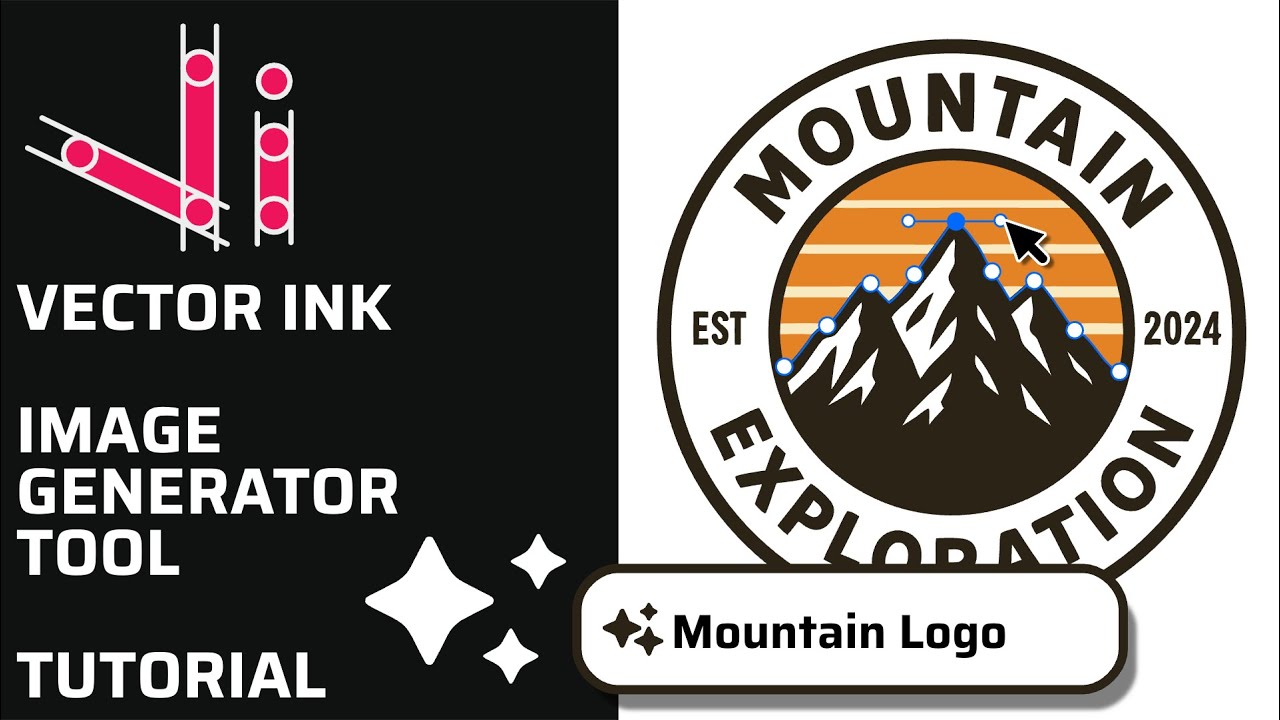
Vector Ink’s AI Image Generator lets you create logos, icons, illustratio...
This continuation of our Selection Tool series dives into the Control Bar a...

A well-organized design isn’t just about aesthetics — it’s about effi...
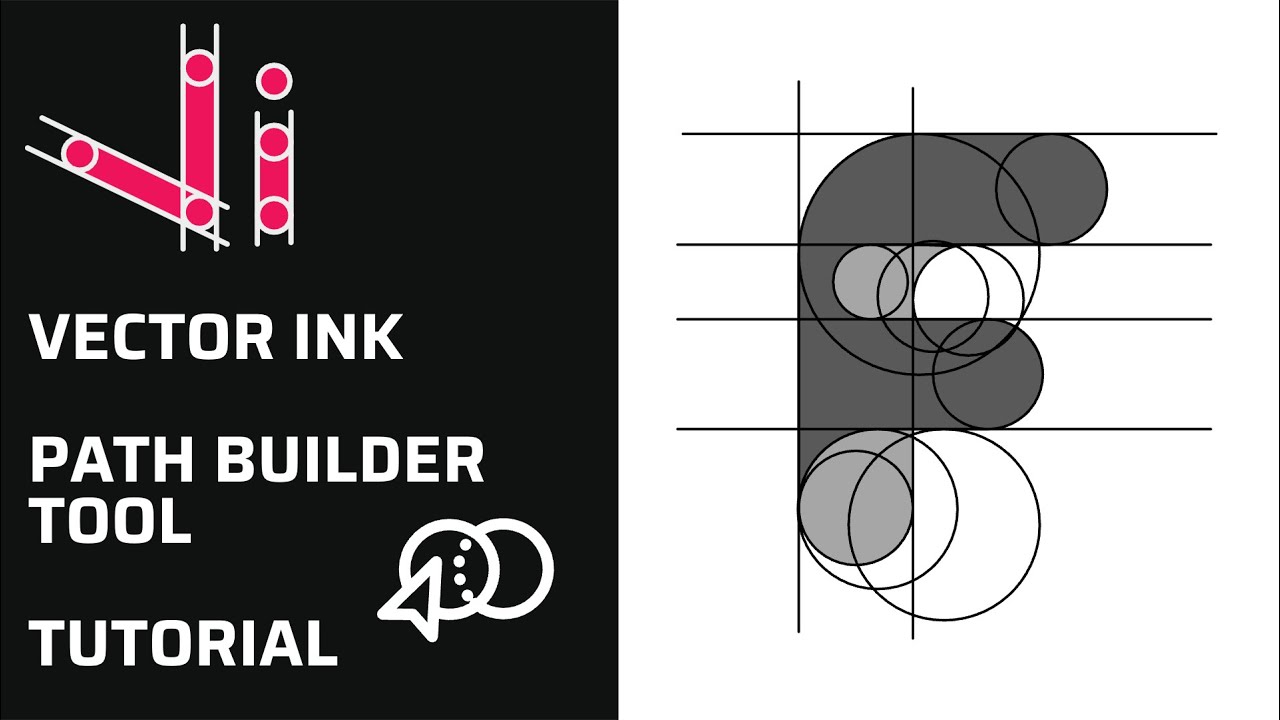
Vector Ink’s Path Builder Tool lets you combine, cut, and create complete...
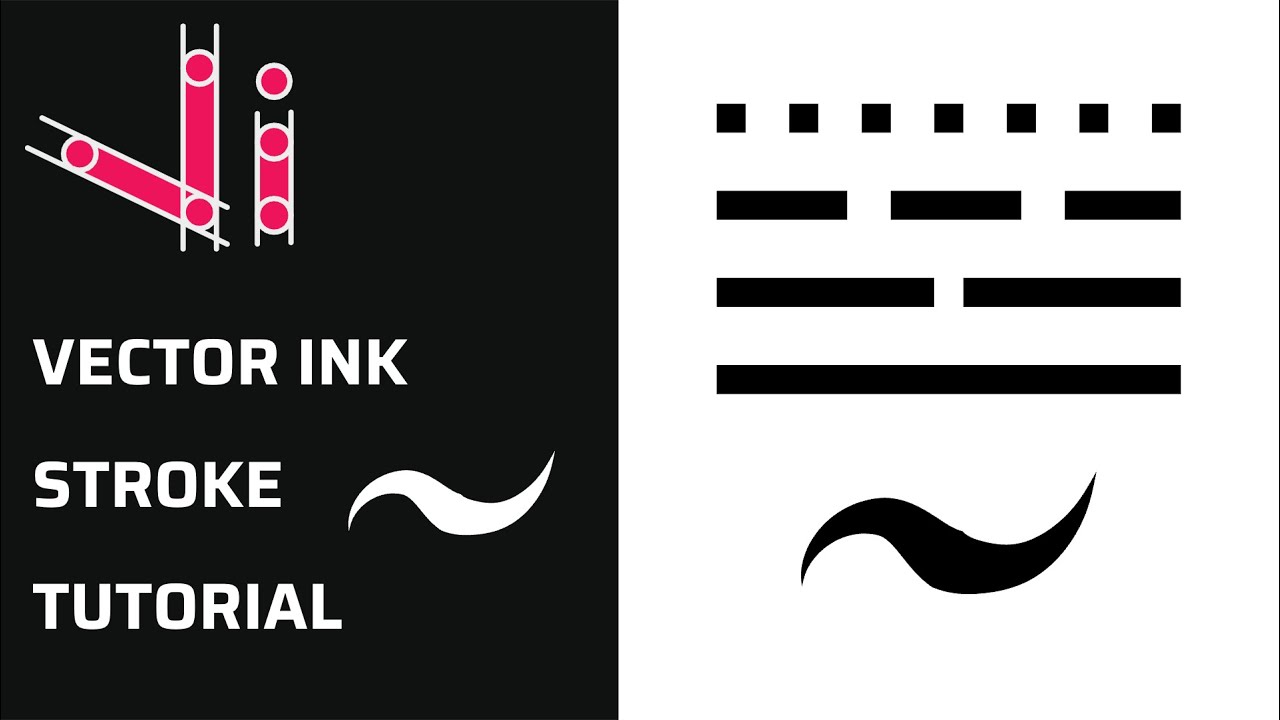
Take complete control of your outlines with the Stroke Properties Panel in ...