
Vector Ink Selection Tool: Move, Resize, Rotate & Align Like a Pro
The Selection Tool is your everyday driver in Vector Ink. It’s how you se...
Color is one of the most powerful tools in visual design — it defines emotion, hierarchy, and brand identity. In this tutorial, we’ll explore how to use Vector Ink’s Color Panel, Gradient Tool, and Color Palette Editor to apply vibrant fills, smooth gradients, and consistent color schemes to your vector artwork.
Start by selecting any shape or object on your canvas. Open the Fill Color panel using the small circle icon in the top-right control bar (or at the bottom on mobile). From here, you can choose any color from the default palette or open the Palette Editor by tapping the three dots next to it.
Inside the editor, you can add, remove, or blend new colors using the plus button. Adjust transparency via the alpha channel below the color wheel — setting it lower creates see-through fills, while higher alpha produces full opacity.
Vector Ink offers several ways to build and manage your color palettes:
Using consistent palettes across your designs ensures a cohesive and professional look. Try combining complementary tones or triadic schemes for balanced compositions.
Gradients add realism and depth. To apply one, select your shape and tap the Linear Gradient button in the Color Panel. This creates a smooth blend between two colors — the same base color, darkened slightly on one side. Activate the Gradient Tool to reveal gradient handles and stops directly on the canvas.
To create a Radial Gradient, tap the radial gradient icon. This produces a circular blend that’s perfect for lighting effects, highlights, and organic color transitions.
The Eyedropper Tool in the Color Panel allows you to pick colors directly from your canvas, ensuring consistency between elements. Blend modes can also be toggled below the gradient buttons to mix colors in creative ways — ideal for overlays or texture effects.
From simple flat fills to complex gradients, mastering color in Vector Ink will elevate every design you make. The Color and Gradient tools make it easy to express your creativity while maintaining precision and harmony across projects.
Ready to create vibrant, professional designs? Try experimenting with your own gradients and palettes —
Launch Vector Ink and bring your colors to life today.
The Selection Tool is your everyday driver in Vector Ink. It’s how you se...
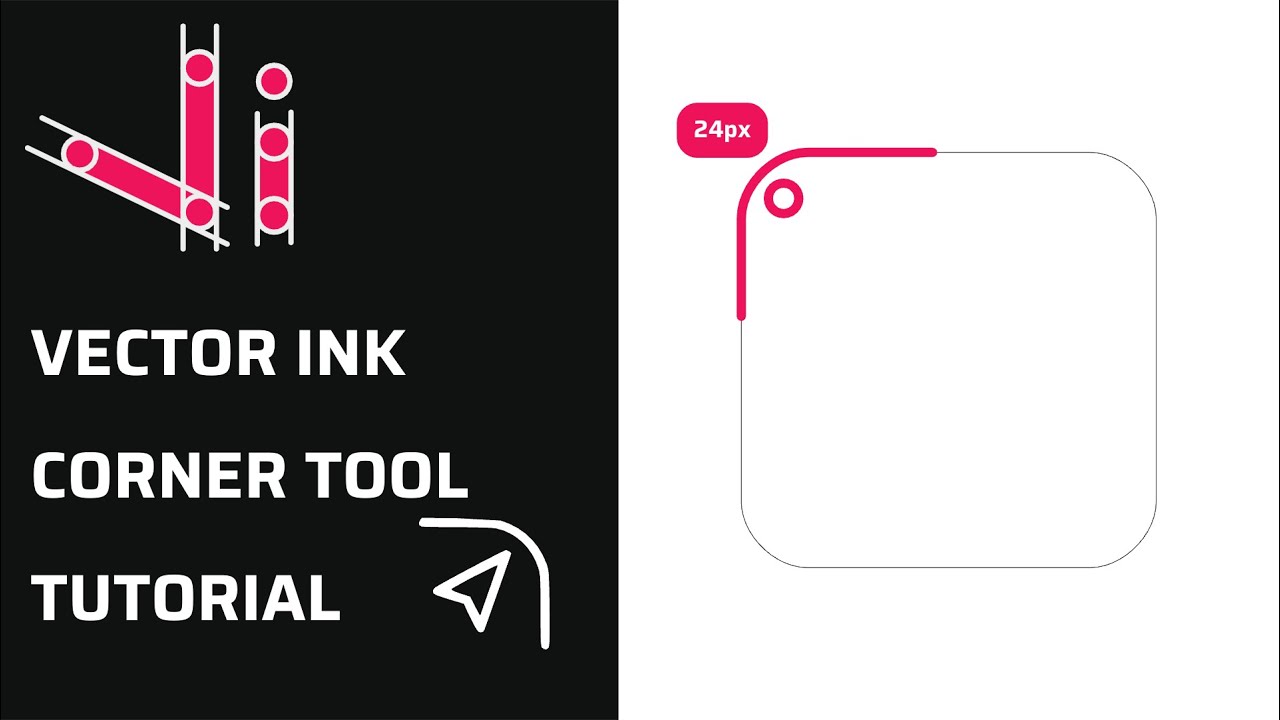
Rounded corners can transform a rigid vector shape into a clean, modern, an...
The Draw Tool in Vector Ink makes freehand sketching feel natural while del...
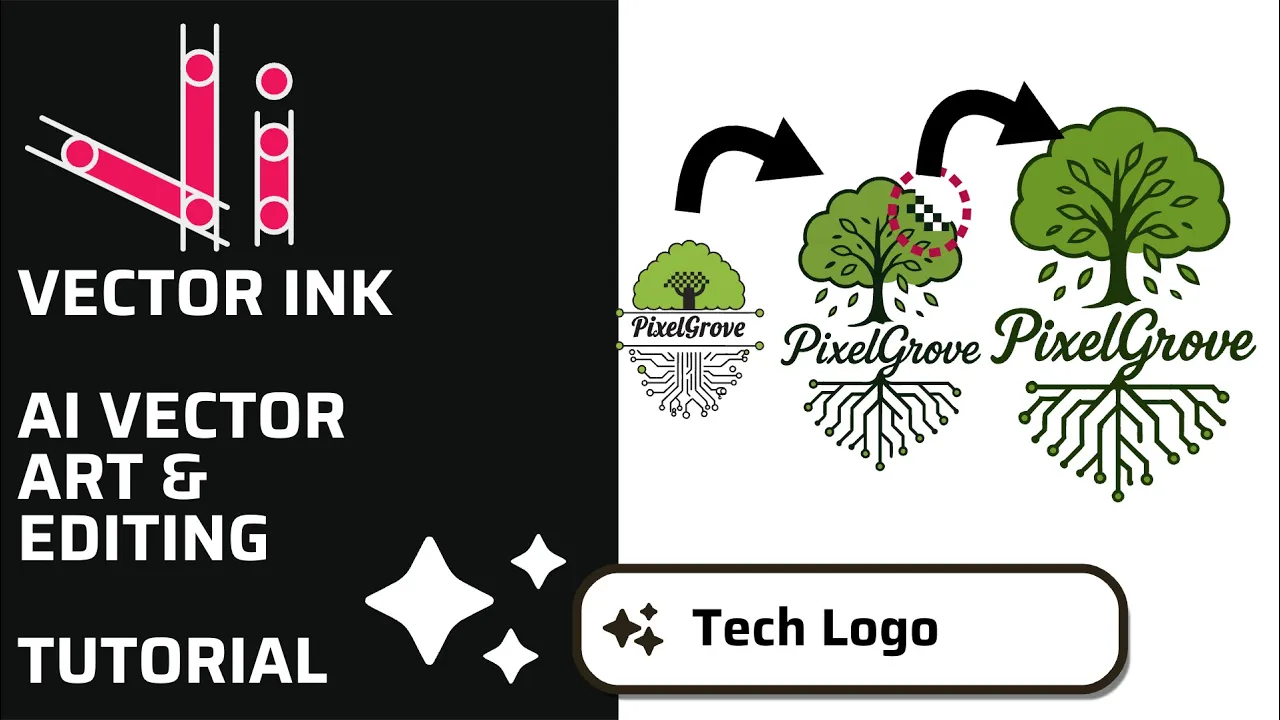
In this tutorial, we create a professional logo in minutes using the AI Ima...
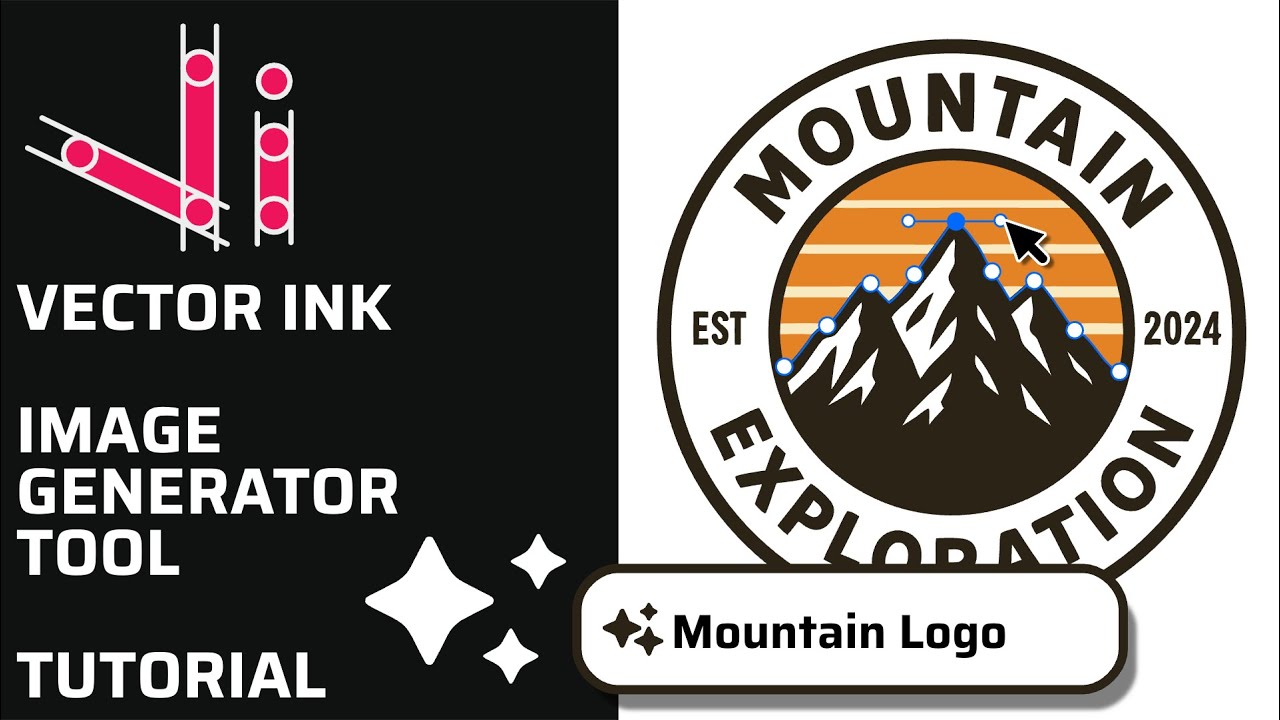
Vector Ink’s AI Image Generator lets you create logos, icons, illustratio...
Boolean actions are the fastest way to build complex shapes from simple one...