
How to Make a Character Reference Sheet: A Guide for Concept Artists and Animators
A character reference sheet is the single source of truth for how a charact...
This continuation of our Selection Tool series dives into the Control Bar and its most precise companion—the Transform Panel. You’ll learn how to apply numeric, exact edits for size, rotation, position, skew, and visibility so your logos, icons, and layouts snap into place with confidence.
The Control Bar (right side on desktop, bottom on phones) adapts to the active tool. With the Selection Tool active, you’ll see:
Common panels (available across tools) include Boolean, Stroke, Shadow, Layers, Settings, Document, and Export.
Use the Transform panel to make exact numeric edits to your selection:
90 to rotate 90°). The field returns to 0 afterward by design.X=0 to snap to the left edge, Y=0 to the top edge. Arrow controls nudge in 10-pixel increments.0 (hidden) to 1 (fully visible) for quick focus and reveal workflows.512) → Height updates automatically.45 (or use arrows) → rotation applies; field resets to 0 (expected behavior).X=0 for left edge, Y=0 for top. Combine with Align panel for final centering.0.2–0.4 while you adjust the hero element, then restore to 1.W=320. Enter 15 in Rotation.X=0, Y=0 to dock to the top-left, then nudge X/Y arrows twice to offset by 20 px.0.8 to preview over a busy layout.Pair the Transform panel with the Selection Tool’s Target Selection, Align, and Anchor features to build clean, repeatable systems. Ready to try it on a live project? Open Vector Ink and dial in your next logo or UI layout with precise, numeric control.
A character reference sheet is the single source of truth for how a charact...
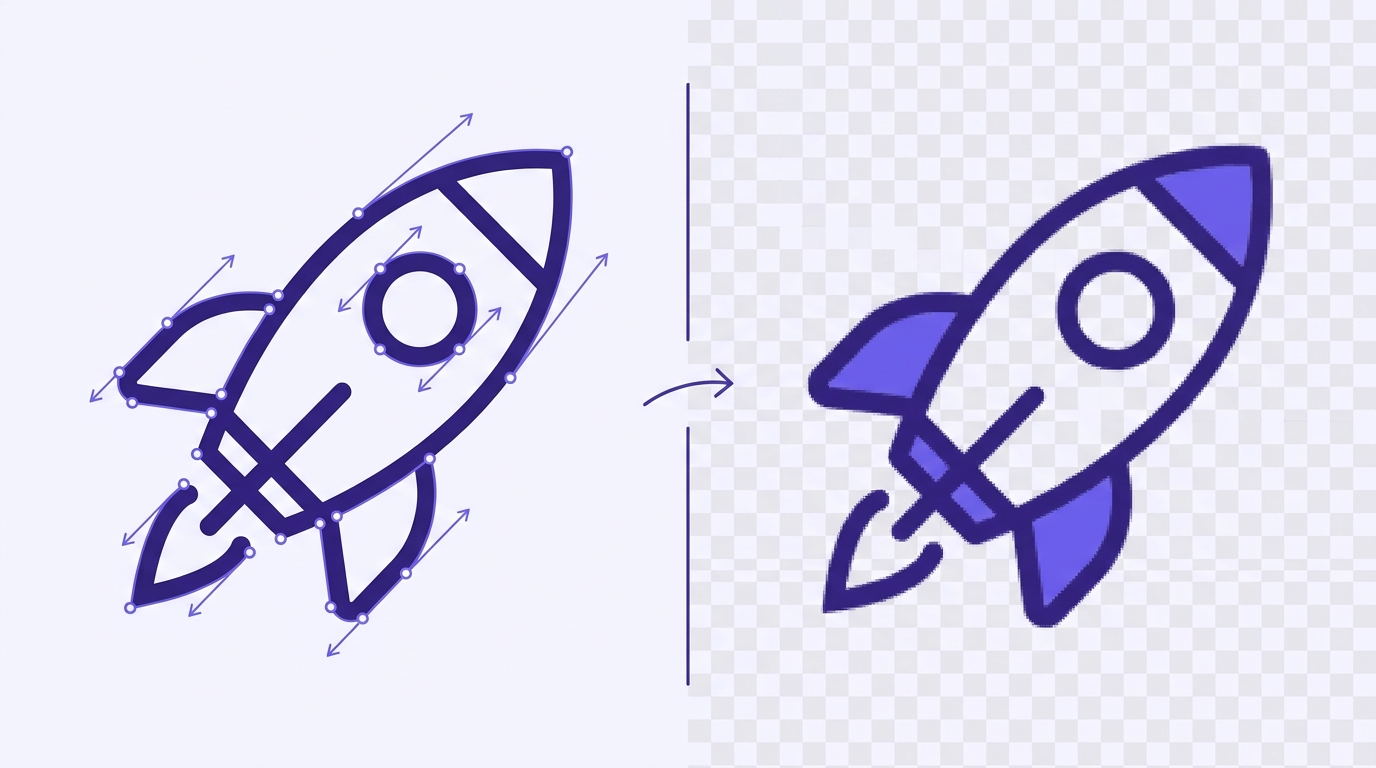
Sooner or later every designer, crafter, and marketer hits the same wall: y...
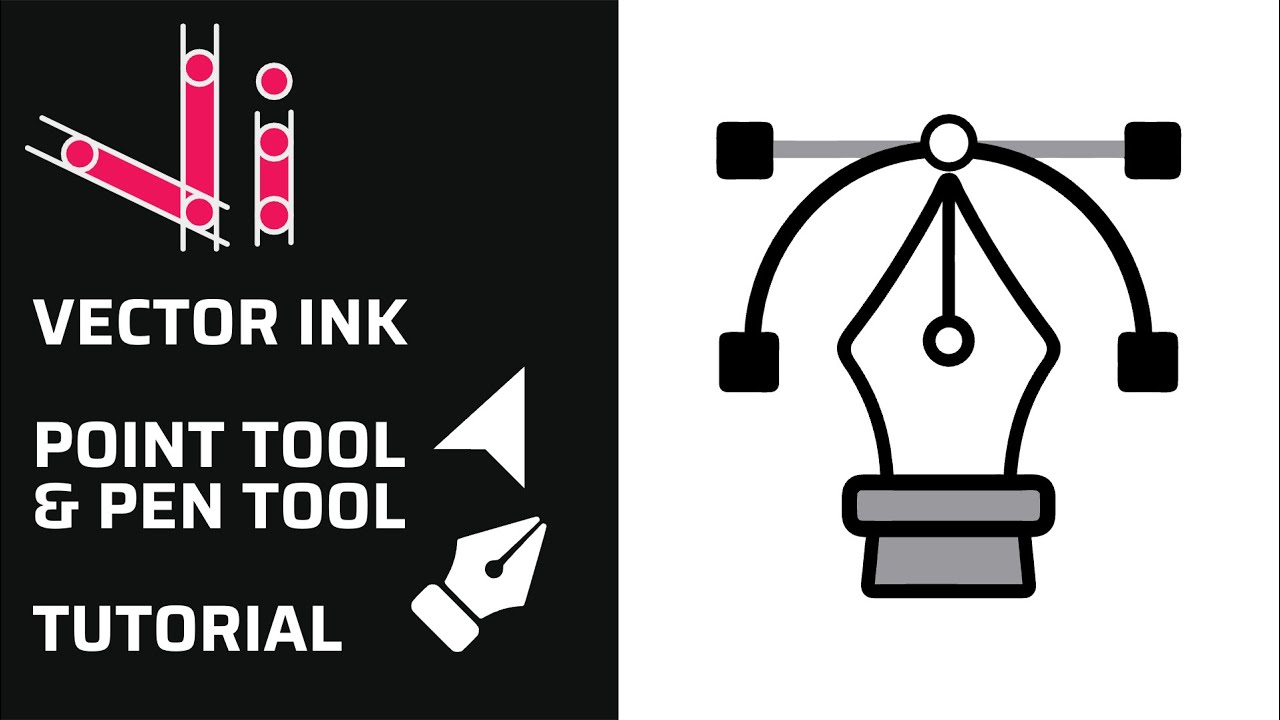
Clean vector paths are the backbone of logos, icons, and illustrations. In ...
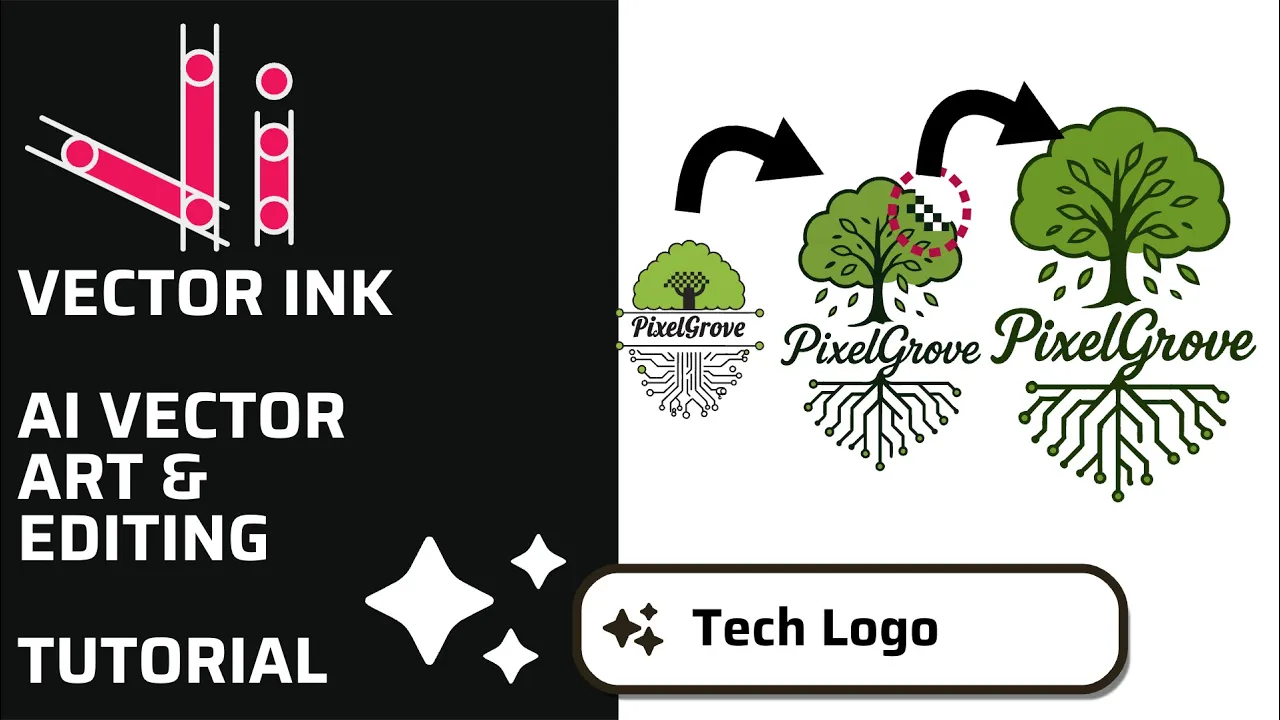
In this tutorial, we create a professional logo in minutes using the AI Ima...
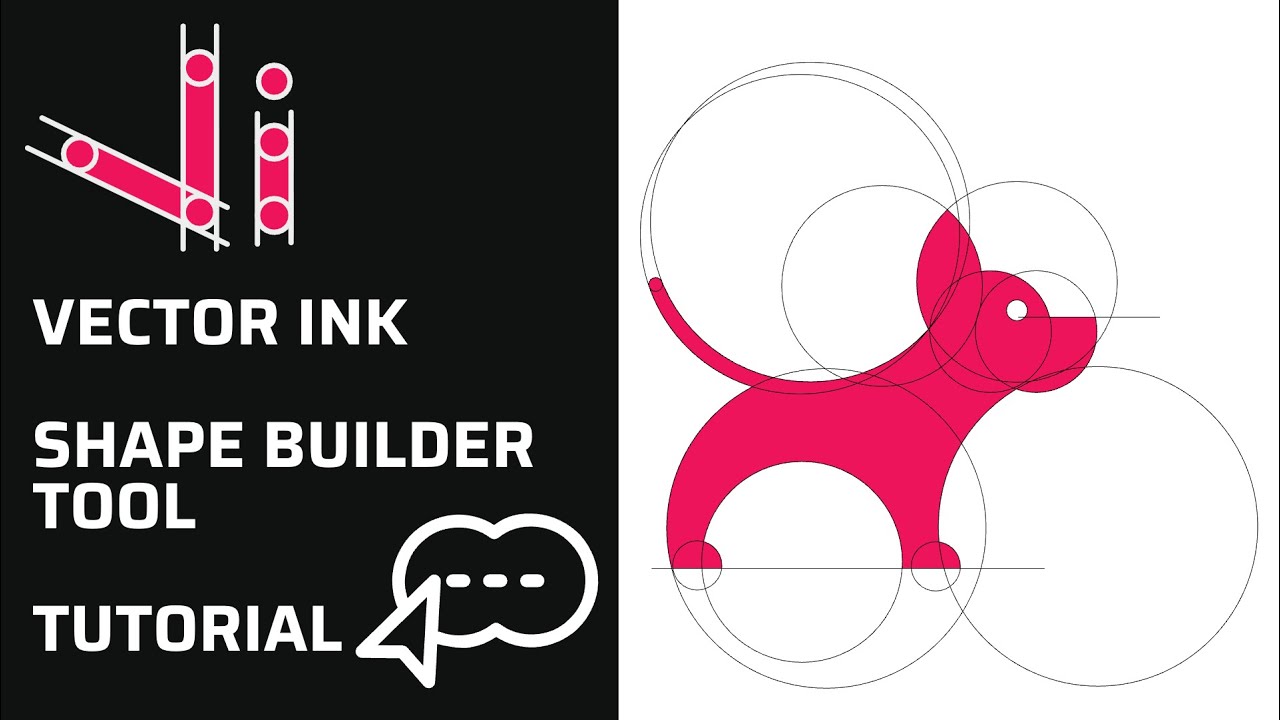
Vector Ink’s new Shape Builder Tool is a total game-changer for vector de...
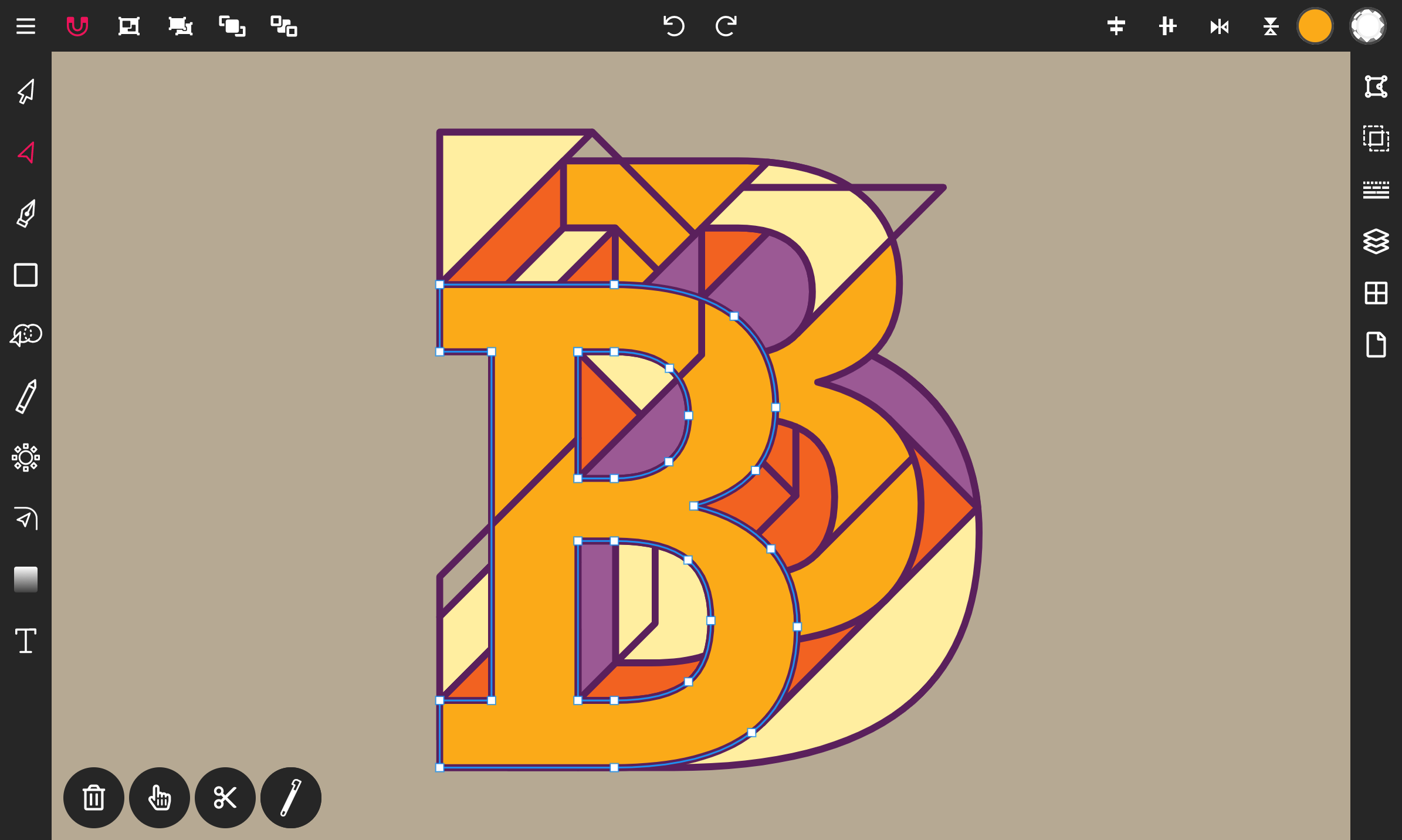
Step 1. Add text to the canvas. Tap on the Text icon located at the bottom of the toolbar.