
How to Make a Character Reference Sheet: A Guide for Concept Artists and Animators
A character reference sheet is the single source of truth for how a charact...
Organization is key to efficient vector design. In this tutorial, we’ll explore the Object Panel in Vector Ink — your go-to tool for managing layers, groups, and masks. Whether you’re arranging shapes, editing grouped items, or applying clip masks, mastering this panel will keep your workspace structured and your creative flow uninterrupted.
The Object Panel controls how items are layered on the canvas. Each shape, image, or group occupies a position in the visual stack — higher layers appear above lower ones. Use these commands to manage layer order:
These actions are perfect for rearranging overlapping elements, such as text above shapes or textures behind logos.
Below the layering controls are the Flip Actions. These let you quickly mirror objects horizontally or vertically. Use them for symmetrical designs, reflections, or layout variations:
Flipping is especially helpful when designing icons, UI elements, or duplicated vector parts that require symmetry.
Grouping objects keeps related elements together for easy movement and scaling. To create a group, select multiple shapes and tap Group. All selected items now move as one. To separate them, tap Ungroup.
Grouped items can still be edited individually using Isolation Mode — just double-tap the group to enter it. You’ll notice a light pink border indicating isolation mode. From here, select and edit any element within the group, then double-tap outside the area to exit.
Clip Masks allow you to hide parts of objects within a defined shape — a must-have for creative texture and photo effects. To create one:
The top object becomes the mask, and everything beneath is clipped inside it. To restore the original elements, simply hit Remove Clip Mask.
The Object Panel is the heart of your design organization in Vector Ink. From managing depth and grouping elements to experimenting with masks, it gives you precise control over every layer of your artwork.
Take a few minutes to explore the panel and practice rearranging, grouping, and masking your designs — you’ll quickly see how much smoother your workflow becomes.
Launch Vector Ink and put these techniques into action today.
A character reference sheet is the single source of truth for how a charact...

Sooner or later every designer, crafter, and marketer hits the same wall: y...
Clean, consistent shapes are the foundation of strong vector design. In thi...

A well-organized design isn’t just about aesthetics — it’s about effi...
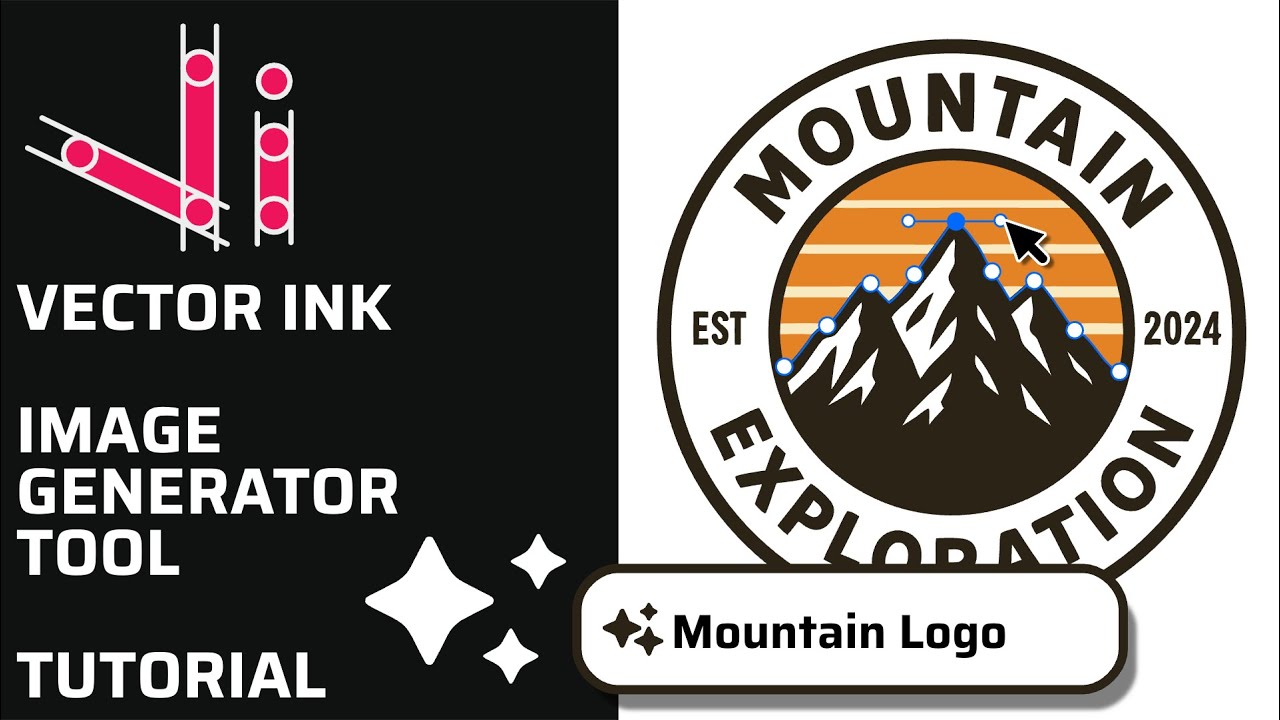
Vector Ink’s AI Image Generator lets you create logos, icons, illustratio...
This continuation of our Selection Tool series dives into the Control Bar a...