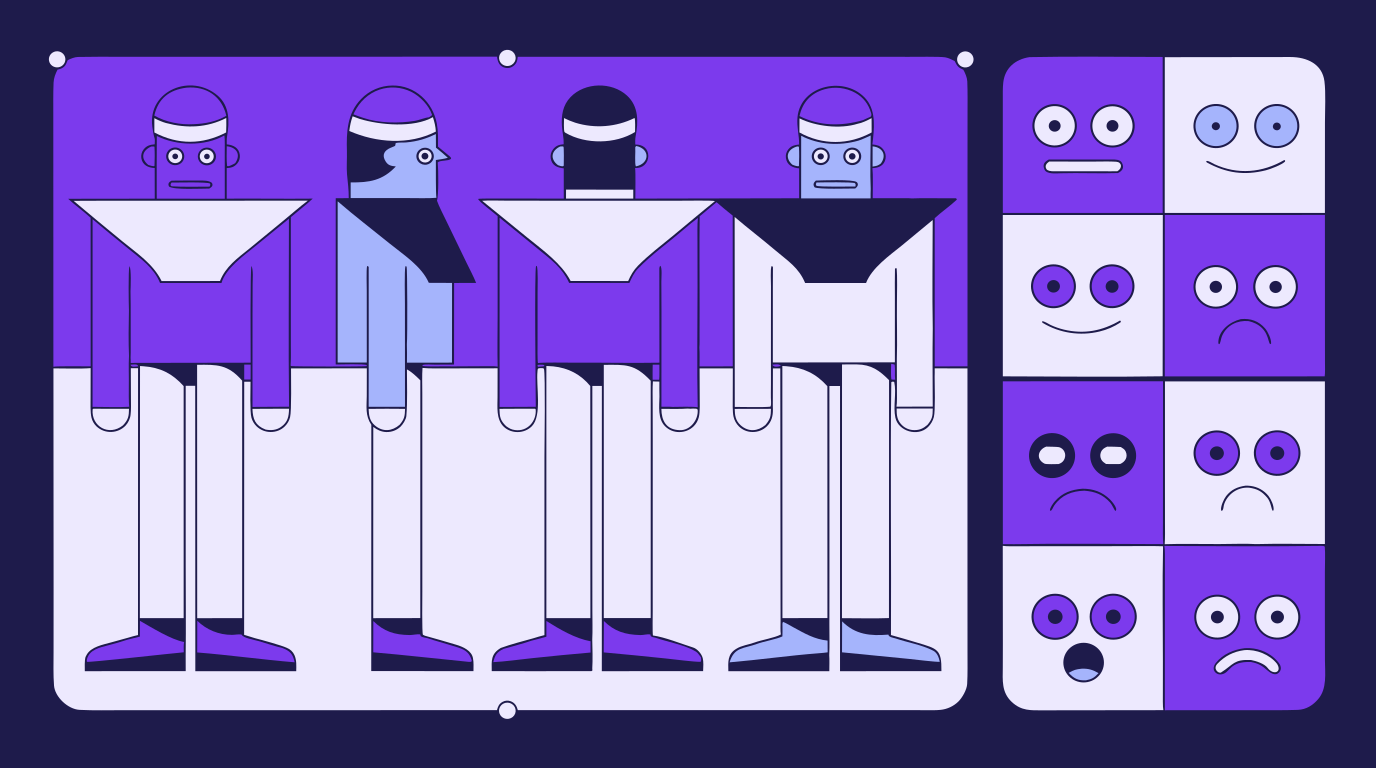
How to Make a Character Reference Sheet: A Guide for Concept Artists and Animators
A character reference sheet is the single source of truth for how a charact...
Whether you’re designing a logo, interface, or intricate vector illustration, alignment and organization are what make your composition feel balanced and professional. In this tutorial, we’ll explore Vector Ink’s Align and Arrange panels — powerful tools that let you snap, distribute, and organize elements with precision and ease.
You’ll find the Align panel next to the Object panel in the control bar. On mobile, it appears at the bottom. Select the objects you want to align — you can align to the canvas or to other selected objects.
Together mode: Aligns all selected objects as one group (their collective bounds are used for alignment).
Separate mode: Aligns each object independently to the chosen edge or center.
With your objects selected, choose from Align Left, Align Right, Align Top, Align Bottom, or Center. These controls let you line up shapes precisely, whether you’re positioning icons in a logo or creating clean interface layouts.
Tip: Combine align actions with snap-to-grid or guides for pixel-perfect symmetry.
Next to the Align panel, the Arrange panel lets you organize spacing and layout automatically.
Linear Arrangement: Choose Arrange Horizontally or Arrange Vertically. Then set your Spacing value (e.g., 2px). Vector Ink will distribute objects evenly in one direction, keeping consistent gaps between them.
Grid Arrangement: Toggle to grid mode and set the number of Columns. Leave Spacing X and Y to 0 to let Vector Ink auto-calculate based on object size. Press Apply and watch your elements snap into a perfect grid.
Beyond position, arranging also controls stacking order. Use the Arrange panel or right-click menu to bring items Forward, Backward, To Front, or To Back. This helps manage overlapping layers and ensures visual hierarchy in your composition.
Clean alignment and consistent arrangement make the difference between an amateur layout and a professional design. With Vector Ink’s intuitive Align and Arrange panels, you can quickly structure complex scenes, grids, or logo compositions with pixel-perfect precision.
Ready to streamline your next project? Align, arrange, and perfect your layout now —
Launch Vector Ink and start designing with confidence.
A character reference sheet is the single source of truth for how a charact...

Sooner or later every designer, crafter, and marketer hits the same wall: y...
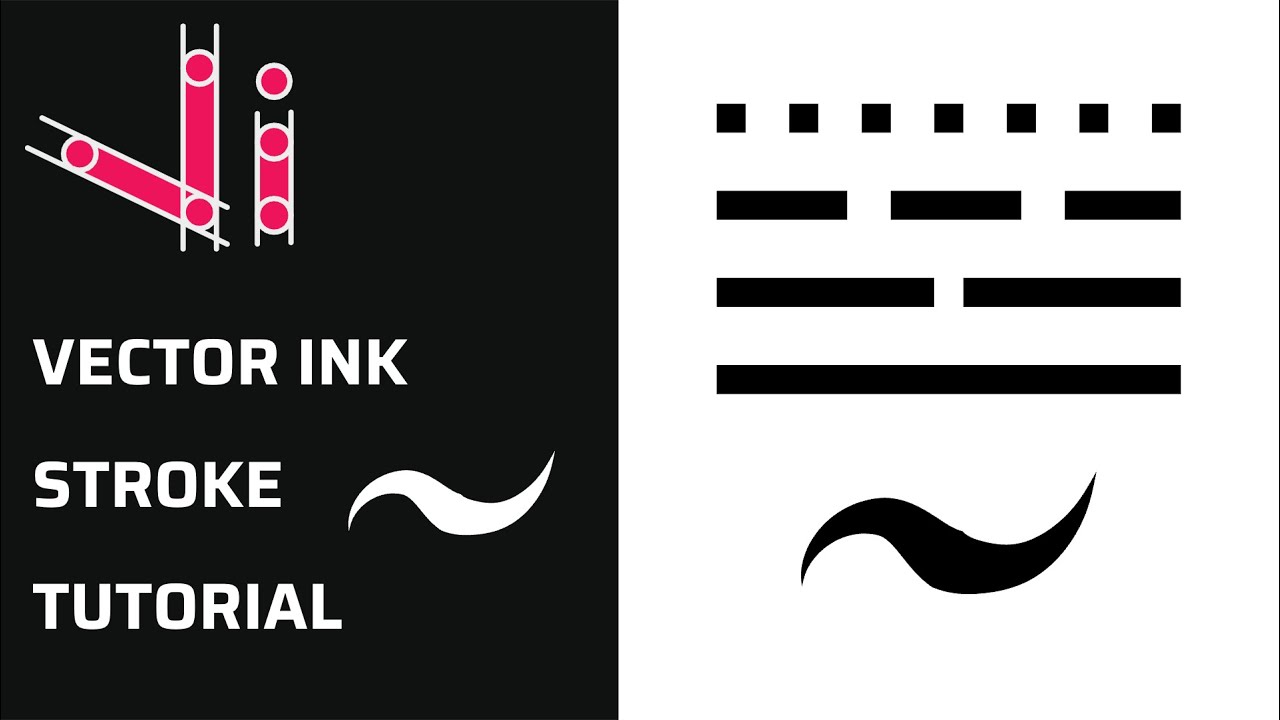
Take complete control of your outlines with the Stroke Properties Panel in ...

A well-organized design isn’t just about aesthetics — it’s about effi...
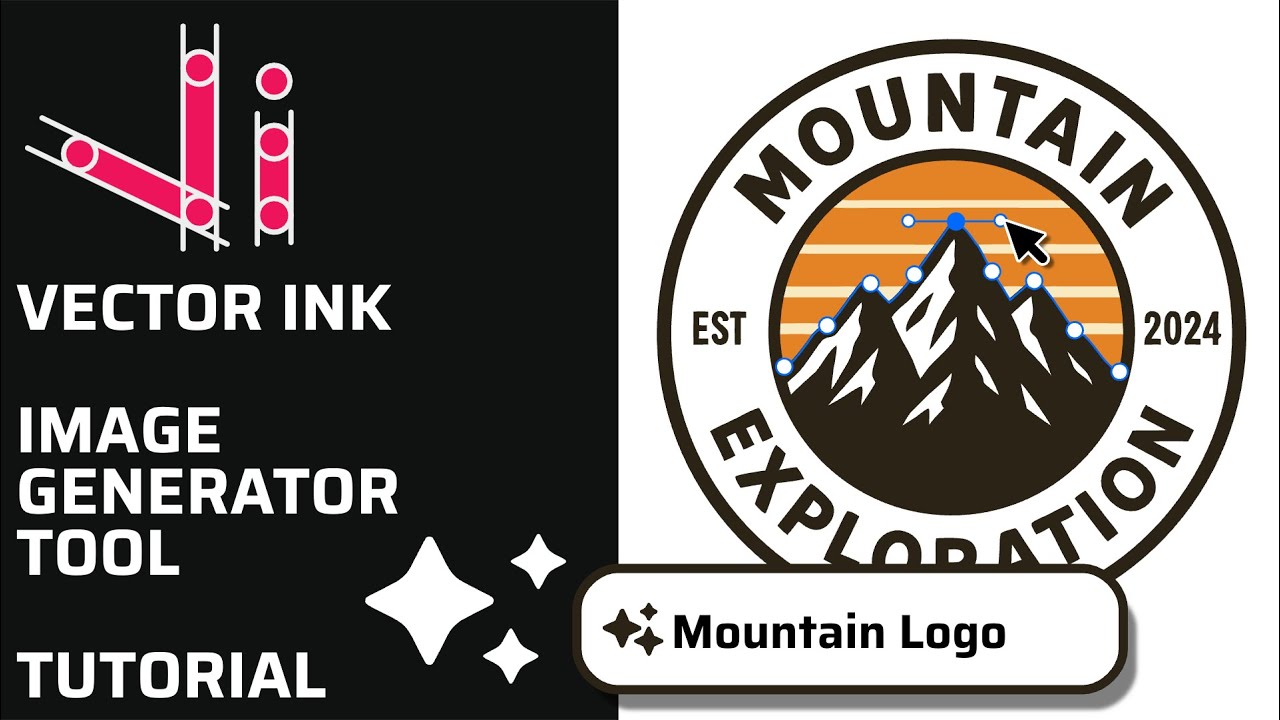
Vector Ink’s AI Image Generator lets you create logos, icons, illustratio...
This continuation of our Selection Tool series dives into the Control Bar a...