
What Are UGC Ads? How to Create UGC Video Ads With AI
UGC ads look less like commercials and more like something a real person wo...
Most conversations about workflow automation are aimed at engineers and operations teams — pipelines, scripts, and spreadsheets. But creative workflows are just as full of repetitive, automatable work: resizing assets, re-drawing the same shapes, exporting endless file formats, and shuffling feedback between tools. Creative workflow automation applies AI and smart tooling to those bottlenecks so designers, web teams, and filmmakers can spend their time on the creative decisions that actually matter.
Creative workflow automation is the practice of using AI tools and creative workflow software to handle the repetitive steps in a creative production process — asset generation, versioning, format conversion, and handoffs — while keeping humans in charge of taste and direction. Unlike traditional business automation, it works with visual material: images, vectors, layouts, and footage. The goal is not to replace the creative process, but to compress everything around it so ideas move from concept to finished work faster.
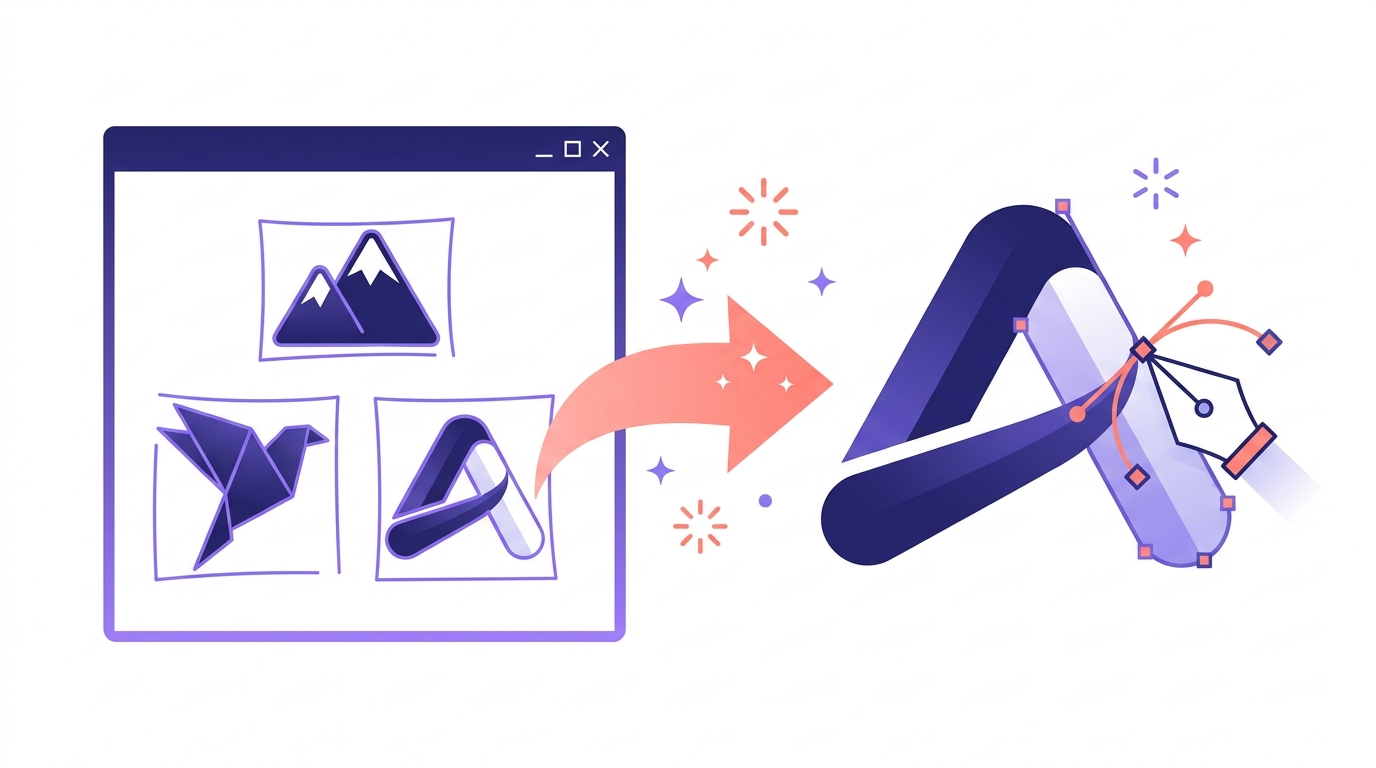
For graphic designers, AI has moved from novelty to daily driver. A modern creative workflow process might start with an AI image generator to explore ten logo directions in the time it used to take to sketch one. From there, AI-powered vectorization turns the strongest concept into clean, editable paths, and in-painting lets you regenerate just one region of a design — a background, a texture, a lettering style — without touching the rest. In Vector Ink, that whole loop happens in one browser tab: generate an image, convert it to vectors, edit every path by hand, and use AI in-painting to revise specific areas. The repetitive production work is automated; the creative control stays with you. To see this loop in practice, check out our walkthrough on creating a logo with the AI image generator in minutes or editing vector icons with AI.
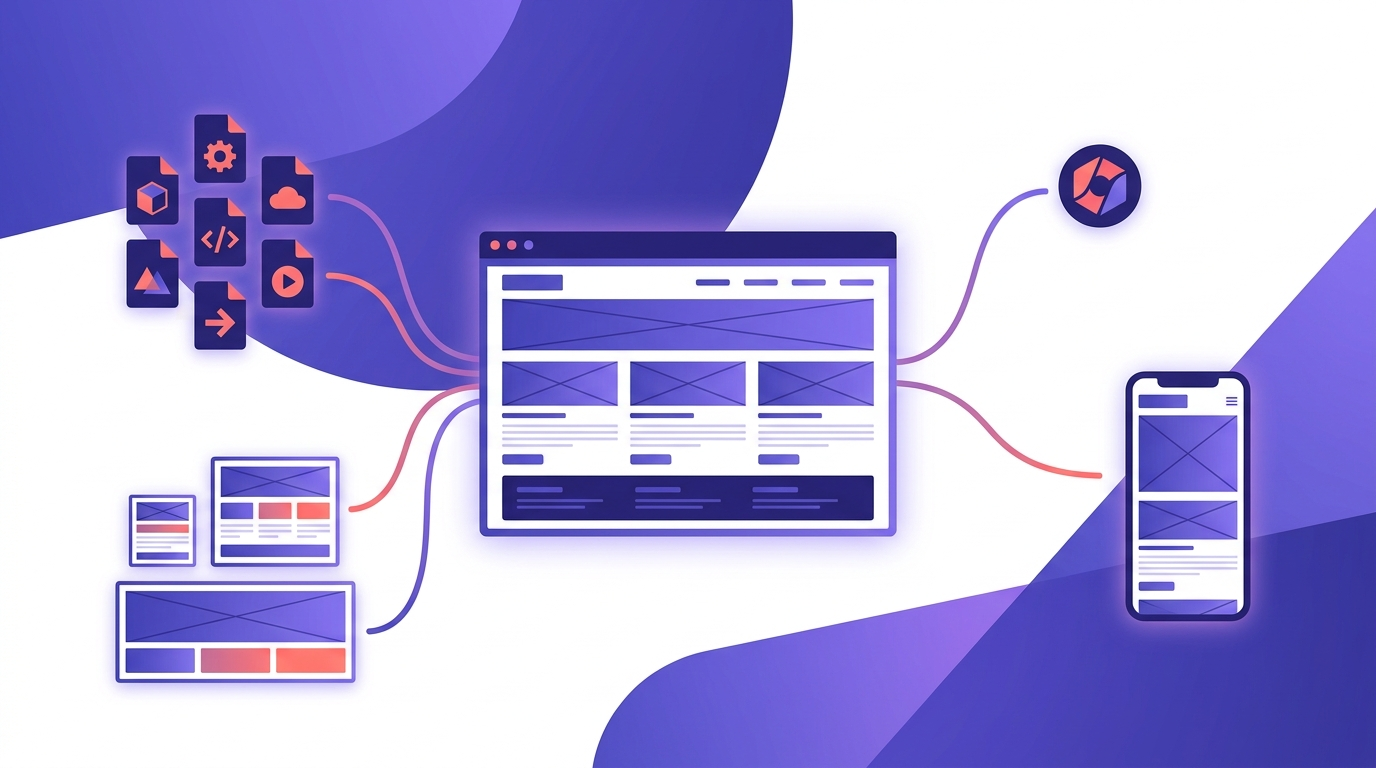
Web design workflows carry a double burden: the design itself, plus the endless asset production that follows — hero graphics, icons, favicons, social cards, and every export size in between. Automation shortens each stage of the website design process:
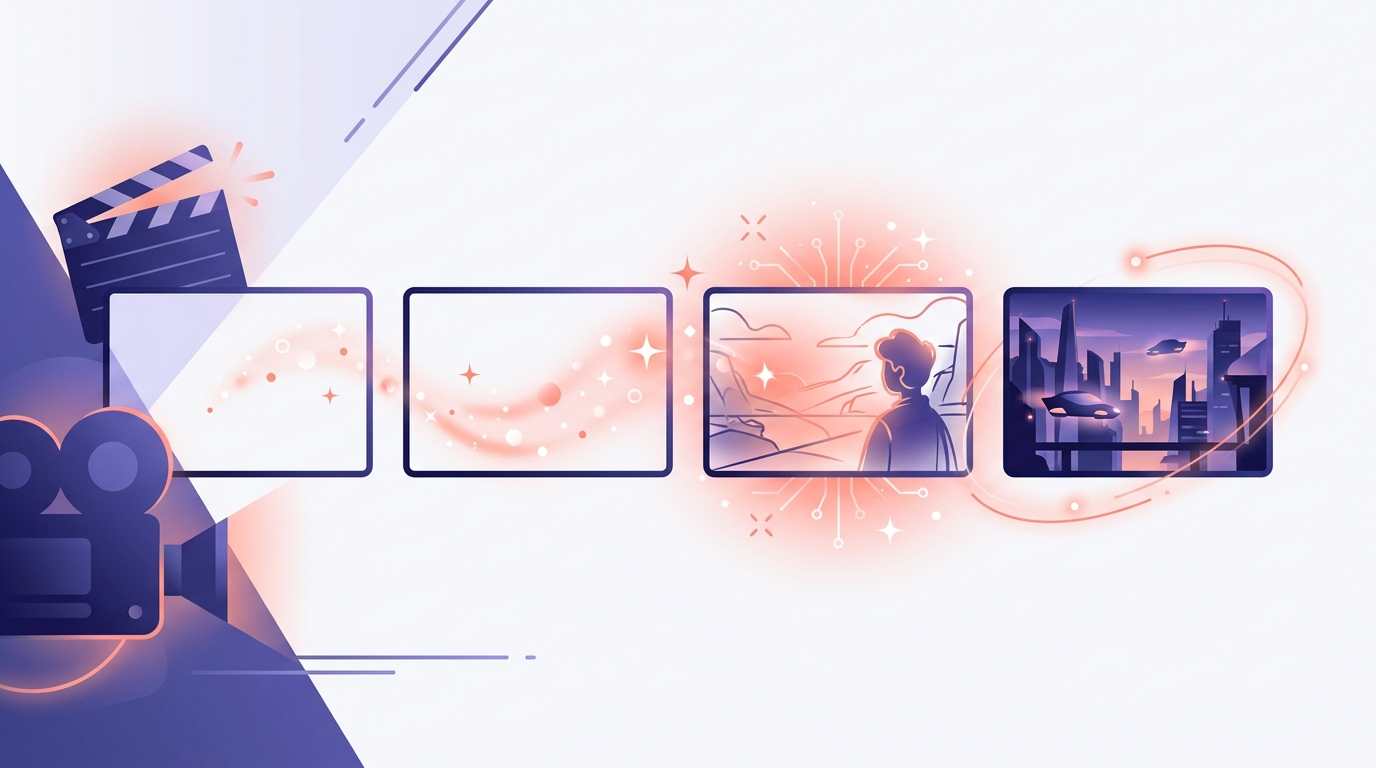
Film production is a pipeline by nature — development, pre-production, shooting, post — which makes it fertile ground for automation. The biggest wins today are in pre-production: AI image generation turns a director's notes into concept art and storyboard frames in minutes, letting teams visualize scenes, test looks, and align on style before a single shoot day is booked. Title cards, poster comps, and motion-graphics elements can start as AI concepts and be refined into clean vector artwork that scales from a YouTube thumbnail to a theater screen. Post-production picks up the same assets for lower thirds, end cards, and channel branding — one automated pipeline from pitch deck to final frame. Vector Ink Studio is built for exactly this kind of AI-first production work.
An AI design agent is the next step beyond single-purpose tools: instead of asking an AI for one image, you describe an outcome — 'a badge logo in three colorways, exported as SVG' — and the agent chains the steps together: generation, vectorization, palette mapping, and export. The building blocks already exist in tools like Vector Ink, where AI generation, vector editing, and in-painting live in the same canvas. As these pieces connect, creative workflow management shifts from moving files between apps to directing a pipeline that runs itself.
You don't need an enterprise rollout to benefit from creative automation — you need one repetitive task off your plate. Pick the step you dread most (tracing sketches, producing export sizes, mocking up concepts) and automate that first. For vector design work — logos, icons, SVG assets — open the Vector Ink design app. For AI-first creative production — concept art, storyboards, generated imagery — jump into Vector Ink Studio. Both run free in your browser.
Keep reading: Create a Logo with the AI Image Generator · Edit Vector Icons with AI · Convert Images to SVG
UGC ads look less like commercials and more like something a real person wo...
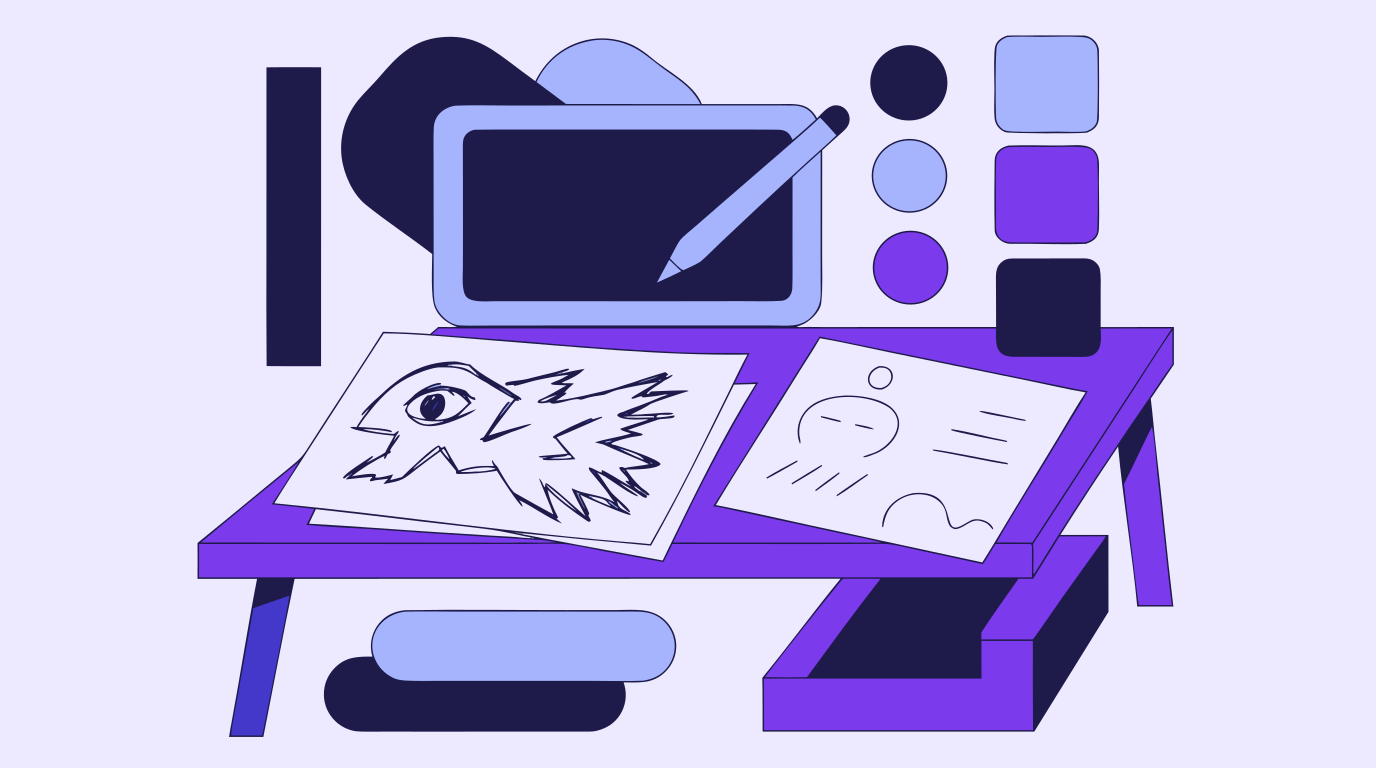
Concept art is the visual thinking that happens before a final design, shot...
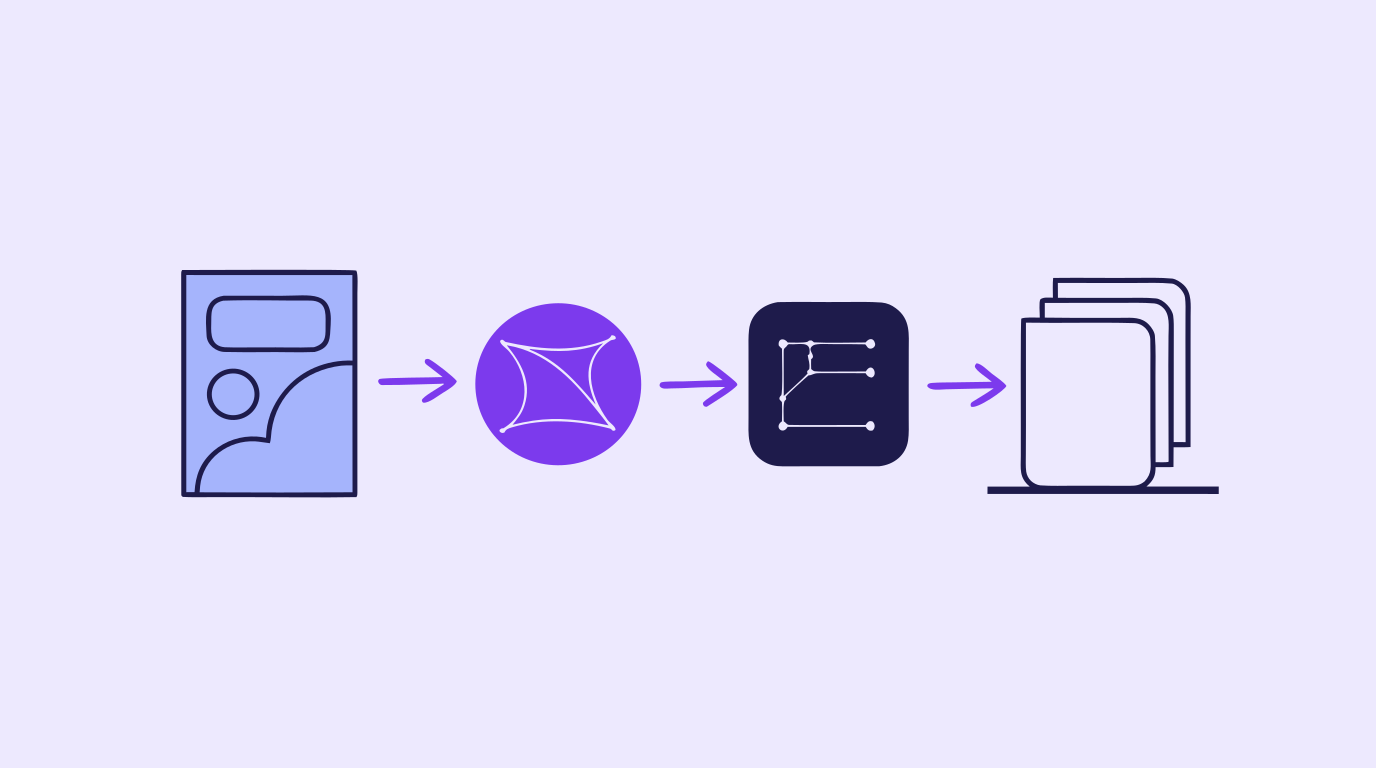
A content creation workflow is the thing standing between "we need graphics...
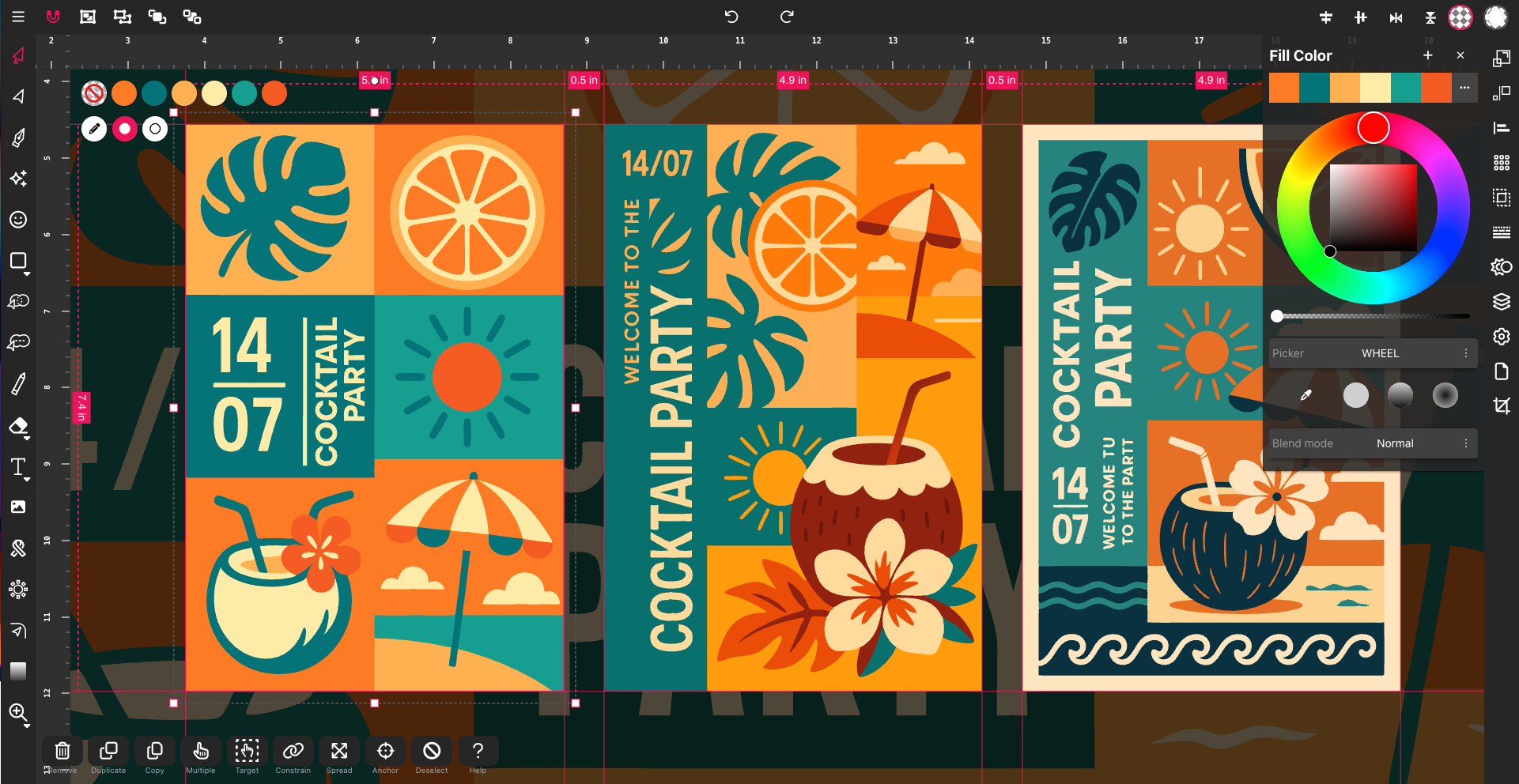
In 2025, SVG — short for Scalable Vector Graphics — has become one of t...
Designing on the go used to mean juggling files, software, and devices. Clo...
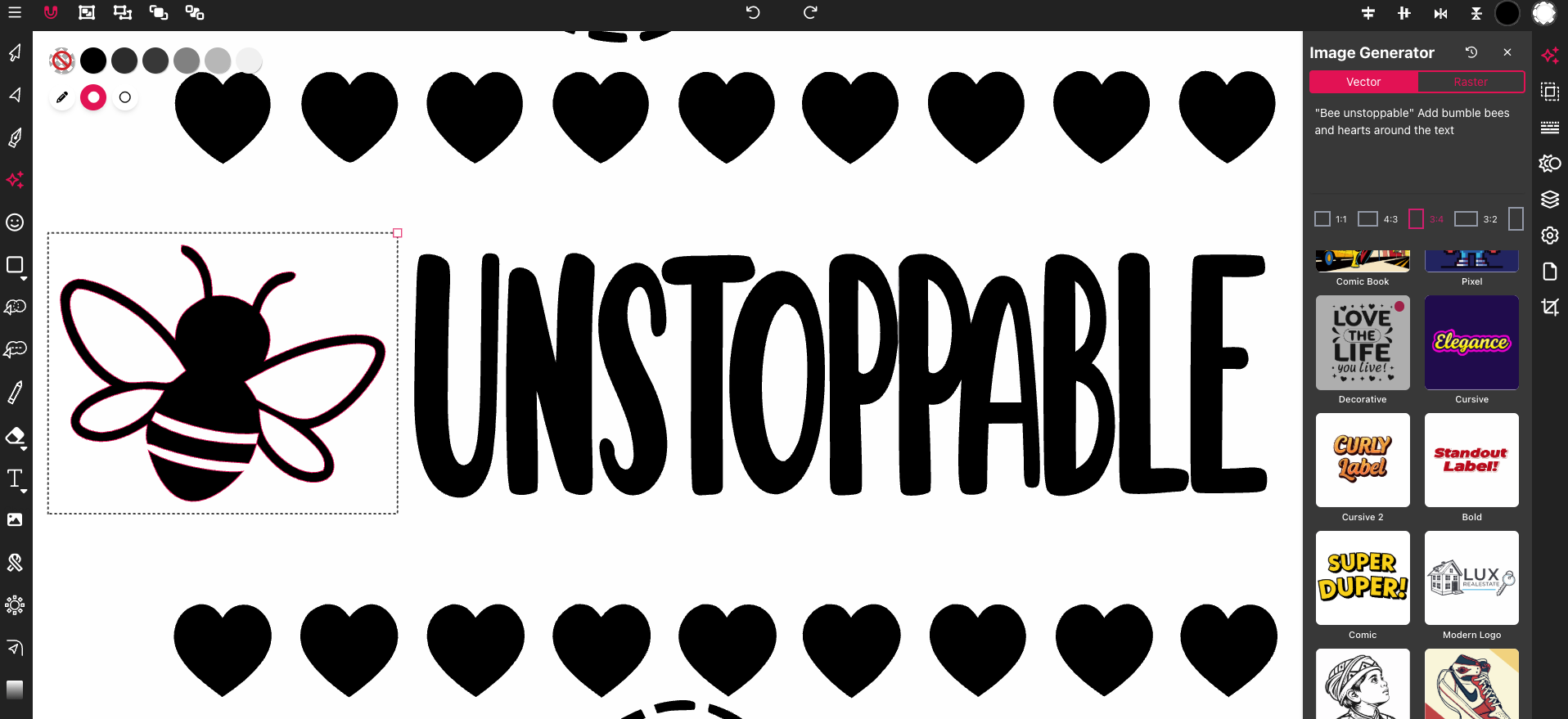
Most SVG editors feel clunky or too complex when you just want to get your ...